# Uniform components
> Learn about components, the basic composition building blocks of Uniform Canvas.
Source: https://docs.uniform.app/docs/guides/models/components
A [component](https://docs.uniform.app/docs/guides/composition/glossary#component)
is the basic building block of Uniform's [composition capabilities](https://docs.uniform.app/docs/guides/composition). In Uniform components are used to allow the authoring of the elements dictated by your design system. You create and manage components using [Uniform Canvas](https://docs.uniform.app/docs/learn/products/canvas).
Components consist of:
- [Parameters](./components/parameters): The elements that make up the component, such as a title, description, or image.
- [Slots](https://docs.uniform.app/docs/guides/composition/glossary#slot): These allow additional components to be added within a component. For example an accordion component could have a slot for accordion items.
- [Variants](https://docs.uniform.app/docs/guides/composition/glossary#variant): Use variants for testing elements, copy, or to give authors flexibility in choosing treatments.
> **Organize and find your components:**
>
> Use [favorites](https://docs.uniform.app/docs/guides/content-organization/favorites) to bookmark the components you use most, [My recents](https://docs.uniform.app/docs/guides/content-organization/my-recents) to return to ones you recently worked on, and [search, filter, and sort](https://docs.uniform.app/docs/guides/content-organization/search-filter-sort) to find a specific component.
## Create a component
1. In Uniform, open your project.
2. Navigate to the **Experience > Components** tab menu.
3. Click the **Add Component** button.
4. Enter the following values:
| Field | Description | Is required? |
| --- | --- | --- |
| Component name | Name that describes the component or its purpose. | Required |
| Public ID | Name that uniquely identifies the component. This value is available to developers. | Required |
| Component icon | Icon that's displayed next to the component within Uniform. This helps users immediately identify components. | |
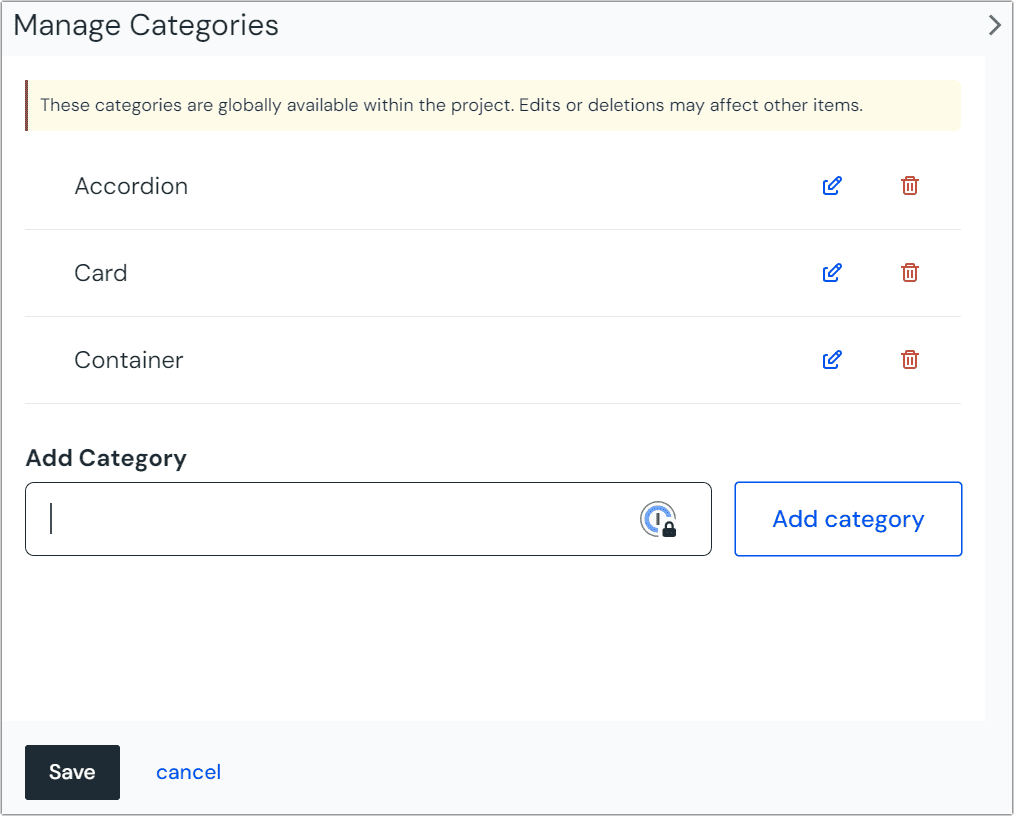
| Category | Add components to categories by which they can be found for [insertion into a composition](https://docs.uniform.app/docs/guides/composition/visual-editing#add-components). **Uncategorized** is the default.

 | |
| Preview image URL | This image will be shown when someone is browsing components to insert into a composition. | |
| Description | A brief description of what the component is for to help authors understand how to use it in compositions. | |
| Composition component | If this is ticked, the component can be used to create a composition. | |
5. Click **Save and close**.
> **Note:**
>
> The **Save and close** button is a dropdown. In the dropdown options you will find the **Save** button.
> **Use an AI coding assistant:**
>
> The [`uniform-experience-modeling`](https://github.com/uniformdev/agent-skills/tree/main/skills/uniform-experience-modeling) agent skill teaches coding assistants such as Claude Code, Codex, Cursor, and Copilot experience modeling best practices: parameters, slots, component granularity, and patterns. Use it to create component definitions, map a design system to Uniform components, or review an existing component library. To install it, see [Uniform agent skills](https://docs.uniform.app/docs/guides/ai/agent-skills).
## Slots
A [slot](https://docs.uniform.app/docs/guides/composition/glossary#slot) is a named area of the component that can have child components added to it.
### Add a slot
1. In your project, navigate to **Experience > Components** and select your component.
2. Click the tab **Slots**.

3. Click the **Add slot** button.
4. Enter the following values:
| Field | Description |
| --- | --- |
| Slot name | Name that describes the slot or its purpose. |
| Public ID | Name that uniquely identifies the slot. This value is available to developers. |
| Minimum | The minimum number of components that users must add to the slot before a composition with the slot can be saved. If no number is specified, the slot can be empty. |
| Maximum | The maximum number of components that users must add to the slot in order for a composition with the slot can be saved. If no number is specified, an unlimited number of components can be added to the slot. |
| Allowed Components | - **All components and patterns**: All components (and patterns derived from those components) can be added to the slot.
- **Same as parent slot**: The components that can be added to the slot depend on the components allowed in the slot the component with the slot is in.
- **Specify allowed components**: Choose specific components and, optionally, which patterns to allow in the slot. You must select at least one component or pattern. |
5. Click **OK** to save the new slot.
6. Click **Save** to save the changes to the component.
### Remove a slot
1. In your project, navigate to **Experience > Components** and select your component.
2. Click the tab **Slots**.

3. Click ** > Delete**.
4. Click **Save** to save the changes to the component.
> **Note:**
>
> If the deleted slot was used in any composition, when you select
> the component in a composition you will see a warning about
> "orphan slot data." This tells you that Uniform is
> storing a value for a slot that's not defined in the
> component. You must remove this value before you are able
> to save any changes to the composition.
>
> Click **Remove orphan slot data** to remove this value
> from the composition.
>
> 
### Empty slots in Canvas
The purpose of a slot is to allow an editor to specify which
components should be rendered at runtime. There are times
where the page layout expects the slot to be populated, and
if the slot is empty, the layout breaks.
For example, consider slots that represent a 2 column layout.
If either column is empty, the layout doesn't render properly.
This is only an issue when the page is first created because
the editor knows that both columns must be populated with
components. However, to provide the best possible
editing experience, you want to avoid displaying a broken
layout.
The solution is to specify a _placeholder_ that's rendered
when the slot is empty. This is done using the `emptyPlaceholder`
prop on the slot component. The following is an example for a
React-based application:
} />

> **Editing mode only:**
>
> This functionality is only used within Canvas when a slot
> is empty. Outside of Canvas, an empty slot is never rendered.
> **Placeholder, not sample content:**
>
> The purpose of this feature is to ensure page layout doesn't
> break. It's not designed for you to specify sample content
> or default content. If you try using code like the following,
> you won't see the component's content in Canvas.
>
> Sample Content} />
#### Hiding and restoring empty placeholders
When an empty placeholder is rendered, a small **X** is added
in the upper right-hand corner of the component. Clicking this
will hide the empty placeholder.
In order to restore a hidden empty placeholder, you must edit
local storage on your browser:
1. Open your browser's developer tools.
2. Click the tab **Application**.
3. Under **Local storage**, select **https://uniform.app**.
4. Find the key **dismissedCanvasPlaceholders**.
5. The value is a JSON object where each key is a combination of the composition ID and the placeholder name. Find the placeholder you want to restore and change the value to `false`.
## Variants (aka Display Variants)
[**(Display) Variants**](https://docs.uniform.app/docs/guides/composition/glossary#display-variant) are optional and can provide multiple additional descriptors for your components.
Developers can interpret variants differently, so the implementation is solution-specific.
> Learn more about [(Display) Variants here](https://docs.uniform.app/docs/guides/composition/glossary#display-variant).
### Add a variant
1. In your project, navigate to **Experience > Components** and select your component.
2. Click the tab **Variants**.

3. Click the **Add variant** button.
4. Enter the following values:
| Field | Description |
| --- | --- |
| Variant name | Name that describes the variant or its purpose. |
| Public ID | Name that uniquely identifies variant slot. This value is available to developers. |
5. Click **Save** to save the new variant.
6. Click **Save** to save the changes to the component.
### Remove a variant
1. In your project, navigate to **Experience > Components** and select your component.
2. Click the tab **Variants**.

3. Click ** > Delete**.
4. Click **Save** to save the changes to the component.
> **Note:**
>
> If the deleted variant was used in any composition, when you open
> the component you will see an error message next to component
> that uses the variant. This tells you that Uniform is storing
> a value for a variant that's not defined in the component.
> You must remove this value before you are able to save
> any changes to the composition.
>
> You must select the component and change the variant to **Default**.
>
> 