# Create a Next.js application (Page Router)
> This tutorial describes setting up a Uniform-powered composable website in Next.js and Typescript.
Source: https://docs.uniform.app/docs/learn/headless-cms-tutorials/nextjs
> **Newer version available:**
>
> This tutorial is based on Next.js Page Router. If you are starting a new project now, you may want to start with App Router tutorial [here](https://docs.uniform.app/docs/learn/tutorials/nextjs-app-router), as it is now a default new way to build Next.js apps.
This tutorial describes setting up a Uniform-powered composable website in Next.js and Typescript. At the end of this tutorial, you'll learn to:
> **Goals:**
>
> 1. Familiarize yourself with Uniform and its elements.
> 2. Model your content and add it to Uniform.
> 3. Connect a Uniform composition to your local project using the Composition's slug.
> 4. Activate preview for no-code editing in your project.
In this tutorial, you'll follow the following steps to build a Uniform-powered project.
> **Prerequisites:**
>
> You'll need knowledge of:
>
> - HTML
> - CSS
> - JavaScript
> - React
>
> The knowledge of Next.js and Typescript is optional but beneficial. On your machine, you require access to a terminal with Node.js and its package manager, npm, installed. Alternatively, you can use Yarn.
## 1. Create a Next.js project
Choose a place on your local machine and in that location run the following command to create a Next.js project:
```shell
npx create-next-app@latest
```
Follow the prompts and select the following options:
| Prompt | Response |
| --- | --- |
| Project name? | getting-started |
| Would you like to use Typescript? | Yes |
| Would you like to use ESLint with this project? | Yes |
| Would you like to use Tailwind CSS with this project? | Yes |
| Would you like to use the `src/ directory` with this project? Y/N | Yes |
| Use `App Router` (recommended)? | No |
| Would you like to customize the default `import alias`? | No |
The command proceeds to install dependencies in your project. Navigate to your project once done. [TailwindCSS](https://tailwindcss.com/) will style the components in this project.
> **Info:**
>
> Be sure you installed the latest create-next-app version to get the Tailwind installation instructions.
In your local project, navigate to the `src/pages/index.tsx` file. Replace the contents of the file with this:
`src/pages/index.tsx`
```typescript
import Head from 'next/head'
export default function Home() {
return (
<>
Create Next App
Hello world
)
}
```
Creating the project included installing Tailwind and creating the `src/styles/global.css` file:
```css
@tailwind base;
@tailwind components;
@tailwind utilities;
:root {
--foreground-rgb: 0, 0, 0;
--background-start-rgb: 214, 219, 220;
--background-end-rgb: 255, 255, 255;
}
@media (prefers-color-scheme: dark) {
:root {
--foreground-rgb: 255, 255, 255;
--background-start-rgb: 0, 0, 0;
--background-end-rgb: 0, 0, 0;
}
}
body {
color: rgb(var(--foreground-rgb));
background: linear-gradient(
to bottom,
transparent,
rgb(var(--background-end-rgb))
)
rgb(var(--background-start-rgb));
}
```
Now you can start your local development server by running the following terminal command:
```shell
npm run dev
```
This creates a local server on localhost:3000. Opening it on the browser looks like this:

## 2. Project components
Like in most Next.js projects, you will build your website's components using JSX markup. In this case, you'll create components for different portions of your application matching your design system. Here's [the final project](https://thunderous-conkies-baa93d.netlify.app/), so you understand the design.
The more granular the components, the better control you afford your non-technical team in Uniform.
Start with building an essential layout component containing a header, footer, and hero component.
Create a folder called **components** in the `/src` directory, then add the following component files within `src/components`.
The components are inspired by TailwindUI Kit.
`Header.tsx - A responsive navigation bar.`
```typescript
import { useState } from 'react'
export function Header() {
const [show, setShow] = useState(false)
return (
<>
)
}
```
`Footer.tsx - A responsive footer component.`
```typescript
import { useState } from 'react'
export function Footer() {
return (
)
}
```
`Layout.tsx - Import and render the Header and Footer components.`
```typescript
import { Footer } from './Footer'
import { Header } from './Header'
export function Layout({ children }: { children: React.ReactNode }) {
return (
<>
{children}
)
}
```
`Hero.tsx - A basic Hero component with a title, highlighted text, and subtitle.`
```typescript
type HeroPropType = {
titleA: string
titleB?: string
highlightedText?: string
subtext: string
}
export function Hero({
titleA,
highlightedText,
titleB,
subtext,
}: HeroPropType) {
return (
<>
{titleA}
{highlightedText}
{titleB}
{subtext}
)
}
```
The components you create pass data using **props**. Uniform utilizes the same props to pass data into the components.
## 3. Uniform projects
You'll start from your team dashboard.
1. Navigate to **Security > API keys**.
2. Click **Add API key**.
3. Enter the following values:
| Name | Project | Roles |
| --- | --- | --- |
| `Getting started key` | `[your project's name]` (it may be auto populated with My first project) | Developer (select from the dropdown) |
4. Click **Create API key**.

5. Copy the generated API key and project ID using **Copy as .env** and store them somewhere safe. You'll add these to your front-end application soon.
## 4. Components in Uniform
Uniform introduces the concepts of **[components](https://docs.uniform.app/docs/guides/composition/glossary#component)** and **[compositions](https://docs.uniform.app/docs/guides/composition/glossary#composition)**. Components are building blocks of content on your website. They match your design system and are similar to components in React.js.
Compositions are a structured collection of components representing a portion of your website, in this case, a page. After creating a component, you'll use it in a composition and then render the composition on the front end.

In the Uniform application, you'll create components to match those in your front-end application, except for the layout component. This is a reversible consideration and assumes you don't want users to modify the layout in Uniform.
### 4a. Create a hero component
1. From your team dashboard, select a project and go to **Experience > Components**.
2. Click either **Create a Component** (if this is your first component) or **Add component**.
3. Enter the following values:
| Field | Value |
| --- | --- |
| Component name | `Hero` |
| Public ID | `hero` (this is auto generated based on the value in "component name") |
| Component icon | Image text |
| Title Parameter | None |
| Composition Component | Unchecked |
4. Save the component by clicking the arrow in the button and selecting **Save**.
### 4b. Configure parameters
In Uniform, component **[parameters](https://docs.uniform.app/docs/guides/composition/glossary#parameter)** are fields for data. These map directly to component props in React.
1. In the **Parameters** tab click **Add parameter.**
2. Enter the following values:
| Field | Value |
| --- | --- |
| Parameter Name | Title A |
| Public ID | `titleA` (this is auto generated based on the value in "Parameter Name") |
| Help Text | (Optional. This appears next to the parameter in the Composition editor.) |
| Type | Text |
| Required | (Optional. True/False) |
| Allow multi-line text | (Optional. True/False) |
| Validation Regex | (Optional) |
3. Click **OK**.
> **Info:**
>
> In Uniform, the data in parameters can be of primitive types like **Text** or **Number**. However, they can also be data from external sources introduced through [Uniform integrations](https://docs.uniform.app/docs/integrations). You'll learn more about this in subsequent tutorials.

4. Continue entering parameters until you have completed the following:
| Name | Type | Public ID |
| --- | --- | --- |
| Title A | Text | titleA |
| Title B | Text | titleB |
| Highlighted Text | Text | `highlightedText` |
| Subtext | Text | subtext |
5. Check that each parameter's public ID matches the corresponding prop in the `` component.
6. Click **Save and close**.

## 5. Create a page component
To create a page, go back to the list of components and repeat the steps to create a component. Compositions must be configured as "Composition Components," which form the basis of compositions. The default project comes with a composition component called "Page.” If you deleted this component or started the project from scratch, create a new component called "Page” and check the "Composition Component" box on the setup page.
Add a text parameter called "Meta Title," make it required, and ignore all other options. This adds meta data to the page.
The page composition component uses [slots](https://docs.uniform.app/docs/guides/composition/glossary#slot) to specify a list of components allowed as children on the page. This is similar to how React uses the `children` prop.
1. Click on the Slots tab in the Page composition component
2. Click **Add slot**
3. Enter the following values:
| Field | Value |
| --- | --- |
| Slot Name | Content |
| Public ID | content (this is auto generated based on the value in "Slot Name") |
| Required Component Quantity: Minimum | |
| Required Component Quantity: Maximum | |
| Allowed Components | Allow components and patters |
"Allowed components" allow you use all components in the Page composition component. The Required Component Quantity option specifies the minimum or maximum number of child components allowed in the slot.

4. Click **OK**.

5. Save and close the component.
## 6. Create a composition
Now that you have configured your components you can use them to create a composition.
1. Navigate to **Experience > Compositions**.
2. Click **Create a composition** (if this is your first composition) or **Add composition**.
3. Add the following values:
| Field | Value |
| --- | --- |
| Select a composition type | Page |
| Name | Home |
| Slug | / |
The default project created comes with a Home composition with a route of `/`. If you deleted the Home composition shipped with the default project, create a new composition called **Home** with a slug of `/`. Select **Page** as the composition type.
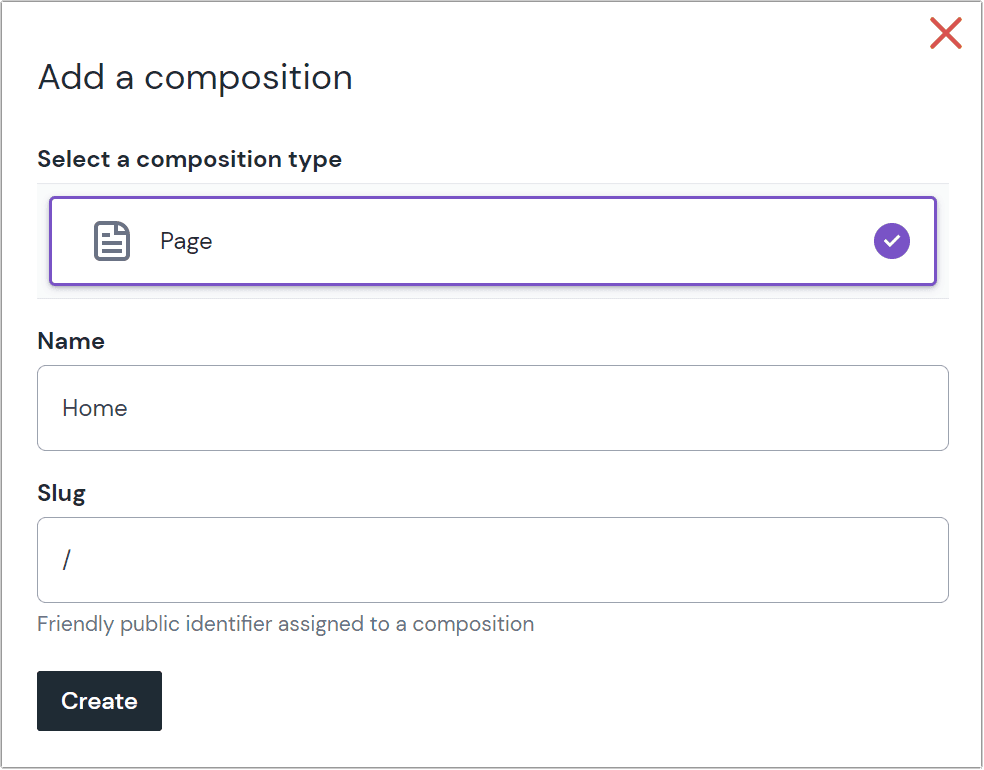
4. Click **Create**.
Once you create a composition you're taken to [the Canvas visual editor](https://docs.uniform.app/docs/guides/composition/visual-editing).
The editor comprises the structure panel on the left, the preview panel in the middle, and the property panel on the right. If you aren't working with the default project, the preview won't be available yet.

1. Within the structure panel, delete any existing components including personalization on the parent "Page" component.
2. Click the under the Content slot to add the Hero component you created earlier as the first item on the page.
3. In the property panel, enter the following sample content for each parameter:
| Parameter | Value |
| --- | --- |
| Title A | The Freedom to Create the |
| Highlighted Text | Websites |
| Title B | You Want |
| Subtext | Empower your non-technical team to build and ship without touching a line of code. Focus on what matters as a developer. |
4. Save and publish the composition.
> **Info:**
>
> Always publish compositions after an update to surface the changes in the frontend.
## 7. Connect Uniform to your Next.js project
There are multiple ways to pull data from a Uniform composition into your website. This tutorial fetches the composition by its **[slug](https://docs.uniform.app/docs/guides/composition/glossary#slug)**.
1. In your Next.js project, create a `.env` file in the root of your project to hold all environment variables and secrets. Add the Uniform API Key and Project ID using the variables:
_For the US region:_
```shell
UNIFORM_API_KEY=[!!! YOUR API KEY !!!]
UNIFORM_PROJECT_ID=[!!! YOUR PROJECT ID !!!]
```
_For the EU region:_
```shell
UNIFORM_API_KEY=[!!! YOUR API KEY !!!]
UNIFORM_PROJECT_ID=[!!! YOUR PROJECT ID !!!]
UNIFORM_CLI_BASE_EDGE_URL=https://eu.uniform.global
UNIFORM_CLI_BASE_URL=https://eu.uniform.app
```
Add the `.env` file to the `.gitignore` file, excluding it from version control.
1. Install Uniform Canvas packages with the following command:
```shell
npm install @uniformdev/canvas @uniformdev/canvas-react @uniformdev/canvas-next
```
> **Info:**
>
> Learn more about the [@uniformdev/canvas](https://sdk.uniform.app/canvas), [@uniformdev/canvas-react](https://sdk.uniform.app/canvas-react), and [@uniformdev/canvas-next](https://sdk.uniform.app/canvas-next) packages.
2. In the `src/pages/index.tsx` file, enable fetching the Uniform composition with a slug matching the current Next.js route and providing it as props to the route component. This should be the first line:
`src/pages/index.tsx`
```typescript
export { getServerSideProps } from '@uniformdev/canvas-next/slug'
```
> **About this step:**
>
> In the block above, you configured Next.js to use the default slug-based composition route resolver and server-side rendering. It's also possible to:
>
> - Use static rendering (`getStaticProps`/`getStaticPaths` exports)
> - Customize the settings or extend the props function, such as fetching only draft compositions:
>
> ```
> export const getServerSideProps = withUniformGetServerSideProps({
> requestOptions: {
> state: CANVAS_DRAFT_STATE
> }
> })
> ```
> - Use alternative route resolution algorithms such as [project map](https://docs.uniform.app/docs/guides/project-maps) (use `@uniformdev/canvas-next/project-map` instead of `@uniformdev/canvas-next/slug` in your import)
3. Next, in the `index.tsx` file, you'll update the imports with the required modules and render the Composition using the code below:
`/index.tsx`
```typescript
export { getServerSideProps } from '@uniformdev/canvas-next/slug'
import { Layout } from '@/components/Layout'
import Head from 'next/head'
import { UniformComposition, UniformSlot } from '@uniformdev/canvas-react'
import { RootComponentInstance } from '@uniformdev/canvas'
export default function Home(props: { data: RootComponentInstance }) {
return (
<>
Lyne | Home
{/* Renders the components of your Uniform Composition resolved by getServerSideProps */}
)
}
```
> **About this step:**
>
> The `UniformComposition` component wraps the composition components and receives the composition data as a prop.
> `` renders all components added to the slot named `content` in Uniform. This is the Page composition's `content` slot's public id.
4. The last step to visualize the composition is to register your React component with the Uniform SDK so that it knows what to render when it receives a named component.
In `components/Hero.tsx`, register it with the Uniform SDK by adding this at the bottom:
`Hero.tsx`
```typescript
import { registerUniformComponent } from "@uniformdev/canvas-react";
// rest of the component as-is
registerUniformComponent({ type: "hero", component: Hero });
```
Then import your `Hero` component file into `index.tsx` so that the registration becomes visible to the `` component:
`pages/index.tsx`
```typescript
import '@/components/Hero';
```
You have now mapped the `Hero` component to any Uniform component with the public ID of `hero`.
You should now have a page with a Layout, Hero section, and content coming from Uniform.

With this, you've covered the basics of setting up a Uniform project and connecting it to your Next.js project.
## 8. Activate preview in Next.js
To activate the preview panel in Uniform, you'll create a Next.js API route containing the preview logic. Uniform ships a module to set this up.
1. In your project, install the Uniform Canvas Next.js package using the command:
```shell
npm install @uniformdev/canvas-next
```
> **Info:**
>
> Learn more about the [@uniformdev/canvas-next](https://sdk.uniform.app/canvas-next) package.
2. In `src/pages/api` create a new file called "preview.ts" with the following:
`preview.ts`
```typescript
import { createPreviewHandler } from '@uniformdev/canvas-next'
const handler = createPreviewHandler({
secret: () => process.env.UNIFORM_PREVIEW_SECRET,
})
export default handler
```
The code above uses the `createPreviewHandler` method to set up a preview with contextual editing supported.
3. Add the secret as an environment variable in your .env file with the following:
```shell
UNIFORM_PREVIEW_SECRET=uniform
```
4. Restart your development server, and your preview URL will become: http://localhost:3000/api/preview?secret=uniform.
> **Warning:**
>
> Visiting this link in the browser will result in JSON error "{"message":"Couldn't resolve the full path of the preview page"}"
5. Copy this URL, and in Uniform, navigate to your project and go to: **Settings > Canvas Settings** and update the URL under Preview Configuration with your new preview URL.
6. Save the preview URL.
7. Navigate to your Home Composition in Uniform, and you should have the preview active, similar to the image below.

> **Next steps:**
>
> Continue building the page by:
>
> 1. Adding more front-end components. Here are sample [Features](https://gist.github.com/Chuloo/0ad26e47bfe33cd3227441a886397eea), [FeatureCard](https://gist.github.com/Chuloo/4ba01a620344b00996c3afb784c9a443), [CTA](https://gist.github.com/Chuloo/809805d0c1caead4a8c4b02dae609763), and [CTA button](https://gist.github.com/Chuloo/c21b7c13d30abe7ccd36e71d4e75bc16) components.
> 2. Registering the components in the `resolveRenderer()` function.
> 3. Modeling the components on Uniform.
> 4. Adding components and content to the composition in Uniform.
> 5. Repeat the process above for new pages. Import and reuse functions wherever possible.
>
> Here's the project [repository](https://github.com/uniformdev/getting-started-tutorial) and a [deployed version](https://thunderous-conkies-baa93d.netlify.app/).
> **Use an AI coding assistant:**
>
> The [`uniform-nextjs-page-router`](https://github.com/uniformdev/agent-skills/tree/main/skills/uniform-nextjs-page-router) agent skill teaches coding assistants such as Claude Code, Codex, Cursor, and Copilot how to add Uniform to a Next.js Page Router project: component registration, fetching compositions, contextual editing preview, personalization, and A/B testing. To install it, see [Uniform agent skills](https://docs.uniform.app/docs/guides/ai/agent-skills).