Set up Asset Studio
Before your team can generate images, add an AI Gateway key and select an image model. You do this one time for each project. Asset Studio saves each change automatically.
Prerequisites
- Uniform activated Asset Studio for your team. If it did not, request activation.
- You have a Vercel account, and you can make API keys for your Vercel team.
- You can change the integration settings of the project in Uniform.
Get an AI Gateway key#
Asset Studio sends each generation to Vercel AI Gateway. AI Gateway gives access to image and text models from many providers with one key. Vercel bills the model costs to your Vercel team.
- Sign in to the Vercel dashboard.
- Select the Vercel team that pays for the generations.
- Select AI Gateway.
- Select API Keys, then select Create key.
- Type a name for the key, such as
Uniform Asset Studio, and create the key. - Copy the key. You need it in the next procedure.
Keep the key secret
Everyone with the key can make generations that Vercel bills to your team. Give the key only to Asset Studio. If you think that someone else has the key, delete the key in Vercel and make a new one.
For more information about keys, credits, and spending limits, see the AI Gateway documentation.
Add the key to Asset Studio#
- In the Uniform dashboard, open the project.
- Go to Settings > Integrations, and select Asset Studio.
- On the Connection tab, paste the key into AI Gateway API key.
- Select Test connection.
If the key works, Asset Studio shows how many image models and text models the key gives. If the test fails, make sure that you copied the full key and that the key is active in Vercel.
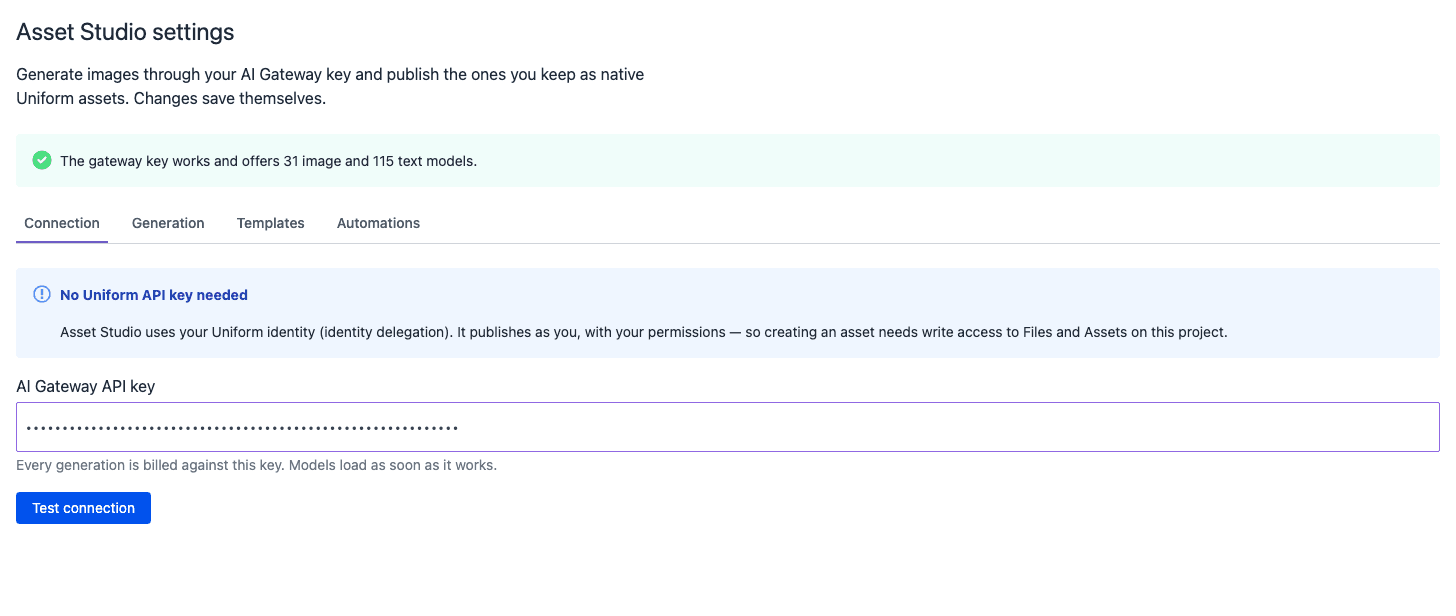
Asset Studio does not need a Uniform API key. It uses the Uniform sign-in of each person. For more information, see permissions for authors.
Select the defaults#
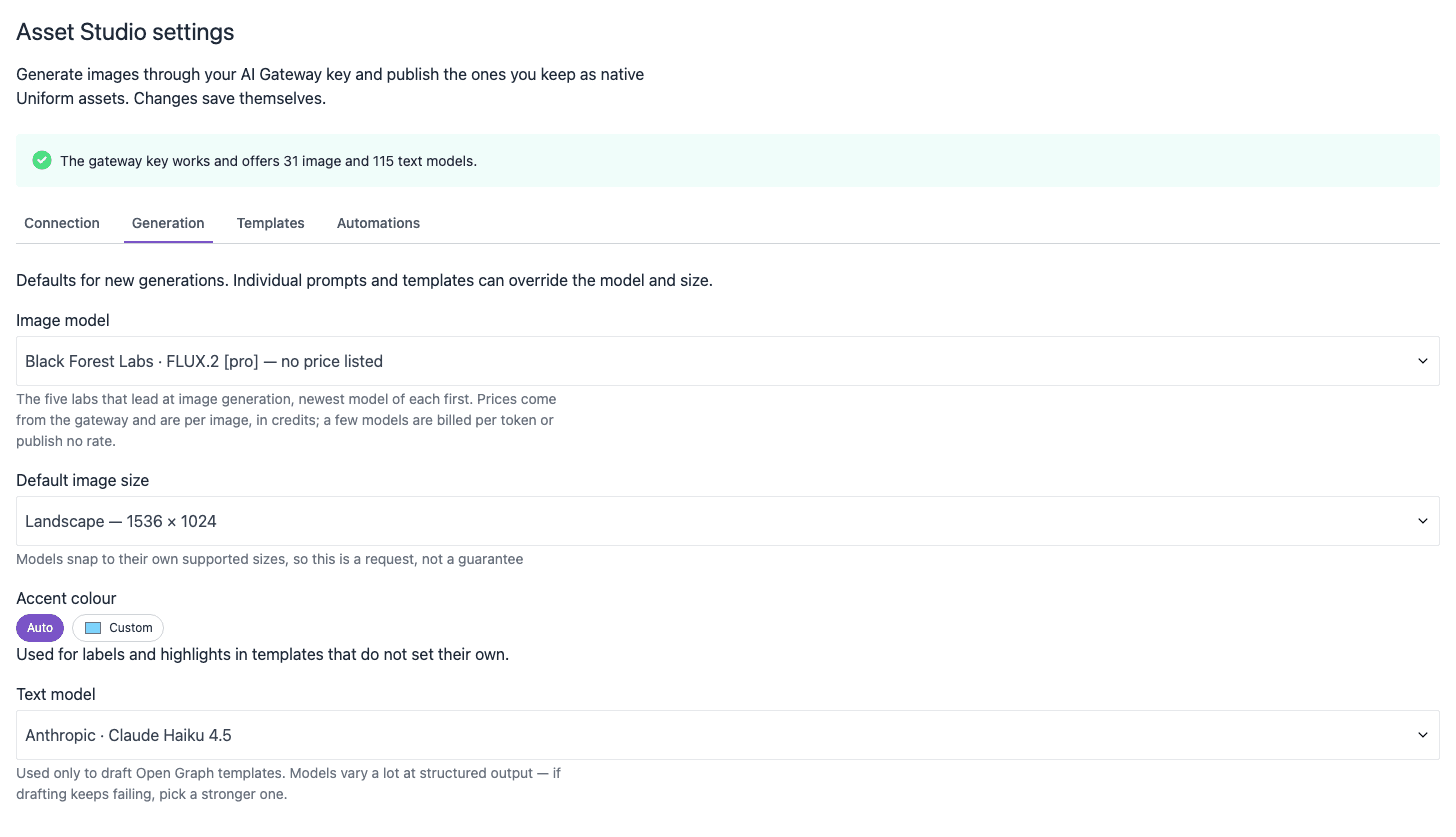
Open the Generation tab. These settings apply to all generations in the project. A prompt can use a different model or size. Open Graph backdrops always use the project image model at 1200 × 630.
| Setting | What it does |
|---|---|
| Image model | The model that makes the images. The list shows the image models from OpenAI, Black Forest Labs, xAI, ByteDance, and Recraft, with the newest first. It also shows the price of each image in credits, if the provider gives a price. 10 credits are 1 US dollar. |
| Default image size | The size that Asset Studio asks for: Square — 1024 × 1024, Landscape — 1536 × 1024, Portrait — 1024 × 1536, or Social / OG — 1200 × 630. Some models change the size to a size that they support. |
| Accent colour | The color of labels and highlights in card templates that do not set their own color. Select Auto, or select Custom and pick a color. |
| Text model | The model that writes a card template from a description. For more information, see make a template from a description. |
Select a model that supports your sizes
Some models accept only some sizes. For example, a model can reject the Social / OG — 1200 × 630 size that Open Graph backdrops use. If a generation fails with a size error, select a different model. FLUX.2 [pro] from Black Forest Labs accepts all the sizes that Asset Studio asks for.
Set up the AI button#
Asset Studio adds two prompts to the AI button on asset parameters:
- Generate image from a description: the author types a description.
- Generate image in a specific style: the author types a subject and a visual style.
Each prompt can use its own model, size, style, and number of variations. If you do not set the model or the size, the prompt uses the project default. If you do not set the style, the prompt adds no style. If you do not set the variations, the prompt makes 2 images.
- Go to Settings > Prompts.
- Open an Asset Studio prompt.
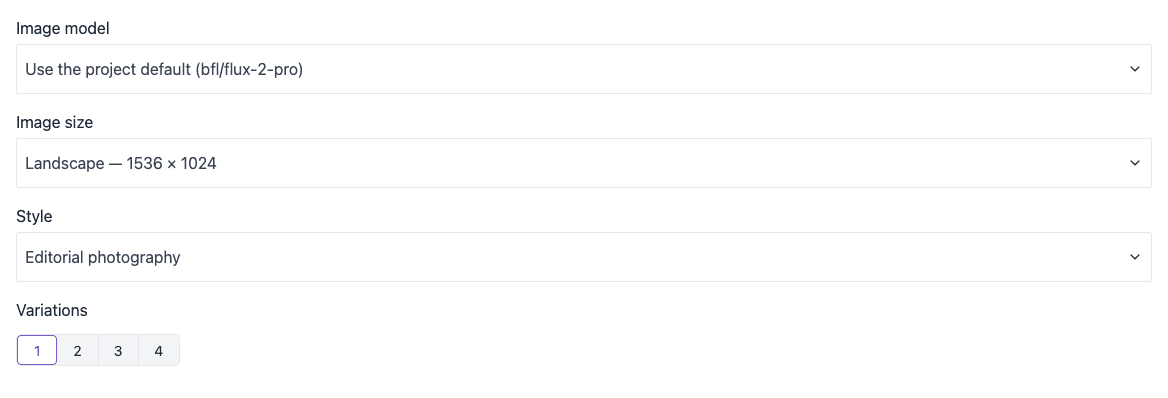
- In the Asset Studio settings of the prompt, set the values that you need:
- Image model: a different model, or Use the project default.
- Image size: a different size, or Use the project default.
- Style: a style that Asset Studio adds to each prompt, such as Editorial photography. For the list of styles, see styles.
- Variations: how many images Asset Studio makes each time, from 1 to 4.
For more information about prompts in Uniform, see AI prompts.
Permissions for authors#
Asset Studio works as the person who uses it. It uses their Uniform sign-in and their permissions. Thus the same action can work for one person and fail for a different person. Automations are different: they run as a team role.
To publish an image, an author needs permission to add files and assets in the project. If an author does not have this permission, Asset Studio shows Not allowed and names the permission that is missing. A team admin can give the permission. For more information, see roles and permissions.
Automations#
On the Automations tab, an administrator can make an automation that draws an Open Graph card without an author. When an entry is published, or when it reaches a workflow stage, the automation fills a card template with the fields of the entry and publishes the card to the asset library. It can also put the card on the entry and move the entry to a different workflow stage.
To make an automation, select New automation, or select Create automation in the menu of a template on the Templates tab. Then select Publish automation.
An automation is different from the studio:
- It runs as the team role that you select in Runs with the role, not as an author. The role needs permission to write the entry at each workflow stage that the automation uses.
- It keeps a copy of the AI Gateway key and the models from the time that you publish it. If you change the key or the models, open the automation and select Update automation.
To stop an automation, delete it on the Automations tab.
Change or remove the key#
To change the key, paste the new key into AI Gateway API key on the Connection tab, then select Test connection. To stop all generations in the studio, delete the key from the field. Automations keep their own copy of the key: update each automation after you change the key, and delete each automation to stop it.
When you remove the key, the images that your team published stay in the asset library.