Make Open Graph cards with Asset Studio
An Open Graph card is the image that social networks and chat apps show when someone shares a link. Asset Studio makes these cards at 1200 × 630 pixels.
Image models cannot write text that people can read. Thus Asset Studio makes a card in two parts: a backdrop, and a template that writes your copy on the backdrop. You can change the copy at any time, and Asset Studio draws the card again at no cost.
Prerequisites
- An administrator set up Asset Studio in the project.
- You can add files and assets in the project.
Open the card studio#
Open Asset Studio in the project tool, in the asset library, or in the asset selector of a parameter. For the places, see where you find Asset Studio.
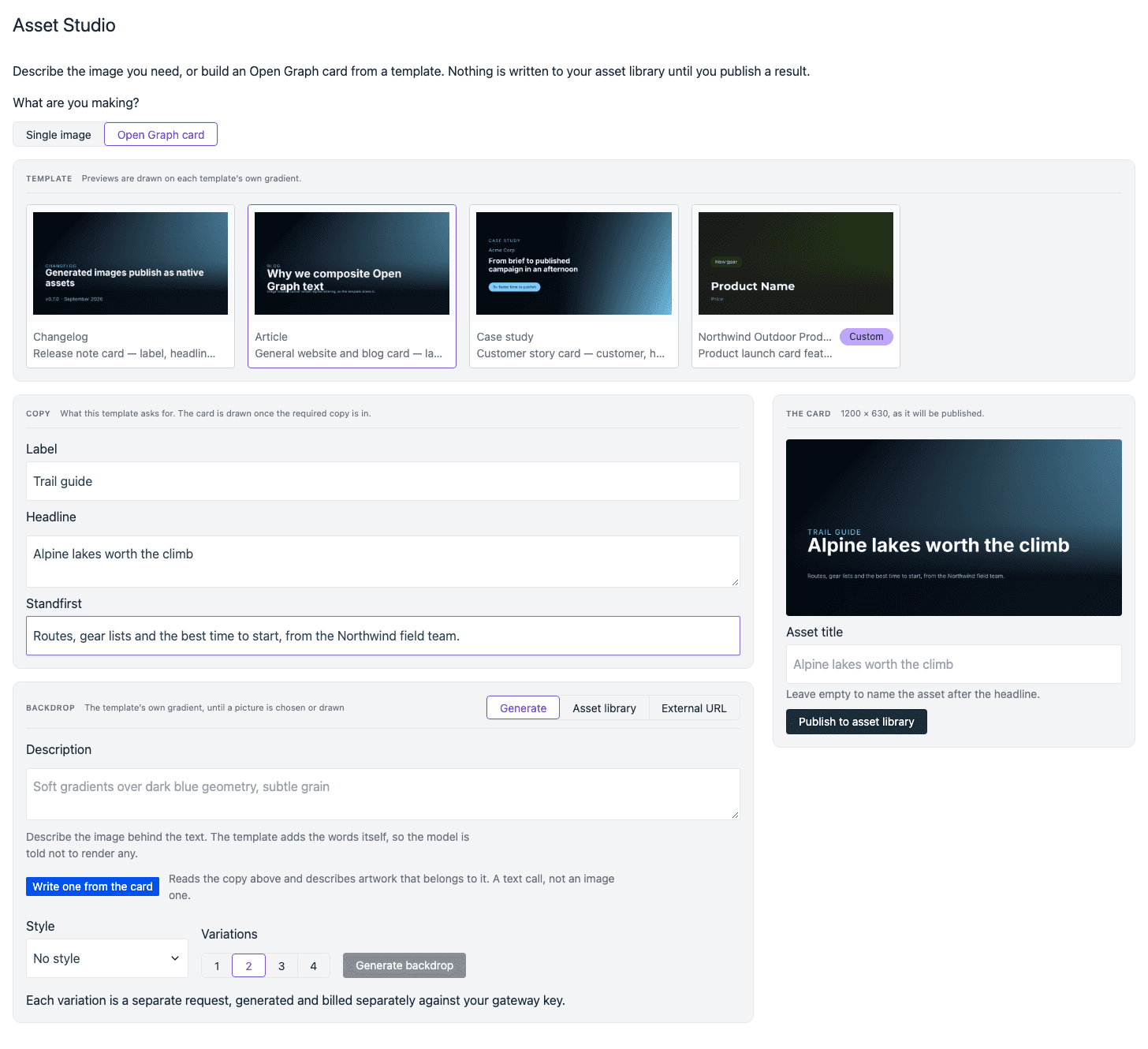
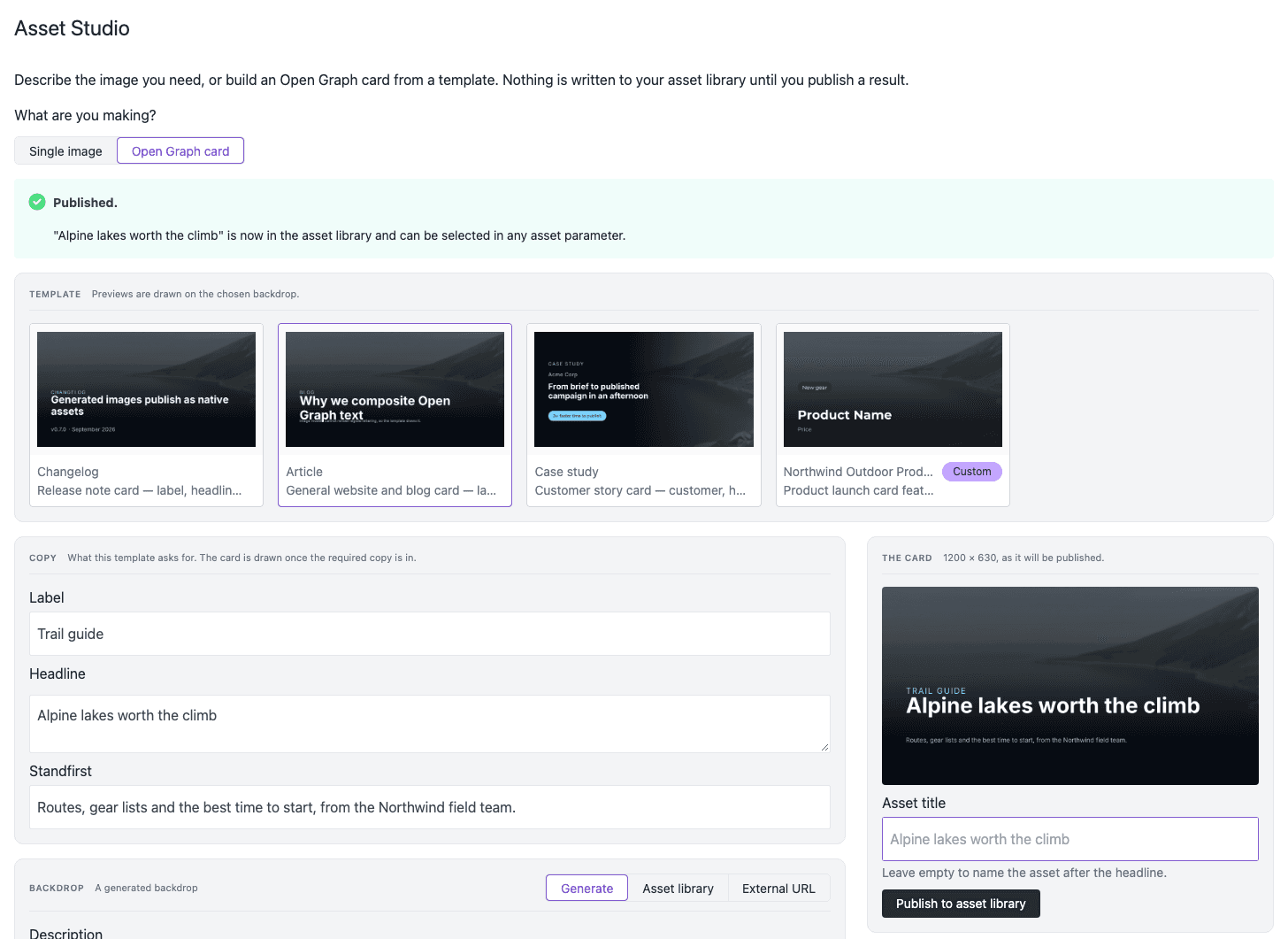
Under What are you making?, select Open Graph card. The studio has four areas:
| Area | What you do there |
|---|---|
| Template | Select the layout of the card. |
| Copy | Type the words that the template asks for. |
| Backdrop | Select the image behind the words. |
| The card | See the card at its published size, and publish it. |
Select a template and type the copy#
Under Template, select a template. Asset Studio has three built-in templates:
- Changelog: a release note card. It asks for a headline and a version or date. Its label always says Changelog.
- Article: a website and blog card with a label, a headline, and a standfirst.
- Case study: a customer story card with the customer, a headline, and a highlighted result.
Templates that your team made show the Custom badge. To make one, see card templates.
Under Copy, fill in the fields. Each template asks for different fields.
When you fill in all the required fields, The card shows the card. Each change to the copy draws the card again.
Select a backdrop#
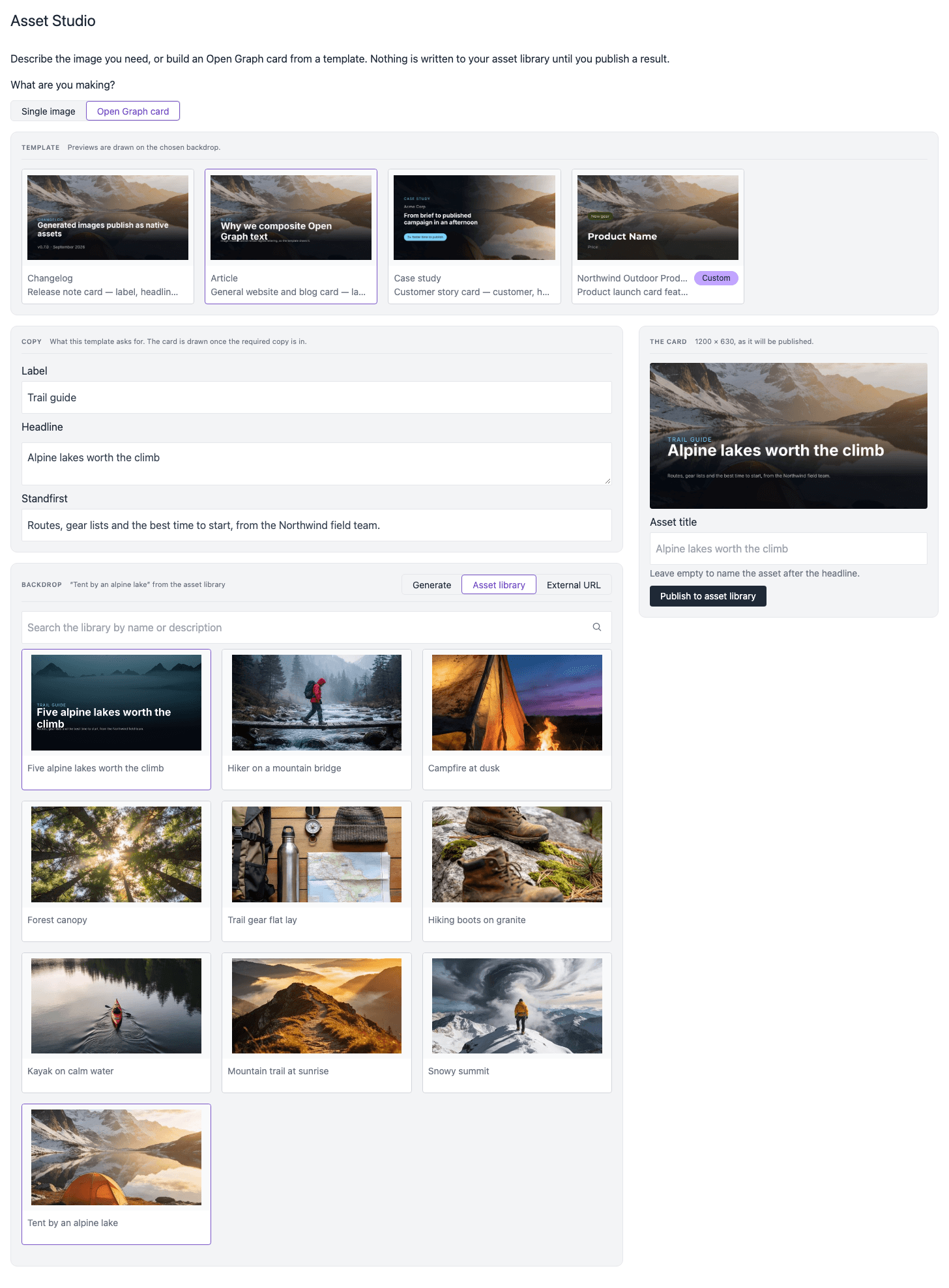
The backdrop is the image behind the copy. At the top of Backdrop, select where the backdrop comes from: Generate, Asset library, or External URL. The line next to Backdrop tells you which backdrop the card uses now.
The card uses the backdrop that you selected last. If you select a picture from the library, the card stops using a generated backdrop, and the other way around. If you do not select a backdrop, the card uses the gradient of the template.
Use a picture from your asset library#
This option costs nothing, because no model is used.
- Select Asset library.
- Optional: in the search field, type a word from the name or the description of the picture.
- Select a picture.
The library shows only images, with the most recently updated first. When you search, the best matches come first. Each tile shows the crop that the card gets. If the picture has a focal point, the crop keeps it in the card.
Generate a backdrop#
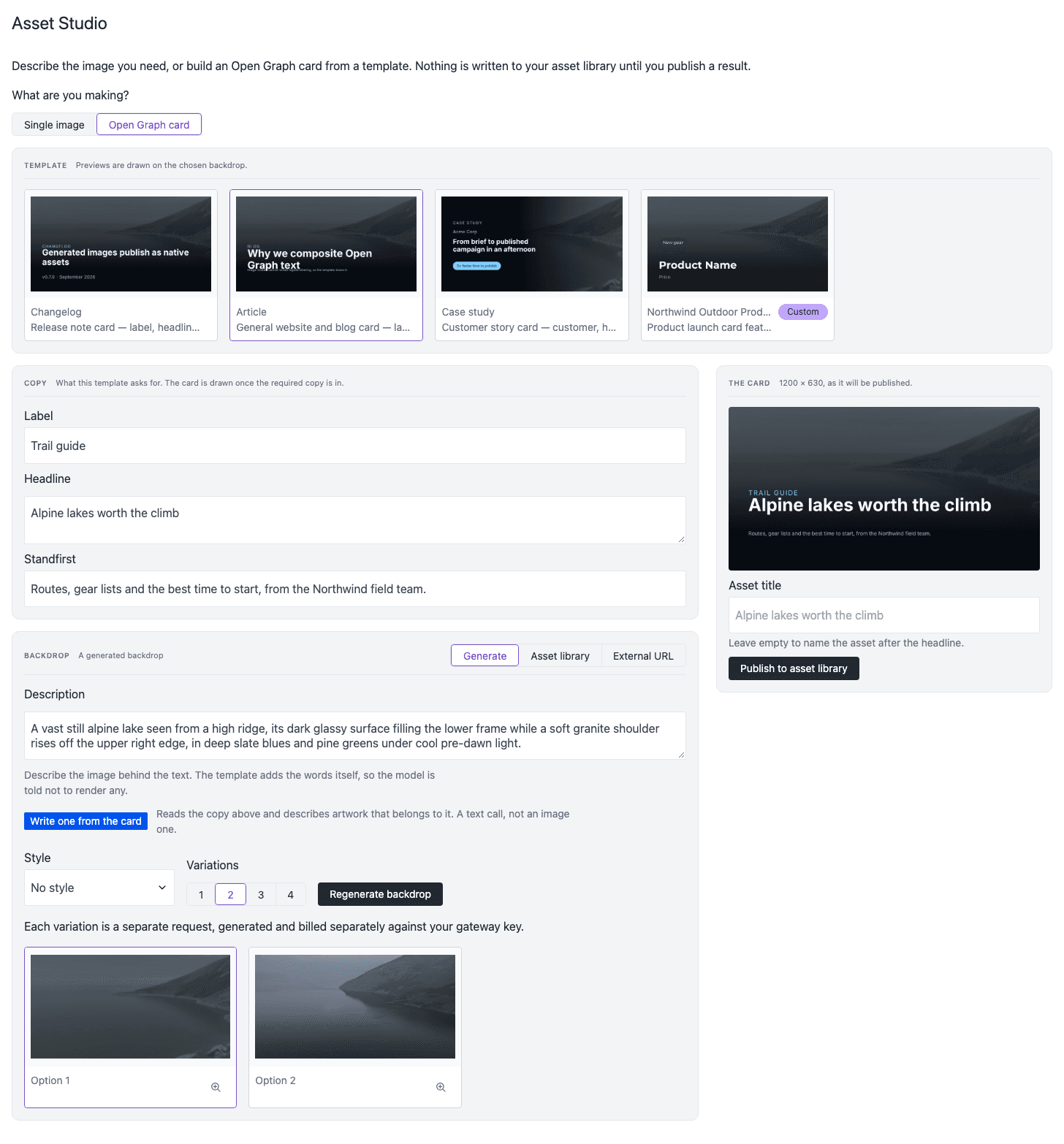
Select Generate.
In Description, describe the image behind the text. Do not ask for text in the image: the template adds the words, and Asset Studio tells the model not to write any.
To get a first description, select Write one from the card. A text model reads your copy and writes a description that suits it. You can edit the description before you generate.
Optional: select a Style.
In Variations, select how many backdrops to make, from 1 to 4.
Select Generate backdrop.
Select the variation that you want. The card shows it at once.
Each template also sends its own instruction with each backdrop, for example to keep the lower half calm for the text. An administrator can change this instruction in the template.
Use a picture from a URL#
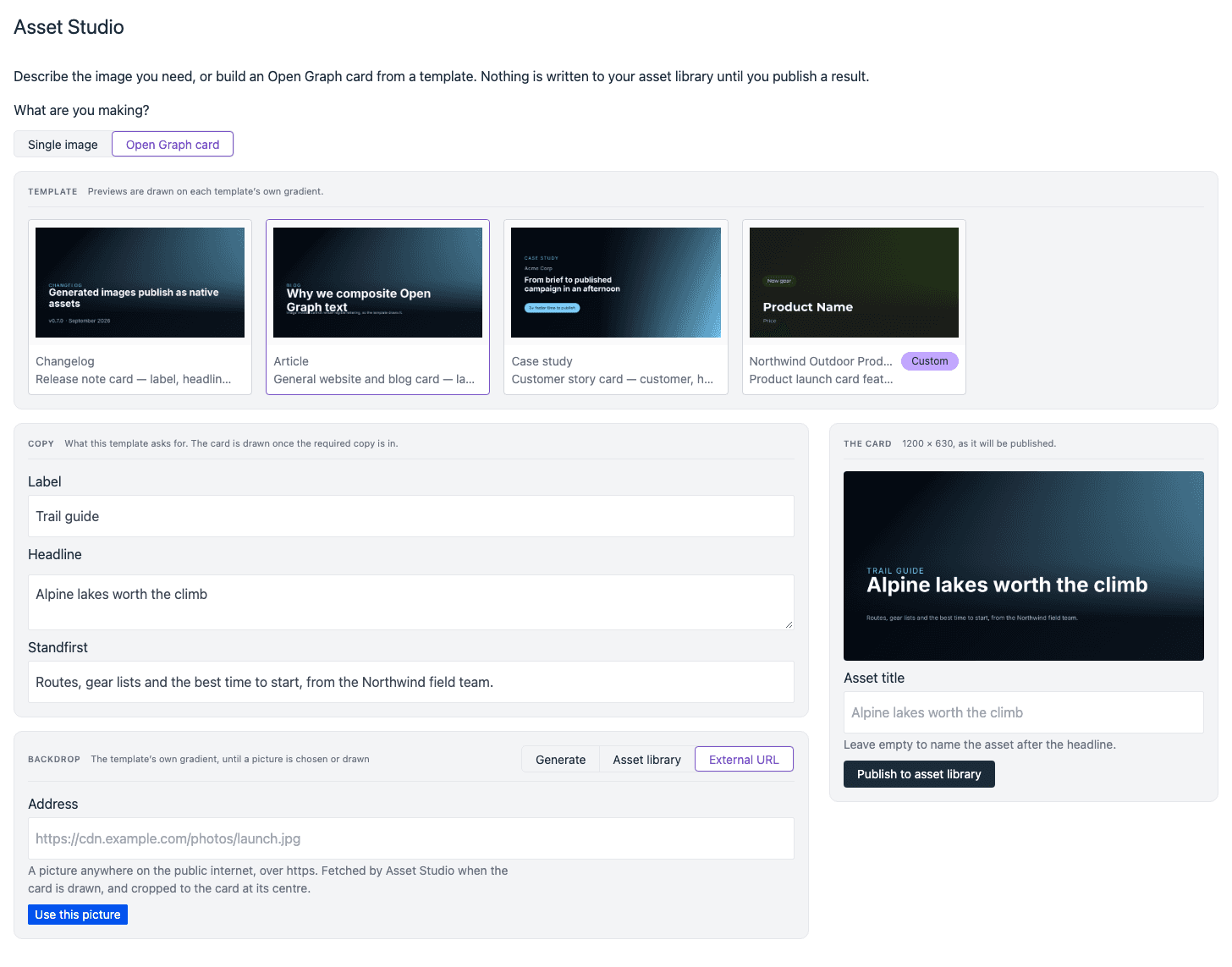
- Select External URL.
- In Address, paste the URL of the picture. The URL must start with
https://, and the picture must be on the public internet. - Select Use this picture.
Asset Studio gets the picture when it draws the card, and crops it at the center. If Asset Studio cannot get the picture, it shows Could not draw the card with the reason.
Publish the card#
- Look at the card under The card. It shows the card at 1200 × 630, as Asset Studio publishes it.
- Optional: in Asset title, type a name for the asset library. If you leave it empty, the asset gets the headline as its name.
- Select Publish to asset library. In an asset parameter, the button is Use this image, or Add this image if the parameter can hold more than one asset.
Asset Studio shows Published when the card is in the asset library.
To make a card for a different post, change the copy and publish again. You can keep the same backdrop.
Next steps#
- To make templates with your brand colors, typefaces, and logo, see card templates.