Activity feed in Uniform Pulse
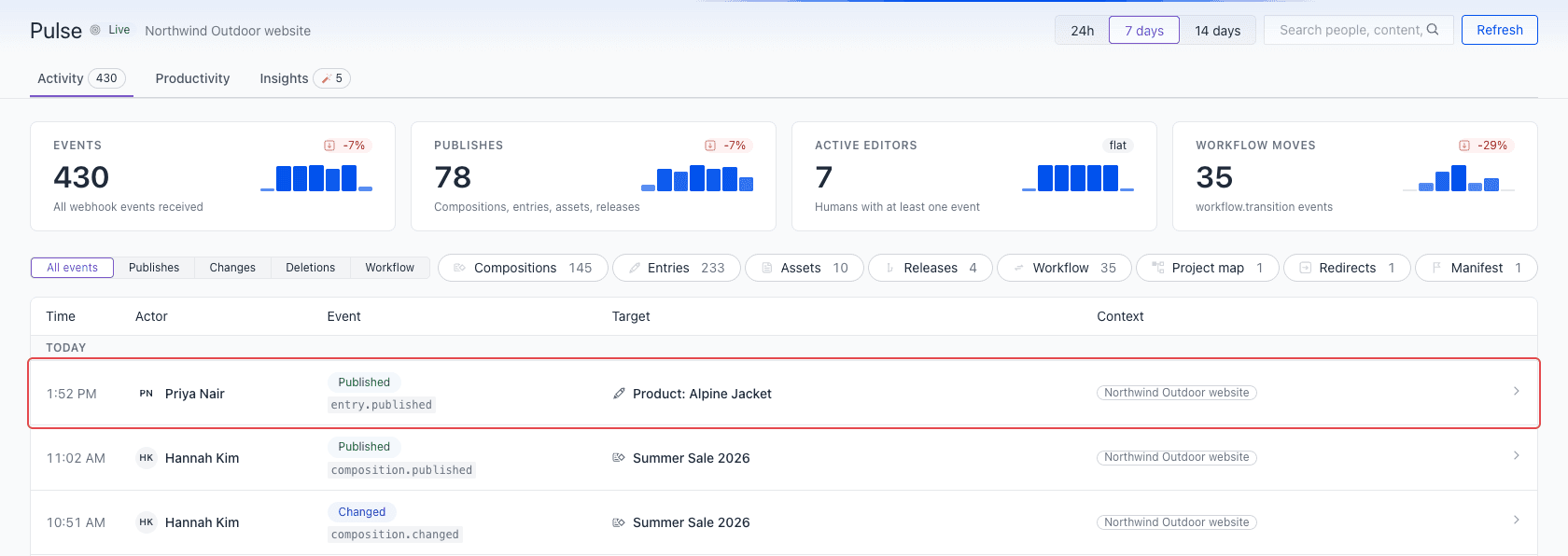
Pulse opens on the Activity tab. This tab shows the key numbers for the selected time range, and a feed of all events, newest first.
Select a time range#
At the top right, select 24h, 7 days, or 14 days. The default is 7 days. All tabs use the range that you select.
Pulse shows times in the time zone of your browser. The feed groups events by day: Today, Yesterday, and then the day and date.
Read the key numbers#
The four cards at the top summarize the selected range:
| Card | What it counts |
|---|---|
| Events | All events in the range. |
| Publishes | Compositions, entries, assets, and manifests that were published, and releases that were launched. |
| Active editors | People with at least one event. API keys and the system are not counted. |
| Workflow moves | Moves from one workflow stage to another. |
Each card compares the selected range with the range just before it. For example, if you select 7 days, the card compares the last 7 days with the 7 days before them. The badge shows one of these values:
- The change as a percentage, such as +12%.
- flat, if the number did not change.
- new, if the range before had no events of that type.
The small chart on each card shows the trend day by day.

Filter the feed#
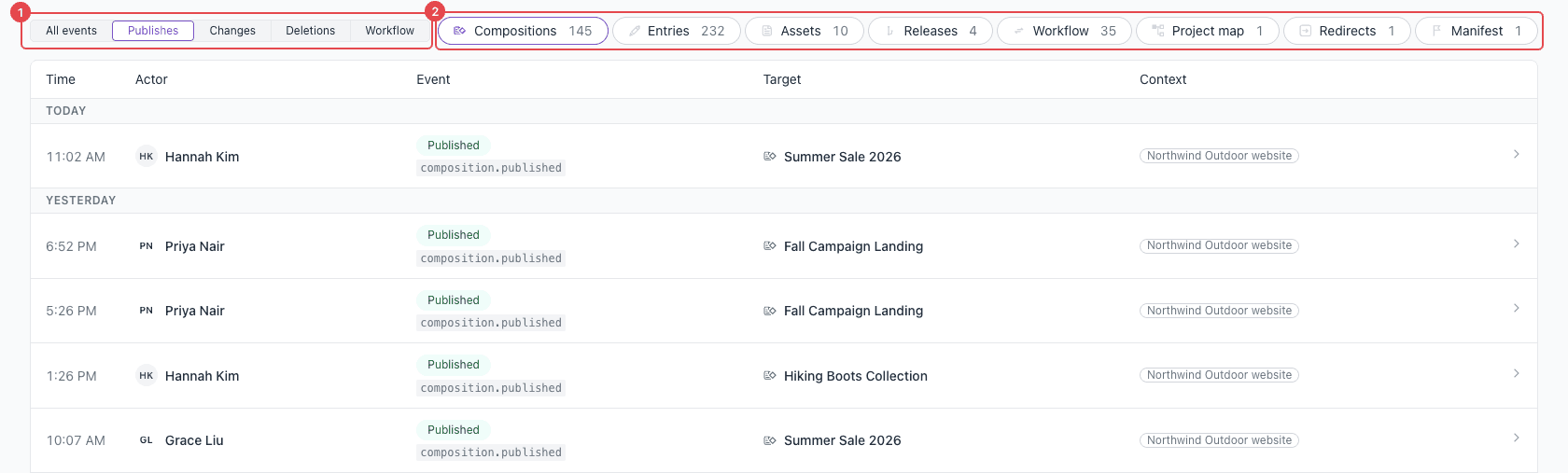
Above the feed, there are two filters. You can use them together.
The first filter selects the type of action:
| Option | Shows |
|---|---|
| All events | All events. |
| Publishes | Items that were published, and releases that were launched. |
| Changes | Items that were changed, added, or restored. |
| Deletions | Items that were deleted. |
| Workflow | Moves from one workflow stage to another. |
The second filter selects the type of content. Select one or more category chips, such as Compositions, Entries, or Assets. Each chip shows its number of events. Only the categories that have events in the range show. To remove a chip from the filter, select it again.
Show the activity of one person#
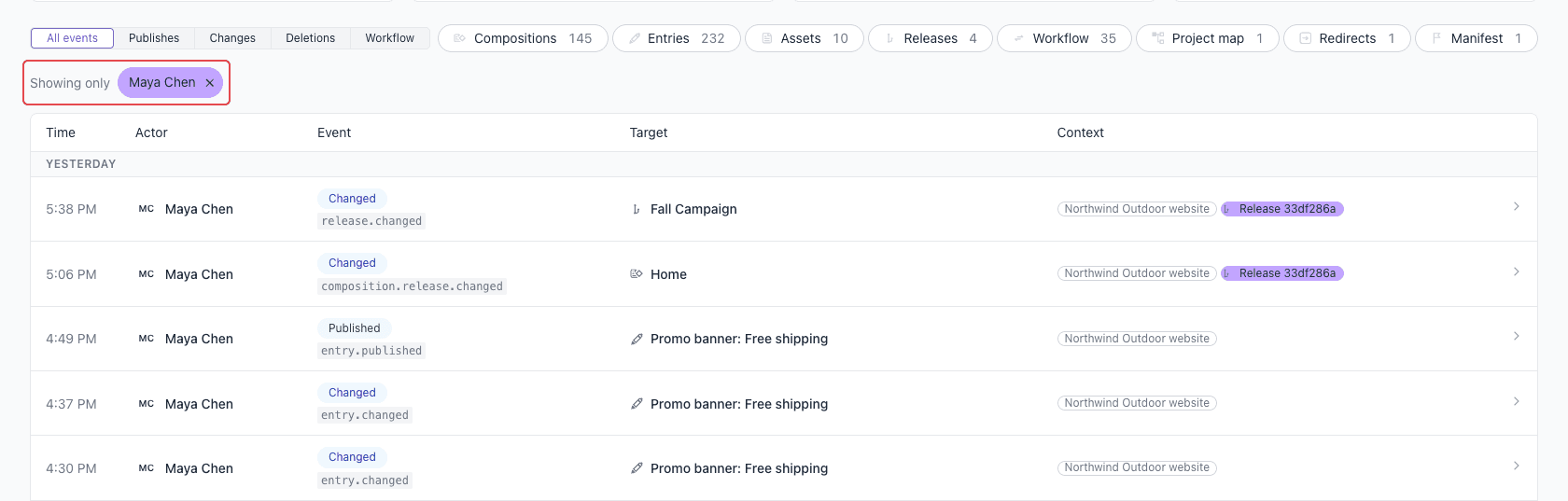
You can show only the events of one person or API key:
- Go to the Productivity tab.
- In the Contributors table, find the person or API key.
- On that row, select Feed.
The Activity tab opens with a Showing only chip. To show the events of all people again, select × on the chip.
Search#
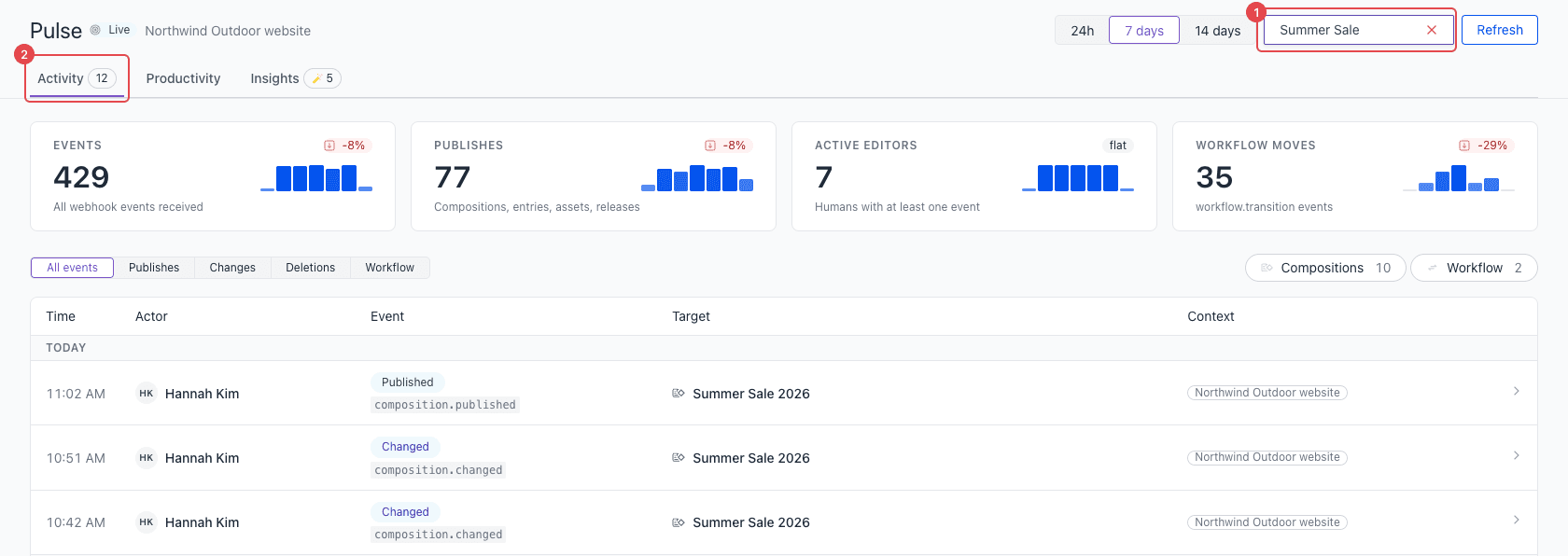
Type in the search field at the top right. The search finds text in these values:
- Names of content items
- Names of people and API keys
- Event types, such as
entry.published - The project name
- Release IDs
The number on the Activity tab shows how many events match. To clear the search, select × in the search field.
The search changes the feed and the Productivity tab. The key numbers and the Insights tab always use all events in the range.
Read the feed#
Each row is one event. The columns are:
- Time: when the event happened.
- Actor: the person, API key, or system that did it.
- Event: what happened, such as Published or Changed, and the event type, such as
composition.published. - Target: the composition, entry, asset, or other item that changed. For a workflow move, the target also shows the two stages.
- Context: the project. If the change was in a release, the first 8 characters of the release ID. If a person did not make the change, an API KEY or SYSTEM label.
The feed shows 25 events on each page. To see more events, use the page controls below the feed.
See the details of an event#
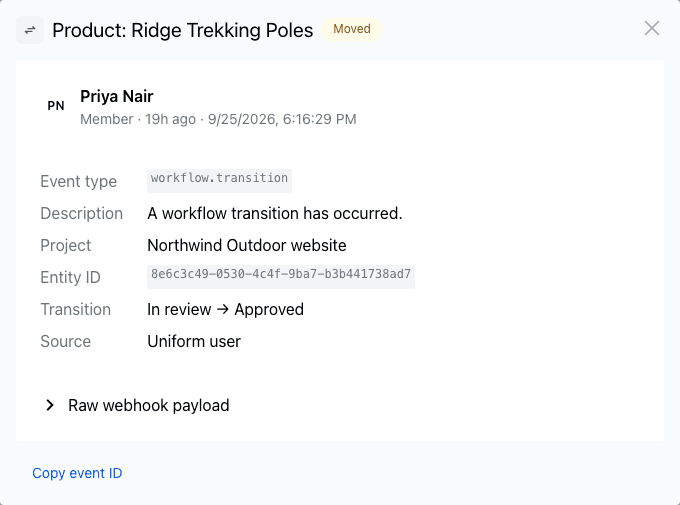
To open the details of an event, select its row. The details show:
- The actor, their role (Member, API key, or System), and the date and time of the event.
- Event type and a short Description.
- Project and Entity ID.
- Release, if the change was in a release.
- Transition, for a workflow move. For example, In review → Approved.
- Source: Uniform user, API key, or System.
- Raw webhook payload: all the event data that Uniform sent. To see it, select it.
To copy the event ID, select Copy event ID. The event ID helps Uniform support to find the event.
Live updates#
While Pulse is open in a visible browser tab, it checks for new events every 10 seconds. When new events arrive:
- A thin light moves one time across the top of Pulse.
- The new events show at the top of the feed, if they match your filters and search.
- Your filters, search, and page do not change.
When the browser tab is hidden, Pulse stops the checks. When you go back to the tab, Pulse checks immediately. To load the latest data at any time, select Refresh.
Very busy projects
Pulse loads a maximum of 5,000 events for the selected range and the range before it. If a project has more events, Pulse shows the newest 5,000 and a notice. To see all events, select a shorter range.