Generate images with Asset Studio
A single image starts with a prompt. Asset Studio makes some variations, you select the best one, and you publish it. This page shows how to do this in the studio, in the asset selector of a parameter, and with the AI button.
Prerequisites
- An administrator set up Asset Studio in the project. If the studio says Asset Studio needs a moment of setup, the AI Gateway key or the image model is missing.
- You can add files and assets in the project.
Make and publish an image#
You can do these steps in the project tool (Tools > Asset Studio) or in the asset library (Experience > Assets, source Asset Studio).
Under What are you making?, select Single image.
In Prompt, describe the image. Tell the model the subject, the setting, the mood, and the light.
Optional: in Style, select a style. For the list, see styles.
Optional: in Size, select a size. Use the model default lets the model select.
In Variations, select how many images to make, from 1 to 4. The default is 2.
Select Generate.
info
Each variation is a separate request, and AI Gateway bills each one. Under the controls, Asset Studio shows an estimate of the cost in credits, if the model has a price per image.
When the variations show, select the one that you want to keep. To see a variation at full size, select the zoom icon on it.
In Asset title, type the name for the asset library. Each time that you generate, Asset Studio fills in a title from the prompt, and you can change it.
Select Publish to asset library.
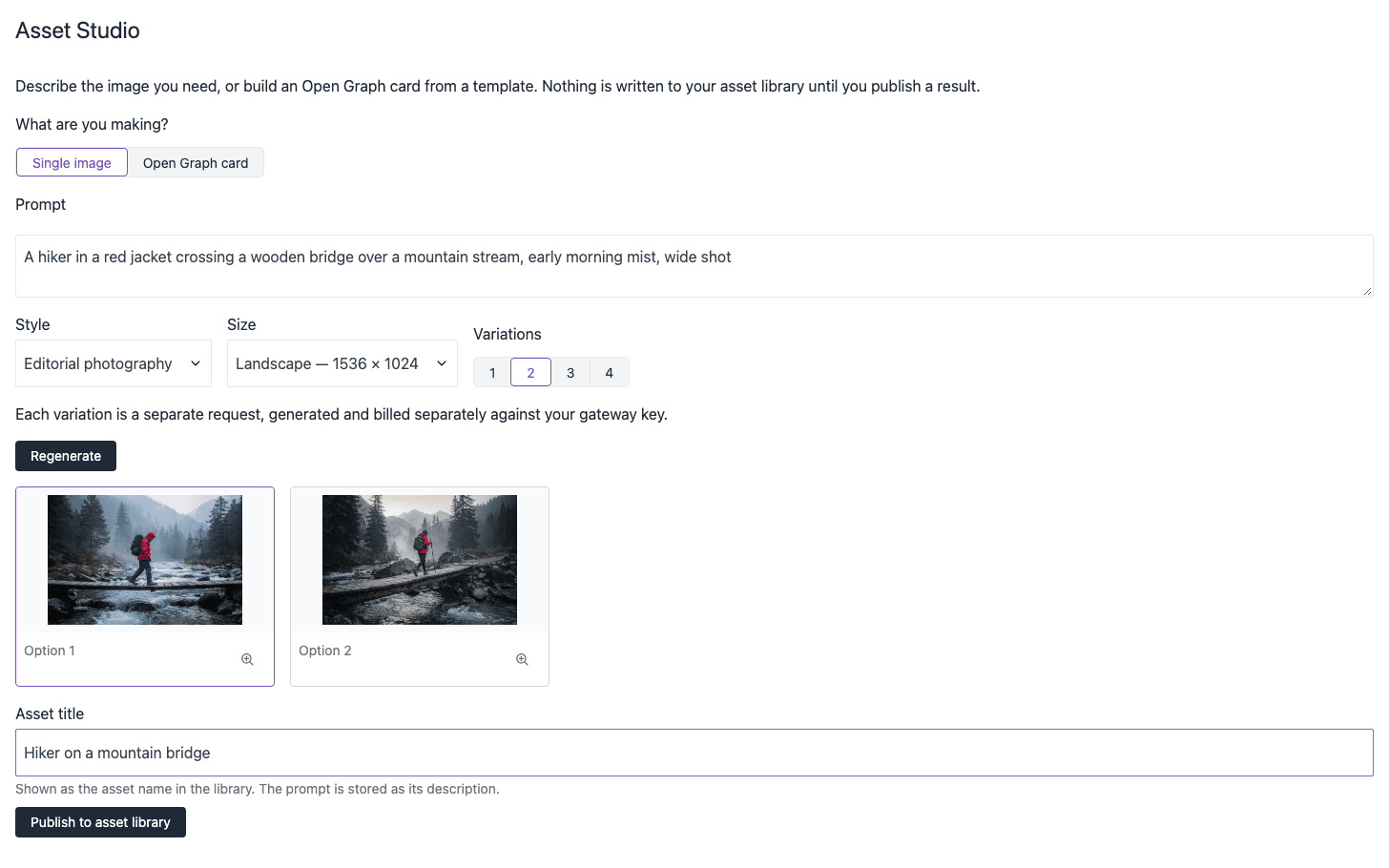
Asset Studio shows Published when the image is in the asset library. The asset gets the title that you typed. The prompt becomes the description of the asset, so your team can see how the image was made.
Try again#
- To make new variations of the same prompt, select Regenerate. The earlier variations stay on the page, under Earlier, so you can still select one of them.
- To change the prompt, edit Prompt and select Regenerate.
- To remove all variations from the page, select Clear all. This button shows after you generate a second time.
Asset Studio keeps the variations only while the page is open. If you close the page before you publish, the variations are gone.
Styles#
A style adds instructions about the look of the image to your prompt. You can select a style in the studio, and an administrator can set a style for a prompt of the AI button.
| Style | What the image gets |
|---|---|
| Abstract gradient | Broad fields of color, soft light, and fine grain. No objects that you can recognize. |
| Geometric | Layered planes and arcs with precise edges, in two or three colors. |
| Isometric 3D | A 3D illustration seen from an angle, with matte surfaces and soft light, on a plain background. |
| Editorial photography | Natural light, shallow depth of field, and muted colors, like a documentary photograph. |
| Flat vector | A flat illustration with solid fills and bold, simple shapes. |
| Duotone | Exactly two colors, high contrast, and simple forms. |
Make an image in an asset parameter#
When you edit a composition or an entry, you can make the image in the asset parameter. Asset Studio publishes the image to the asset library and puts it in the parameter.
- Open the composition or entry, and select the component.
- Open the asset selector of the asset parameter.
- Select Asset Studio as the source.
- Make the image. The steps are the same as in make and publish an image.
- Select Use this image. If the parameter can hold more than one asset, the button is Add this image.
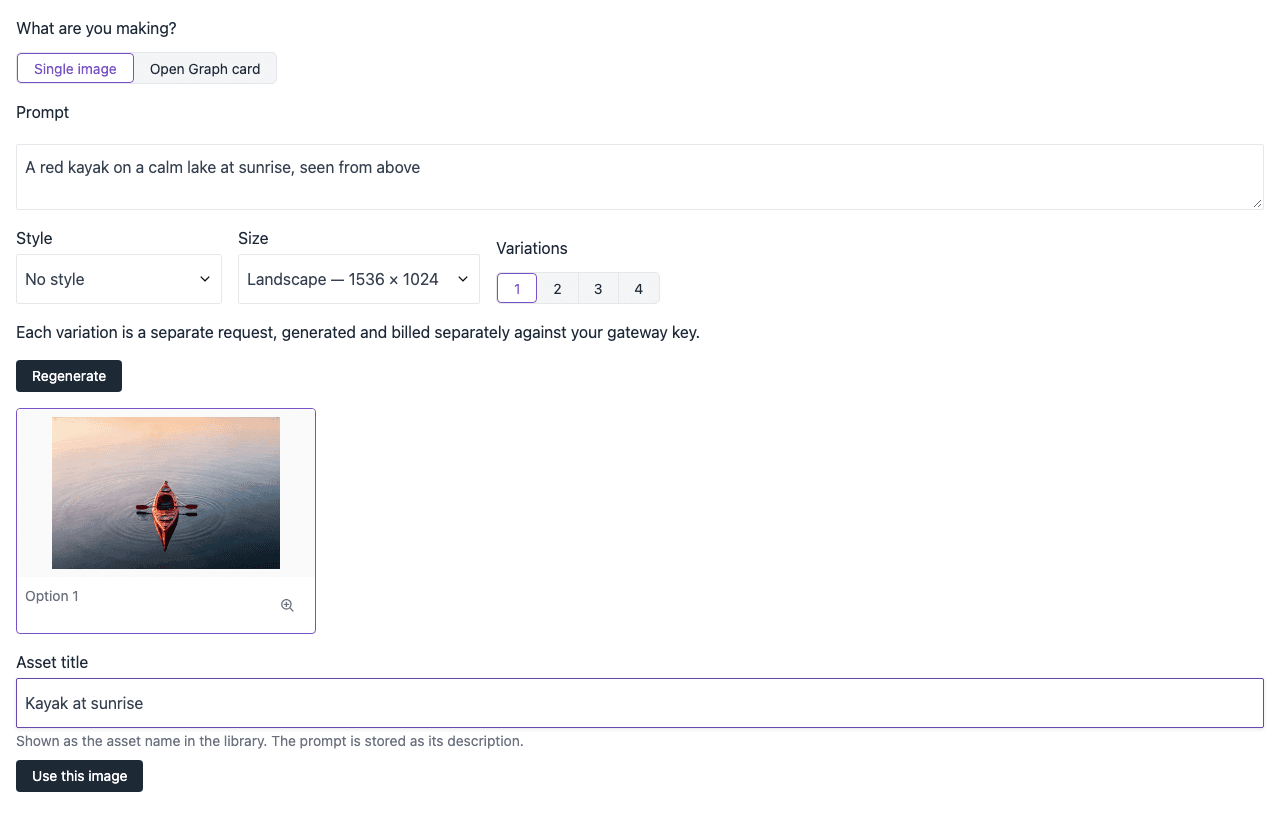
If the parameter can hold one asset, the new image replaces the old one. If the parameter can hold more than one asset, Asset Studio adds the new image. When the parameter is full, the oldest image goes out.
Asset Studio makes only images. If the parameter does not accept images, Asset Studio tells you and does not show the studio.
Use the AI button#
The AI button runs a prepared prompt. You fill in some values, and Asset Studio does the rest with the model, size, and style that an administrator set for the prompt.
On the asset parameter, select the AI icon.
Select an Asset Studio prompt, such as Generate image from a description or Generate image in a specific style.
Fill in the values of the prompt, such as the description, or the subject and the style.
In the Asset Studio panel, look at the prompt under Prompt. You cannot edit the prompt here. If an administrator set a style for the prompt, Asset Studio adds the style when you generate.
Select Generate.
note
Asset Studio does not start by itself when the panel opens. This prevents costs if you open the panel by accident.
Select the variation that you want to keep.
Optional: change the Asset title.
Select Use this image. The image replaces the value of the parameter, also if the parameter can hold more than one asset.
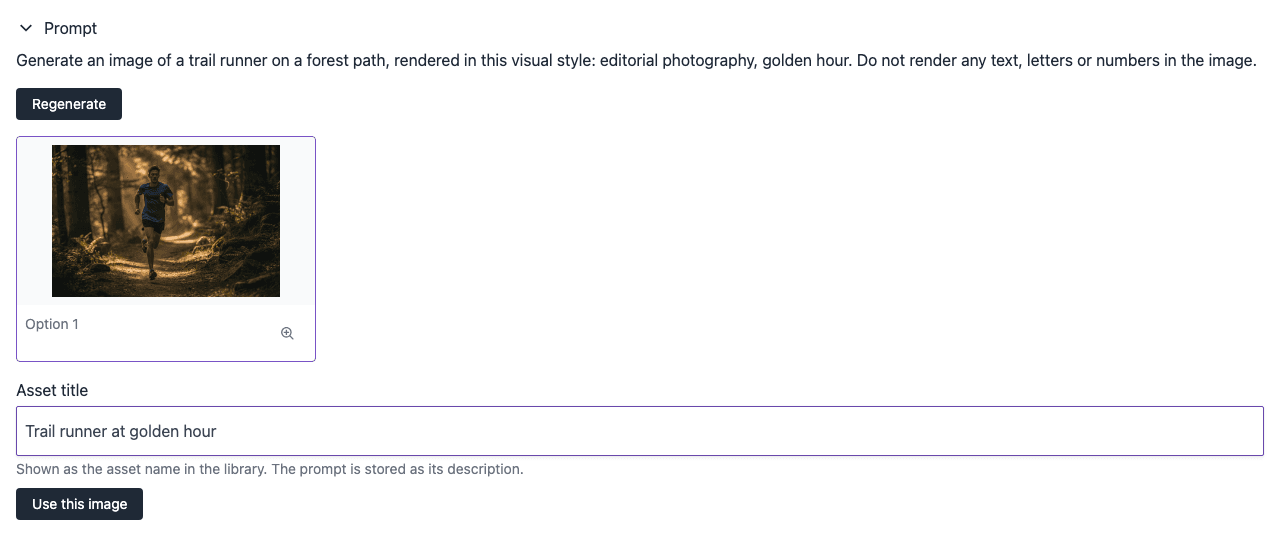
The AI button cannot read the other content of the composition. It uses only the values that you type into the prompt.
Next steps#
- To put your copy on an image, make an Open Graph card.
- To find the images that you published, go to the asset library.