Service accounts
info
Service accounts were previously called "API keys". The functionality is unchanged — only the name has been updated to better reflect their role as machine identities.
A service account enables an application to interact with Uniform to read and write various entities. Permissions are applied by roles to control what the application can access.
Service accounts are independent of any user account, making them the recommended credential for production integrations and automation that should survive personnel changes.
Team admin access required
Only team admins can create, edit, and delete service accounts.
How to create a service account#
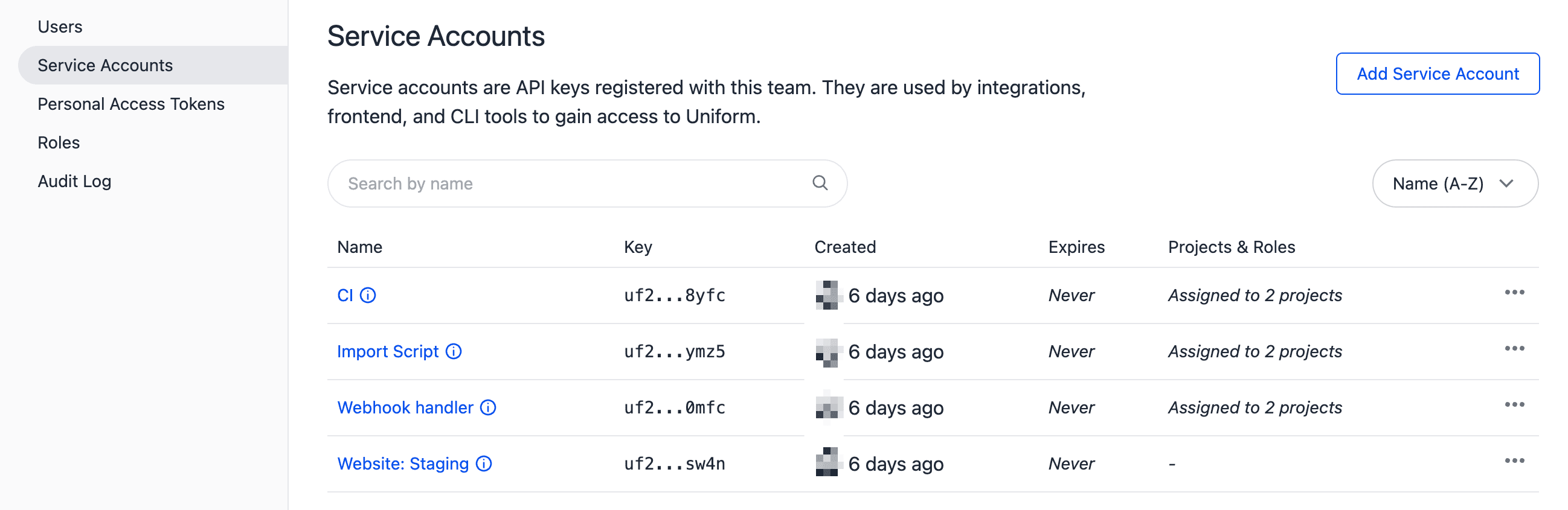
- Open your team page in Uniform at https://uniform.app.
Navigate to Security > Service Accounts.
Click Add Service Account.
Enter a value for the field Name.
Specify if the service account should act as a Team admin. When this option is selected, the service account will have access to all project and team settings as well as custom integrations.
warning
Only use this option for CLI or CI/CD operations where you need to programmatically manipulate settings and integrations that require team admin access.
Assign which roles should be assigned to the service account for the project(s) you want it to have access to.
Click Create.
The following values are displayed:
Value Description Key The unique key used to authenticate your application's requests to Uniform. Be sure to keep this value secure. Project A table displaying all projects this service account can access, along with options to conveniently copy connection details for each project: - Copy as .env: Copies environment variables (including the key and project ID) formatted for your
.envfile. Ideal for easy integration into frontend or backend applications. - Copy as mcp.json: Copies MCP Server connection configuration as JSON, used when connecting through the Uniform MCP Server.
- Copy as Quick Connect: Prepares format for connecting with the Uniform Context Chrome extension.
- Copy as Project ID: Copies just the project ID for easy reference or configuration elsewhere.
Make sure to save your key and connection details
For security reasons, this is the only time the key and connection details are displayed. Before you move on to the next step, you must save these values somewhere so you can use them in the future.
- Copy as .env: Copies environment variables (including the key and project ID) formatted for your
Click Close.
How to update a service account#
You can modify a service account's project access and role assignments at any time.
- In Uniform, navigate to Security > Service Accounts.
- Click the name of the service account you want to modify.
- Make changes to the settings as needed. See Change project access for details on modifying project and role assignments.
- Click Save.
How to delete a service account#
warning
Deleting a service account is a permanent operation. While you can create a new service account with the same settings, you will never get the same key value again.
- In Uniform, navigate to Security > Service Accounts.
- Click the name of the service account you want to delete.
- Click delete.
- Click OK.
note
Deleting a service account results in immediate loss of create, update, and delete access. It could take up to 2 hours for cached requests to lose read access.
How to rotate a service account key#
Service account keys cannot be rotated in place. To rotate a key:
- Create a new service account with the same role and project assignments.
- Update your applications to use the new key.
- Delete the old service account once all applications have been migrated.
Change project access#
You can add a service account to projects, change its roles, or remove access entirely.
- In Uniform, navigate to Security > Service Accounts.
- Click the name of the service account you want to modify.
- In the Assign projects & roles section:
- To add access to a project, find the project and select one or more roles from the dropdown.
- To change roles on a project, use the dropdown to select or deselect roles.
- To remove access from a project, click the x next to each assigned role.
- Click Save.
tip
A service account can have multiple roles assigned. See combining roles for details.
Team admin service accounts#
Service accounts with the Team admin permission have unlimited access to your team's settings and all projects.
The main purpose of team admin service accounts is to enable advanced programmatic automation for CLI or CI/CD operations where you need to manipulate settings and integrations that require team admin access.
These operations include:
- Managing custom integrations and custom edgehancers using Integration CLI commands
- Pushing workflows to your team's projects using the CLI
- Using the Management API to update project settings or manage team members and roles
Security warning
Never use a team admin service account for your frontend applications. Doing so can expose a severe security risk by granting unauthorized access to your team's settings and projects via the compromised key.
Any team admin service account key that has been exposed to the public should be deleted and a new key created.
Use the UNIFORM_CLI_API_KEY environment variable to configure the CLI to use a team admin service account.
Avoid committing service account keys to code repositories or sharing them in public channels.
Migrate from custom permissions#
Deprecated feature
Custom permissions have been deprecated as of May 2025. While any existing roles with custom permissions will continue to work, you can no longer create new custom permissions when assigning a service account to a project.
Instead, use roles for a simpler, more maintainable way to manage permissions.
If you have service accounts with custom permissions, you should migrate them to use roles. When you remove custom permissions from a project, you can then assign roles to the service account, and it inherits the permissions from those roles.
- In Uniform, navigate to Security > Service Accounts.
- Click the name of the service account you want to modify.
- In the row for the project, click > Remove Custom Permissions.
- Click Remove Custom Permissions.
- Select the roles you want to assign to the service account.
- Click Save.