Project policies
Project policies let you control permissions per project and per role in a granular way. Policies define rules for project entities and centralize how access is managed for a role in a specific project. Each project policy consists of a set of granted and denied permissions, giving you precise control over what actions users can and cannot perform.
Unlike Default permissions, project policies can target specific entities that are part of a project such as specific compositions, patterns, component definitions, or content types.
Permission groups and actions#
The following groups can be targeted in a project policy, with the listed actions:
Assembly permissions#
- Compositions:
Read draft,Read published,Create,Update,Delete,Publish- Can be targeted by the following criteria:
- By composition type
- By composition pattern
- Specific compositions
- Can also be scoped to a project map location.
- Can be targeted by the following criteria:
- Composition patterns:
Read draft,Read published,Create,Update,Delete,Publish- Can be targeted by the following criteria:
- By component type
- Specific composition patterns
- Can be targeted by the following criteria:
- Component patterns:
Read draft,Read published,Create,Update,Delete,Publish- Can be targeted by the following criteria:
- By component type
- Specific component patterns
- Can be targeted by the following criteria:
- Project map:
Read nodes,Create nodes,Edit nodes,Delete nodes,ManageCreate nodes,Edit nodes, andDelete nodeseach requireRead nodes.Edit nodescontrols attaching, detaching, and replacing the composition on an existing node, since these change the node itself. The user must also have compositionUpdate(orCreate) permission for the composition being attached or detached. Attaching a composition while creating a new node usesCreate nodesinstead.Managegrants full control over the project map, including its settings and global query strings, in addition to all node operations. Whole-map operations such as changing project map settings, editing global query strings, and deleting the entire project map requireManage(or unscoped composition access). Location-scoped node permissions never authorize these whole-map operations, because the map definition itself is not a node.- Node permissions can be scoped to a project map location.
- Each node permission that is not set falls back to composition permissions on its own. See Project map access.
- Redirects:
Read,Create,Update,Delete - Releases:
Read,Create,Update,Delete,Launch - AI prompts:
Read,Manage - Workflows:
ManageManagecovers creating, updating, and deleting workflow definitions.
- Automations:
ManageManagecovers viewing the automations settings and their run history, enabling, disabling, and deleting automations, creating and editing Scout automations, and deploying code automations with an API key.
Content permissions#
- Entries:
Read draft,Read published,Create,Update,Delete,Publish- Can be targeted by the following criteria:
- By content type
- By entry pattern
- Specific entries
- Can be targeted by the following criteria:
- Entry patterns:
Read draft,Read published,Create,Update,Delete,Publish- Can be targeted by the following criteria:
- By content type
- Specific entry pattern
- Can be targeted by the following criteria:
- Assets:
Read,Create,Update,Delete - Asset labels:
Create,Update,Delete
Model permissions#
- Components:
Read,Manage - Content types:
Read,Manage - Data sources:
Read,Manage - Data types:
Read,Manage
Optimization permissions#
- Manifest:
Read draft,Read published,Publish - Signals:
Read,Create,Update,Delete - Intents & audiences:
Read,Create,Update,Delete - Enrichments:
Read,Create,Update,Delete - Quirks:
Read,Create,Update,Delete - Tests:
Read,Create,Update,Delete
How policies are evaluated#
- Policies are assigned per role, per project.
- If a project policy exists for a role, it determines that role's permissions in the project.
- If no project policy exists, the role's default permissions apply.
- If a user has multiple roles in a project, their permissions are combined. See how permissions are evaluated for details on how permissions are resolved across multiple roles.
Create and manage project policies#
Add a project policy#
- In Uniform, navigate to Security > Roles in your team dashboard.
- Click the name of the role you want to configure.
- In the Project policies section, click Add project.
- Select the project you want to create a policy for.
- Configure the permissions in the policy panel (see Configure permissions below).
- Click Ok to save the project policy.
- Click Save to save the role.
Copy project policies to other projects
You can copy project policies to other projects within the Uniform roles editor. This feature is useful if you want to keep similar projects in sync, such as different environments like development, staging, and production. Copying project policies is also helpful for promoting permission changes from a lower environment to a production project.
To copy a project policy select the menu on the project policy and select Copy to project.
Configure permissions#
When editing a project policy, you configure permissions in the Granted and Denied sections. Permissions that are added to the Granted section are allowed for the role in that project.
Understanding denied permissions
Any permission not explicitly granted is denied by default. Use the Denied section to explicitly remove previously granted permissions (for example, removing some specific content types or entries). The denied permission may have be granted by the same role or a different role.
Using the permissions editor:
- Filter by permission group: Use the dropdown to filter permissions by permission group (Assembly, Content, Modeling, Optimization). This helps you focus on related permissions when configuring complex roles.
- Reorder by type: Click Reorder by type to group related permissions together for a better overview.
- Apply preset: Use the Apply preset dropdown to quickly apply a predefined set of permissions (Developer, Editor, or Viewer).
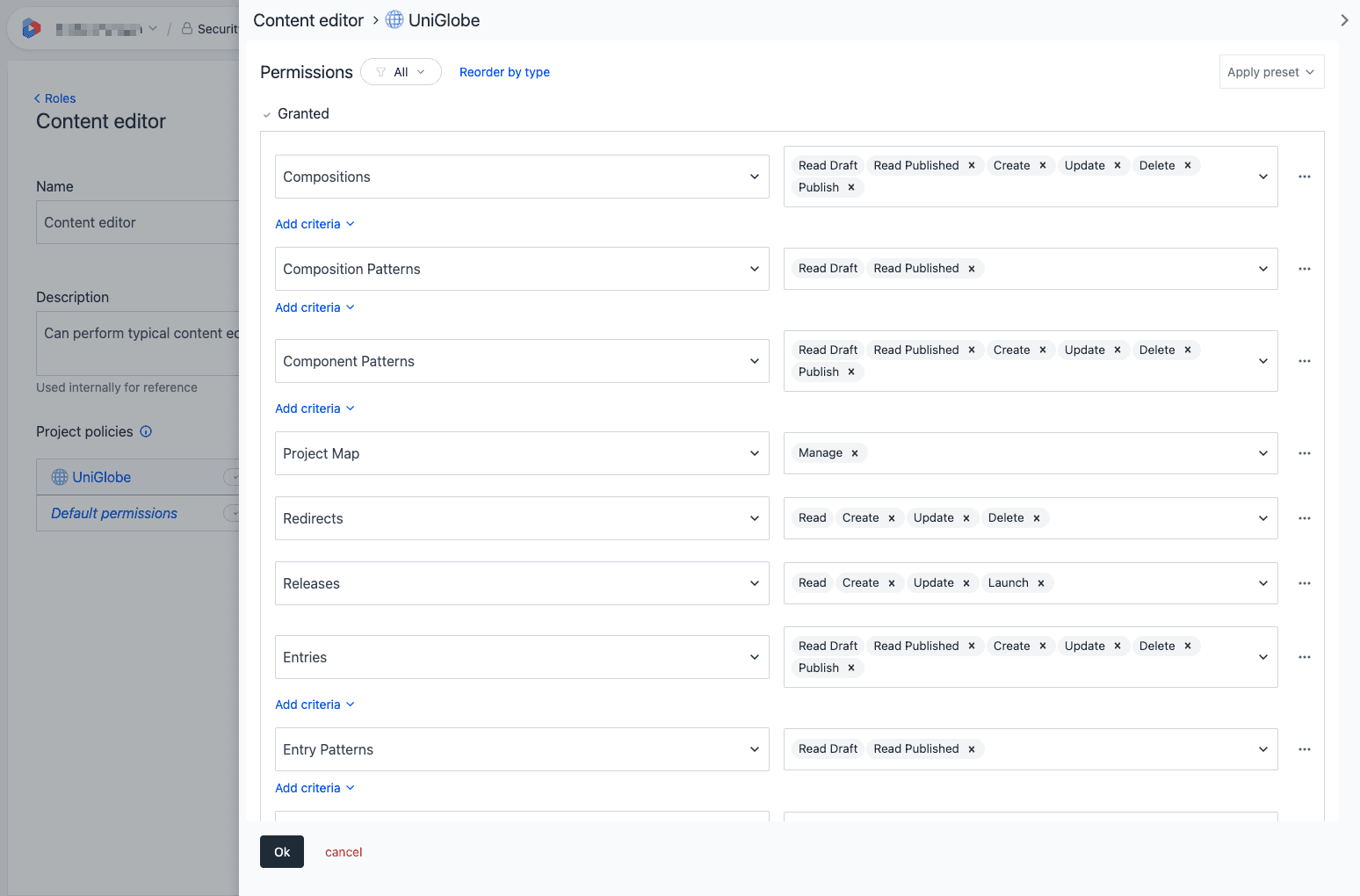
Target specific entities#
For Compositions, Entries, and Patterns, you can target specific entities instead of granting broad permissions:
- Find the entity type (e.g., Compositions, Entries) in the permissions list.
- Click Add criteria below the entity.
- Select how you want to target:
- By type: Target all entities of a specific composition type, content type, or component type.
- By pattern: Target entities that match a specific composition pattern, component pattern, or entry pattern.
- Specific entities: Target individual compositions, entries, or patterns by selecting them directly.
- Configure the actions you want to allow for the targeted entities.
This allows you to create rules like "Allow editing only Blog Post entries" or "Allow publishing only Marketing Page compositions."
Project map and composition permissions can additionally be scoped by location.
Project map access#
Project map access is governed by two independent layers:
- Node permissions (
Read nodes,Create nodes,Edit nodes,Delete nodes, andManage) control the site structure: where a page sits in the information architecture (IA), its path, and whether it appears on the map. - Composition permissions control the content of the page attached to a node.
Because the layers are independent, restricting one does not restrict the other. For example, a user denied access to the composition at /about/legal can still move or delete that node if they retain node permissions there. To fully lock down a path, restrict both layers; to allow content changes but not IA changes, restrict only the node layer. Attaching, detaching, or replacing a composition on a node is the exception: it touches both layers, requiring Edit nodes plus composition Update (or Create).
Access can fall back to composition permissions
Node permissions were added later, so for backward compatibility node access falls back to composition permissions wherever a role says nothing about the project map. The fallback applies per action: Read nodes, Create nodes, Edit nodes, and Delete nodes each fall back on their own. For an action that falls back, composition access across the whole project gives whole-map node access, while composition access scoped to a location gives node access within that location only.
Granting a node permission overrides the fallback for that action alone. A role with only a location-scoped Read nodes rule sees a single branch but can still create, edit, and delete nodes anywhere its composition permissions reach. To confine a role to a location, scope every node action you want confined. A deny rule on its own does not count as a grant: the action still falls back, minus whatever the deny removes.
Restrict permissions to project map locations#
You can scope project map node permissions and composition permissions to specific locations in the project map. A location is a node (and, optionally, its descendants) that represents an area of the site. This lets you give a role control over one area (for example, everything under /blog) without granting access to the rest.
Locations are a separate targeting bucket from criteria. Within a rule:
- Criteria match any (
OR): for example, "composition type A or composition type B". - Locations match any (
OR): for example, "under/blogor under/news". - Criteria and locations are combined with
AND: the rule applies only where both buckets match.
Location scoping is available on two permission groups:
- Project map: scopes node operations (
Read nodes,Create nodes,Edit nodes,Delete nodes) to nodes within the location. - Compositions: scopes composition operations to compositions attached to nodes within the location.
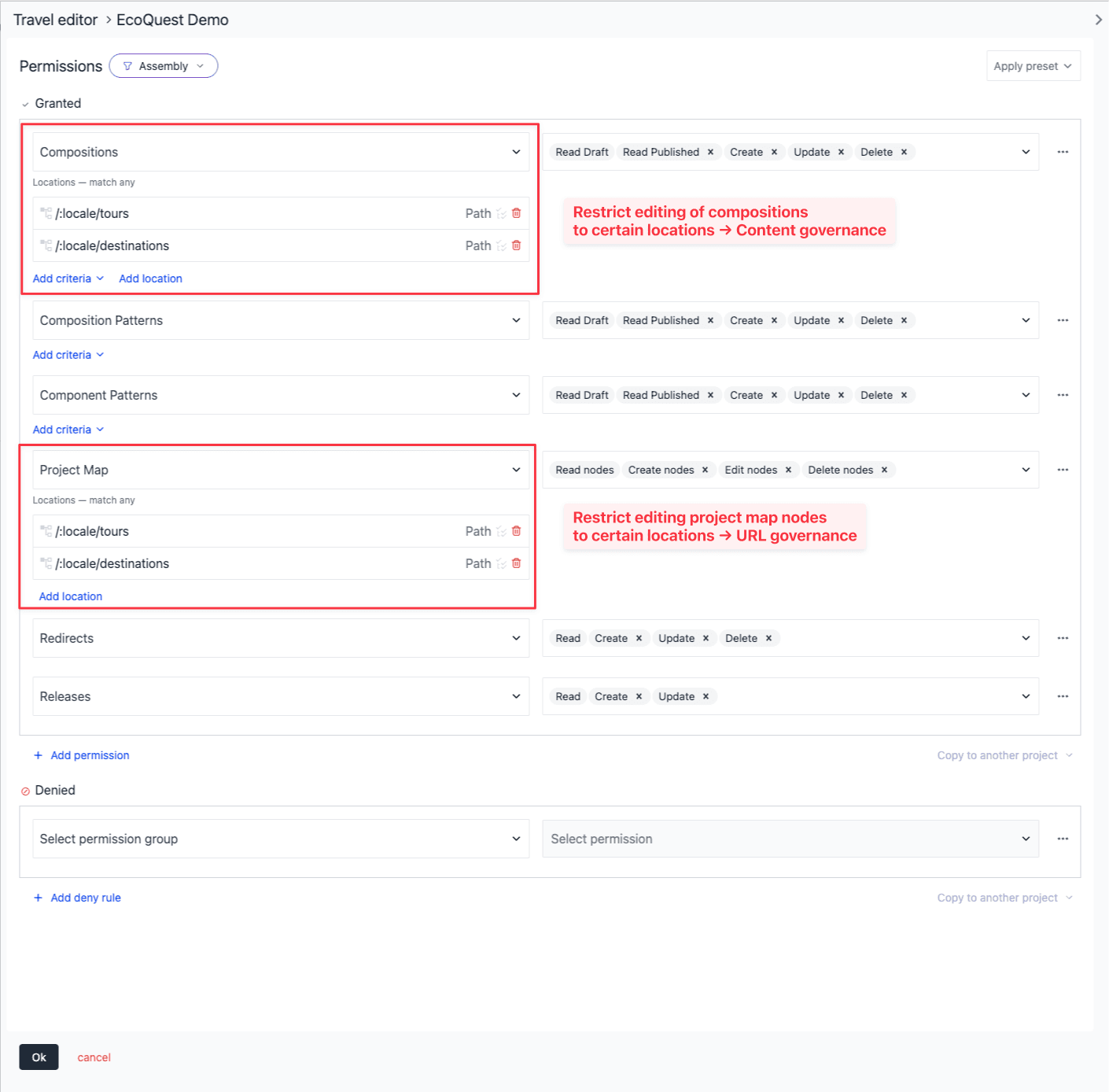
To scope a permission to a location:
Find Project map (or Compositions) in the permissions list.
Click Add location.
In the Project map picker, select the node that represents the location.
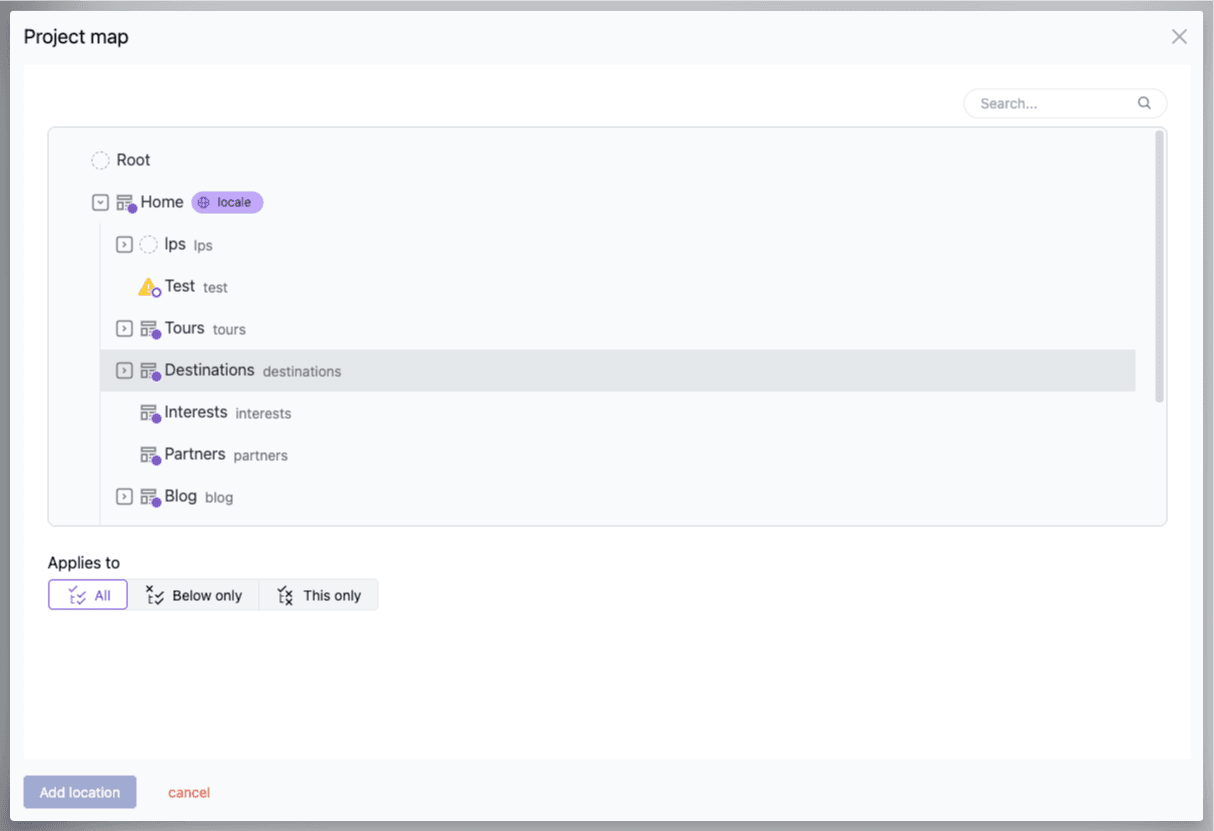 Selecting a project map node as a location, with the Applies to options that control how far the permission extends.
Under Applies to, choose how far the permission extends:
- All (default): the selected node and everything beneath it.
- Below only: everything beneath the selected node, but not the node itself.
- This only: the selected node exactly, with no descendants.
Click Add location to add it, then configure the actions you want to allow.
Keep the following behaviors in mind when working with locations:
- Compositions must be attached to a node. A location-scoped composition rule only matches compositions attached to a project map node within the location. Unattached compositions never match.
- Locations reference the node, not its path. A location stores a reference to the selected project map node, so if that node is later moved elsewhere in the project map, the permission continues to apply to it at its new location.
- Deleted nodes show as missing. If the referenced node is deleted, the location shows as Missing node in the editor. Remove or repoint it to keep the policy accurate.
- Locations match whole path segments, not text prefixes. A location at
/presscovers/pressand/press/2024, but not/press-releases. Matching happens at/boundaries, so choose the exact node that anchors the branch you want. - Creating top-level nodes requires access at the root. Adding a new node directly beneath the project map root requires a rule that covers the root (
/). A location scoped to a branch such as/marketinglets a role create nodes inside that branch, but not new top-level siblings. - Moving a node across branches needs access on both sides. Renaming a node in place requires
Edit nodeson it. Moving a node to a different parent additionally requiresCreate nodeson the destination parent andEdit nodescoverage of both the original and the new location. A role scoped to a single branch therefore cannot move nodes out of, or into, its branch.
Common scenarios#
For step-by-step examples of how to configure project policies for specific use cases, see the common scenarios guide.
Common scenarios for configuring project policies
Step-by-step examples for common permission configurations.
Related guides#
Project policy CLI commands
Manage policy documents via the CLI to push, pull, and sync permissions across projects.
API access
Create and manage service accounts and personal access tokens to interact with Uniform.
Users
Manage user accounts within the Uniform platform.