Backup & Restore
Backup & Restore backs up a whole Uniform project every night and keeps the backups under a retention rule. When a project's content is wrong or gone, you restore one of those backups. It can go into a new project, a target project, or the project it came from.
What Backup & Restore does#
Use Backup & Restore to:
- Bring a project back after a bad import, a bad publish, or an accidental deletion.
- Copy a project's content into a target project to try something out.
- Rehearse a recovery, so your team knows the steps before an incident.
Every project the app knows has one of two roles:
- Source project: backed up every night. You take backups and start restores from its page.
- Target project: never backed up. It exists for a restore to write into.
Backup & Restore shows in two places in a project. Both need a team admin.
| Place | How to open it | What you do there |
|---|---|---|
| Project tool | In the project navigation, select Tools, then select Backup & Restore. | Take a backup, read a backup's details, start a restore, and read the audit log. |
| Integration settings | Open the project's integration settings, then select Backup & Restore. | Read the project's Uniform key access, change the nightly backup, run a cleanup, manage restore targets and backup labels, and read the audit log. |
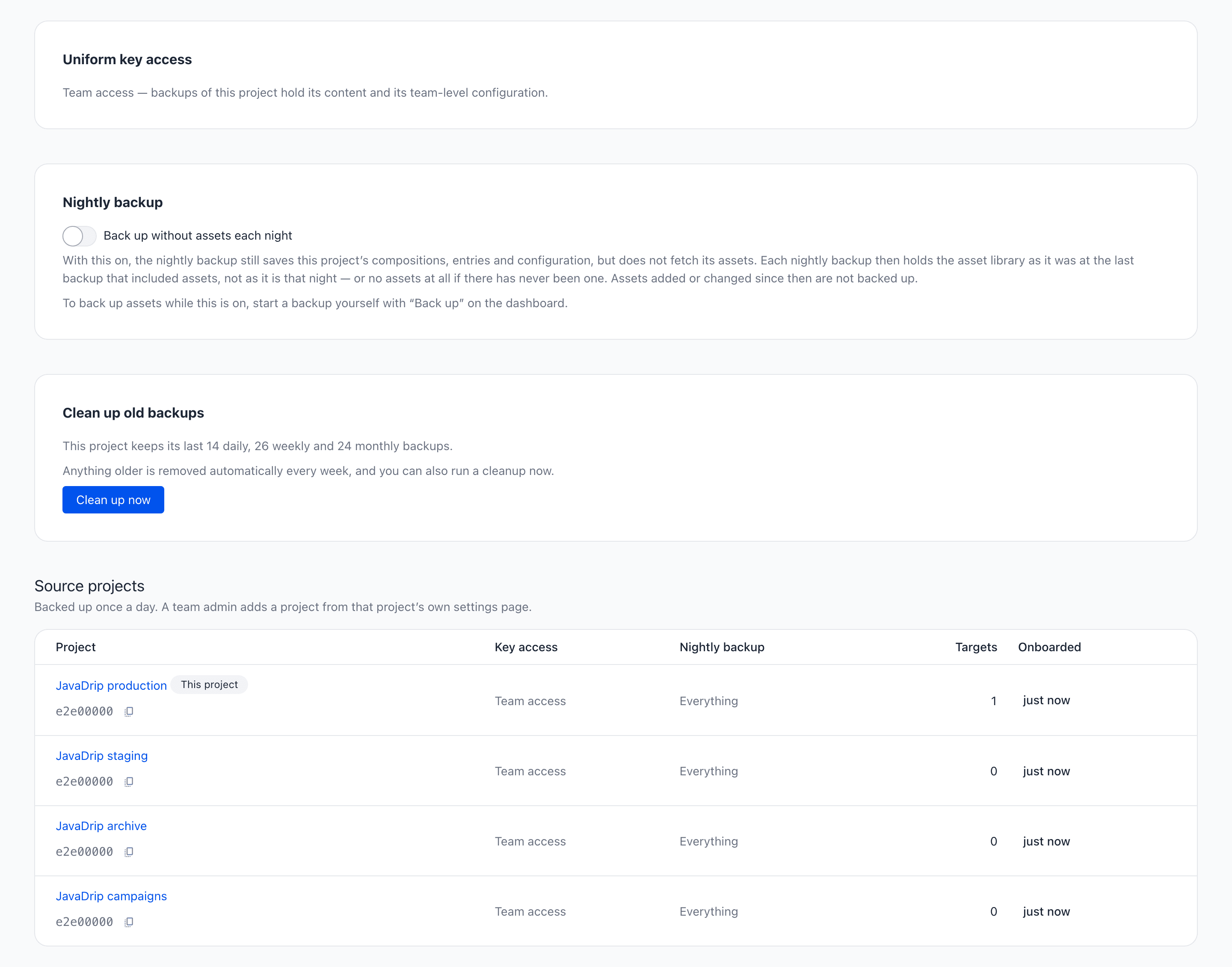
The tool's screens use your Uniform sign-in and permissions. The backups and restores themselves use the Uniform API key stored for the project, so what that key can read is what a backup saves.
To take a backup, see Back up a project. To bring one back, see Restore a project.
Get Backup & Restore#
- Request activation for your team.
- As a team admin, open the project's Backup & Restore settings page.
- Add the project to backups, with a Uniform API key for the project.
If the tool or the settings page shows a notice instead of your backups, the notice says which of these it is. A failed load never affects stored backups.
| Notice | What it means | What to do |
|---|---|---|
| This project isn't enabled for backups | Your team isn't set up for Backup & Restore. | Request activation for your team. |
| This project isn't backed up yet | Your team is set up, and nobody has added this project. | A team admin adds it from the project's Backup & Restore settings page. |
| Signing in on your behalf isn't enabled | Identity delegation is off for the integration. | Ask the Uniform team to turn it on for the integration. |
| Could not sign you in | Uniform didn't confirm your sign-in. | Select Try again. If it keeps failing, reload the Uniform page. |
| Could not load this project | The app couldn't load the project, or couldn't be reached. | Select Try again in a moment. |
Backup contents#
A backup saves a project at one moment:
- Content: compositions, composition patterns, component patterns, entries, and entry patterns, each as drafts and as published.
- Content model: components, content types, data types, categories, labels, and locales.
- Optimization: intents and audiences, signals, enrichments, quirks, and tests.
- Configuration: project map definitions and nodes, redirects, preview URLs, preview viewports, custom views, prompts, workflows, and policy documents.
- Releases and the items in them.
- Webhooks, with their signing secrets where the project's key can read them.
- Data sources, without their secrets.
- Assets.
Only content has a draft state. Everything else is saved as published. The Contents section of a backup's details counts each type.
What no backup saves#
- Release editions. Release editions aren't supported yet.
- The secrets of a data source, such as its API keys.
- Sensitive webhook headers, such as Authorization.
- Release items that point to an edition, or that have a type the app can't read yet.
A backup with the Uniform CLI leaves out team integrations, project integration installations, data sources, and draft state, which Backup & Restore saves.
Why one backup can save less than another#
Backups of the same project don't all save the same things. Each backup says on its own row and in its details what it left out.
- Uniform key access. A project's key has either Team access or Content access. With content access, a backup leaves out integration installations and their settings, data sources, team-level custom integrations, policy documents, and webhooks. The backup is marked Content only. A project's key access can't be changed yet.
- A night without assets. With Back up without assets each night on, a nightly backup reuses the asset library from the last backup that included assets. The backup is marked Backed up without assets.
- Webhooks that couldn't be read. A backup has no webhooks when the project has none, when the project's key can't read them, or when reading them failed. The backup's details say which.
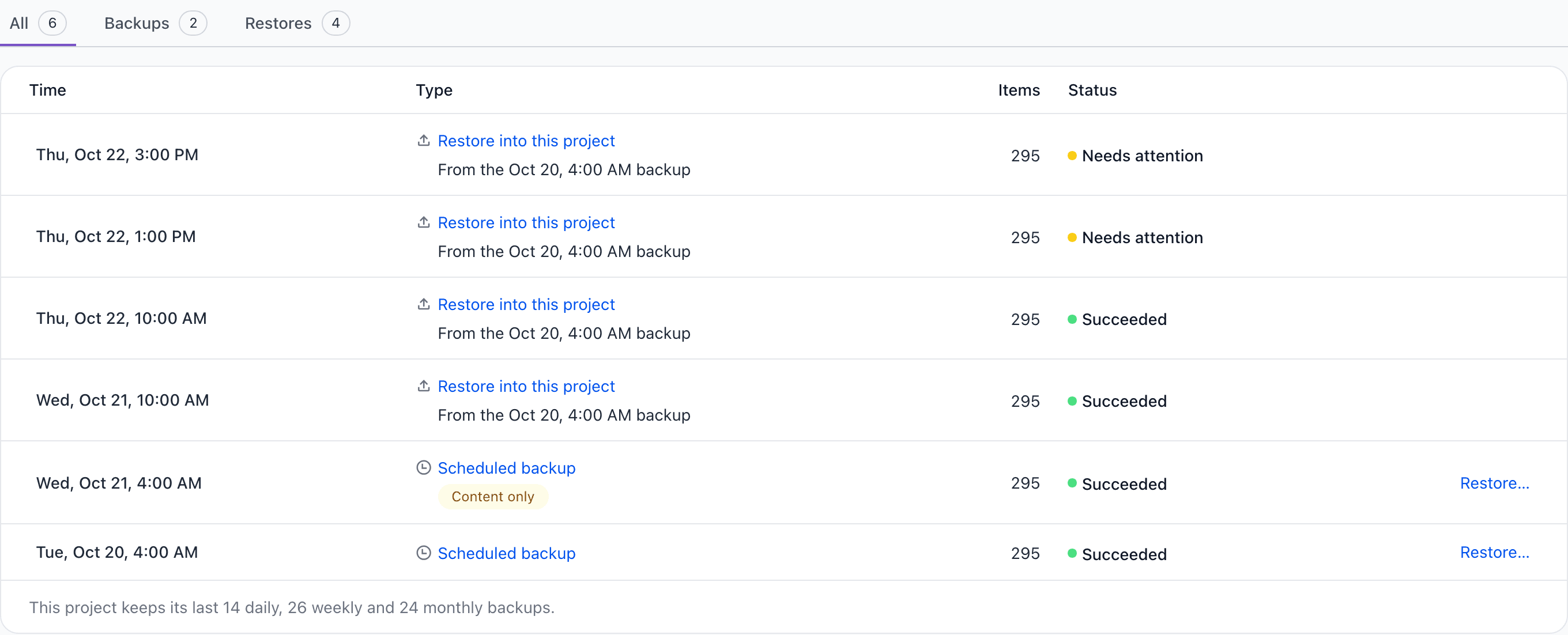
A restore can't put back anything its backup didn't save.
Limits#
- A project runs one backup, restore, or cleanup at a time. While one runs, the controls that would start another are switched off.
- Backup & Restore is built for projects of up to about 12 GB, counting the assets. Compare with a backup's Total size. A backup of a larger project can fail with "The assets don't fit on the disk." Back it up without assets, or ask Uniform support for more disk space.
- The Backups and Activity tabs show at most the newest 100 backups and the newest 100 restores.
- Run logs are kept for 90 days after a run.