Back up a project
A source project is backed up every night. You can also take a backup by hand, for example before a large import. A backup only reads the project, so taking one changes nothing in it. For what a backup saves, see Backup contents.
Before you start#
- A source project that's been added to backups. See Get Backup & Restore.
- Team admin on the team.
Nightly backups#
Every source project is queued for a backup around 2 AM UTC each day. The queue is worked through a few projects at a time, so a project's backup can start later than that. A project can't have a schedule of its own.
To leave assets out of nightly backups, turn on Back up without assets each night on the project's Backup & Restore settings page. Each nightly backup then reuses the asset library from the last backup that included assets. Assets added or changed since then are only saved by a backup you take by hand.

Take a backup now#
- In the project navigation, select Tools, then select Backup & Restore.
- Select Back up. To skip assets, open the menu on Back up and select Back up without assets instead.
The backup starts without a confirmation, and the page switches to the Activity tab. To follow it, select the backup, then select Progress and log.
attention
A backup taken without assets can't restore assets that were added or changed since the last backup that included them.
Read a backup#
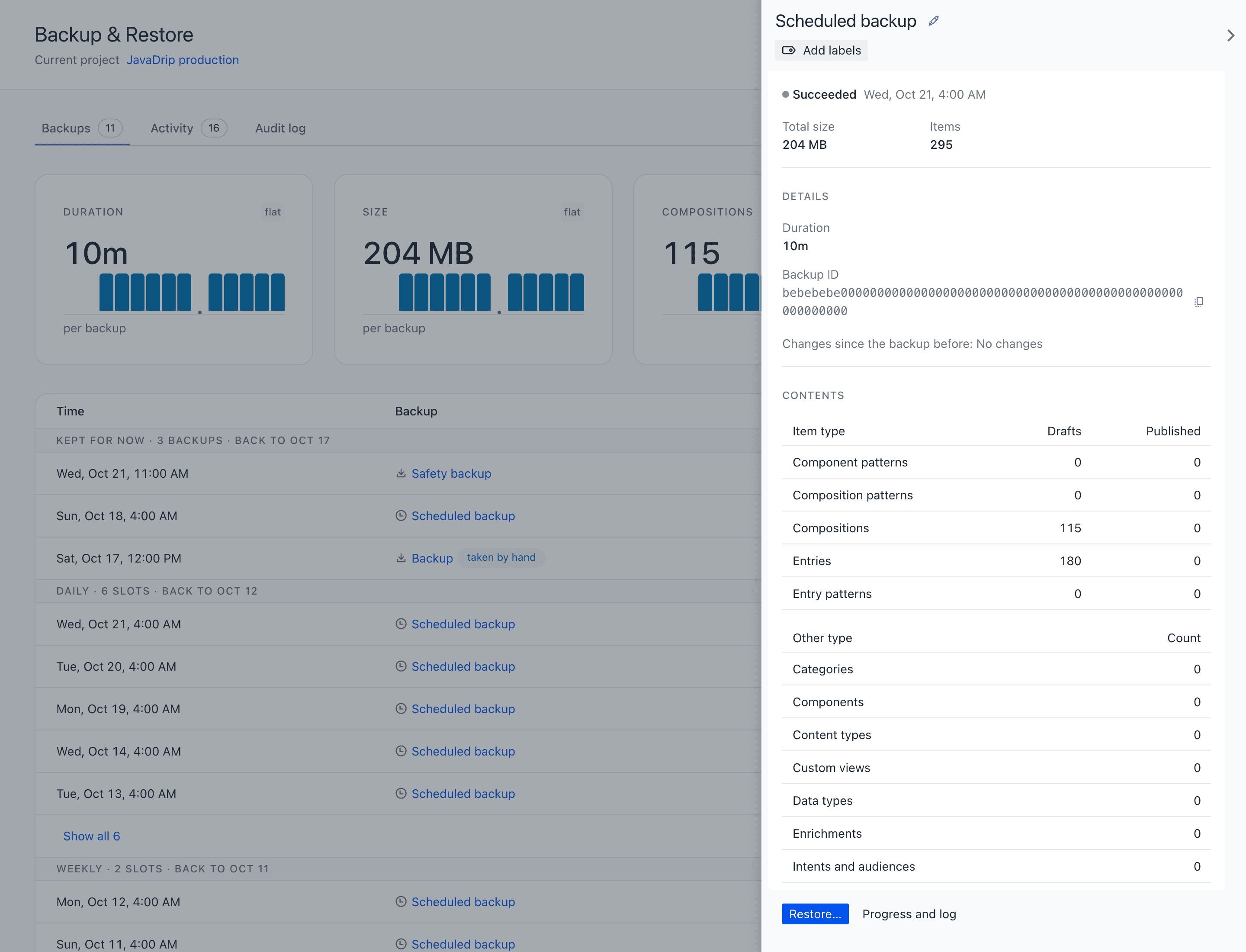
When the run finishes, the backup appears on the Backups tab with a taken by hand chip. Select its name to open its details:
- Totals for size, files, items, and assets, with the change since the backup before.
- Contents, which counts each type. Items have a Drafts and a Published column.
- The backup's Releases and Webhooks.
A callout says when a backup leaves something out:
| Callout | What it means |
|---|---|
| This backup needs attention | The content check found problems. You can still restore from the backup. See The content check. |
| Content only | The project's key couldn't read the project's configuration. See Why one backup can save less than another. |
| Backed up without assets | The backup reused the asset library of an earlier backup, or has no assets. The callout says which backup its assets come from. |
To give a backup a title, select the pencil next to its name, enter up to 100 characters, and select Save. A backup without a title is named after what started it, such as Scheduled backup, Safety backup, or Backup.
The content check#
Every backup except a safety backup runs a content check, which reports references in the captured content that don't resolve. An example is a composition parameter that its component doesn't declare.
Uniform accepts such content in a project, but refuses it when a restore writes it back. A fault in the published content can stop a restore before it writes anything. A fault in the drafts stops a restore part-way, with the published content in place and the drafts missing.
The check reports and repairs nothing. It never fails a backup. A backup with findings reads Needs attention and lists them in its details. To clear them, fix the content in the project, then take a new backup.
Retention and cleanup#
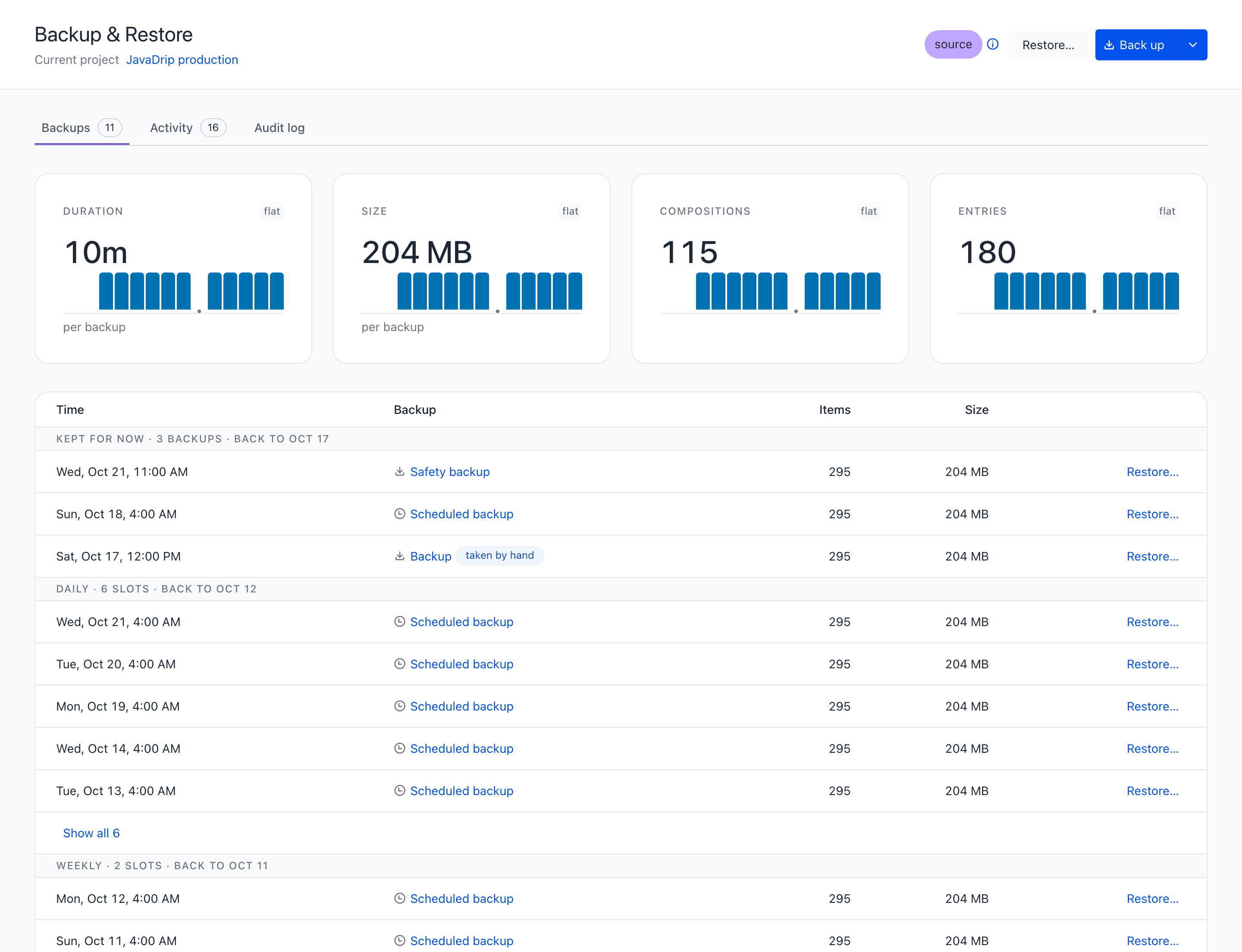
A project keeps its last 14 daily, 26 weekly, and 24 monthly backups. These are the defaults, set per project. The Backups tab shows the project's own rule.
The Backups tab groups backups by the retention slot each one fills: Daily, Weekly, and Monthly. A backup that no cleanup has looked at yet is under Kept for now. One backup can fill more than one slot.
A cleanup removes the backups the rule no longer keeps. It runs every Sunday at 04:02 UTC. A team admin can also select Clean up now on the settings page, where the Cleanup runs table lists past cleanups.