Restore a project
A restore writes one backup into a project. It replaces that project's content with the backup's, and doesn't merge the two. Before you restore into a project people work in, read What a restore changes.
When to restore#
- A project's content is wrong or gone, and it has to go back to how it was at one moment.
- You want a project's content, as it was at one moment, in another project.
- You want to rehearse a recovery. Restore a backup into a new project while nothing is wrong. Then the dialog, the run, and the follow-ups are familiar on the day you need them.
Before you start#
- Team admin on the team.
- Start the restore from the source project's Backup & Restore tool. Target projects have no Restore… button.
- At least one backup. See Back up a project.
- No other backup, restore, or cleanup running for the project.
Choose a backup#
- Open the source project's Backup & Restore tool.
- Select Restore… in the page header to restore the newest backup.
- To restore an older backup, select Restore… on its row instead.
Start with the newest backup, and go back further only for a reason. The dialog says what the chosen backup leaves out:
- This backup needs attention: the restore can stop early or part-way. An older backup that passed its content check avoids that, but leaves out more recent work.
- Content only: the backup has no integration settings, data sources, or webhooks. If that configuration is what you need back, pick another backup.
- Backed up without assets: the asset library is from an earlier backup. If a missing asset is what you need back, pick a backup that has it.
Read a backup explains each callout.
Choose a destination#
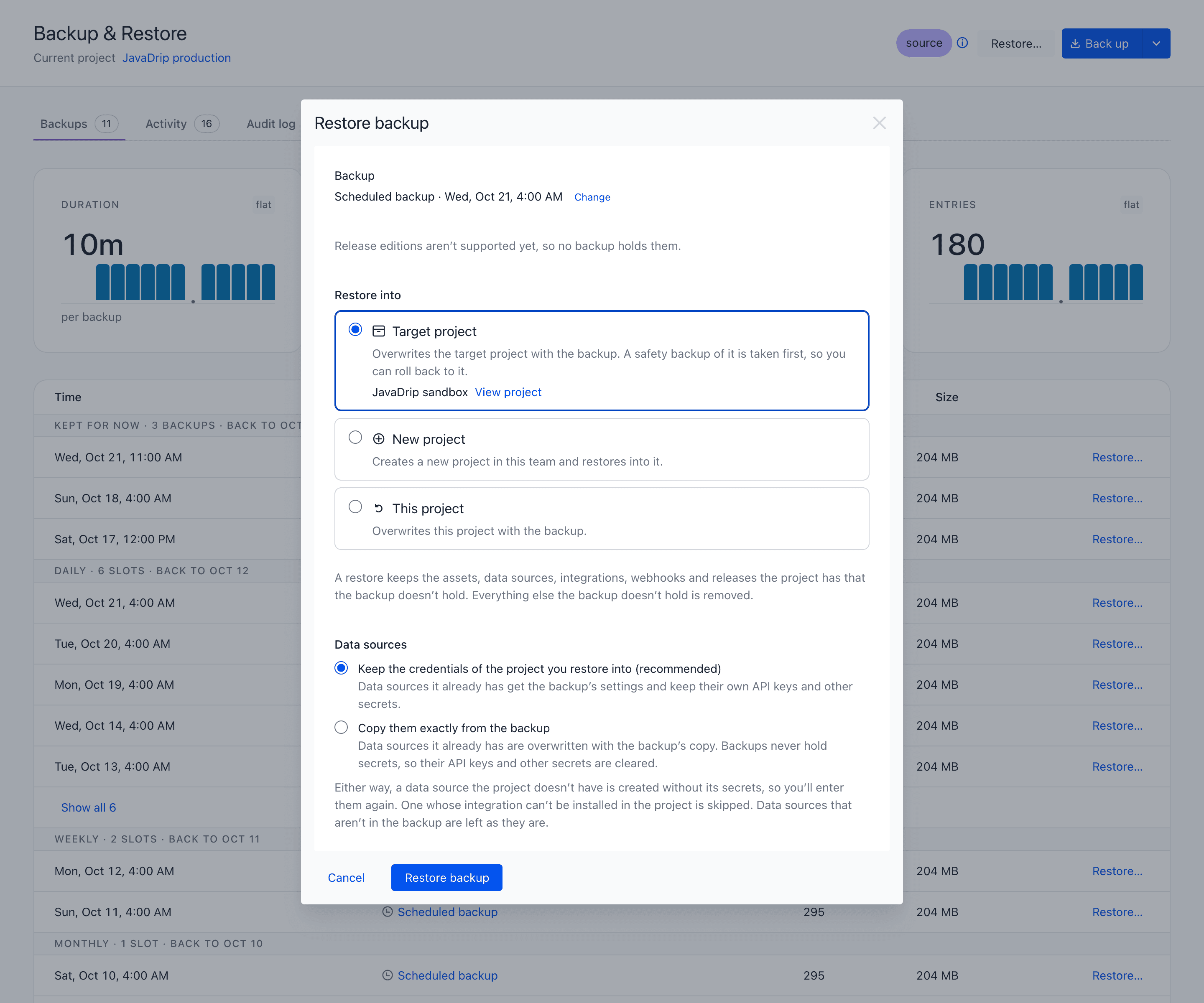
Under Restore into, select one of three destinations.
| Destination | What it does | Safety backup | Who can start it |
|---|---|---|---|
| New project | Creates a project in this team and restores into it. | No, and no roll back. | Needs a team API key on record for the team. |
| Target project | Overwrites a target project. | Yes, of the target. | A team admin. |
| This project | Overwrites the project the backup came from. | Yes, of this project. | A team admin, who types a phrase to confirm. |
New project and Target project leave the project your team works in untouched, so you can check the result first. Use This project as the last step of a recovery.
A destination you can't pick says why, for example "No target projects yet." A target that Uniform treats as production is labeled Production.
Choose how data sources are written#
Under Data sources, choose what happens to the data sources the destination already has:
- Keep the credentials of the project you restore into (recommended): they get the backup's settings, and their secrets stay as they are.
- Copy them exactly from the backup: they're overwritten, and their secrets are cleared, because backups never hold secrets. They stop working until someone enters the secrets again.
Either way, a data source the destination doesn't have is created without its secrets. For a new project, the dialog shows this as a sentence instead of a choice.
Start the restore#
- Select the confirm button: Create project and restore, Restore backup, or Restore into this project.
- On the Activity tab, select the restore.
- Select Progress and log to follow its steps.
A restore runs eight steps, from Getting ready to Checking the result. The first three only read: Getting ready, Taking a safety backup, and Opening the backup. A restore that stops in one of them doesn't change the destination.
When the restore finishes or fails, every team admin and the person who started it get a notification in Uniform.
Restore into the project the backup came from#
warning
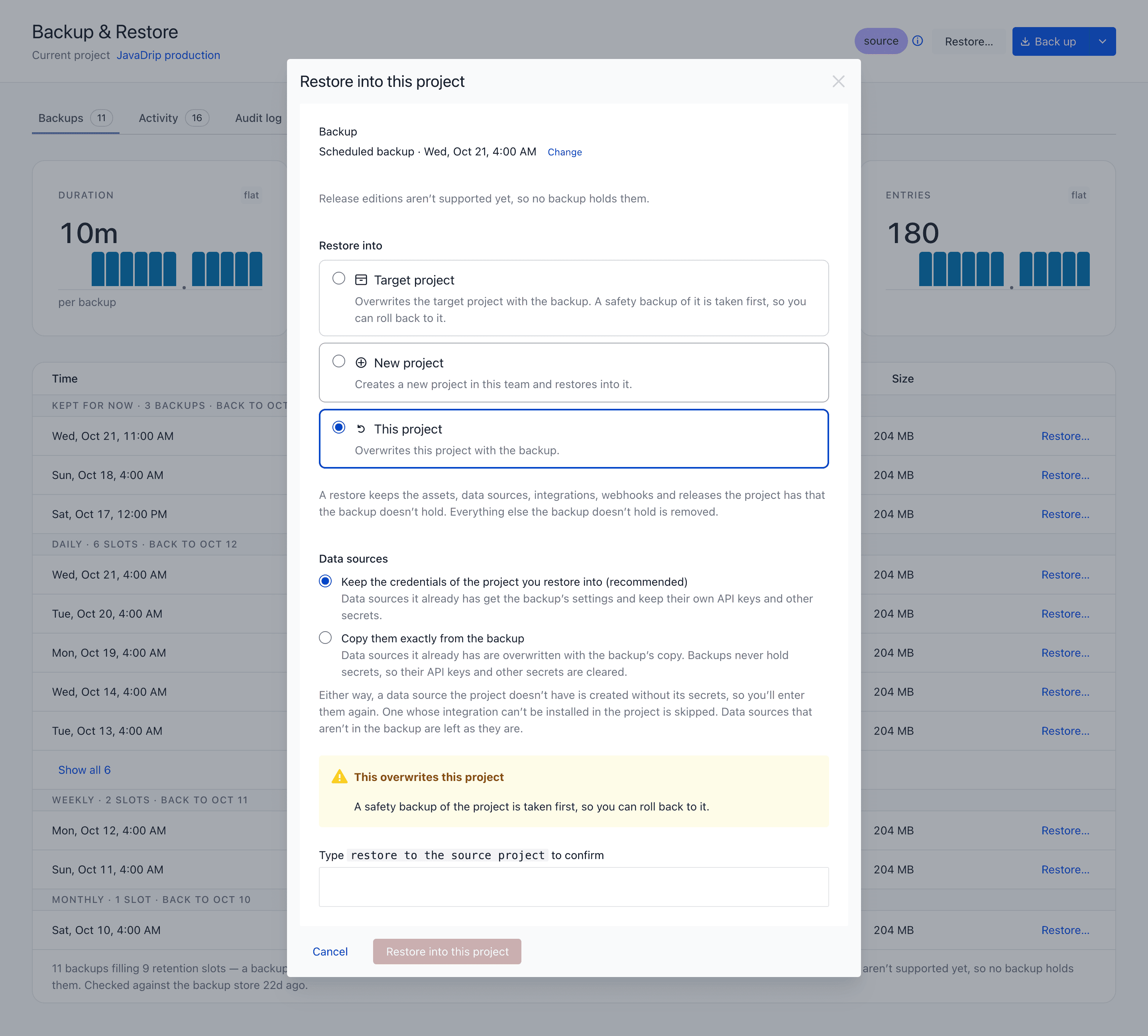
This overwrites the project your team works in. A safety backup of the project is taken first, so you can roll back to it.
- Select the This project card.
- Choose how data sources are written.
- Type the phrase the dialog shows, in any letter case.
- Select Restore into this project.
Finish a restore that needs attention#
Needs attention means the restore finished and left work for a person. Its details list each follow-up under Data sources, Webhooks, or Releases. Each group links to the page in Uniform where you do the work.
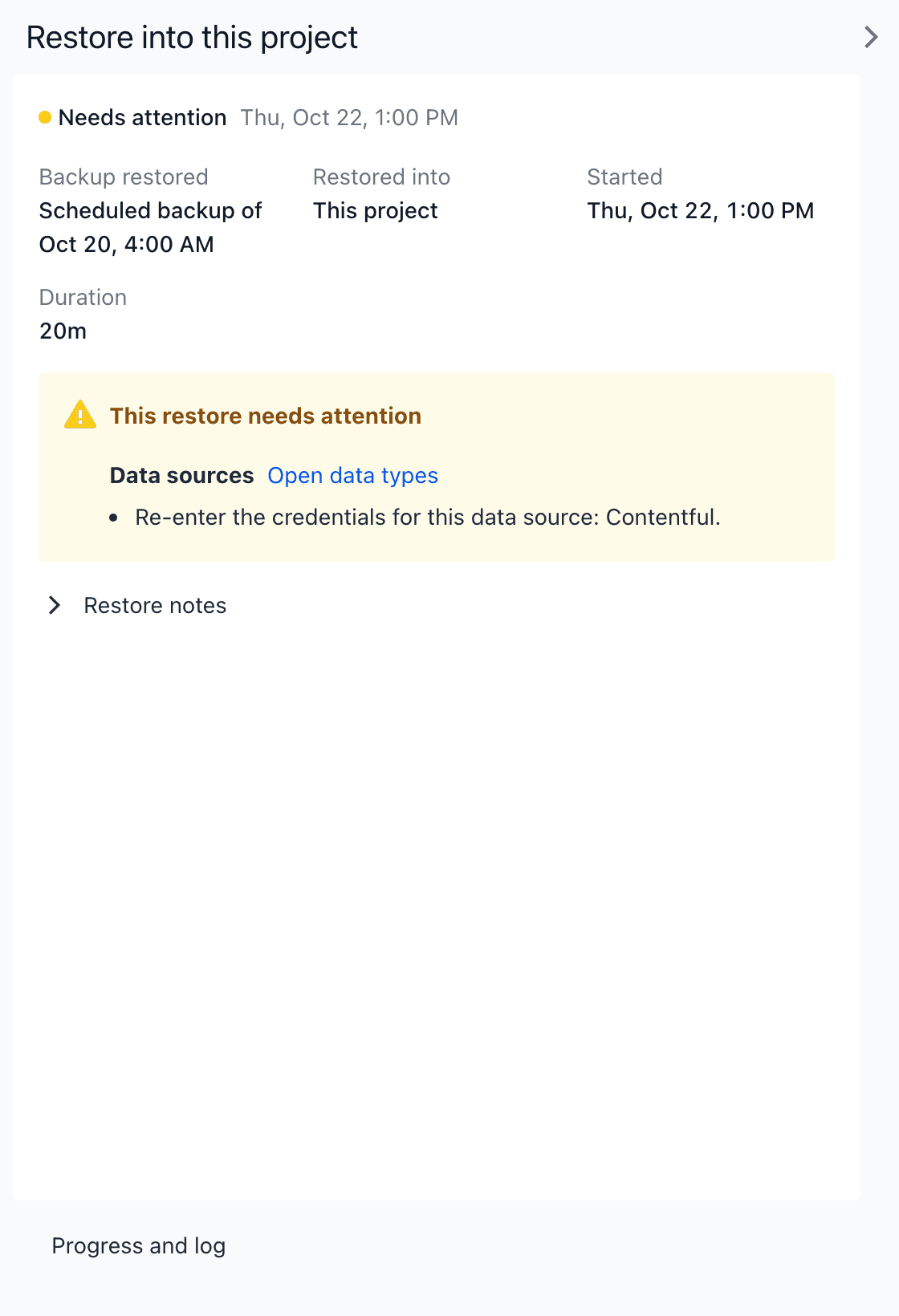
- On the Activity tab, select the restore.
- Under Data sources, select Open data types, and enter the credentials again for each data source listed.
- Under Webhooks, select Open webhook settings. Enter sensitive headers again, give new signing secrets to the receiving services, then turn the webhooks on.
- Under Releases, select Open releases. Set schedules and locks again where you still want them.
Follow-ups explains each kind.
Recover from a failed restore#
A failed restore reads Failed. Its details show the step it stopped at and whether it changed anything.
- If it didn't change the project, select Try again…. If it fails again, send the log from Progress and log to Uniform support.
- If the project may be part restored, select Roll back….
warning
If the details say the restore stopped before it reported a step, check the project before you use it.
Roll back a restore#
A roll back restores the safety backup taken before a restore into the project that restore changed. It's offered on every restore that took a safety backup, failed ones included.
- On the Activity tab, select the restore.
- Select Roll back….
- Work through the restore dialog, which opens on the safety backup and its project.
A restore into a new project has no roll back. A roll back can't remove releases that the restore created. See The safety backup and roll back.
Limits#
- A restore can't put back what its backup doesn't hold, such as release editions or data source secrets.
- A team API key on record for the team is needed for New project. It's set when the team is set up through its onboarding link, and it can't be replaced yet.