Connect MCP servers
You can connect third-party MCP servers (Linear, Notion, GitHub, partner CMSs, and so on) so Scout can use their tools from inside Uniform. This lets a single conversation reach into the systems your team already uses without context-switching.
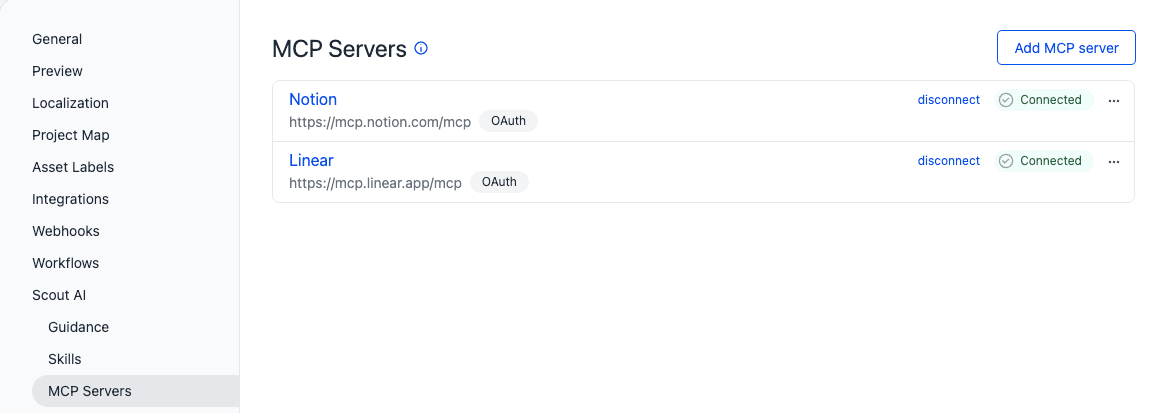
External MCP servers vs the Uniform MCP server
These are two different things that work in opposite directions:
- External MCP servers (this page) bring third-party tools into Scout, inside Uniform.
- The Uniform MCP server exposes tools to manage Uniform from your AI coding assistant (Cursor, Claude Code, etc.).
If you want Scout to talk to Linear, you want an external MCP server. If you want Cursor to talk to Uniform, you want the Uniform MCP server.
Manage connected servers#
Connected servers are managed by team admins under Settings → Scout AI → MCP servers.
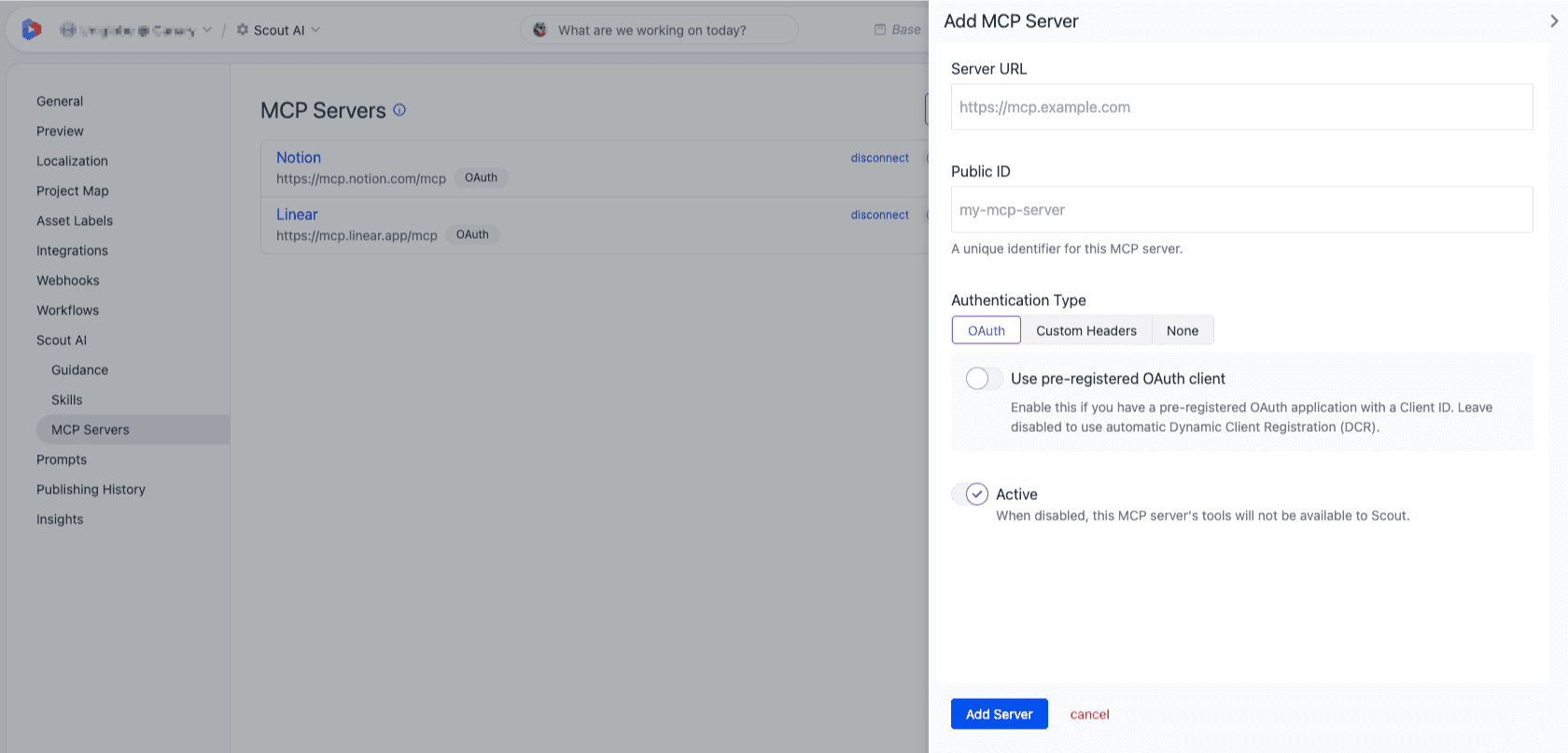
For each server you can configure:
- URL: the HTTP endpoint of the MCP server (streamable HTTP transport).
- Public id: a short identifier used in tool-call rows. The form suggests one from the URL hostname so you don't have to invent it.
- Authentication: see Authentication modes below.
- Active / inactive: toggle a server off without losing the configuration.
Authentication modes#
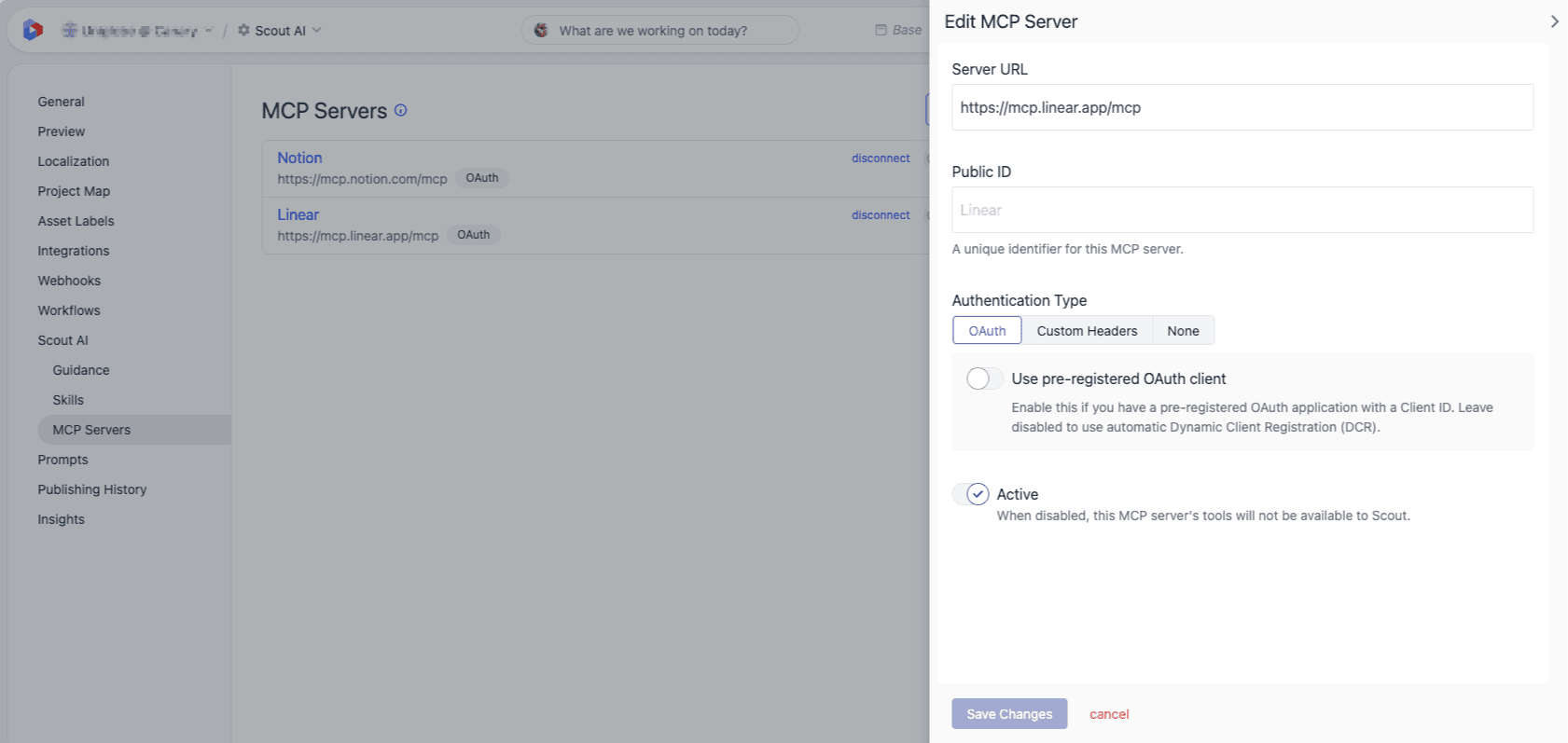
Scout supports the auth methods most external MCP servers use:
- OAuth, Dynamic Client Registration (DCR): Scout registers itself with the server on first connect; no client id or secret needed. This is the most common way to connect to MCP servers.
- OAuth, fixed / pre-registered client: paste an existing client id and secret if the server doesn't support DCR.
- Custom header values: for servers that authenticate with a static header (for example
Authorization: Bearer …or a custom API-key header). The UI shows when a stored value exists but never displays the secret itself.
Inside the chat#
Once a server is connected, its tools show up alongside Scout's built-in capabilities.
- Activity rows from an external server are suffixed with the server's id, see Activity rows.
- An in-chat MCP status popover in the Scout chat header shows connection status for every connected server, attention dots when something needs your input (for example, an OAuth re-authorization), and connect / disconnect controls.
If you are not a team admin, the settings page is hidden and the in-chat popover degrades gracefully so you don't see controls you can't use.
Security and trust#
Connect only servers from sources you trust
External MCP servers can read context Scout sends them and act in the external systems they connect to. Before you connect one, check the following:
- Trust the source. Anyone who controls an MCP server controls the tools and tool descriptions Scout sees. A malicious or compromised server can attempt to influence Scout's behavior through prompt-injection in tool descriptions or tool results. Connect servers from vendors and teams you trust.
- Data leaves Uniform. Whatever project context Scout sends with a tool call goes to the third-party server. Treat connecting an MCP server like exporting that data, and review the vendor's data-handling practices first.
- External writes may happen. Tools on a connected server might be able create, modify, or delete data in their external systems (issues, pages, files, records).
- Use the smallest auth scope that works. When granting OAuth or pasting credentials, pick the most restrictive scope, role, or API key that still gets the job done. Rotate or revoke when you disconnect.
- Disable instead of leaving idle. Toggle a server inactive (or disable individual tools) when you no longer need it. Scout stops calling it without losing the configuration.