Using Scout
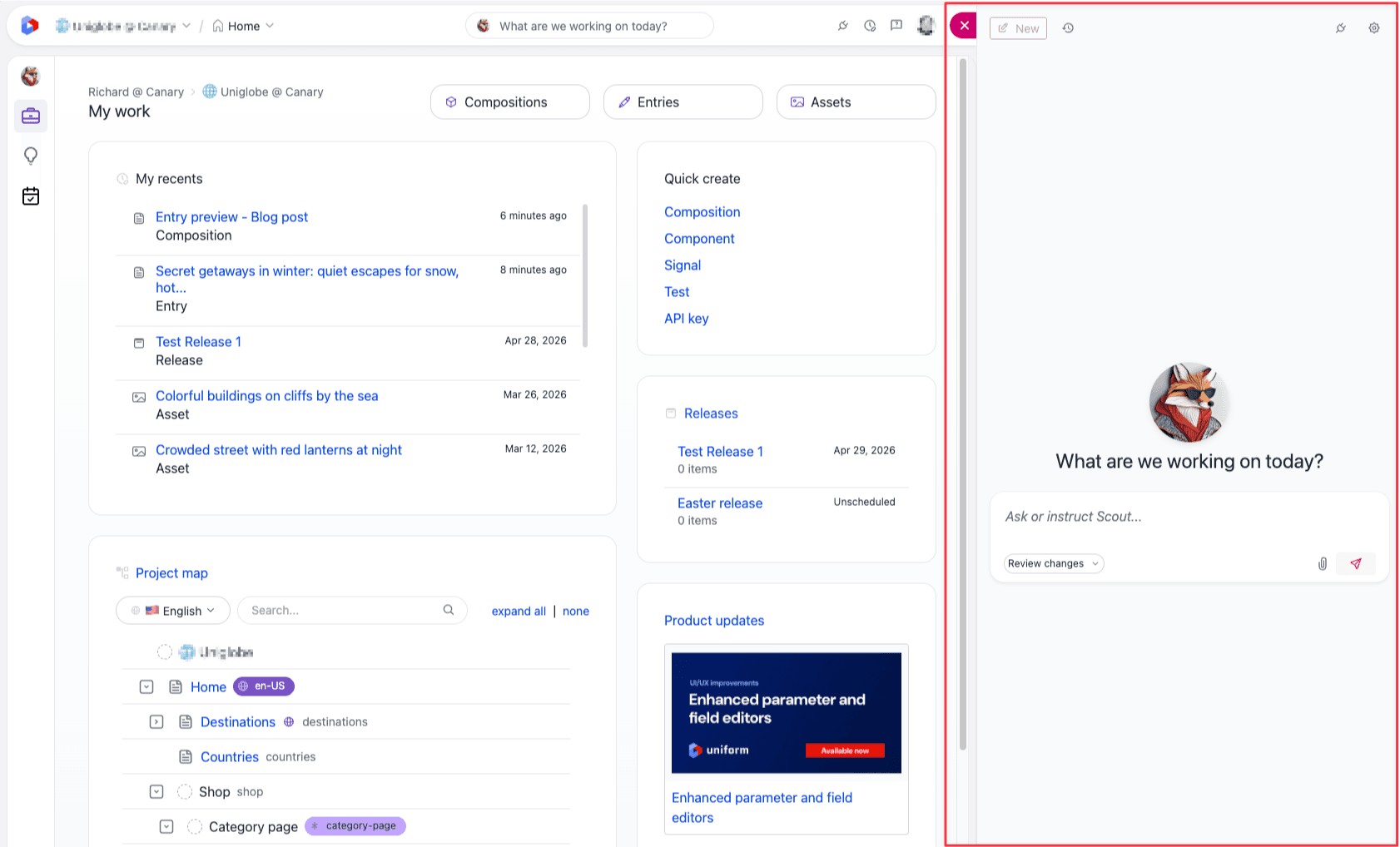
Scout's chat lives in a responsive sidebar docked to the right of the workspace, with a prompt box at the bottom and your thread history one click away in the header. This page walks through the chat UI, how to read Scout's replies, and how the apply-mode and pending-edits workflow protect you when Scout proposes changes.
The chat interface#
The sidebar#
Pinning the sidebar keeps it visible alongside whatever you are working on, so Scout stays in view as you move between editors and dashboards. Unpinning collapses it back into the global nav, freeing up the full workspace until you need it again.
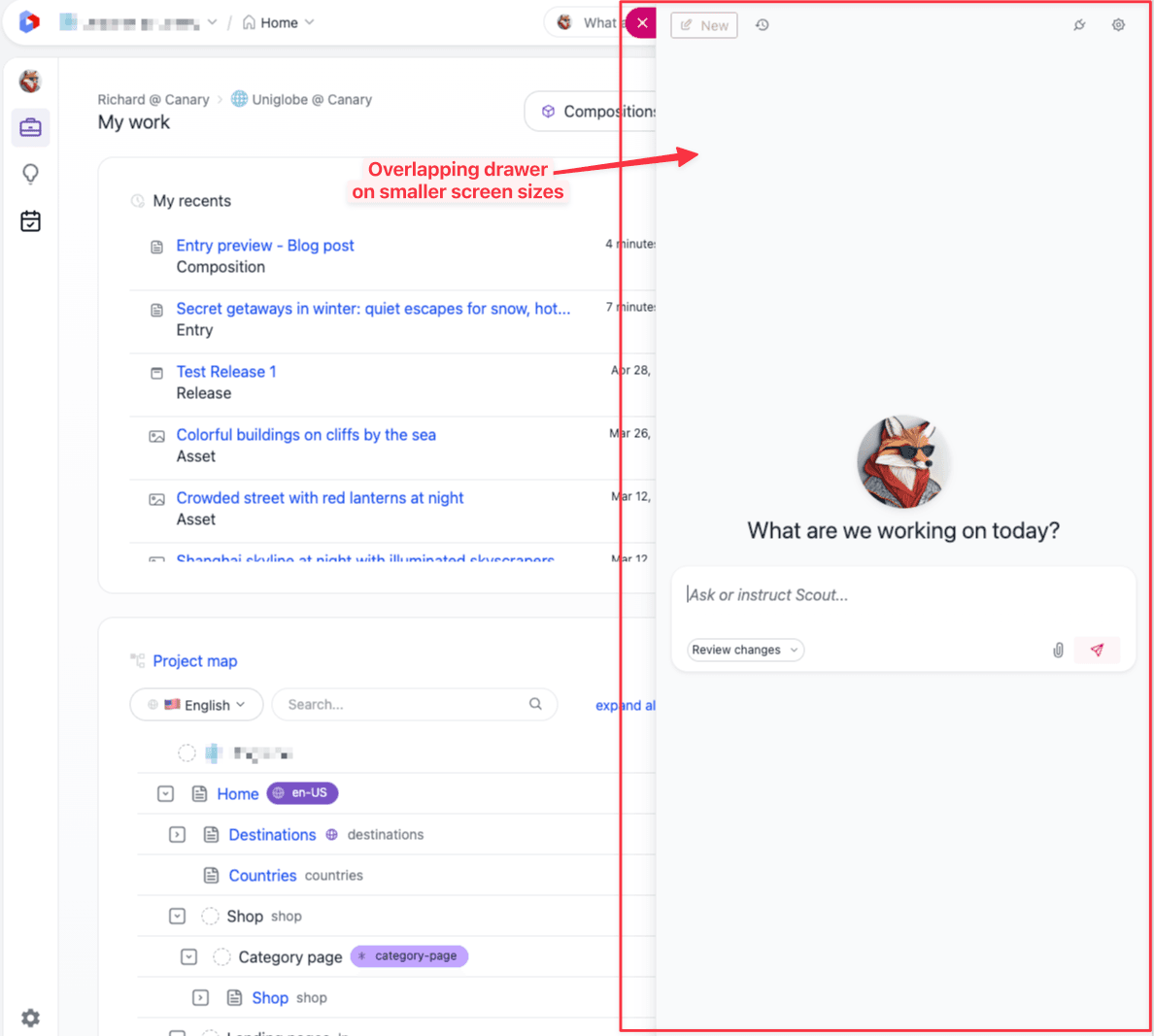
On narrower viewports, the sidebar slides in as an overlapping drawer instead of pushing the page aside, so you can keep working on the content underneath and dismiss Scout when you no longer need them visible.
The prompt box#
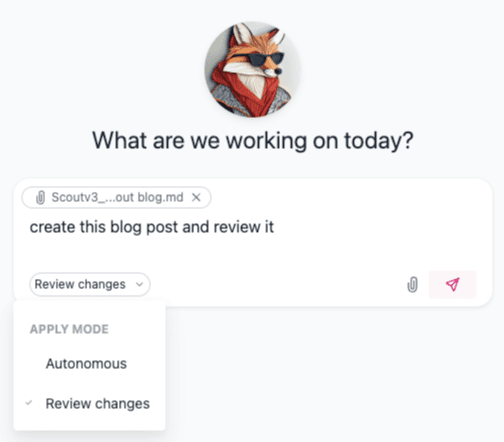
The prompt box at the bottom of the sidebar is where you talk to Scout. It also hosts the chip for the thread's apply mode, which controls what happens when Scout decides to edit something.
Prompt drafts are auto-saved#
Anything you type into the prompt box but don't send is kept until you do. Refreshing the page or navigating away does not lose the draft; it is restored the next time you open that thread.
Attachments#
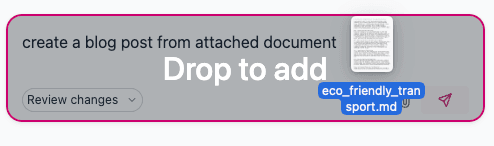
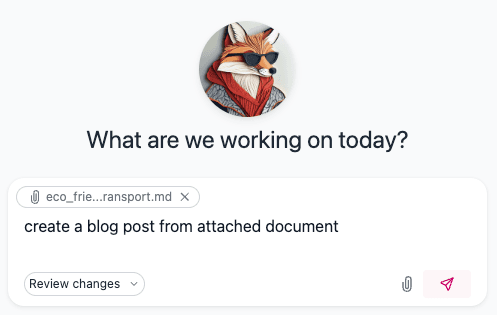
You can attach context to your prompt three ways:
- Drag and drop files onto the prompt box.
- File picker from the attachment button.
- Paste an image or text from the clipboard.
Supported attachment types:
- Images: JPEG, PNG, GIF, WebP, and other browser-supported image formats. Large images are auto-resized before sending.
- Text files:
.txtand.md. - PDFs:
.pdf.
URL attachments#
When you paste a publicly accessible URL into the prompt box, Scout automatically converts it into a tidy attachment chip. This allows Scout to read and use the page's main content as text—making it easy to provide context from articles or briefs.
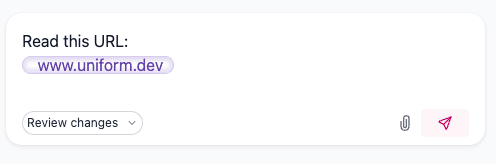
- The fetcher uses a readability-style extractor to pull out the main content and strip boilerplate such as HTML markup and navigation elements.
- The result is hardened against prompt injection so attacker text on the page can't override your instructions.
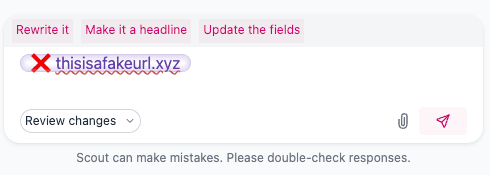
- Non-accessible URLs are flagged on the chip with a red icon so you can tell at a glance the page couldn't be fetched and adjust your prompt accordingly.
Suggested replies#
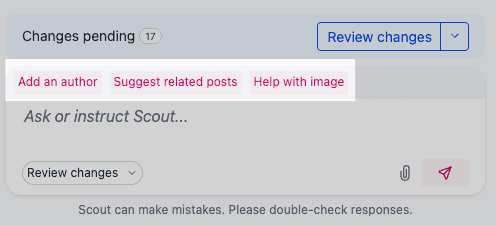
After Scout responds, you may see a few follow-up chips under the message. Click one to send it as your next prompt, or ignore them and type your own.
Threads and history#
You can keep multiple conversations on the go and switch between them. Threads follow you as you navigate Uniform, and Scout keeps track of where you are so they can stay relevant. Start a new thread for each unrelated task so context stays clean.
The conversation history overlay shows up to your last 20 threads, with a New button to start a fresh conversation and per-thread Rename and Delete controls in the menu. From the chat's manage menu you can also Download thread data — useful for sharing with Uniform support if you ever need to reproduce an issue.
Only the active thread runs
Scout doesn't run multiple threads in the background concurrently. Only the conversation you are actively viewing makes progress; any other thread appears paused until you switch to it and continue.
If you need Scout to work on something while you do something else, finish (or stop) the current turn first, switch threads, and let them run there.
note
Conversation history is private to each user. Your threads are not shared with other team members.
Reading Scout's messages#
As Scout works, they stream their reply and show you what they're doing. If Scout is heading the wrong way, click Stop while they're generating to cancel the in-flight response, then refine your prompt and try again.
Activity rows#
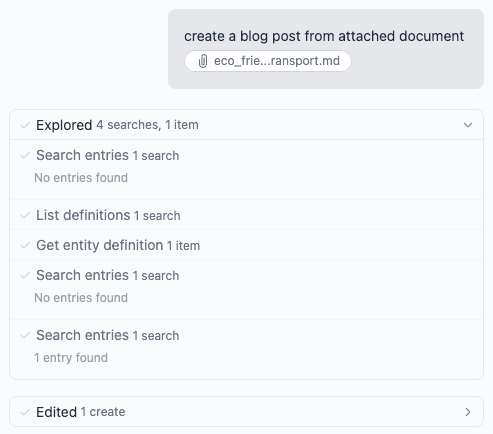
Scout's actions are grouped into collapsible activity rows labelled by what they're doing, for example Exploring…, Editing…, Accessing…. Activity from a connected external MCP server is suffixed with the server's id so you can see which third party was used.
Activity inspector#
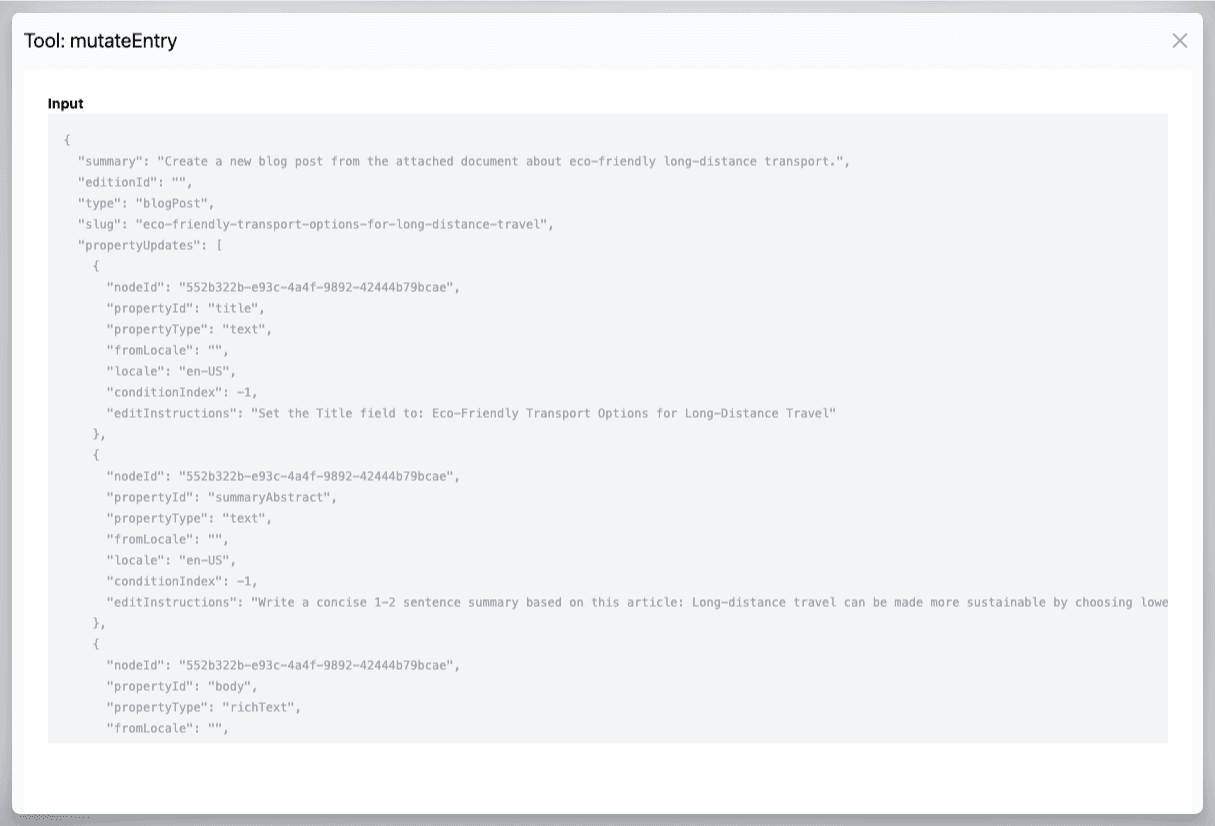
Click any activity row to open the activity inspector: a modal showing the raw input and output JSON for that step. Use it to understand exactly what Scout asked for and what came back. This is useful for understanding an unexpected result.
Apply modes: Autonomous vs Review changes#
Each thread has an apply mode that controls what happens when Scout decides to edit something. You pick it from the apply-mode chip in the prompt box, and the choice is remembered.
The apply-mode chip lives next to the input — click it to switch between Autonomous and Review changes (see the prompt box screenshot for an example of the picker open).
| Mode | What happens | When to use it |
|---|---|---|
| Autonomous | Scout applies edits immediately as they work. You see them appear in the page or in the editor. | Iterating quickly on low-risk changes, exploring ideas, single-entity edits. |
| Review changes (default for new threads) | Scout proposes edits and stacks them as pending edits for that thread. Nothing changes in your content until you apply them from the Pending edits dialog. | High-stakes batches, multi-entity changes, first-time use of a new external MCP server, working in releases. |
Apply mode is a user-wide preference
Your apply mode is stored in your browser and applies to every Scout thread until you change it. Switch modes whenever you like; previously-applied edits stay where they are.
Pending edits and Review changes#
When you use Review changes apply mode (or when Scout proposes a destructive change), edits queue up as pending edits for that thread instead of being applied straight away.
The pending changes bar#
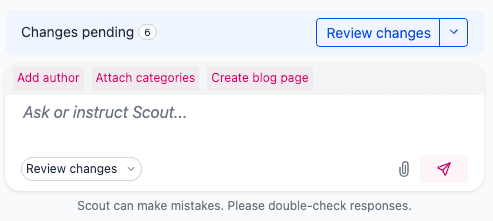
While edits are pending, a Changes pending bar appears above the prompt box with a running count and a Review changes button. Click it to open the Pending edits dialog.
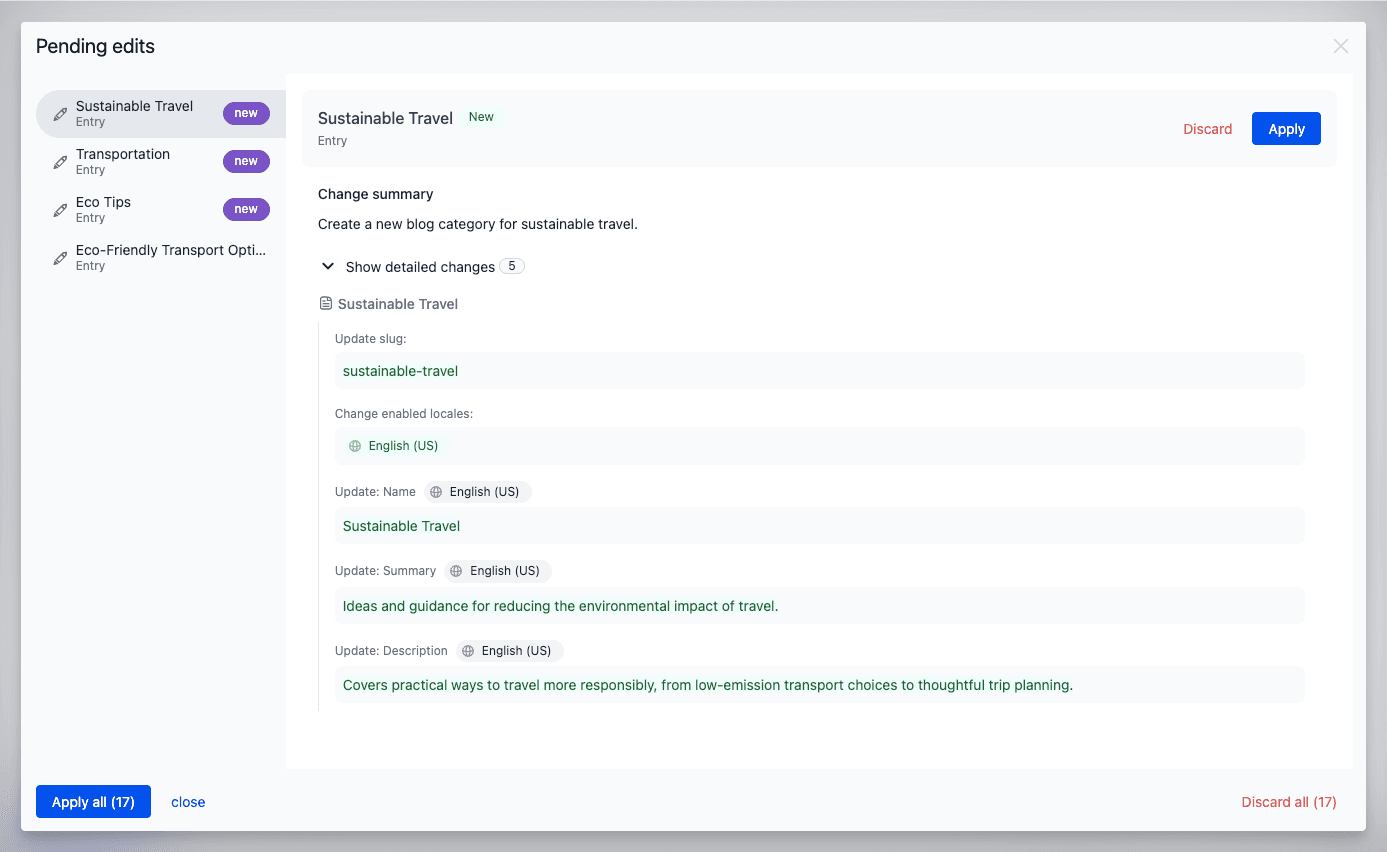
The Pending edits dialog#
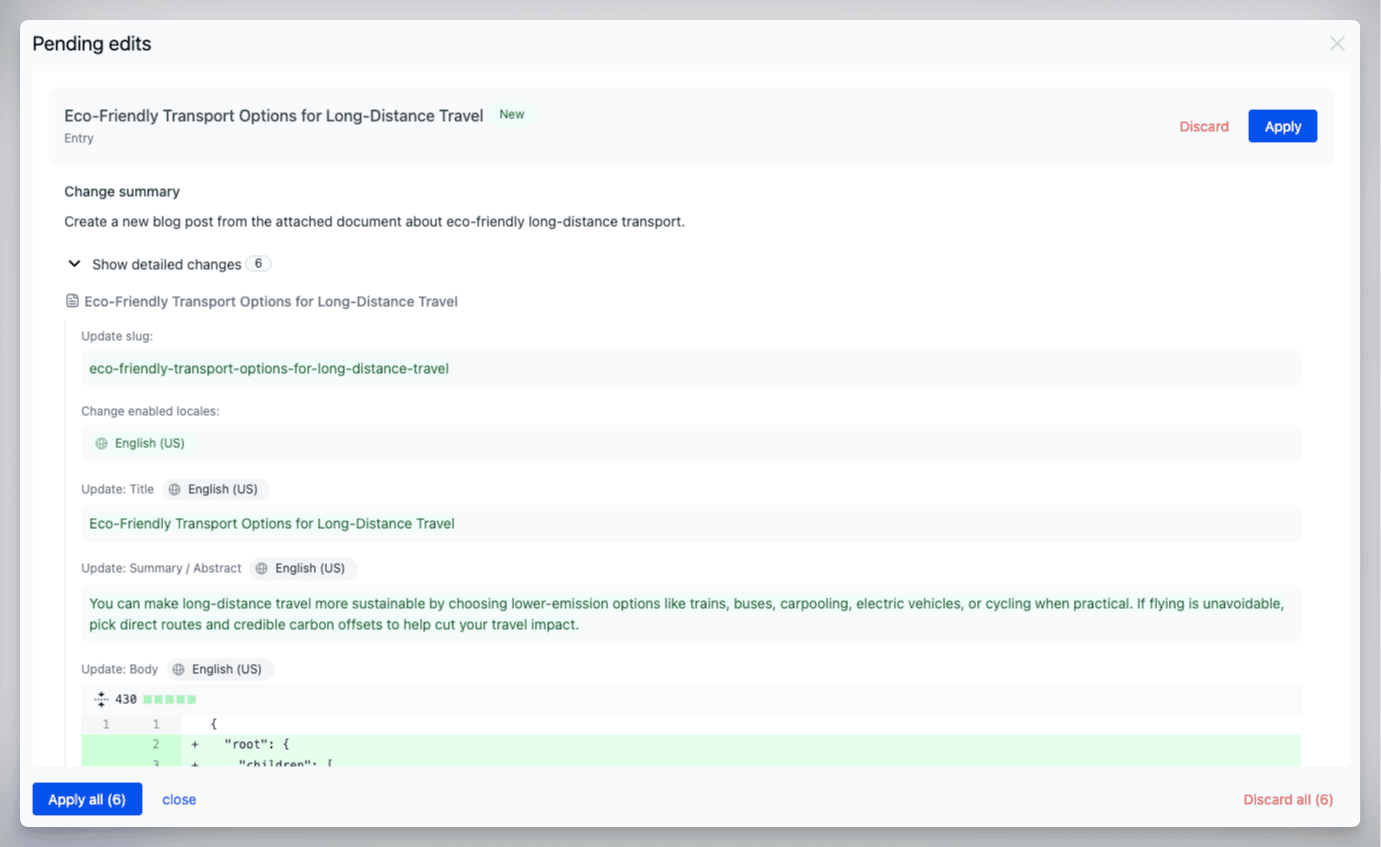
The Pending edits dialog is where you inspect everything Scout has proposed for this thread and decide what to keep.
The dialog includes:
- A per-entity header showing the entity name, type, and a New badge for pending creates, with per-entity Apply and Discard controls.
- A Change summary describing in plain language what Scout is proposing for that entity.
- A Show detailed changes expander that breaks the proposal into the underlying field-level changes (slug, enabled locales, individual localized fields, body diffs, and so on).
- Diff renderers tuned for text, JSON, and boolean values, with Show more / show less for tall rows.
- A pending delete treatment (red "deleted" chip and a soft-destructive Apply delete button) so deletes are never one-click.
- Footer controls: Apply all (N), close, and Discard all (N).
- A friendly empty state when nothing is pending.
What can be queued as pending edits#
Pending edits support all the entity types Scout can write to:
- Compositions, entries, and patterns (component patterns, composition patterns, entry patterns).
- Signals, quirks, aggregates, audiences, intents, and enrichments.
- Pending creates: Scout can draft a brand-new composition, entry, or pattern before it exists, shown with a New badge in the dialog.
- Pending deletes: surfaced clearly so you can opt in.
When a single turn produces edits across multiple entities, the dialog groups them in a sidebar so you can step through each one before applying.
Pending edits indicator#
The chat header surfaces an indicator with a short summary of what is pending, plus a button to open the Pending edits dialog directly.