Personal access tokens
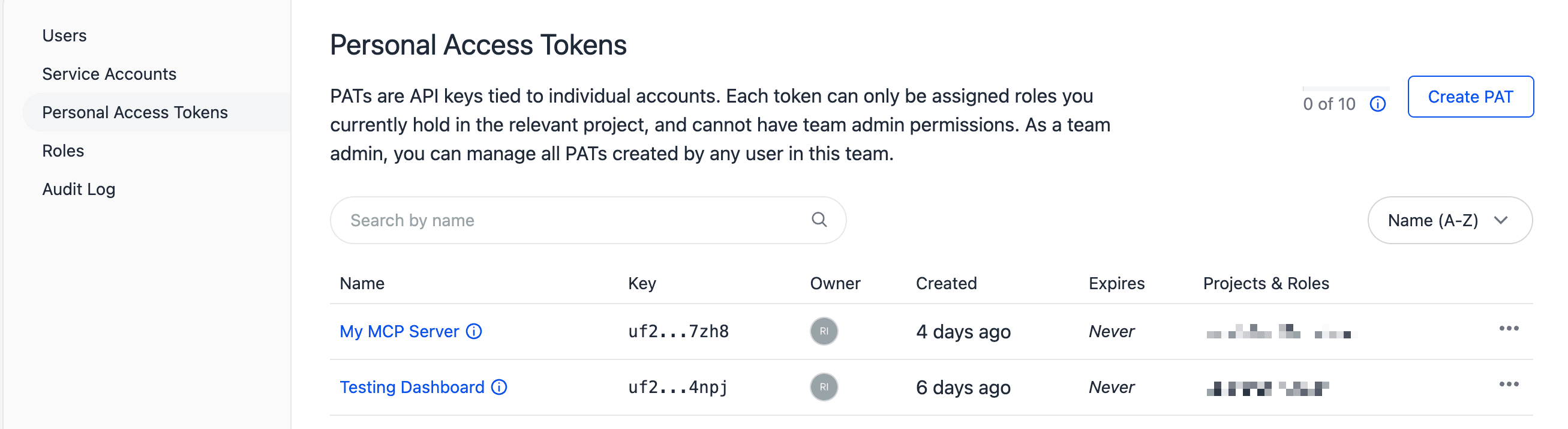
Personal access tokens (PATs) are API credentials tied to your user account. Unlike service accounts, which represent machine identities, a PAT represents you and is scoped to your current permissions.
Key characteristics#
- Owner-capped permissions: Each token can only be assigned roles you currently hold in the relevant project. If your roles are reduced, the token's roles are automatically pruned to stay within your access level.
- Per-user limit: You can create up to 10 PATs per team.
- No team admin access: PATs cannot be assigned the team admin role. Use a service account for operations requiring team admin access.
- Secret shown once: The token value is only displayed at creation time. Store it securely before closing the dialog.
Use cases#
PATs are ideal for developer tooling that acts on your behalf:
- Uniform MCP Server: Connect AI assistants to your Uniform projects using your own permissions.
- Uniform Context Chrome extension: Test personalization and A/B testing locally.
- Local development servers and scripts: Run your local dev server, CLI commands, or API calls during development without sharing a team-wide service account.
How to create a personal access token#
- Open your team page in Uniform at https://uniform.app.
Navigate to Security > Personal Access Tokens.
Click Create PAT.
Enter a Name for the token.
(Optional) Set an Expiration date. If left empty, the token will not expire.
Assign roles for the project(s) you want the token to access. You can only assign roles that you currently hold.
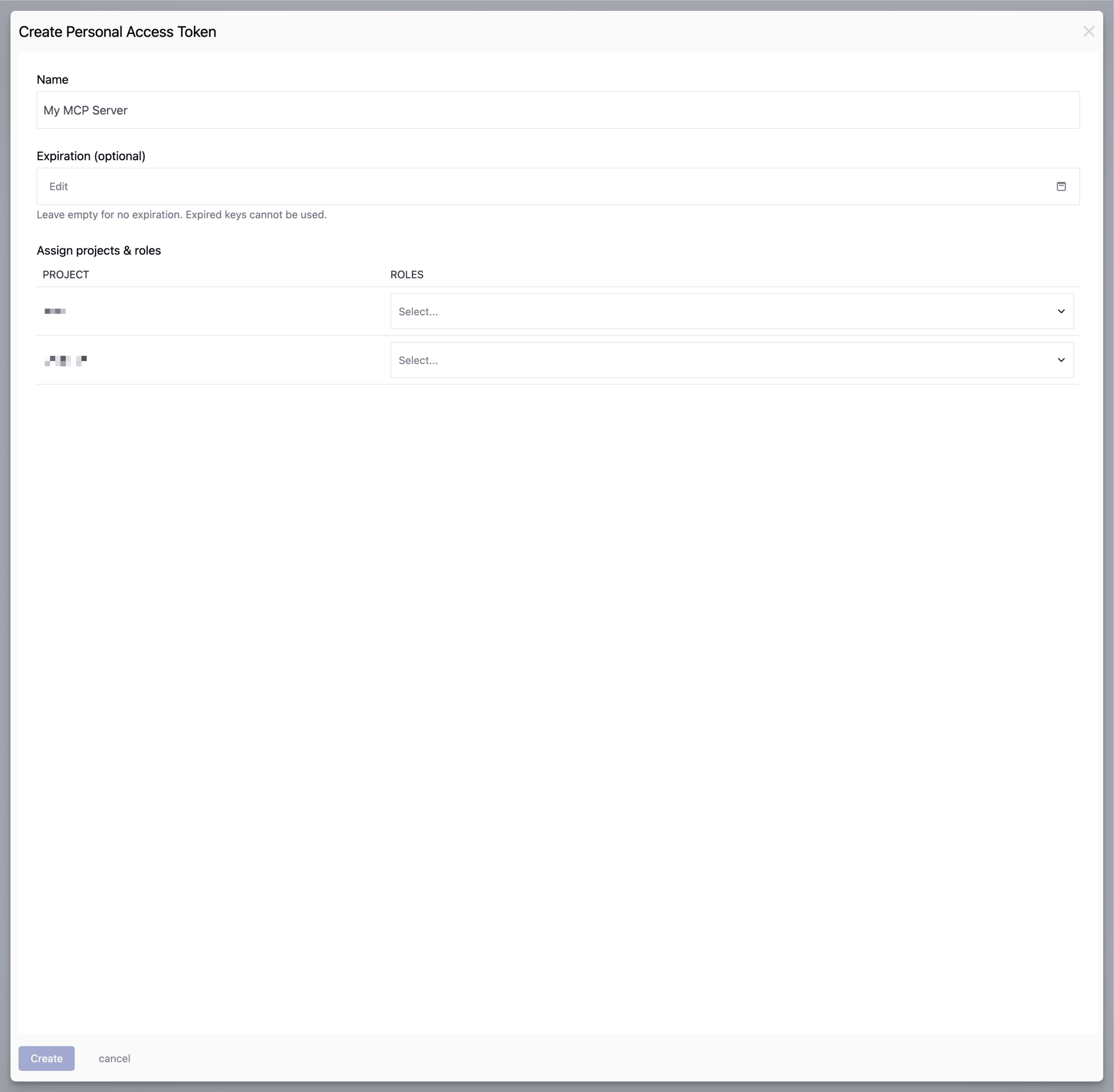 Creating a personal access token with a name, optional expiration, and project roles
Click Create.
Copy the token value and store it securely.
Save your token now
For security reasons, this is the only time the token value is displayed. You must save it before closing the dialog.
Click Close.
How to revoke a personal access token#
- In Uniform, navigate to Security > Personal Access Tokens.
- Click the name of the token you want to revoke.
- Click Delete.
- Click OK.
warning
Revoking a token is permanent. Any application or tool using that token will immediately lose access.
Token expiration#
When you create a PAT, you can optionally set an expiration date. After the expiration date passes, the token can no longer authenticate requests.
To replace an expired token, create a new one with the same role assignments.
Permission synchronization#
PAT permissions are capped to the owner's current roles at creation time. If your roles in a project are later reduced or removed, any PAT roles that exceed your new access level are automatically pruned.
This ensures a PAT never provides access beyond what its owner currently has.
Environment variable configuration#
Use the UNIFORM_API_KEY environment variable to configure applications and tools with your PAT:
The same environment variable name is used for both service accounts and personal access tokens.