Managing entries
Once you have multiple entries, Uniform provides powerful tools to help you organize, find, and manage your content at scale.
Entry management overview#
All your entries are listed in the Experience > Entries section of the application. From here you can:
- View all entries across all content types
- Search and filter entries using advanced criteria
- Access individual entries for editing
Organize and find your entries
Use favorites to bookmark the entries you use most, My recents to return to entries you recently worked on, and search, filter, and sort to find a specific entry. When you keep rebuilding the same search, save it as a custom view.
Listing entries#
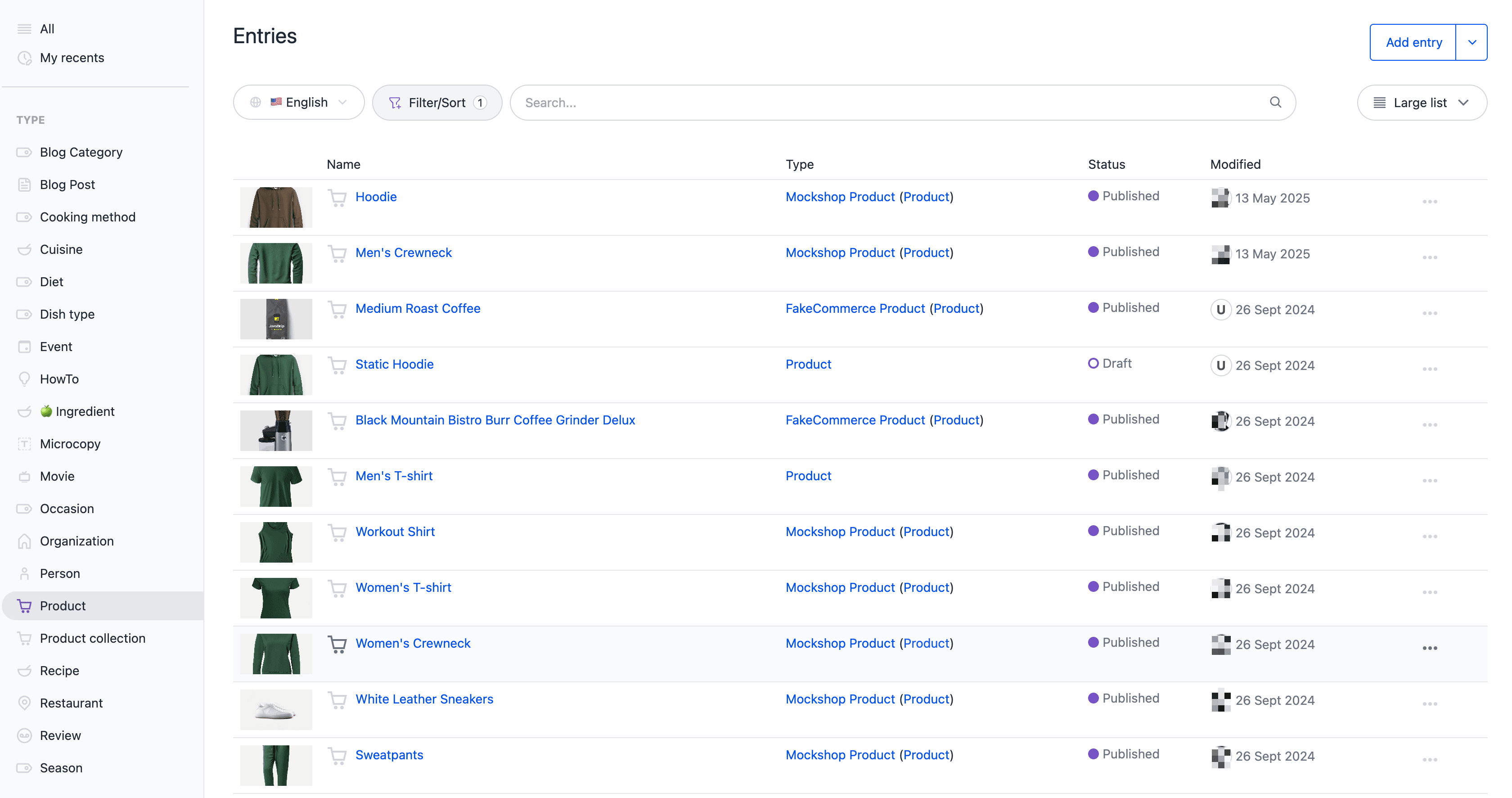
The entries list shows all entries that match the current filter criteria. By default all entries are shown. You can quickly switch between content types by clicking the content type name in the left sidebar.
Use Show locale on the search and filter bar to resolve entries against a specific locale. This lets you focus on content for specific languages or regions.
Each entry in the list provides several management options:
- Click the entry name to open it in the entry editor
- Use the dropdown menu () to access additional actions:
- Duplicate: Create a copy of the entry with all its content and settings
- Unpublish: Remove the entry from public access while keeping it in the system
- Delete: Move the entry to Trash
Entry list views#
The entries list can be shown as a list, large list, or grid. Use the segmented view control on the right of the search and filter bar to choose the view that best suits your content type and workflow. For details on each view, see list views.
Searching, filtering, and sorting of entries#
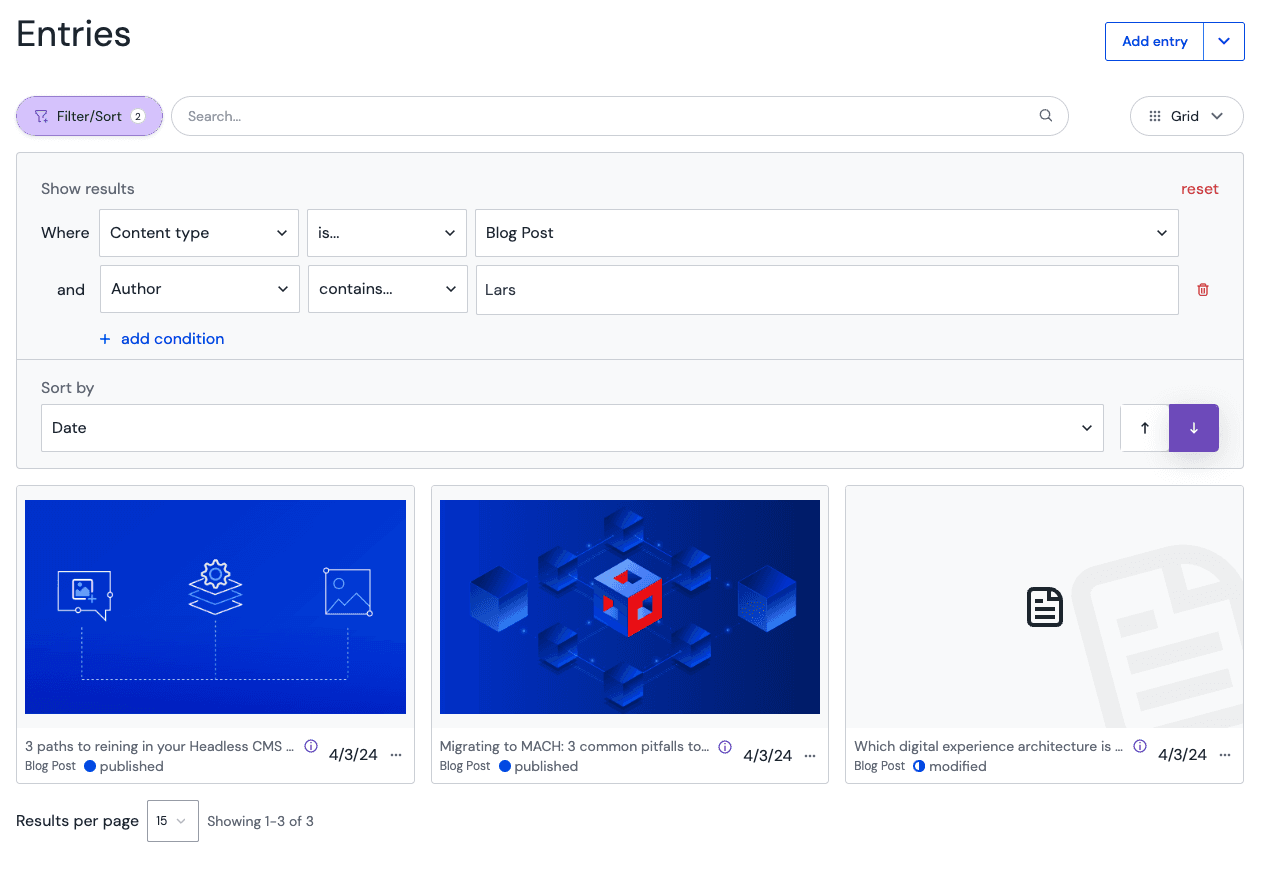
You can search, filter, and sort the entries list using a powerful set of granular options. Keyword search, filter conditions, sorting, and list views work the same way across content listings — see search, filter, and sort for how these controls work.
For entries specifically, you can:
- Run advanced full-text search across all supported field types of an entry, including typo tolerance
- Filter and sort by any system property (e.g. content type, publish status, enabled locales)
- Filter and sort by any entry metadata (e.g. creation date, modification date, author, name, slug)
- Filter and sort by any custom field for entries of a selected content type
Supported field types for search and filtering#
The following field types are supported for search and filtering of custom fields in entries:
| Field type | Search operators | Limitations |
|---|---|---|
| Text |
| none |
| Rich Text |
| limited to for the first 10000 characters per Rich Text field |
| Number |
| none |
| Date |
| none |
| Date/Time |
| none |
| Single Select |
| none |
| Multi Select |
| none |
| References |
|
|
| Checkbox |
| none |
Search and filtering on connected external data#
When entries or entry patterns are connected to external data sources using dynamic tokens, the search and filter capabilities can be applied to the connected data as well.
Uniform will only index the last resolved values that are used in the entry and will regularly update the values depending on the cache settings of the underlying data type for the data resource.
Search and filtering through the API or SDK#
To programmatically search and filter entries using the Uniform API or SDK, refer to our comprehensive knowledge base article on search and filtering. This article provides detailed information about available search parameters, filtering options, and code examples for both API and SDK implementations.
Known limitations for search and filtering#
These are the known limitations for search and filtering of entries. We are working on improving the search and filtering capabilities and will update this list as new features are added.
Filter and sort on custom fields limited to a single content type#
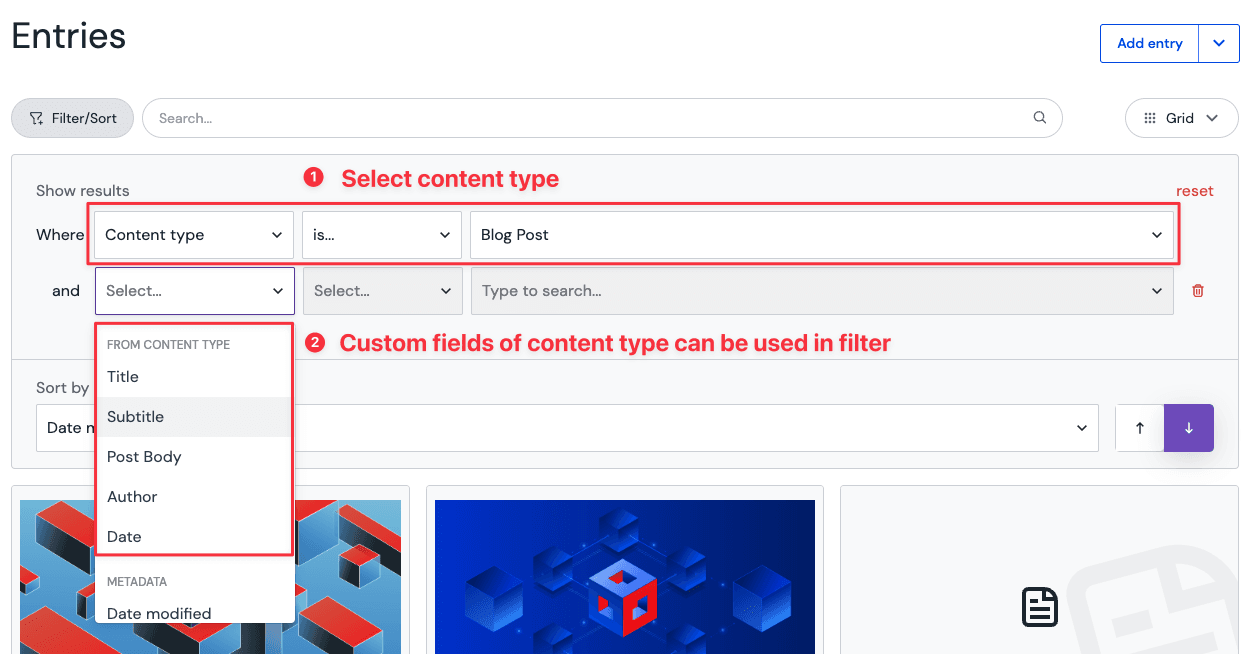
To be able to filter and sort on a custom field, it is required to specify a single content type in the filter conditions. Once a Content type is condition names a single type, that type's fields appear in the Add menu under the content type's own group.
note
It is not possible to filter or sort by custom fields across multiple content types at the same time, even if these content types share the same field settings.
Unsupported field types#
These field types are temporarily not supported for search and filtering: