Configure search
This guide is for developers who set up Uniform Search for a project. It tells you how to select the content to index and how to set up the fields in the search index. It also tells you how to control the order of results.
Prerequisites
- Uniform Search is set up for your project. Uniform does this for you after you request activation.
- You are a team admin in the Uniform project. Refer to Roles and permissions.
- Your content is published in Uniform.
Goals
- Understand how Uniform Search keeps your data.
- Define the indexing scope and the schema.
- Add file parsers, computed fields, and external sources.
- Tune synonyms, curations, stopwords, semantic search, and behavior relevancy.
- Export the configuration and import it into a different project.
How Uniform Search organizes data#
Before you configure Uniform Search, learn the terms on this page. The Uniform Search tool uses the same terms.
Search index and search collections#
The search index contains all indexed documents of one project. Uniform Search does not make a different index for each type of content. Entries, compositions, assets, and external records go into the same search index.
The search index has one search collection for each locale. For example, a project with the locales en-US and de-DE has 2 search collections. Uniform Search keeps the locale codes in lowercase, so en-US content has the locale value en-us.
If your project has no locales, the search index has one search collection.
Documents#
A document is one item in the search index. Each document is one entry, composition, asset, or external record in one locale. If an entry has content in 3 locales, the search index has 3 documents for that entry.
A document contains:
- System fields, such as
name,uri,locale,source, andtype. Uniform Search adds these fields to each document. For the full list, refer to System fields. - Content fields that you add from your content types.
- Computed fields that a function calculates for each document.
Search sources#
A search source is a type of content that feeds the search index. Each document has a source system field that tells where the document comes from.
| Search source | Value of source | What Uniform Search indexes |
|---|---|---|
| Entries | entry | The fields that you add to the schema, from the entry types in the indexing scope. |
| Compositions | composition | Published compositions that have a node in the project map. Text from the components in the slots goes into the full-text field. |
| Assets | asset | The title, description, media type, and URL of each asset. Uniform Search also extracts the text from PDF and Office files. |
| External sources | external | Records from your other systems. The type field contains the source type of the external source. |
Compositions and the project map#
The project map is not a search source. Uniform Search uses the project map only to give each composition a URL:
- Uniform Search reads the published project map one time for each re-index.
- The path of the project map node of a composition becomes the
urisystem field of the document. The path is localized for each locale. - If a composition has no project map node, Uniform Search does not index it. A composition without a node has no stable URL.
- If the node of a composition is a dynamic route, Uniform Search does not index the composition. Index the entries that the dynamic route shows instead. Refer to Project maps.
Content that Uniform Search does not index#
Uniform Search indexes only published content. It does not index drafts or patterns.
To exclude one entry or composition, add a field or parameter with the name excludeFromIndex to its type. If the value is true, Uniform Search does not index the item. The value can be a boolean or the text true. If the field is localized, the value of each locale applies to that locale.
Uniform Search indexes an item only in the locales that the item has content in. A field value comes from the same locale, or from the value that is not localized. Uniform Search never uses a value from a different locale.
Incremental updates and re-index#
Uniform Search keeps the search index up to date in 2 ways:
- Incremental update: When an author publishes or deletes an entry, composition, asset, or project map node, Uniform Search updates the related documents automatically.
- Re-index: A re-index (a full rebuild) reads all the content in the indexing scope again. Uniform Search builds a new version of the search index next to the live version. When the new version is complete, search changes to the new version. Search stays available during a re-index.
Some configuration changes need a re-index. This guide tells you when. For more about the re-index, refer to Operate search.
info
Incremental updates do not change the documents of external sources. Refer to External sources.
Open the Uniform Search tool#
Only team admins can see and open the Uniform Search tool.
- In the Uniform dashboard, open your project.
- In the project navigation, select Tools, then select Uniform Search.
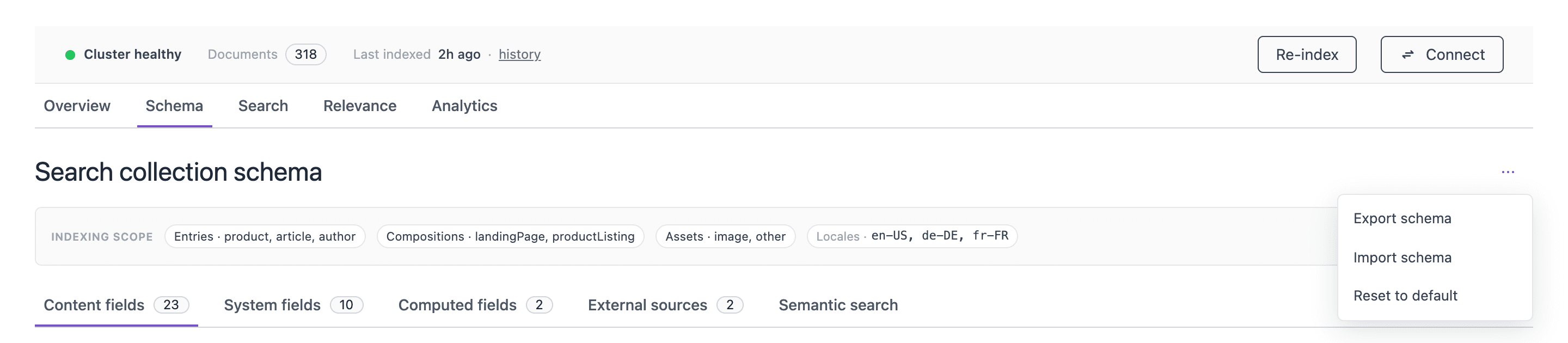
The Uniform Search tool has 5 tabs: Overview, Schema, Search, Relevance, and Analytics. This guide uses the Schema and Relevance tabs. Use the Search tab to test your changes.
A status strip shows above the tabs. It shows the health of the search service, the number of documents, and the time of the last re-index. It also has the Re-index button and the Connect button.
Define the indexing scope#
The indexing scope tells Uniform Search which entry types, composition types, asset types, and locales feed the search index. The schema uses the indexing scope to find the fields that you can add.
Values of the indexing scope#
Each type selector in the Edit indexing scope drawer accepts these values:
| Selection | Result |
|---|---|
| [All] | Uniform Search indexes all types of this search source. |
| Specific types | Uniform Search indexes only the selected types. |
| Empty | Uniform Search does not index this search source. |
If you select [All], the selector removes the other types. If you select a type after [All], the selector removes [All].
The Asset MIME types selector is different. If it is empty, Uniform Search indexes all MIME types. Select MIME types to index only some files, for example only PDF files.
The Locales selector sets the locales to index. Each locale becomes its own search collection. By default, all project locales are selected.
Select only the types that you need#
The indexing scope is opt-in. Uniform Search indexes only the types that you select, and the schema is opt-in too. Select only the types that visitors must find in search. Do not select [All] if you do not need all types.
A small indexing scope has these benefits:
- Each re-index reads less content, so it completes faster.
- Fewer publish events cause incremental updates.
- The field catalog contains only the fields that you can use, so the schema is easier to set up.
- Search results do not contain content that visitors must not find, such as configuration entries or fragments of pages.
note
With [All], Uniform Search also indexes new types that your team adds later. With specific types, a new type is not indexed until you add it to the indexing scope.
Edit the indexing scope#
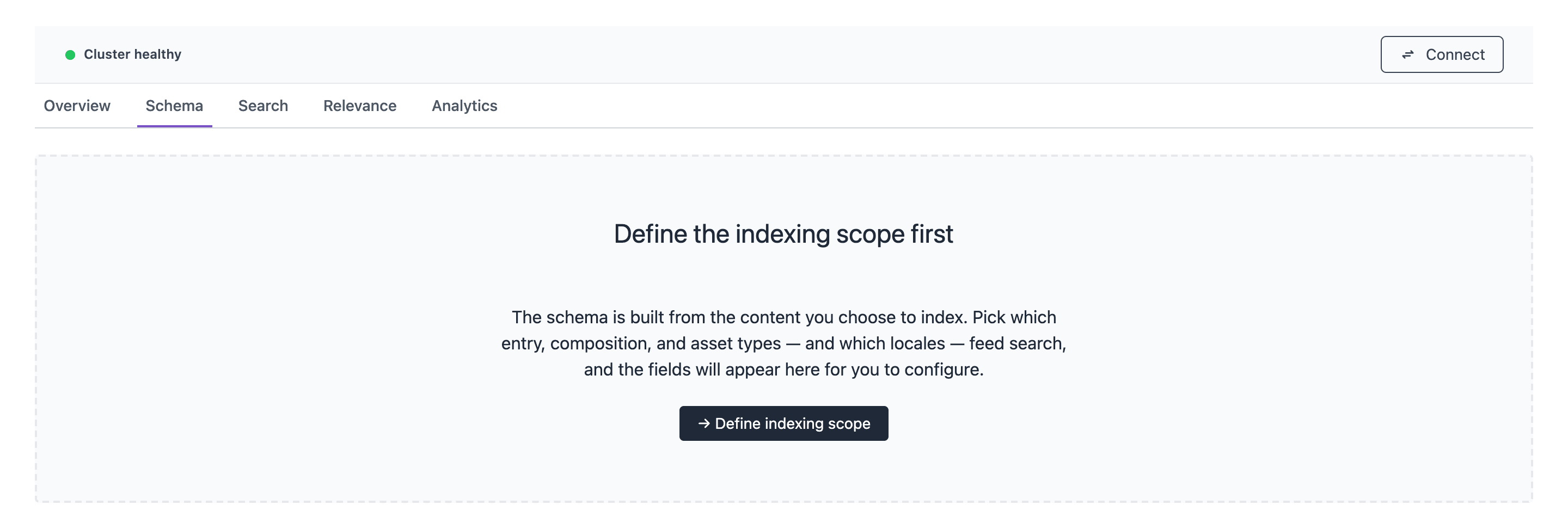
In the Uniform Search tool, open the Schema tab.
Click Edit scope.
tip
If the project has no indexing scope yet, the Schema tab shows Define the indexing scope first. Click → Define indexing scope.
In Locales, select the locales to index.
In Entry types, select the entry types to index. To index all entry types, select [All].
In Composition types, select the composition types to index. To index all composition types, select [All].
In Asset types, select the asset types to index. To index all asset types, select [All].
Optional: In Asset MIME types, select the MIME types to index.
Click Save & regenerate.
![The Edit indexing scope drawer with Locales en-US and de-DE, Entry types [All], Composition types Landing page and Product listing, Asset types Other, and Asset MIME types application/pdf, above the Cancel and Save & regenerate buttons.](/_next/image?url=%2Fimages%2Fguides%2Fsearch%2Fconfigure-search%2Fedit-indexing-scope.png&w=3840&q=75)
When you save, Uniform Search updates the list of fields that you can add to the schema. The status strip shows Regenerating schema while this job runs. Uniform Search reads your published content in the default locale of the project to find the fields.
If this is the first scope, Uniform Search also makes the search collections. Otherwise, click Create search collection on the Schema tab.
A change to the indexing scope applies to the search index after the next re-index.
Configure the schema#
The schema is the list of fields in the search collection and their options. The Schema tab shows the schema under the title Search collection schema. The tab has these sub-tabs:
| Sub-tab | Use it to |
|---|---|
| Content fields | Add fields from your content types and set their options. |
| System fields | See the fields that Uniform Search adds to each document. You cannot change them. |
| Computed fields | Add fields that a function calculates. This sub-tab shows only when computed fields are turned on. |
| External sources | Add pull sources and push sources. |
| Semantic search | Select the fields that semantic search uses. |
Content fields#
Uniform Search does not add content fields automatically. You add each content field that your search page needs. At first, the search index contains only the system fields.
Each content field has 4 index options:
| Option | Result | Default |
|---|---|---|
| Index | Visitors can search, filter, facet, and sort by the field. If you turn it off, Uniform Search keeps the value but does not index it. | On |
| Facet | The field can be a facet or a filter in search results. | Off |
| Store | Uniform Search returns the value in each search result. | On |
| Sort | The field can be an order option for search results. | Off |
These rules apply to the index options:
- Facet and Sort need Index. If you turn off Index, Uniform Search also turns off Facet and Sort.
- You cannot facet a field of type
objectorobject[]. - You can sort only a field of type
string,int32,int64, orfloat. You cannot sort a list field. - If a field has an option that the rules do not permit, Uniform Search clears the option when it loads or saves the schema.
Add content fields#
On the Schema tab, open the Content fields sub-tab.
Click + Add content field.
info
The Add content fields drawer shows the fields that Uniform Search found in the indexing scope. If the list is empty, edit the indexing scope and save it again.
Optional: In Content / composition type, select one or more types to make the list shorter.
Optional: In Search, type a part of the field name.
Select the fields to add.
For each selected field, set Index, Facet, Store, and Sort.
Click Add fields.
Click Save changes.
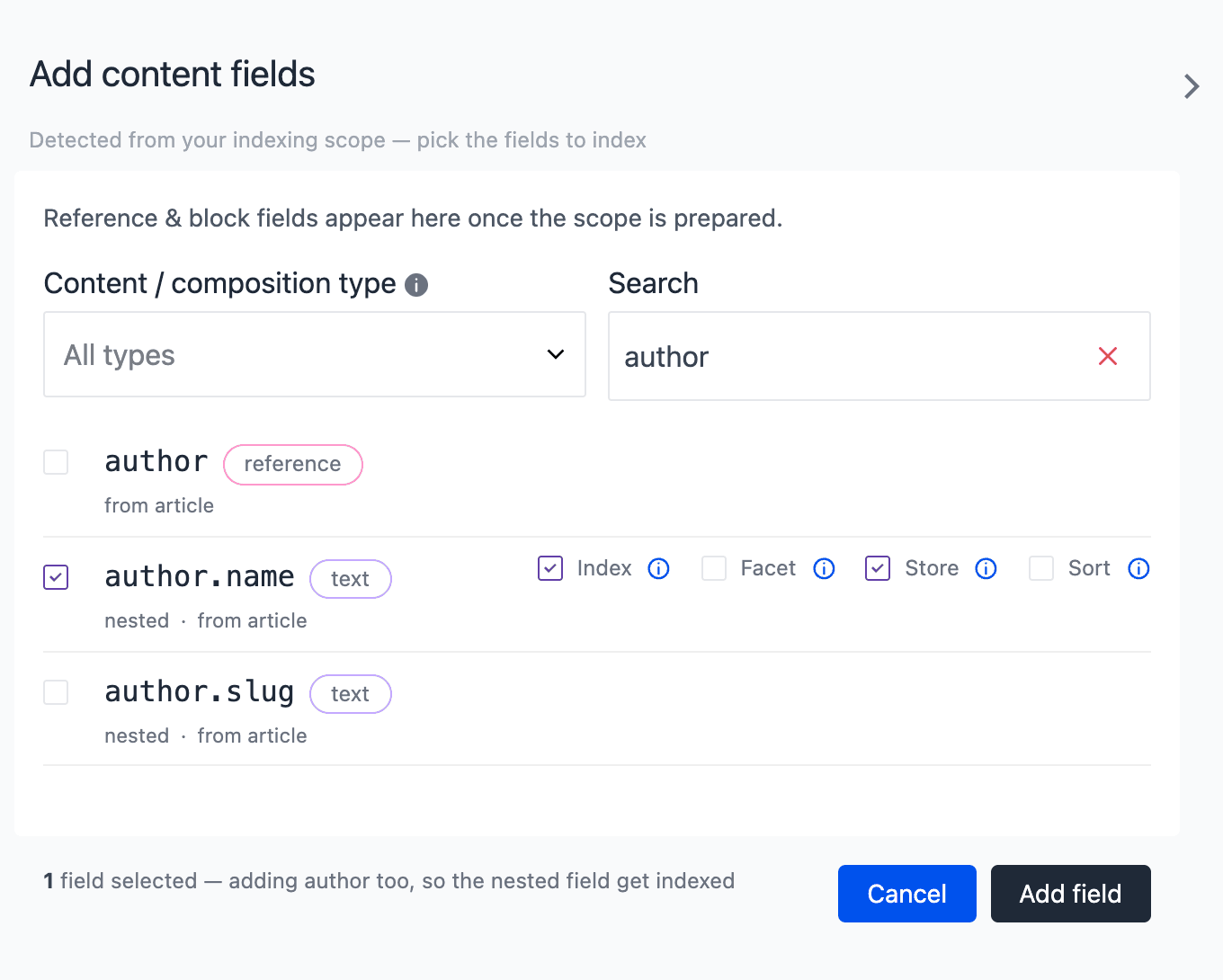
The drawer adds the fields to the table, but it does not save them. The table shows the chip Unsaved on each new row. The Save changes button shows only when you have changes that are not saved.
If you open a different tab before you save, the Uniform Search tool asks you to confirm. Click Stay to keep your changes.
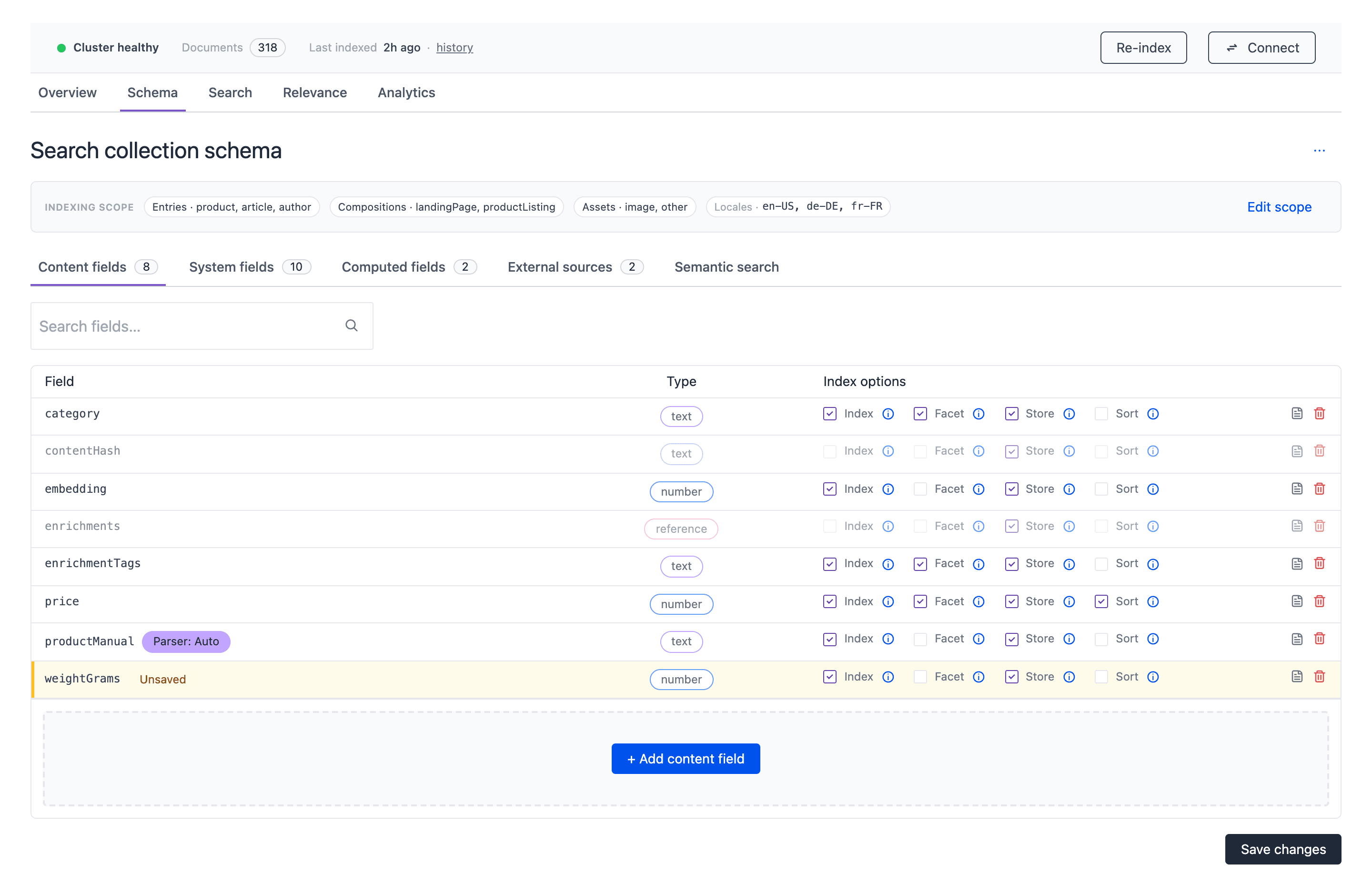
To remove a content field, click the trash icon on its row. Then click Save changes.
Field types#
The Type column shows a type chip for each field. This table shows how Uniform Search converts each Uniform field type:
| Uniform field type | Schema type | Type chip | Value in the document |
|---|---|---|---|
| Text, Select, Rich Text, Link, Image | string | text | Rich text becomes plain text. A link becomes its path or URL. |
| Number | int32, or float if the field permits decimals | number | The number. |
| Date, Date and time | int64 | number | Unix time in seconds. |
| Checkbox | bool | boolean | true or false. |
| JSON | object | object | The JSON object. |
| Asset | string[] | text | The list of asset URLs. |
| Multi-select | string[] | text | The list of selected values. |
| Reference | object[] | reference | One object for each referenced entry. |
| Block | object[] | reference | One object for each block. |
| Enrichment | None | None | The values go into the enrichmentTags system field. |
A field with the name excludeFromIndex never shows in the list of fields.
If a text field is localized in Uniform, Uniform Search uses the language of the search collection to split the text into words. You do not configure this.
Reference fields and nested fields#
A reference field becomes a list of objects. Each object contains the id, name, slug, and type of the referenced entry, and the fields of the referenced entry.
In the Add content fields drawer, the nested fields of a reference show with a dot in the name, for example category.name. The drawer shows them as nested. A nested field is a list, for example category.name has the type string[].
- If you add a nested field, Uniform Search also adds its parent field. The drawer footer tells you when this occurs.
- Uniform Search keeps only the nested fields that you add.
- You can facet a nested field, such as
category.name. You cannot facet the parent field. - The names of referenced entries also go into the full-text field
accumulatedContent.
Block fields work the same way. Each block object contains its type and the fields of the block.
Name conflicts#
Two content types can have fields with the same name. If the types of the fields are the same, or both are text, the fields share one column in the schema.
If the types are different, the text field keeps the name. Uniform Search gives the other fields the name <type>__<field>, with 2 underscores. For example, the product type has a text field price, and the event type has a number field price. The column name of the number field is event__price.
A field of an external source that has a conflict gets the name <source type>__<field>.
System fields#
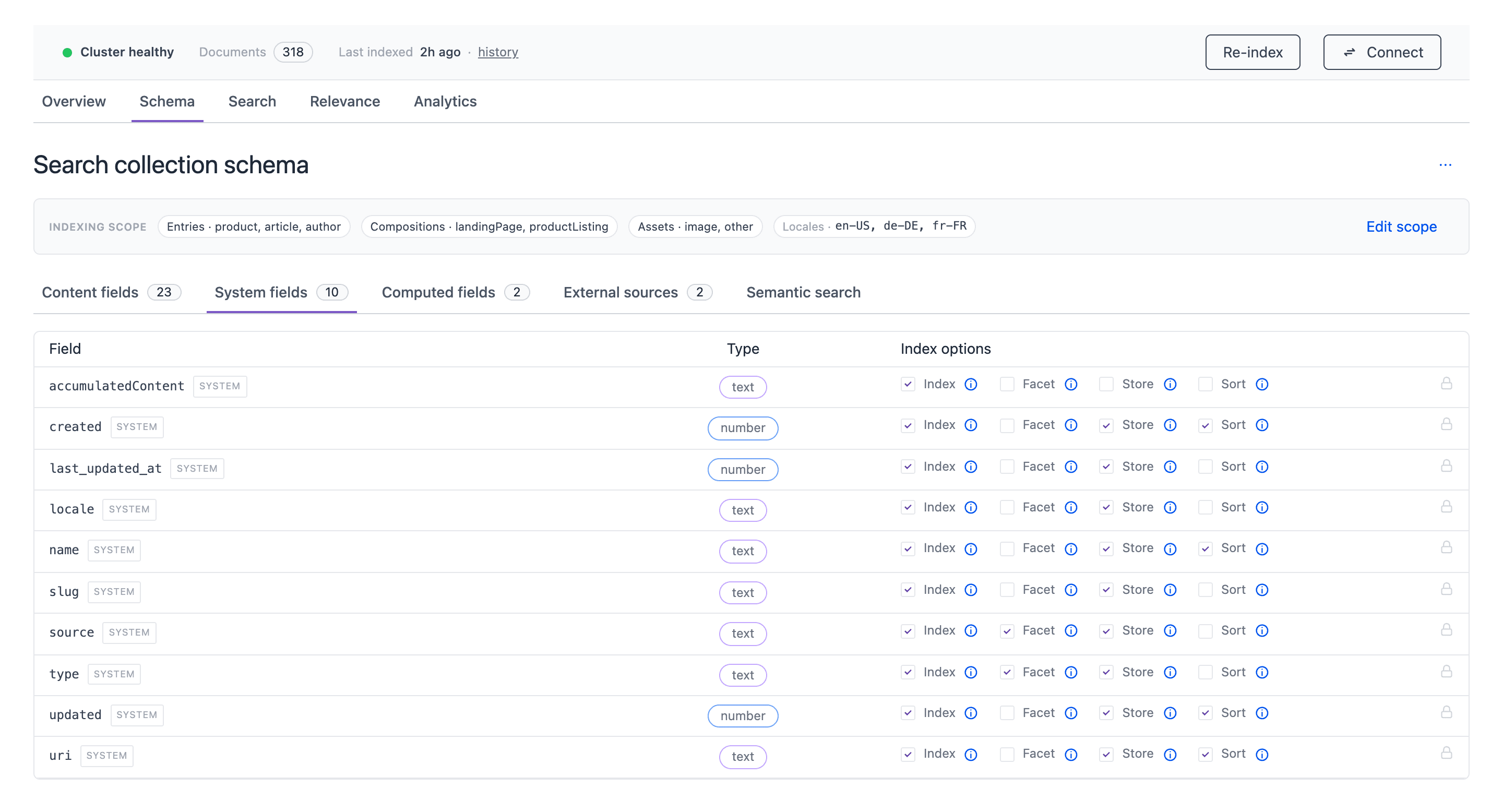
Uniform Search adds the system fields to each document. You cannot change or remove them.
| Field | Type | Contains | Facet | Sort |
|---|---|---|---|---|
id | string | The ID of the document. | No | No |
source | string | The search source: entry, composition, asset, or external. | Yes | No |
type | string | The content type, composition type, asset type, or source type. | Yes | No |
name | string | The name of the item. | No | Yes |
slug | string | The slug of the item. | No | No |
locale | string | The locale code in lowercase. | No | No |
accumulatedContent | string | All the searchable text of the item. Uniform Search does not return this field in results. | No | No |
uri | string | The URL path. For a composition, this is the path of its project map node. | No | Yes |
created | int64 | The time of creation, in Unix seconds. | No | Yes |
updated | int64 | The time of the last change, in Unix seconds. | No | Yes |
last_updated_at | int64 | The time of the last write to the search index. | No | No |
contentHash | string | A hash of the content. Uniform Search uses it internally. | No | No |
enrichmentTags | string[] | The Uniform Context enrichment tags of the item. Refer to Behavior relevancy. | Yes | No |
enrichments | object[] | The enrichment values with their strength. Not indexed. | No | No |
The accumulatedContent field contains the name of the item and the names of referenced entries. It also contains the values of the text, select, rich text, and multi-select fields. For a composition, it also contains the text of the components in its slots. It also contains the text that file parsers extract.
Save the schema and re-index#
When you click Save changes, Uniform Search changes the live search collections at once. The documents that are already in the search index do not get the values of new fields until the next re-index.
When the schema changed after the last re-index, the Re-index button in the status strip becomes a primary button. Click Re-index to write the new values to all documents.
You must re-index after you:
- Add a content field.
- Change the indexing scope.
- Attach, change, or remove a file parser.
- Add or change a computed field.
- Change the fields to embed for semantic search.
You do not have to re-index after you change synonyms, curations, stopwords, or semantic ranking. These changes apply to the next search.
File parsers#
A file parser extracts the text from a file and makes the text searchable. Uniform Search adds the text to the accumulatedContent field. It does not store the text or show it in results.
Assets: Uniform Search parses asset files automatically. You do not configure a file parser for assets.
Content fields: An entry or composition can have a field that links to a file, for example a link to a PDF brochure. To index the text of that file, attach a file parser to the field. You can attach a file parser only to a top-level content field.
Attach a file parser#
On the Schema tab, open the Content fields sub-tab.
On the row of the field, click the file icon Configure file parser.
In Parser, select a parser.
Select Enabled.
info
A new file parser is off by default. If Enabled is off, Uniform Search keeps the configuration but does not download or parse files.
Click Attach parser.
Click Re-index in the status strip.
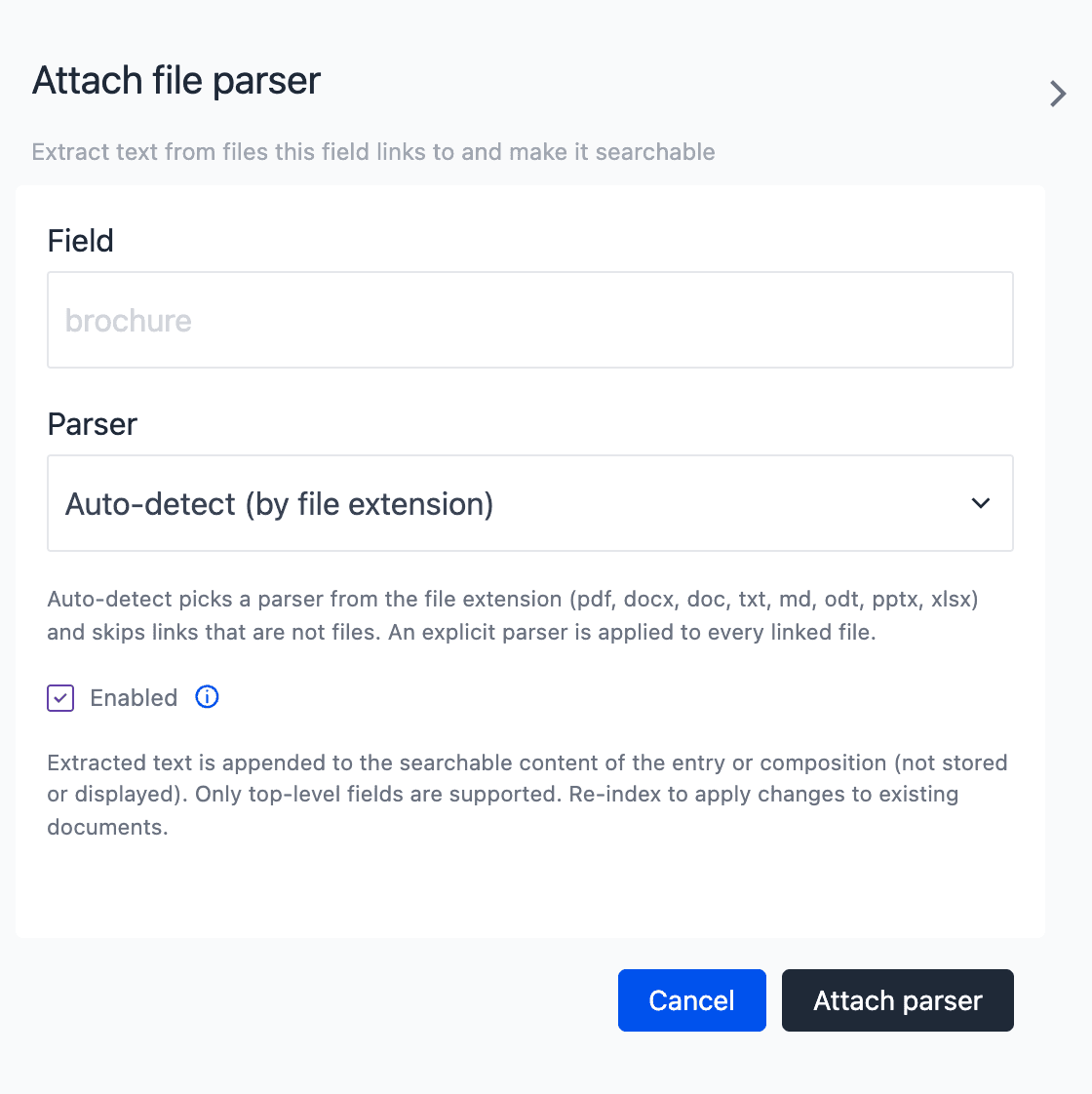
After you attach a parser, the row shows a chip, for example Parser: Auto. To remove the parser, open the drawer again and click Remove parser.
Parser options#
| Parser | Files |
|---|---|
| Auto-detect (by file extension) | Uniform Search selects the parser from the file extension: pdf, docx, doc, txt, md, odt, pptx, or xlsx. It skips links that are not files. |
| PDF files. | |
| Word (.docx) | Word files. |
| Word legacy (.doc) | Old Word files. |
| Plain text (.txt, .md) | Text and Markdown files. |
| Office (.odt, .pptx, .xlsx) | OpenDocument text, PowerPoint, and Excel files. |
If you select a specific parser, Uniform Search uses it for each file that the field links to.
The field value can be one URL or a list of URLs. Each URL must be an absolute http or https URL. Uniform Search changes links to Google Docs, Sheets, and Slides into their export URL.
Limits of file parsers#
| Limit | Value |
|---|---|
| Maximum file size | 10 MB |
| Maximum time to extract one file | 30 seconds |
| Maximum text for each file | 64 KB (65,536 characters). Uniform Search removes the text after this limit. |
If a file cannot be parsed, the re-index continues. The indexing history shows the error for the field and the URL.
Computed fields#
A computed field is a field that a small function calculates for each document. Use a computed field for a value that is not in your content. For example:
- A price with tax.
- A label for a facet, derived from other fields.
- A tier value to sort or boost results.
Uniform Search runs the function when it indexes a document. It stores the result like any other field. The function runs on a re-index and on each incremental update.
info
Computed fields are available only when the Uniform team turns them on for your project. Contact your Uniform representative to turn on computed fields. If they are off, the Computed fields sub-tab does not show.
The compute function#
Each computed field has one function with the name compute. You write it in TypeScript or JavaScript.
Function signature
The function gets these inputs:
| Input | Contains |
|---|---|
document | The search document as Uniform Search built it, with the text from file parsers. |
raw | The original Uniform entry, composition, or asset, with all its fields. It also contains fields that are not in the schema. |
source | The search source: entry, composition, or asset. |
type | The content type, composition type, or asset type. |
id | The ID of the item. |
Computed fields do not run on documents from external sources. In the search index, those documents have the source value external, but the function never gets them. To add a value to external documents, use the transformation of the external source. Refer to Transformation.
Return the value of the field. If you return undefined or null, the document does not get the field.
Return types#
Uniform Search converts the return value to the type of the field:
| Type in the drawer | Conversion |
|---|---|
| Text (string) | String(value) |
| Text list (string[]) | A list of strings. A single value becomes a list with one item. |
| Integer (int64) | Math.trunc(Number(value)) |
| Number (float) | Number(value) |
| Boolean (bool) | Boolean(value) |
If the result is not a finite number for a number type, the document does not get the field. Uniform Search writes only the field of the function. It ignores other keys in the return value.
Add a computed field#
On the Schema tab, open the Computed fields sub-tab.
Click + Add computed field.
In Field name, type a name, for example
priceWithTax.info
You cannot change the name after you save the field.
In Type, select the type of the value.
In Index options, set Index, Facet, and Sort. Store is always on.
In Sources, select the search sources to run the function on:
entry,composition, orasset.In Code, write the
computefunction.Click Add field.
Click Re-index in the status strip.
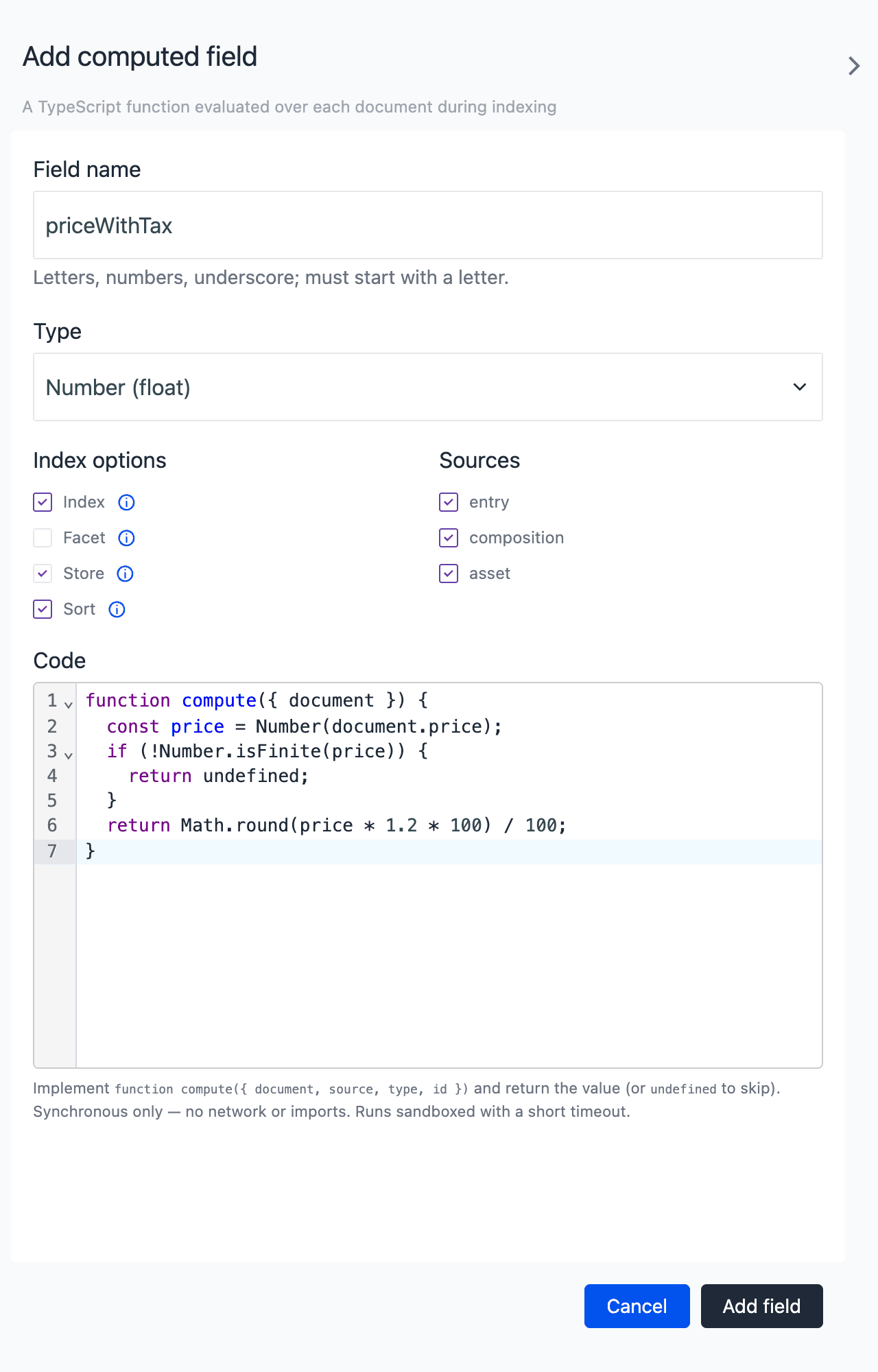
When you save a computed field, Uniform Search adds it to the search collections at once. You do not click Save changes. The documents get the values after the next re-index.
Examples of computed fields#
Price with tax
This function adds 20% tax to the price field. Add price as a content field first, or read the price from raw. Use the type Number (float) and turn on Sort.
priceWithTax
Label for a facet
This function puts each product into a price band. Visitors can then filter by price band. Use the type Text (string) and turn on Facet.
priceBand
Tier to sort results
This function gives each document a tier. Compositions get tier 1. Blog posts and press releases get tier 2. All other documents get tier 3. Use the type Integer (int64) and turn on Sort.
tier
To show tier 1 first, set a predefined sort on the field tier with the direction Ascending. Uniform Search then sorts by relevance inside each tier. Refer to Sort options.
Sandbox rules#
Uniform Search runs your function in an isolated sandbox. These rules apply:
- The function must be one top-level
function compute(...). - The function must be synchronous. Do not use
asyncor promises. - The function has no network access.
fetch,require,import,process, and timers are not available. - These globals are available: the standard JavaScript objects,
URL,URLSearchParams,TextEncoder,TextDecoder,atob, andbtoa.consoleis available, but it has no output. - The function can run for a maximum of 500 ms for each document.
- Uniform Search removes the TypeScript types before it runs the code. It does not do a type check.
If the function fails for a document, the re-index continues. The indexing history shows the first document that failed and the number of failures for each field.
Validation errors of computed fields#
| Error | Cause |
|---|---|
Name must start with a letter and contain only letters, numbers, or underscores. | The field name is not valid. |
"<name>" is a reserved system field name. | The name is the name of a system field, for example name or uri. |
A computed field named "<name>" already exists. | A computed field with this name exists. |
Select at least one source (entry, composition, asset). | No search source is selected. |
Code error: Code is empty. | The Code editor is empty. |
Invalid code: Computed field code does not parse. | The code has a syntax error. |
Invalid code: Code must declare a top-level `function compute(input) { … }`. | The code has no top-level compute function. |
External sources#
An external source brings data from outside Uniform into the search index. For example, you can index a product catalog or a knowledge base. There are 2 kinds of external sources:
| Pull source | Push source | |
|---|---|---|
| How data arrives | Uniform Search fetches records from your HTTP API. | Your system sends records to the push API of Uniform Search. |
| When data changes | On a re-index, on a schedule, or when you click Refresh now. | When your system sends a request. |
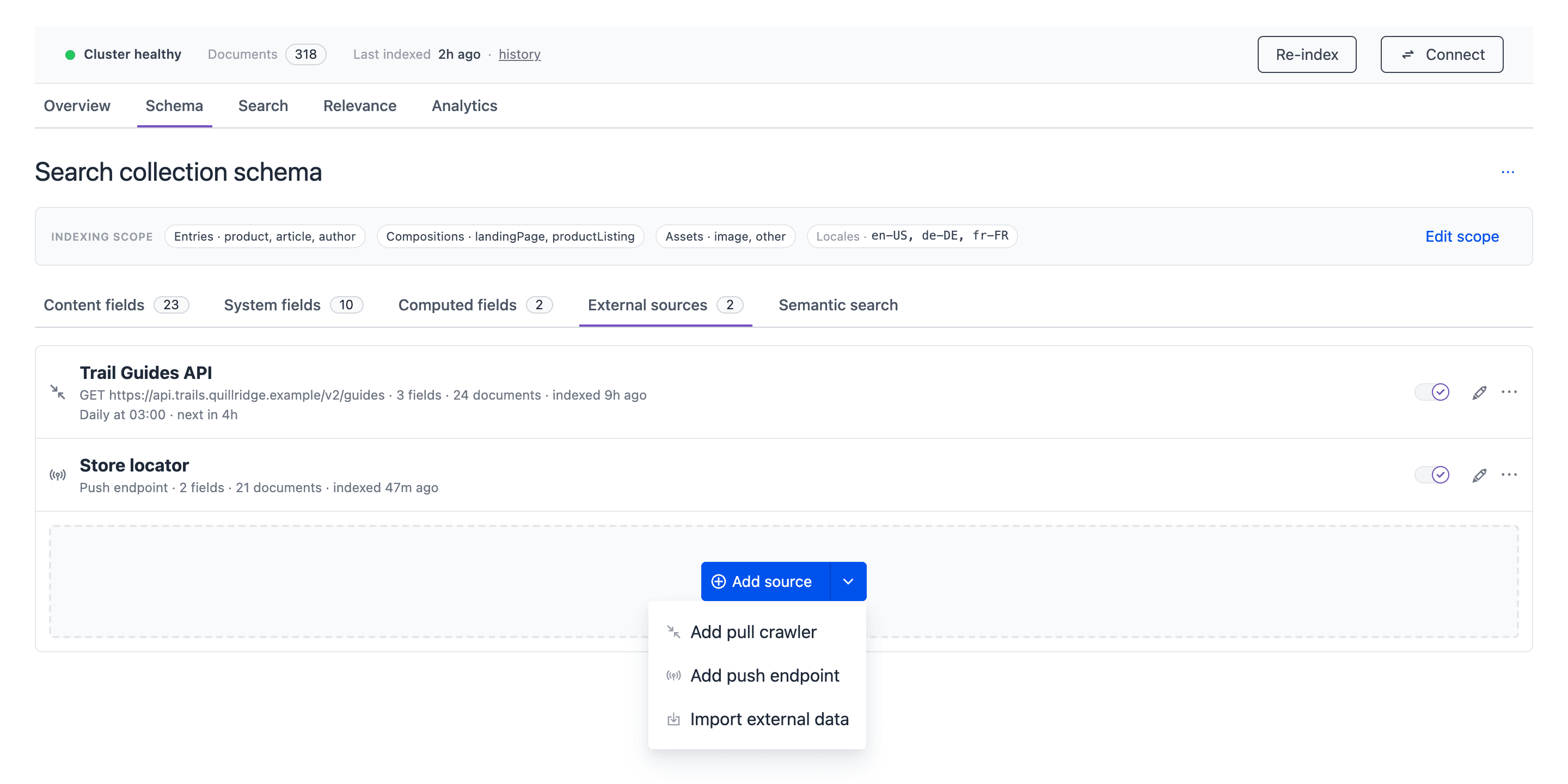
| Menu item | Add pull crawler | Add push endpoint |
External sources are on the Schema tab, in the External sources sub-tab. Click Add source to add one.
Options of all external sources#
These options apply to pull sources and push sources:
- Source type: A short ID in lowercase, with dashes for spaces, for example
inventory. It becomes the value of thetypefield of each document. You cannot change it after you create the source. - Id path: The path to the stable ID in each record, for example
sku. Paths use dots and brackets, for exampleattributes.idoritems[0].id. - System fields: The paths to the values for
name,uri,slug,created, andupdated. - Fields: The fields of the source. Each field has a Field name, a Path, and a Type. If the path is empty, Uniform Search uses the field name as the path.
Each document of an external source has the source value external. The id of the document is <source type>:<record ID>, for example inventory:sku-1. Search results return this ID.
info
A field that you declare on an external source is not in the search index yet. Open the Content fields sub-tab, click + Add content field, and add the field. Then set its index options.
A field name must start with a letter and contain only letters, numbers, and underscores. You cannot use the name of a system field. The only exception is enrichmentTags with the type Text list (string[]). Use it to give external documents enrichment tags for behavior relevancy.
Locale strategy#
Each search collection is for one locale, so each external document needs a locale. Select one of these strategies:
| Strategy | Pull source label | Push source label | Result |
|---|---|---|---|
| All locales | Index into all project locales | Index into every project locale | Each record goes into each search collection. |
| One locale | Single locale | Index into one locale | Each record goes into the locale that you select. |
| Locale from each record | Per-record (multi-locale endpoint) | Read the locale from each document | Uniform Search reads the locale from the Locale path of each record. |
For the per-record strategy, map the locale codes of your system to project locales, for example en_US to en-US. Then select what occurs when a locale has no map. A pull source can skip the record or use a default locale. A push source can reject the document or use a default locale.
Add a pull source#
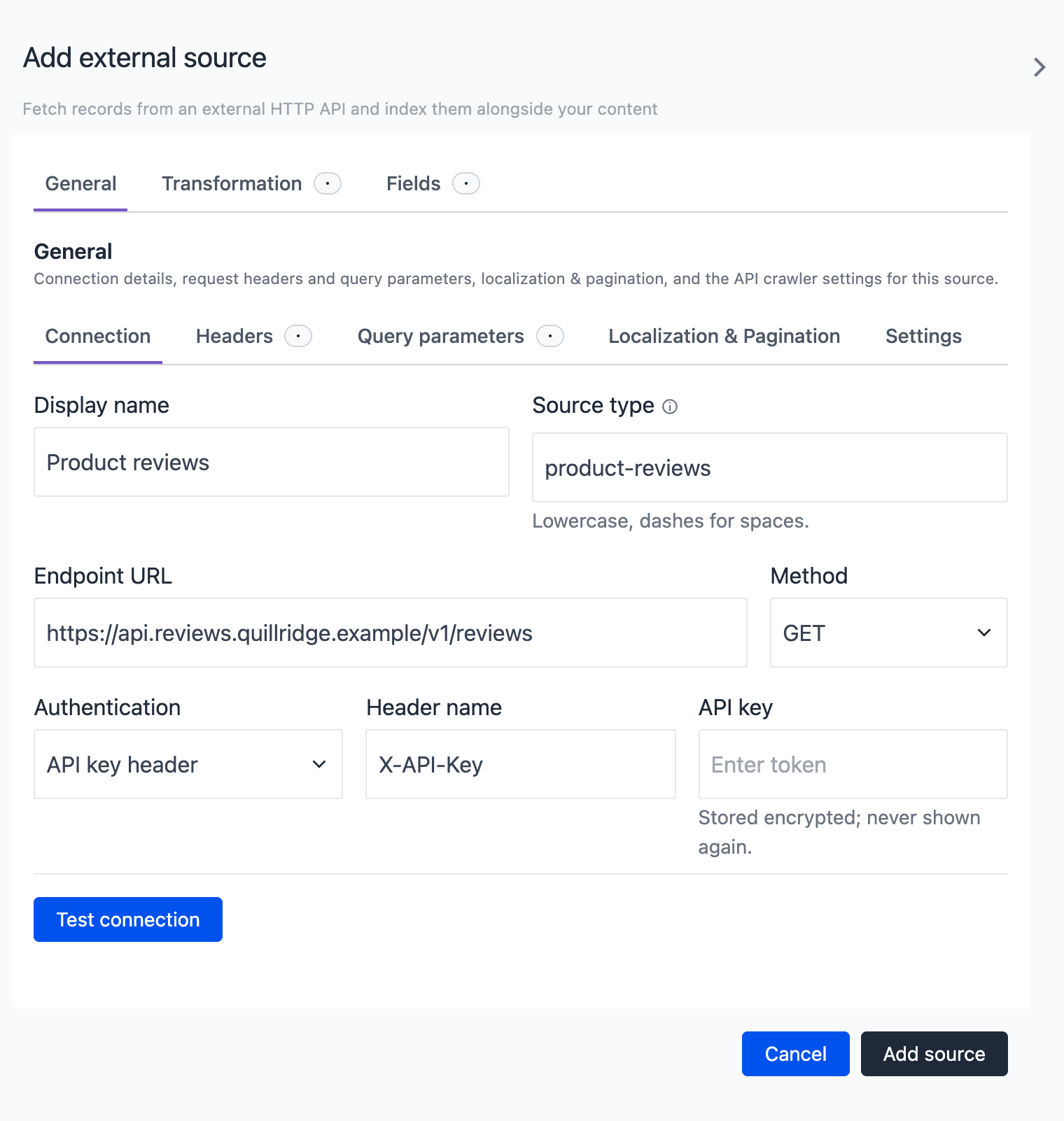
A pull source fetches records from an HTTP API. The pull source drawer has 3 tabs: General, Transformation, and Fields.
- On the External sources sub-tab, click Add source and then Add pull crawler.
- On General > Connection, type a Display name, for example
Content Hub. - Type a Source type, for example
content-hub. - Type the Endpoint URL, for example
https://api.example.com/items. - Select the Method:
GETorPOST. ForPOST, type the Request body (JSON). - Set the Authentication. Refer to Authentication.
- Optional: On Headers and Query parameters, add the names and values to send with each request.
- On Localization & Pagination, set the locale strategy and the pagination. Refer to Pagination.
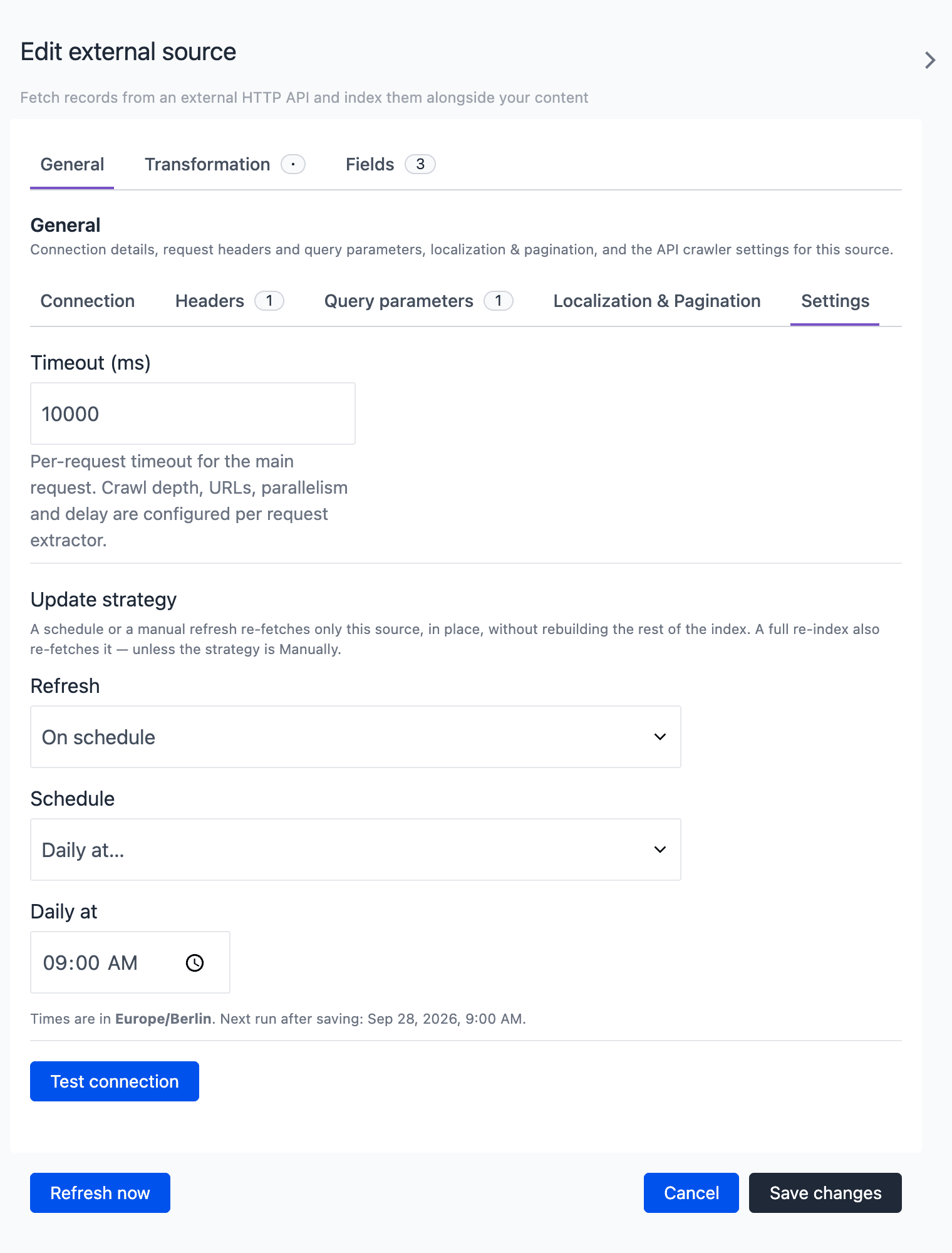
- On Settings, set the Timeout (ms) and the Update strategy. Refer to Update strategy.
- Click Test connection and examine the response.
- On the Fields tab, type the Id path and the paths of the system fields.
- Click Load fields to find the fields in a sample of records.
- Examine the fields in the Fields table. Correct the names, paths, and types if necessary.
- Click Add source.
- On the Content fields sub-tab, add the fields of the source to the schema.
- Click Save changes.
- Click Re-index in the status strip.
Authentication#
| Authentication | Result |
|---|---|
None | Uniform Search sends no credential. |
Bearer token | Uniform Search sends the header Authorization: Bearer <token>. |
API key header | Uniform Search sends the key in the header that you type in Header name, for example X-API-Key. |
Uniform Search encrypts the credential and never shows it again. To change it, type a new value.
The credential is bound to the host of the endpoint. If you change the host, type the credential again. Uniform Search sends the credential only to the host of the endpoint. It does not send it to other hosts.
Pagination#
Select a Mode in Pagination:
| Mode | Use it when | Inputs |
|---|---|---|
| Single request | The API returns all records in one response. | None. |
| Offset pagination | The API takes a page size and a record offset. Uniform Search stops at a page that is not full. | Limit param, Offset param, Page size, Max pages |
| Page number pagination | The API takes a page number. Uniform Search stops at the first page with no records. It ignores totals that the API returns. | Page param, Page size param, Page size, First page, Max pages |
The default page size is 50. The default maximum number of pages is 50. Max pages is a safety limit. Set First page to 1 for most APIs, or to 0 if the API starts at page 0.
Transformation#
Without extractors, the response must be a JSON array of records. If the API puts the records in an object, for example { "items": [...] }, add a document extractor.
Extractors are small functions in the Transformation tab:
- A request extractor makes more requests from a response. Use it to crawl detail pages or to follow links.
- A document extractor changes a response into records.
Each extractor is a synchronous function extract(request, response). The response.body is the parsed JSON. For an HTML response, response.body is a cheerio object that you use like jQuery.
Document extractor for a wrapped response
A request extractor returns a list of requests. Each request has a url and can have a method, headers, queryParams, and body.
Request extractor for detail pages
Each request extractor has crawler settings: Max depth, Max URLs, Parallelism (workers), Delay (ms), and Timeout (ms). Extractors have the same sandbox rules as computed fields.
info
Extractors are available only when the Uniform team turns on the sandbox for your project. Contact your Uniform representative to turn on extractors.
Update strategy#
The Update strategy on the Settings sub-tab sets when Uniform Search fetches the source again. Select a Refresh value:
| Refresh | Result |
|---|---|
| Only on full re-index | Uniform Search fetches the source on each re-index. |
| On schedule | Uniform Search fetches the source on a schedule, and also on each re-index. |
| Manually | Uniform Search fetches the source only when you click Refresh now. A re-index keeps the documents of the source and does not fetch them again. |
For On schedule, select a Schedule:
- Every…: A number and a Unit of
minutes,hours, ordays. - Daily at…: A time of day.
- Weekly on…: A day of the week and a time.
- Advanced (cron expression): A cron expression with 5 fields, for example
0 */3 * * *.
Runs must be at least 15 minutes apart. The times use the time zone of your browser when you save. The drawer shows the time of the next run.
A scheduled refresh and Refresh now update only this source, in the live search index. They do not rebuild the rest of the search index. Uniform Search also removes the documents that are no longer in the API.
If a re-index or a different refresh runs for the project, the scheduled refresh waits for the next time slot.
Test connection and Refresh now#
- Test connection fetches the first response and shows it. If the source has extractors, it also shows a preview of the records after the extractors run. The preview uses a small sample.
- Load fields fetches a sample of up to 20 records and finds the fields in them.
- Refresh now fetches the source at once with the saved configuration. It is on the row menu More actions and in the drawer footer. The source must be enabled. The status strip shows the progress.
Limits of pull sources#
- The endpoint must use
httporhttps. The URL cannot contain a user name or password. - The host must be a public address. Uniform Search blocks private and reserved addresses.
- The maximum size of a response is 10 MB.
- If the API returns HTTP 429, Uniform Search tries again up to 3 times. It obeys the
Retry-Afterheader up to 30 seconds. - The default timeout of the main request is 10,000 ms.
Add a push source#
A push source receives documents from your system. Your system calls the push API when its data changes.
On the External sources sub-tab, click Add source and then Add push endpoint.
On the General tab, type a Display name, for example
Inventory Feed.Type a Source type, for example
inventory. Use only lowercase letters, numbers, and dashes.In Locales, set the Locale strategy.
On the Fields tab, type the Id path, for example
sku.In System fields, type the path for Name, for example
title. You can also type paths for URI, Slug, Created, and Updated.Optional: Open Fill fields from a sample document and paste a sample document. Uniform Search adds its fields to the table.
Examine the fields in the table. Correct the names, paths, and types if necessary.
warning
Uniform Search shows the push API key only one time, after you create the source. Be ready to copy the key to a safe location.
Click Create push source.
In the Save this API key now dialog, click Copy key.
Keep the key in a safe location, for example a secret manager.
Click I’ve saved it.
On the Content fields sub-tab, add the fields of the source to the schema.
Click Save changes.
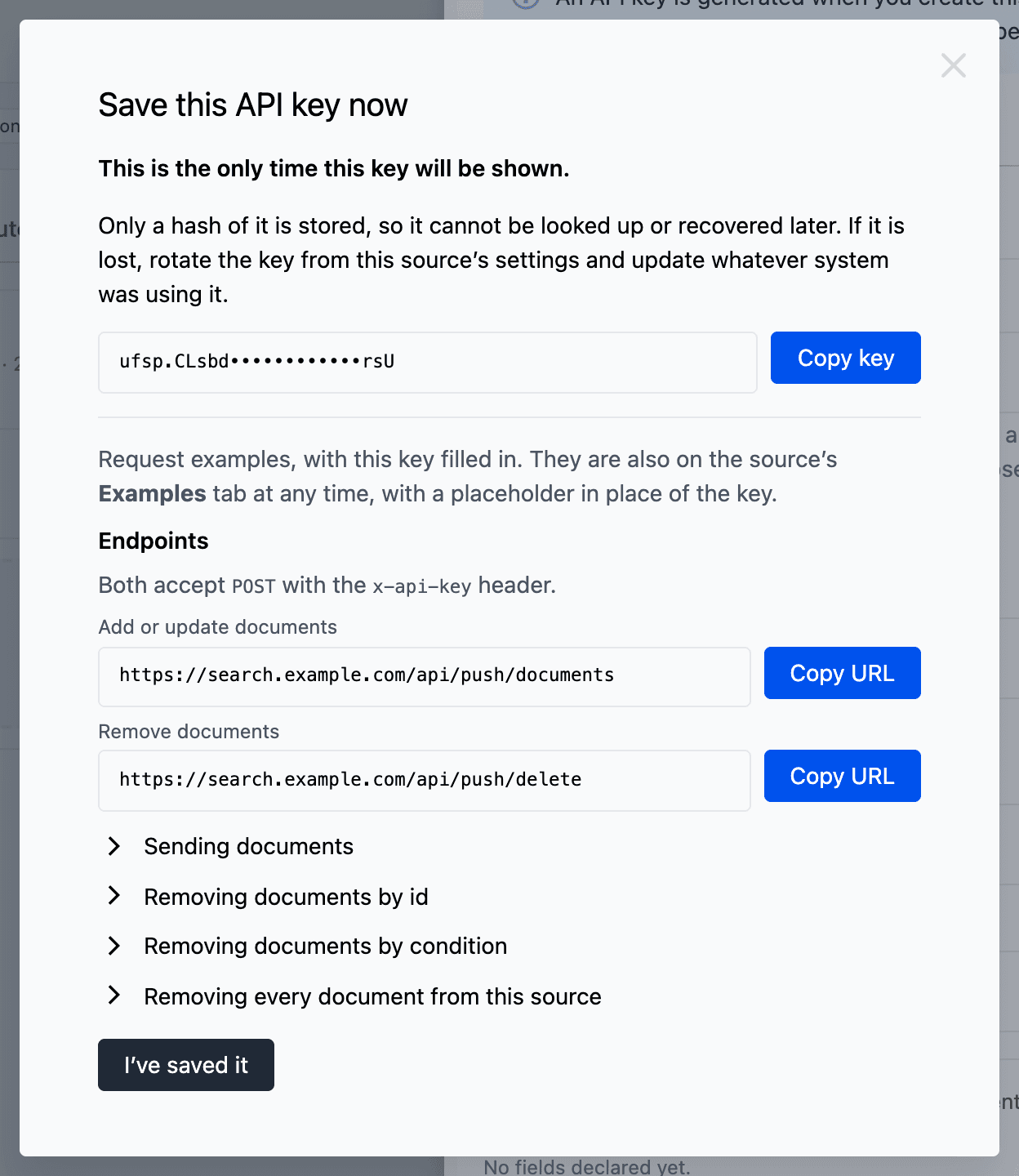
Uniform Search keeps only a hash of the push API key. It cannot show the key again. If you lose the key, open the source and click Rotate API key. The old key stops at once, and requests with it get 401 Unauthorized.
The Examples tab of the push source shows the push API URLs and curl examples for your source.
Push API#
Use the push API from your server only. The push API key is a write credential. Do not use it in a browser. The push API does not accept requests from browsers.
The base URL is the host of your Uniform Search service. The Search URL in the Connect drawer shows this host. This guide uses the placeholder https://YOUR_SEARCH_API_HOST.
Each request uses the method POST, the header Content-Type: application/json, and the header x-api-key with the push API key. The key identifies the push source, so the URL and the body do not contain a source ID.
Add or update documents#
| URL | https://YOUR_SEARCH_API_HOST/api/push/documents |
| Description | Adds documents to the push source, or replaces documents that have the same ID. |
Send the documents in the documents list. To send one document, you can use document instead.
Add or update documents
Uniform Search reads only the fields that you declared on the Fields tab. It writes only the fields that are also in the schema. It ignores other properties.
The request is synchronous. The response tells you which documents failed:
Response
processed is the number of documents that you sent. failed is the number of documents that Uniform Search did not write. One bad document does not stop the other documents. Each item in errors has the id, the locale, and the error of one document, for example:
No id found at idPath "<idPath>"Unusable id: <reason>Locale "<x>" is not indexed in this project, so the document was not writtenRecord locale "<x>" is not mapped for source "<id>"
A record ID can have a maximum of 512 characters. It cannot contain a backtick or a control character.
Remove documents#
| URL | https://YOUR_SEARCH_API_HOST/api/push/delete |
| Description | Removes documents of the push source. The request can remove only documents of this push source. |
The body contains exactly one of ids, all, or filter.
Remove documents by ID:
Remove documents by ID
Remove documents that match a condition. This example removes all documents that were not updated after a time. Use it to remove records that your system deleted.
Remove documents by condition
Remove all documents of the source:
Remove all documents
The response contains the number of removed documents, for example {"deleted": 42}. If an ID is not in the search index, the request does not fail.
For filter:
fieldis a declared field of the source, orcreated,updated, orlast_updated_at.opislt,lte,gt,gte, oreq.valueis a string or a number.
Status codes of the push API#
| Status | Body | Cause |
|---|---|---|
| 200 | The result | The request is complete. Examine failed and errors. |
| 400 | {"error":"Malformed JSON body"} or a different message | The body is not valid. |
| 401 | {"error":"Unauthorized"} | The request has no push API key, or the key is not correct. |
| 403 | {"error":"Source is disabled"} | The push source is disabled. |
| 413 | {"error":"Request body too large", ...} | The body is too large. The response shows the limit. |
| 413 | {"error":"Too many documents", ...} or {"error":"Too many ids", ...} | The request has too many items. The response shows the limit. |
| 429 | {"error":"Too many requests"} | The source sent too many requests. Wait for the time in the Retry-After header. |
| 502 | {"error":"Search backend unreachable"} | The search service is not available. Try again later. |
Limits of the push API#
| Limit | Default value |
|---|---|
| Maximum size of a request body | 2 MB |
| Maximum documents or IDs in one request | 500 |
| Maximum requests for each source | 60 for each minute. Add requests and remove requests use the same limit. |
If you need different limits, contact your Uniform representative.
Push sources and the re-index#
A re-index keeps the documents of a push source. Uniform Search does not remove them, and your system does not have to send them again. Documents that your system sends during a re-index also go into the new version of the search index.
To remove all documents of a push source but keep the source, open the source and click Delete indexed documents. The fields and the push API key do not change.
warning
If you disable an external source, its documents stay searchable until the next re-index. The next re-index removes them. If you enable the source again, your system must send the documents again.
Tune relevance#
The Relevance tab sets how search matches and ranks results. It has 4 sub-tabs: Synonyms, Curations, Stopwords, and Semantic ranking.
Changes on the Relevance tab apply to the next search. You do not have to re-index.
Before you can use the Relevance tab, the project must have a search collection.
Synonyms#
Synonyms tell search that different words have the same meaning. There are 2 types of synonym rules:
| Type | Example | Result |
|---|---|---|
| Multi-way | sofa, couch, settee | A search for any of the terms also finds the other terms. Add at least 2 terms. |
| One-way | Root term smartphone, synonyms iphone, android phone | A search for the root term also finds the synonyms. A search for a synonym does not find the root term. |
You put rules into named synonym sets. All projects on your Uniform Search infrastructure share the synonym sets. Each project selects the sets that it uses with the switch Use in this project.
To add a synonym set and a rule:
On the Relevance tab, open the Synonyms sub-tab.
Click + Add synonym set.
In Name, type a name, for example
product-terms. Use lowercase letters, numbers, dashes, and underscores.info
You cannot change the name of a set later. Uniform Search turns on Use in this project for a new set.
Click Create set.
In the set, click + Add synonym.
In Type, select Multi-way (all terms are equivalent) or One-way (root term expands to alternatives).
For a multi-way rule, type the terms in Equivalent terms. Separate them with commas.
For a one-way rule, type the Root term and the Synonyms.
Click Add synonym.
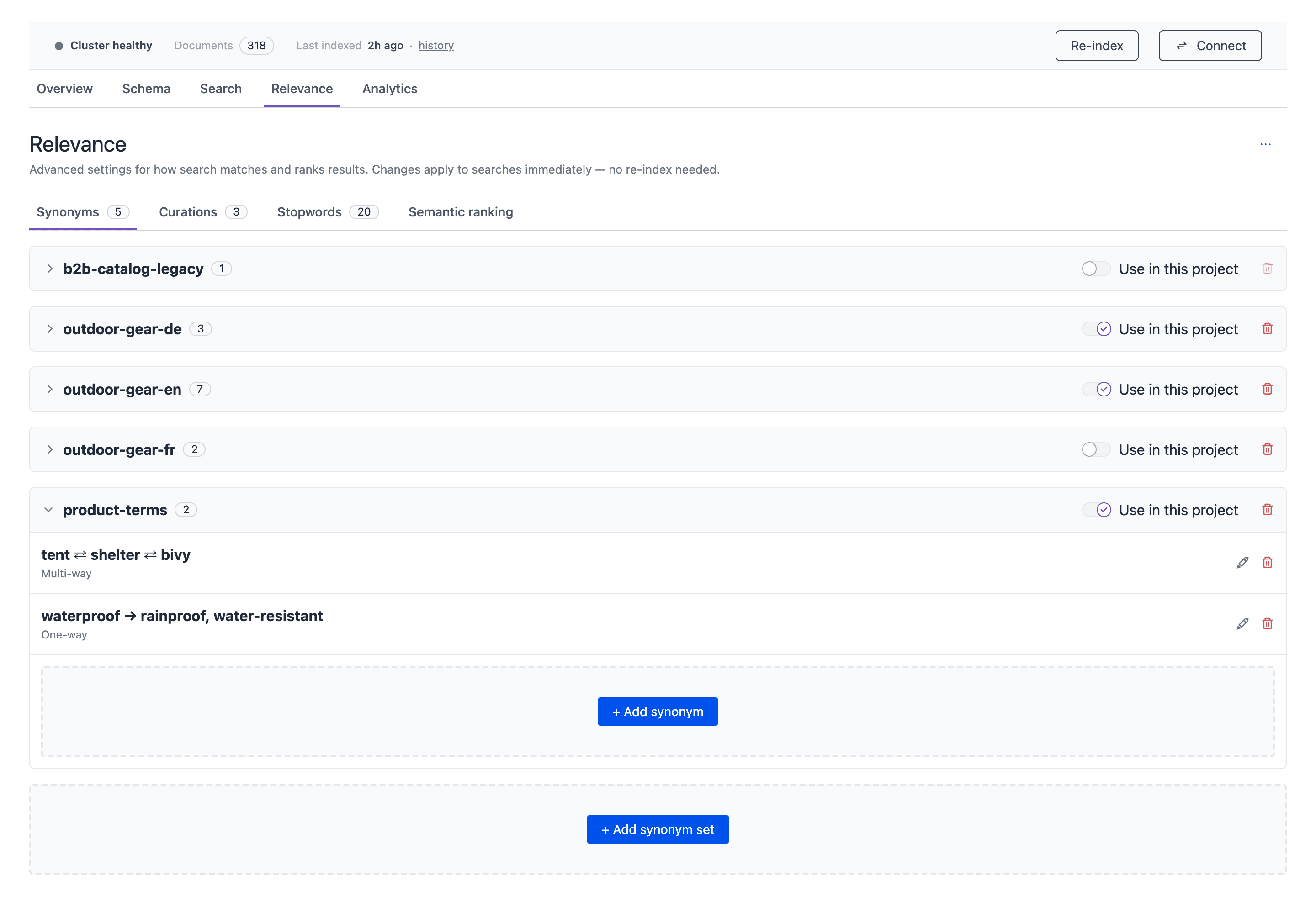
You cannot delete a set that a different project uses. Turn off Use in this project in that project first.
Curations#
A curation changes the results for specific searches. For example, you can pin a document to the top for the query apple, or hide a document that does not belong.
Like synonyms, curations are in named curation sets. Each project selects the sets that it uses with Use in this project.
A curation has a trigger and one or more actions.
Triggers: You set them in the When section.
- Search query matches: The rule fires for a query. Set Match to Exact for the full query, or to Contains if the query includes the words.
- Search filter matches: The rule fires when a search uses exactly the Filter expression, for example
category:Shoes.
If you set both triggers, the rule fires only when both match.
Actions: You set them in the Actions section.
| Action | Result |
|---|---|
| Pin documents | Shows the selected documents at the top, in the order of the list. |
| Hide documents | Removes the selected documents from the results. A document cannot be pinned and hidden. |
| Filter documents | Adds a filter expression to the filters of the search, for example status:in_stock. |
| Sort documents | Sorts the results by a sortable field or by a sort expression, for example popularity:desc. |
| Replace query | Runs the search with the Replacement query instead of the query of the visitor. |
| Remove matched tokens | Removes the words that the rule matched from the query. On by default. |
| Apply filters to curated items | Pinned documents must also match the filters of the search. Off by default. |
| Diversify results | Shows results that are less similar to each other. Set a Field, a Method, and a Weight for each metric. |
| Return custom metadata | Returns a JSON object in the search response when the rule fires, for example {"banner_id": 2}. |
| Stop rule processing after this rule | Skips the rules after this rule in the set. On by default. |
In Options, set Effective from and Effective to to run the rule only for a period.
To add a curation:
- On the Relevance tab, open the Curations sub-tab.
- If there is no curation set, click + Add curation set, type a Name, and click Create set.
- In the set, click + Add curation.
- In Search locale, select a locale. This locale is only for the document search in the drawer. The rule applies to all locales.
- In When, turn on a trigger and set its values.
- In Actions, turn on one or more actions and set their values.
- Optional: In Options, set Effective from and Effective to.
- Click Add curation.
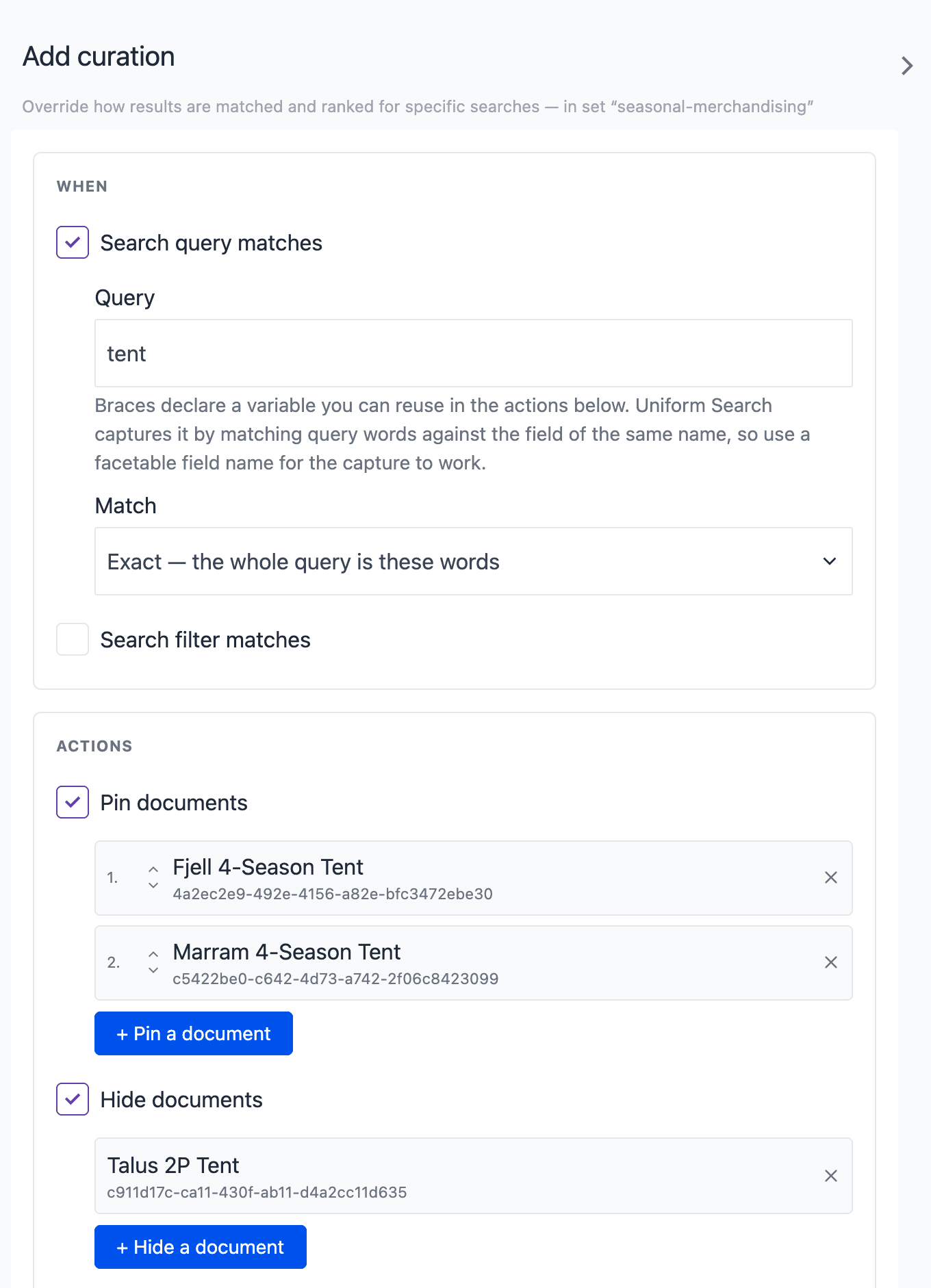
Variables in a query: Braces in the trigger query make a variable. For example, use the query {brand} phone with the filter brand:{brand}. The search "Fabrikam phone" then becomes a search for "phone" with a filter on the brand Fabrikam. The variable must have the name of a field that has Facet on.
You can also start a curation from the Analytics tab. On a popular query, click Curate results. Refer to Operate search.
Stopwords#
Stopwords are words that Uniform Search removes from the query before it matches results. Use stopwords for filler words, for example "the" and "a", or for words that are in almost all documents.
Each locale has its own list of stopwords. The documents do not change, so the change applies at once.
- On the Relevance tab, open the Stopwords sub-tab.
- Expand the locale.
- In Stopwords, type the words. Separate them with commas or new lines.
- Click Save.
Uniform Search removes duplicates and empty values when you save. If you save an empty list, Uniform Search removes the stopwords of that locale.
Semantic search#
Semantic search finds results by meaning with AI. Keyword search finds results by the words. Hybrid search blends the 2 in one result list.
info
Semantic search is available only when the Uniform team turns it on. Contact your Uniform representative to turn on semantic search. When semantic search is off, the Semantic search sub-tab shows OFF.
Search modes: A search request can use one of 3 modes:
| Mode | Result |
|---|---|
keyword | Results that match the words of the query. This is the default when semantic search is off. |
semantic | Results that match the meaning of the query. |
hybrid | A blend of keyword results and semantic results. This is the default when semantic search is on. |
The Search Engine component has the parameter Matching. Set it to Exact wording only to use keyword search for a placement, for example a search for part numbers. For the API parameters, refer to Search SDK and API.
Fields to embed: On the Schema tab, the Semantic search sub-tab sets the fields that semantic search uses. Uniform Search joins the fields from top to bottom, so the order has an effect on the results. The default fields are type, name, slug, and accumulatedContent. Only indexed text fields are available.
warning
A change to the fields to embed applies only after a re-index. Until the re-index is complete, search uses the old settings.
Semantic ranking: On the Relevance tab, the Semantic ranking sub-tab tunes semantic search at query time:
| Control | Result | Default |
|---|---|---|
| Semantic weight | How much the meaning counts in a hybrid search. A low value keeps exact names and product codes on top. A high value finds similar concepts, also when no words match. | 0.3 |
| Maximum distance | How far a result can be from the query and still match. A lower value is stricter. Raise it if search does not find relevant results. Lower it if unrelated results show. | 0.75 |
| Expand short queries | Changes a very short query into a longer phrase before the match. The first search for a term takes about a quarter of a second more. | On |
| Expand queries shorter than (words) | Uniform Search expands only queries with fewer words than this value. | 4 |
Click Save. The change applies to the next search.
A behavior relevancy sort or a predefined sort stops the hybrid blend for that search. The search then uses keyword results in the order of the sort.
In hybrid mode, Uniform Search ignores a sort by a field, for example a sort by price. The search response then contains a warning. To sort by a field when semantic search is on, use keyword mode, or use a predefined sort.
Behavior relevancy#
Behavior relevancy puts the results first that match the interests of the visitor. It uses the enrichment scores of the visitor from Uniform Context. Refer to Personalization.
You do not configure the index. Uniform Search indexes each field of the type $enr automatically. These are the enrichment fields of Uniform Context. Uniform Search keeps their values as tags:
- The tags go into the system field
enrichmentTags. Each tag has the form<category>_<key>, the same as the score keys of Uniform Context. - The tags come from entry fields, blocks, and composition parameters at all levels of the slots.
- A document can have a maximum of 100 tags. The tags are the same in all locales.
To use behavior relevancy on a search page, use the Sort By Field parameter of a search component. Select the order option Behavior relevancy (Uniform Context). The strongest match always comes first. Uniform Search uses the 3 strongest signals of the visitor. If the visitor has no scores, the results use the default relevance.
To give external documents tags, declare the field enrichmentTags with the type Text list (string[]) on the external source.
To test behavior relevancy, open the Search tab. Set Order by to Behavior relevancy and type scores in Simulated visitor profile, for example int_beans:80, brand_javadrip:50.
info
Documents that Uniform Search indexed before a project had enrichment tags have no tags. Re-index to add the tags to these documents.
Sort options#
The order options of a search page are Canvas parameters on the search components. Business users set them in Canvas. As a developer, you make sure that the schema has the fields for them:
- Order By on the Search Sort component: The list of order options for visitors. Each option uses a field with Sort on, or Behavior relevancy (Uniform Context), or Relevance (default).
- Predefined Sort on the Search Sort component: A primary sort that applies only with the default order. It can be a field, behavior relevancy, or conditional rules. With conditional rules, documents that match a rule rank first. The order of the rules is the priority.
- Query By Fields on the Search Engine component: The fields that the query searches, with a weight from 0 to 127 for each field. Results that match a field with a higher weight rank higher. In code, send the weights in
fieldWeights. Refer to Search SDK and API.
A search can have a maximum of 3 sort clauses. Refer to Build search experiences.
Export and import configuration#
You can copy a configuration from one project to a different project, for example from a development project to a production project. The files do not contain a project ID.
| What | Where | File |
|---|---|---|
| Indexing scope, schema, computed fields, and external sources | Schema tab > kebab menu > Export schema | search-schema-<projectId>.json |
| Synonym sets, curation sets, stopwords, and semantic ranking settings | Relevance tab > kebab menu > Export relevance settings | relevance-settings.json |
| One pull source | External sources sub-tab > row menu More actions > Export | external-source-<source type>.json |
The files do not contain the credentials of pull sources. Type the credentials again after you import.
Import a schema file#
warning
Import schema deletes and makes again the search collections of the project. All indexed documents are lost until the next re-index. Search returns no results until the re-index is complete. You cannot undo this.
- On the Schema tab, open the kebab menu and click Import schema.
- Select the schema file.
- In Overwrite existing configuration?, click Overwrite & import.
- If a source type in the file already exists, type a new Source type in the dialog and click Import. Or click Cancel to skip the source.
- When the import is complete, click Re-index in the status strip.
- Type the credentials of each pull source again.
- Examine the file parsers of the content fields.
Reset to default on the same menu removes all content fields. It also deletes the indexed documents until the next re-index.
Import relevance settings#
- On the Relevance tab, open the kebab menu and click Import relevance settings.
- Select the
relevance-settings.jsonfile. - Select the sets, the stopwords, and the semantic ranking values to import.
- Click Import.
- On the Synonyms and Curations sub-tabs, turn on Use in this project for each set that the project must use.
A set in the file replaces a set with the same name. New sets are not used by any project until you turn on Use in this project. Stopwords import only for the locales that the project has. You do not have to re-index.
Troubleshooting#
The indexing history shows why Uniform Search skipped an item. To open it, click history in the status strip. Refer to Operate search.
| Problem or message | Cause | Solution |
|---|---|---|
Excluded because it has no project-map node (no stable URL) | The composition has no project map node. | Add a project map node for the composition. |
Dynamic routes are excluded from indexing (indexed via entries) | The composition is on a dynamic route. | Add the entry type that the route shows to the indexing scope. |
Excluded from indexing because Exclude From Index is true | The excludeFromIndex field of the item is true. | Set the field to false if the item must be searchable. |
Not authored in any indexed locale (authored in: <list or none>) | The item has no content in the locales of the indexing scope. | Add the locale to the indexing scope, or add content in an indexed locale. |
Excluded because it has no indexable fields for the current schema | The entry has no field that is in the schema. | Add a content field of the entry type to the schema. |
Excluded because the asset has no URL | The asset has no URL. | Add a file to the asset. |
Field(s) not in the field catalog: <names>. ... | The schema has a field that is not in the indexing scope. | Click Edit scope and Save & regenerate, or remove the field. |
Field "<name>" has type "<t>" but the catalog defines "<t2>". ... | The type of a field changed in Uniform. | Click Edit scope and Save & regenerate, then add the field again. |
| A new content field has no values in results. | The documents were indexed before you added the field. | Click Re-index. |
| Add content fields shows no fields. | Uniform Search did not find fields in the indexing scope. | Make sure that the content is published. Edit the indexing scope and save it again. |
| Behavior relevancy does not change the order. | The documents have no enrichment tags. | Re-index. Make sure that the content has enrichment values. |
| The Computed fields sub-tab does not show. | Computed fields are off for the project. | Contact your Uniform representative. |
Blocked host "<host>": resolves to a private or reserved address. | The endpoint of a pull source is not public. | Use a public endpoint. |
Runs must be at least 15 minutes apart. | The schedule of a pull source is too frequent. | Set a longer interval. |
The push API returns 401 Unauthorized. | The push API key is not correct or was rotated. | Use the current push API key. If you lost it, click Rotate API key. |
| A pull source returns no records. | The response is not a JSON array, or the pagination is not correct. | Click Test connection. Add a document extractor, or correct the pagination. |
| You cannot delete a synonym set or curation set. | A different project uses the set. | Turn off Use in this project in the other project. |
Next steps#
- Search SDK and API: Connect your front end to Uniform Search.
- Operate search: Start a re-index, read the indexing history, and use analytics.
- Build search experiences: Build search pages in Canvas with the search components.
- Agent skills: Use the Uniform Search agent skill to add search to a Next.js app.