Build search experiences in Canvas
This guide is for marketers, content authors, and merchandisers. It tells you how to build and change search experiences in Uniform Canvas with the search components.
After a developer adds the search components to your project, you do not need a developer for daily work. You can build a search page, add filters and sort options, limit the results, show recommendations, and show search results on any page. For the developer setup, see Search SDK and API.
Prerequisites
- Uniform Search is on for your project, and your content is in the search index. If Uniform Search is not on, request activation.
- A developer added the search components to your project and to your site.
- A composition type in your project lets you put the Search Engine component in one of its slots.
- You have permission to edit and publish compositions. See Roles and permissions.
Search components#
The search components are Canvas components in the Uniform Search category. Each component shows one part of the search experience to the visitor.
The Search Engine component#
The Search Engine component is the container of a search experience. It does not show content of its own. It holds the other search components and sends the search to Uniform Search.
The Search Engine component has 3 slots:
| Slot | Components that you can put in the slot |
|---|---|
| Search Top | Search Box, Search Sort, Search Pagination |
| Search Main | Search Results, Facet Container |
| Search Bottom | Search Pagination |
Components inside the Search Engine#
Put these components in the slots of a Search Engine component. They do not work outside of it.
| Component | What the visitor sees |
|---|---|
| Search Box | A text box for the search words. |
| Search Results | The list of results as cards, with the number of results. |
| Facet Container | A panel that holds the facets. It shows nothing of its own. |
| Search Facet | 1 filter, for example "Brand" or "Price", with the values and the number of results for each value. Put it in a Facet Container. |
| Search Sort | A list of sort options, for example "Newest Arrivals" or "Price: Lowest first". |
| Search Pagination | Page numbers, Prev and Next buttons, and a list to select the number of results on each page. |
The developer decides how each result card looks. Each content type can have its own card design.
Components that work alone#
You can put these components on any page. They do not need a Search Engine component.
| Component | What the visitor sees |
|---|---|
| Search Autocomplete | A search box that shows suggestions while the visitor types. Use it in a site header. When the visitor pushes Enter, the site opens your search page. |
| Recommendations | A list of content that matches the interests of the visitor. See Show recommendations. |
Ready-made patterns#
Your project has 2 component patterns that you can use as a start:
| Pattern | What it contains |
|---|---|
| Search Engine | A full search page. It has a Search Engine with these child components: Search Box, Search Sort with 7 sort options, Facet Container, Search Results, and Search Pagination with the page sizes 8, 16, and 32. |
| Search Autocomplete | A Search Autocomplete component that sends the visitor to /search. |
The Search Engine pattern has these sort options:
- "Relevance"
- "Behavior relevancy"
- "Newest Arrivals"
- "Alphabetically: A-Z" and "Alphabetically: Z-A"
- "Rating: Highest first" and "Rating: Lowest first"
Some of these options need fields that your content possibly does not have. Edit the pattern to remove the options that you do not need.
How the components share one search#
All the components inside one Search Engine use the same search. When the visitor types a word, selects a facet value, or selects a sort option, all the components update together. For example, the facets show the number of results for the current search words.
The page URL keeps the search words, the facet values, the sort option, and the page number. A visitor can copy the URL and send it to a friend. The friend sees the same results.
The Search Engine component controls which results can show. The child components control what the visitor sees and does. For example, you set the sort options on the Search Sort component, and you set the page sizes on the Search Pagination component.
Build a search page#
You can build a search page in 2 ways:
- Add the Search Engine pattern. This is the fastest way.
- Add each component yourself. Use this way when you want a different layout or fewer components.
Add the Search Engine pattern#
- In Canvas, open the composition for your search page. If you do not have one, create a composition.
- In the slot for the page content, click the plus icon .
- Select the Search Engine pattern.
- Select the Search Engine component in the component tree.
- Set the parameters of the Search Engine component. See Search Engine parameters.
- Add facets to the Facet Container. See Add a facet.
- Click Save.
On a page that uses the pattern, you can change these Search Engine parameters: Query By, Base Filters, Typo-Tolerance Level, and Entry Url Mapping. You can also add facets to the Facet Container.
To change other parameters, such as the sort options or the page sizes, edit the pattern. A change to the pattern changes all the pages that use the pattern.
Add each component yourself#
- In Canvas, open the composition for your search page.
- In the slot for the page content, click the plus icon .
- Select the Search Engine component.
- Set the parameters of the Search Engine component. See Search Engine parameters.
- In the Search Top slot, add a Search Box component.
- In the Search Main slot, add a Facet Container component.
- In the Search Main slot, add a Search Results component.
- In the Search Bottom slot, add a Search Pagination component.
- Add at least 1 Page Size item to the Page Sizes parameter. See Search Pagination parameters.
- Optional: in the Search Top slot, add a Search Sort component. See Add sort options.
- Click Save.
Add a facet#
A facet lets the visitor filter the results by the values of 1 field, for example by brand. Before you add a facet, make sure that the field has Facet on in the schema. A team admin sets this in the Uniform Search tool.
- In the Facet Container, click the plus icon .
- Select the Search Facet component.
- In Facet by field, select the field. See Facet By Field.
- In Type, select how the visitor selects values:
- Select: the visitor can select 1 value.
- Multi Select: the visitor can select more than 1 value.
- Range: the visitor moves a slider to set a minimum and a maximum. Use this type only for number fields, such as a price.
- In Title, enter the heading of the facet, for example "Brand".
- Do steps 1 to 5 again for each facet that you want.
Add a search box to the site header#
- Open the composition or the component pattern for your site header.
- In the slot for the search box, click the plus icon .
- Select the Search Autocomplete pattern or the Search Autocomplete component.
- In Results Page Path, enter the path of your search page, for example
/search. - Set the other parameters. See Search Autocomplete parameters.
- Click Save.
When the visitor pushes Enter, the site opens the search page with the search words. The search page shows the results for these words.
Use the search parameter editors#
Some parameters of the search components have a special editor. The editor reads the schema of your search index and shows only the fields that you can use for that task.
Sometimes an editor shows "No indexed collection found" or a message such as "No sortable fields found". This occurs if the search index has no content yet, or if no field has the necessary option. Speak to your team admin.
Query By Fields#
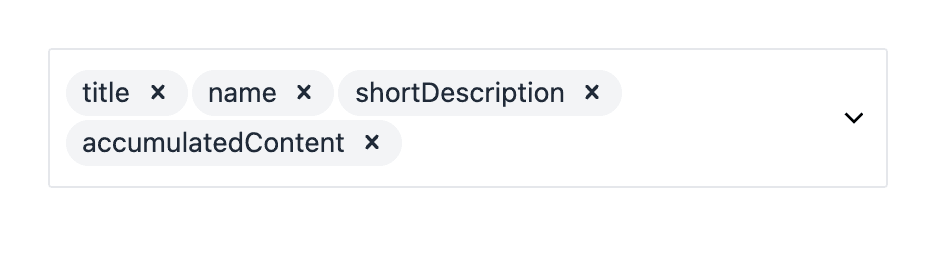
The Query By parameter uses the Query By Fields editor. It sets which fields Uniform Search compares with the search words of the visitor, and how important each field is.
Each field has a weight from 0 to 127. A result that matches a field with a high weight ranks higher than a result that matches a field with a low weight. If 2 fields have the same weight, the field higher in the list is more important.
- Click + Add field.
- Select a field, for example
title. The field gets the weight 1. - Do steps 1 and 2 again for each field that you want.
- Click + or − to change the weight of a field, or type a number. For example, give
titlethe weight 4 andshortDescriptionthe weight 2. - To change the order, drag a field by its handle.
- To remove a field, click the red remove button.
Only text fields show in the list. If you do not select a field, Uniform Search searches all text fields.
Below the fields, preview shows the values that the site sends to the Search API: queryBy (the fields) and fieldWeights (the weight of each field). Refer to Field weights.
If you open a Query By value from before weights were available, the editor gives the fields weights in the old order: the first field gets the highest weight.
Filter By Builder#
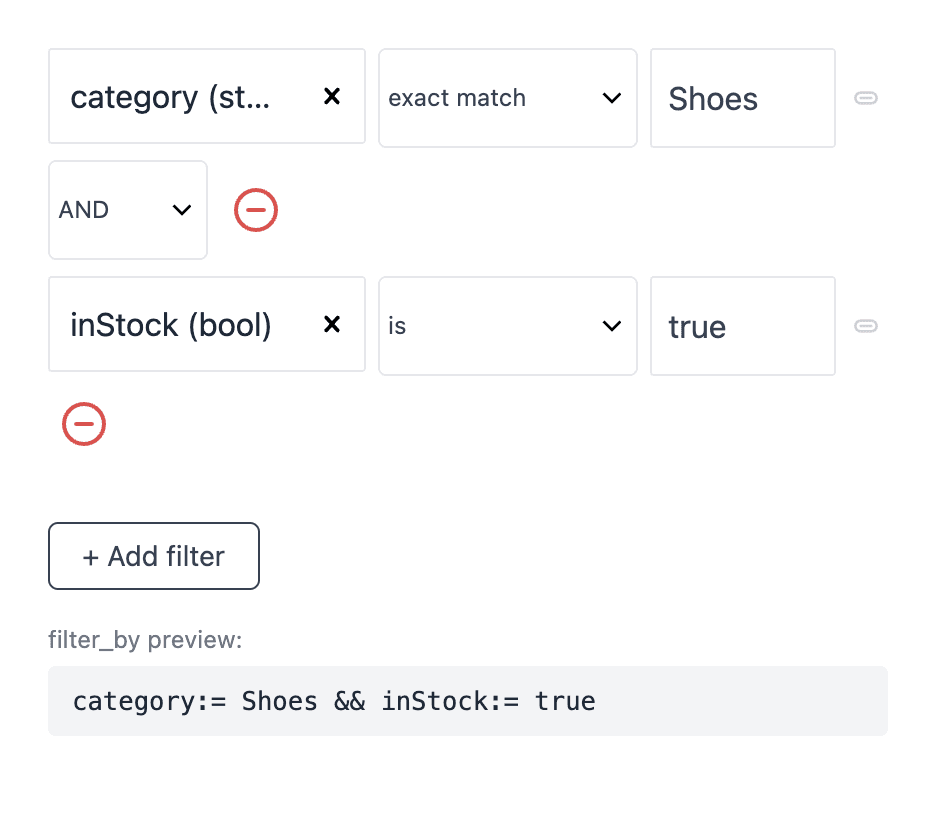
The Base Filters parameter of the Search Engine uses the Filter By Builder editor. A base filter limits the results that the visitor can see. The visitor cannot remove a base filter.
For example, use a base filter to make a search page that shows only the products in the category "Shoes".
- Click + Add filter.
- In Field, select a field, for example
category. - In Operator, select how to compare the value, for example exact match.
- In Value, enter or select the value, for example "Shoes". The editor suggests values from your content.
- To add more conditions, do steps 1 to 4 again.
- To change how 2 conditions connect, click the Connector between them. && shows only the results that match both conditions. || shows the results that match 1 of the conditions.
The filter_by preview: line shows the full filter. To remove a condition, click Remove condition.
The operators that you can select change with the type of the field:
| Field type | Operators |
|---|---|
| Text | contains, exact match, not equals, not contains |
| Number | equals, not equals, less than, greater than, less than or equal, greater than or equal |
| List of values | contains, not contains, word match |
| Yes or no | is |
Only fields that have Facet on in the schema show in the Field list.
To use a value from the page URL, click Insert dynamic token in Value. For example, on a dynamic category page, the filter can use the category of the current page. For more about dynamic pages, see Project maps.
Facet By Field#
The Facet by field parameter of the Search Facet uses the Facet By Field editor. It sets the field that gives the values of the facet.
- Click — select field —.
- Select the field. Each option shows the field name and the field type.
Only fields that have Facet on in the schema show in the list.
Sort By Field#
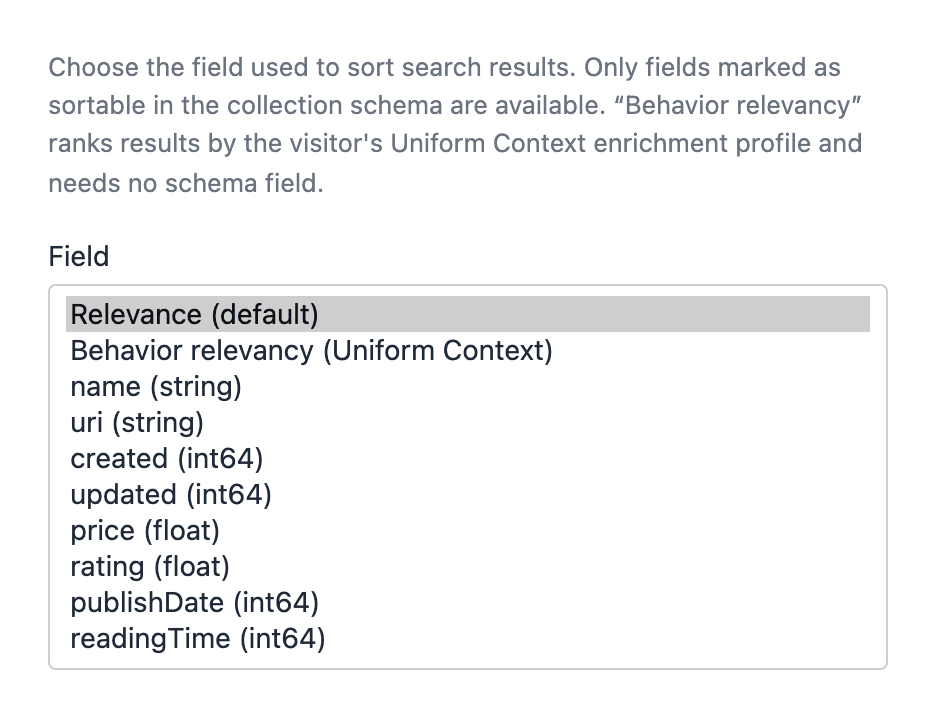
The Field of each Order By item in the Search Sort uses the Sort By Field editor. It sets how 1 sort option orders the results.
- In Field, select 1 of these options:
- Relevance (default): the best match for the search words comes first.
- Behavior relevancy (Uniform Context): the results that match the interests of the visitor come first. See Behavior relevancy.
- A field from the list, for example
price.
- If you selected a field, select a Direction: Ascending or Descending.
Ascending puts the lowest value or the start of the alphabet first. Descending puts the highest value or the most recent date first. The Preview: line shows the result of your selection.
Only fields that have Sort on in the schema show in the list.
Predefined Sort#
The Predefined Sort parameter of the Search Sort uses the Predefined Sort editor. A predefined sort puts some results first while the visitor uses the default sort option. For more, see Use a predefined sort.
Entry Url Mapping#
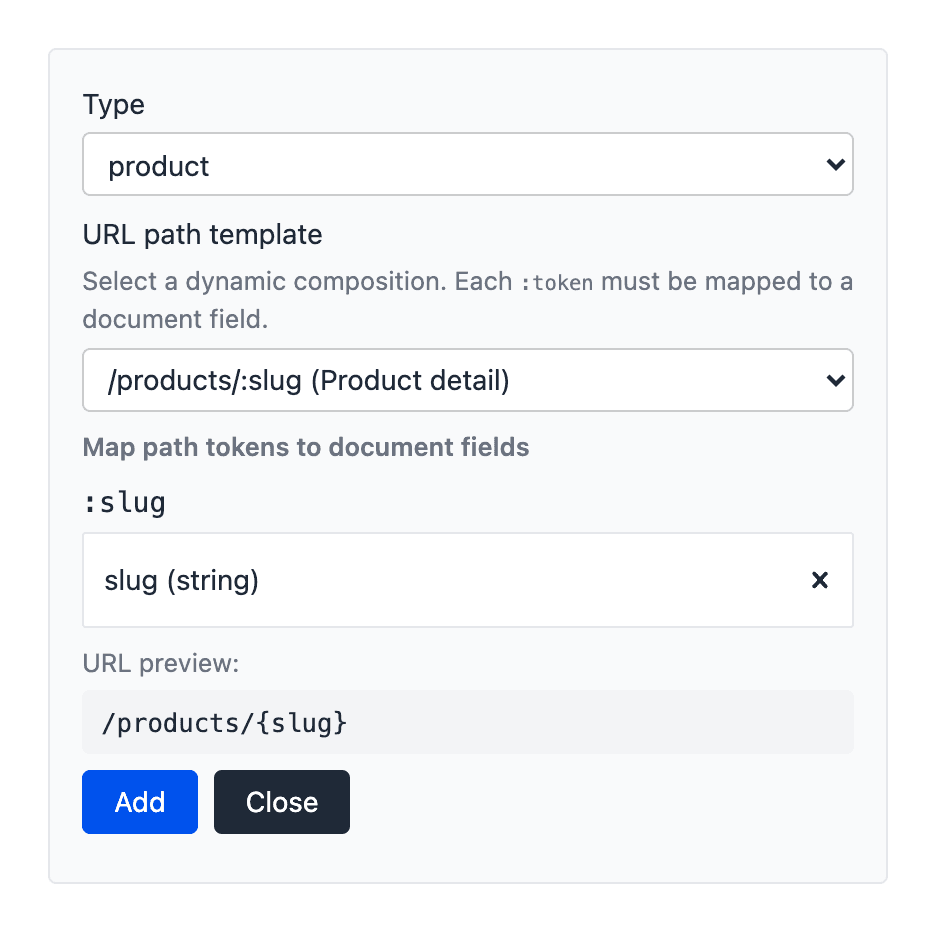
The Entry Url Mapping parameter uses the Entry Url Mapping editor. It tells the search components which page to open when a visitor clicks an entry in the results.
Results for compositions do not need a mapping. They use the URL of the page from your project map. Results for entries need a mapping, because an entry does not have a URL of its own.
For example, your product entries show on the dynamic page /products/:slug. The mapping tells Uniform Search to put the slug field of each product into :slug.
- Click + Add new mapping.
- In Type, select the content type of the entries, for example
product. - In URL path template, select the dynamic page that shows these entries.
- Under Map path tokens to document fields, select a field for each token, for example
slugfor:slug. - Look at the URL preview: line. Make sure that the URL is correct.
- Click Add.
- Do steps 1 to 6 again for each content type that shows in the results.
- Click Close.
To change a mapping, click it. To remove a mapping, click Delete mapping.
Add sort options#
The Search Sort component shows a list of sort options to the visitor. You make the list with Order By items.
- Select the Search Sort component.
- In Order By, add an Order By item.
- In Title, enter the name that the visitor sees, for example "Price: Lowest first".
- In Field, select the sort. See Sort By Field.
- Do steps 2 to 4 again for each sort option.
- Move the default sort option to the top of the list.
The first item in the list is the default. The results use this order when the page opens.
Sort by a field when semantic search is on
Semantic search can be on for your project. Then a search by wording and meaning ignores a sort by a field, such as price. To make field sort options work, set Matching on the Search Engine to Exact wording only. Sort options with Behavior relevancy (Uniform Context) work in both modes.
Behavior relevancy#
Behavior relevancy uses Uniform Context. Uniform Context learns the interests of each visitor from the content that they look at. When the visitor selects a sort option with Behavior relevancy (Uniform Context), the results that match their interests come first. Each visitor can see a different order.
Behavior relevancy changes only the order of the results. The number of results and the facet values stay the same. If a visitor has no interests yet, the results use the relevance order.
Behavior relevancy needs no field in the schema. It uses the enrichments on your content. For more about enrichments and interests, see Personalization.
To add behavior relevancy as a sort option, add an Order By item. Then select Behavior relevancy (Uniform Context) in Field. To make it the default, move the item to the top of the list.
Use a predefined sort#
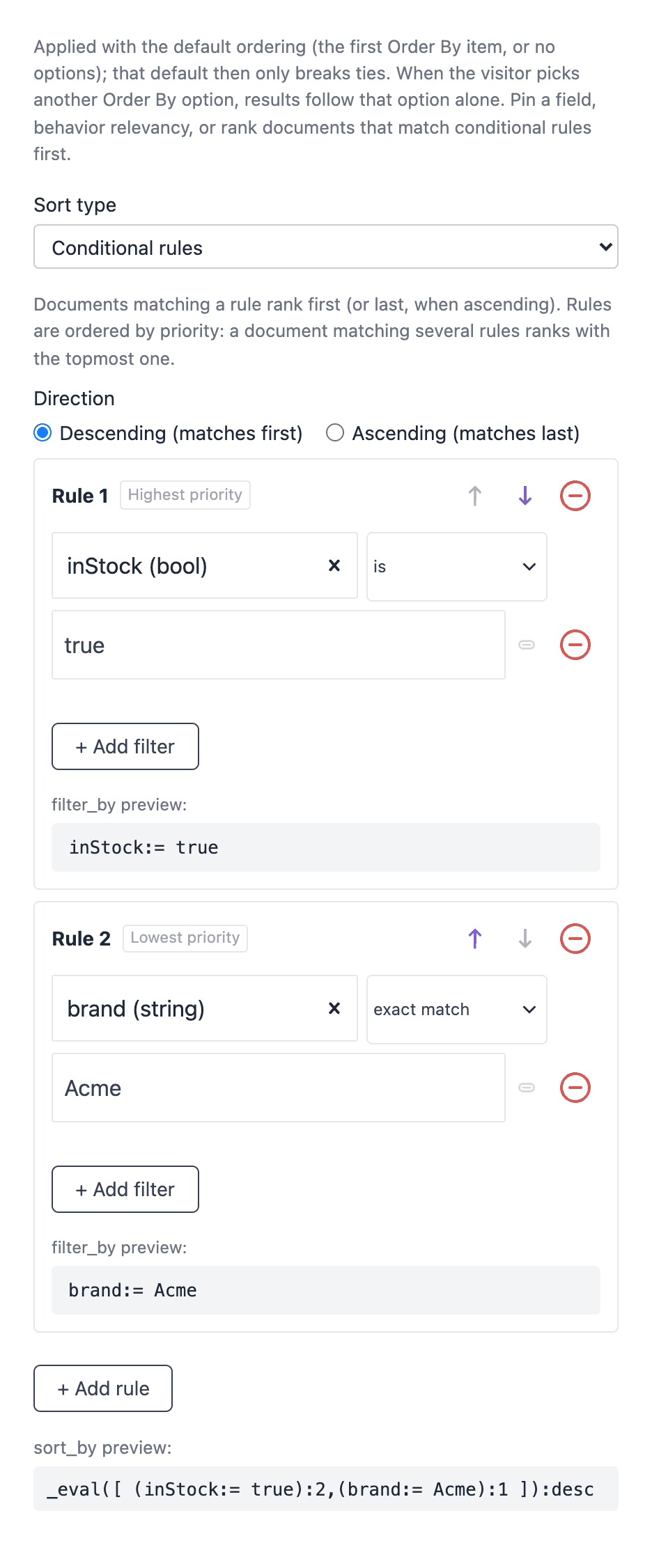
A predefined sort changes the default order of the results. The visitor does not see it as a sort option. Use it to put some results first, for example products that are in stock.
The predefined sort applies only while the visitor uses the default sort option. The default sort option then orders the results that are equal. When the visitor selects a different sort option, only that option applies.
- Select the Search Sort component.
- Open the Predefined Sort parameter.
- In Sort type, select Sort by field or Conditional rules.
- Do the steps for the sort type that you selected.
To sort by a field:
- In Field, select a field or Behavior relevancy (Uniform Context).
- If you selected a field, select a Direction.
To sort by conditional rules:
- In Direction, select Descending (matches first) or Ascending (matches last).
- In Rule 1, make a condition with the filter builder, for example
inStockis true. - To add a rule, click + Add rule.
- To change the priority of a rule, click Move up (higher priority) or Move down (lower priority).
The first rule has the highest priority. The results that match it come before the results that match the rules below it. The sort_by preview: line shows the result of your rules.
Show recommendations#
The Recommendations component shows content that matches the interests of the visitor. It uses the same Uniform Context data as behavior relevancy. The visitor does not type a search. Use it, for example, on a home page or below a product.
- Open the composition.
- In a slot, click the plus icon .
- Select the Recommendations component.
- In Title, enter the heading, for example "Recommended for you".
- Optional: in Content Type, enter the public ID of 1 content type, for example
product. - Optional: in Max Recommendations, enter the number of items to show.
- Set Entry Url Mapping. See Entry Url Mapping.
- Click Save.
If the visitor has no interests yet, the component shows items in the default order. If no content matches, the component shows nothing.
Show search results on any page#
The Uniform Search data connector gets documents from the search index into any composition or entry. You connect the documents to the parameters of your own components. For example, show the 3 newest articles on a home page, or show a list of products that you select.
This is different from the Search Engine component:
- The page does not have a search box, facets, or sort options.
- The list is the same for all visitors. For a list for each visitor, use the Recommendations component.
The data connector gives 2 data types:
| Data type | What it gives |
|---|---|
| Search Query | The results of a search that you set: search words, filters, sort, and the number of results. The list updates when the content in the search index changes. |
| Curated List | The documents that you select one by one, in the order that you set. |
Create a data type#
Before you create a data type, your project must have a Uniform Search data source. The data source configures itself. Its Base filter applies to all the data types that use it.
- Create a data type from the Uniform Search data source. For the general steps, see Composition.
- Select the type of data: Search Query or Curated List.
- For a Search Query data type, set the fields in the table below.
- Click Save.
| Field | What it does |
|---|---|
| Filters | A filter for all the data resources of this data type. It uses the filter builder. |
| Search fields | The fields that Uniform Search compares with the search words. |
| Facets | The fields that give facet values in the result. |
| Default sort | The default order of the results. |
| Result count | The number of results. The default is 10. |
| Thumbnail field | The field with the image that shows next to each document in the editor. |
For a Curated List data type, you can set a Filter and a Thumbnail field. The Filter only limits the documents that you can select in the editor.
Add a data resource to a composition#
- Open the composition.
- Open the data resources of the composition .
- Add a data resource.
- Select your Uniform Search data type.
- Configure the data resource. See the procedures below.
- Click Save.
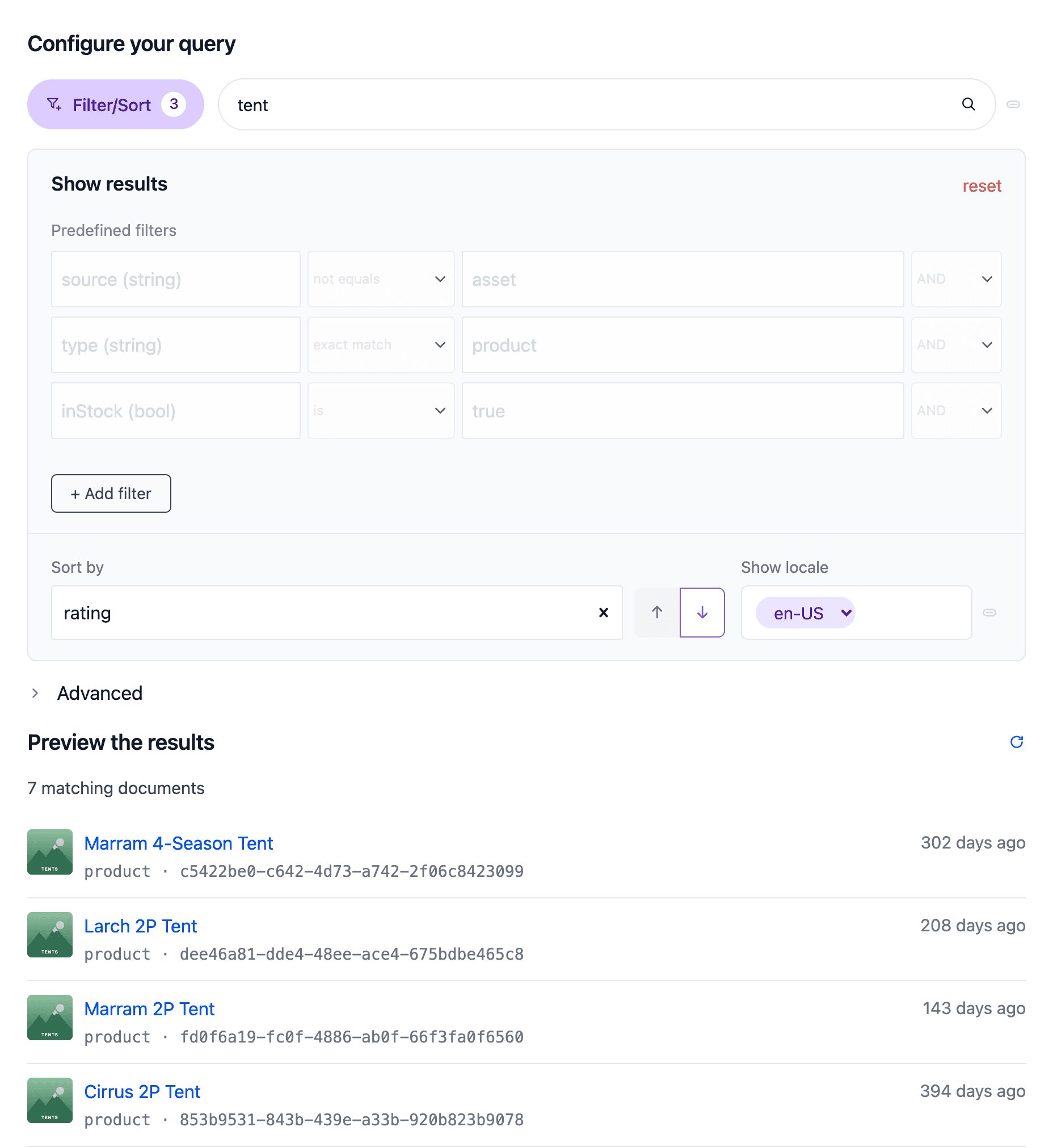
To configure a Search Query data resource:
- Under Configure your query, enter the search words in Search…. To show all documents, leave it empty.
- To add a filter, open Show results and add a condition. The filters from the data source and the data type show as Predefined filters. You cannot change them here.
- In Sort by, select the order.
- Optional: in Show locale, select the locale.
- Optional: open Advanced. In Records to fetch, enter the number of documents.
- Look at Preview the results. Make sure that the documents are correct.
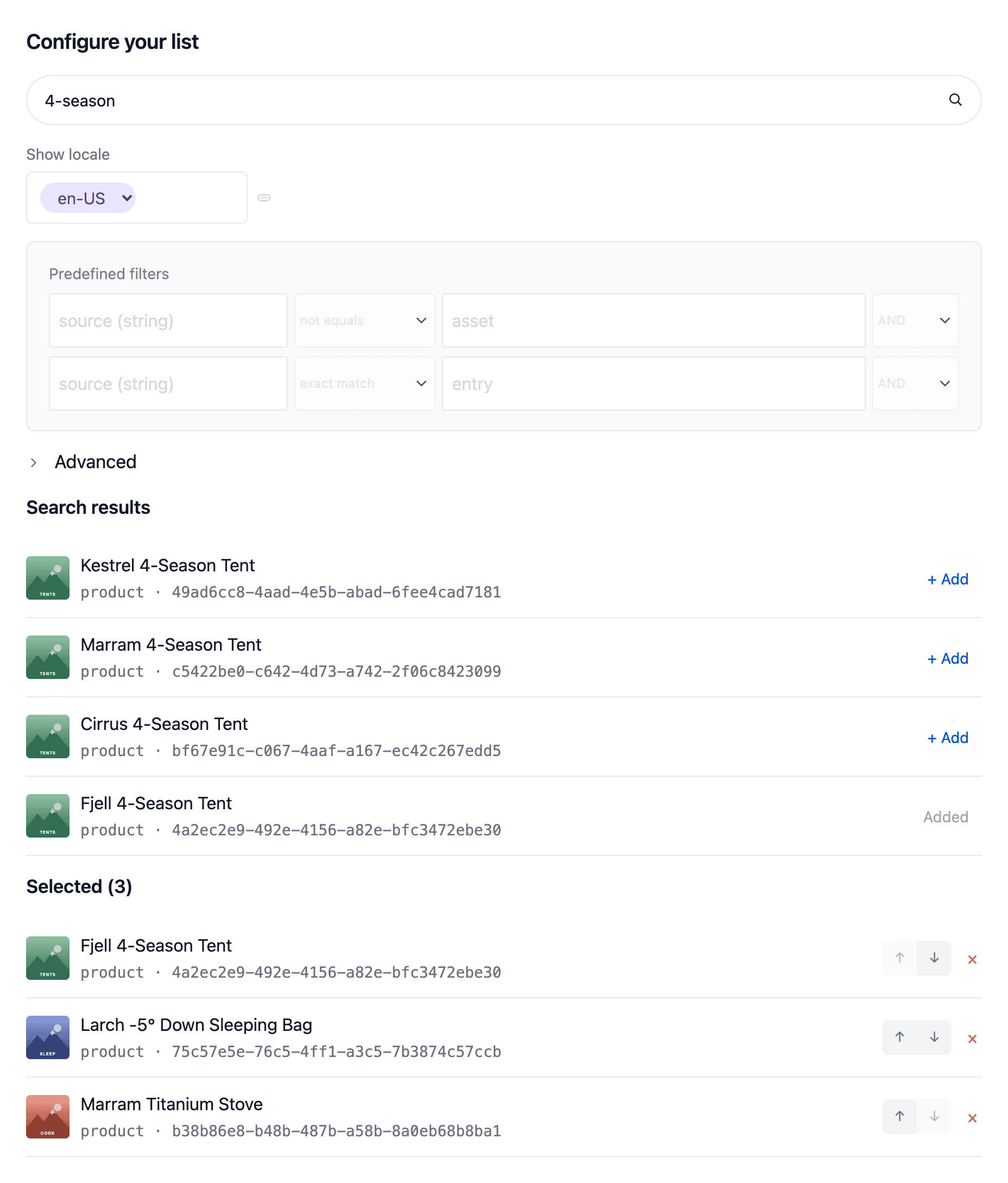
To configure a Curated List data resource:
- Under Configure your list, enter words in Search… to find documents.
- In Search results, click + Add next to each document that you want.
- In Selected, click Move up or Move down to change the order.
- To remove a document from the list, click Remove.
Connect the results to components#
- Select the component that shows the data.
- Connect a parameter of the component to the data resource.
- Select a field from the data resource, for example the
titleof the first result. - To show each result in a list, use a Loop component. Put a card component inside the Loop, and connect the card parameters to the fields of the loop item.
For more about data resources, connections to data, and loops, see Composition.
Preview and publish#
- In Canvas, look at the preview of your composition. The search components show real results from your search index.
- Type a search word in the preview. Make sure that the results are correct.
- Select facet values and sort options. Make sure that the results change as you expect.
- Click Publish.
- Open the live page on your site.
- Do a search on the live page. Make sure that the results, the facets, and the links in the result cards are correct.
To test behavior relevancy, look at some content on the live site first. Uniform Context then knows your interests. Do a search again, and select the behavior relevancy sort option. Your team admin can also test a visitor profile in the Uniform Search tool.
Component parameter reference#
This section gives the parameters of each search component. Parameters that are not in these tables do not change the component.
Search Engine parameters#
| Parameter | What it does |
|---|---|
| Base Filters | Limits the results that the visitor can see. The visitor cannot remove this filter. See Filter By Builder. |
| Entry Url Mapping | Sets the page that opens when the visitor clicks an entry in the results. See Entry Url Mapping. |
| Query By | Sets the fields that Uniform Search compares with the search words, and the weight of each field. See Query By Fields. |
| Typo-Tolerance Level | Sets how many spelling errors a search word can have and still find results. Off: no errors. Basic: 1 error in longer words. Aggressive: up to 2 errors, also in shorter words. |
| Matching | Sets how Uniform Search finds results. Default (wording + meaning) finds results by the words and by their meaning. Exact wording only finds only results with the same words. Use Exact wording only for searches for product codes or part numbers. If you do not set a value, Uniform Search selects the best method for your project. |
Search Box parameters#
| Parameter | What it does |
|---|---|
| Label | The name of the search box. The visitor does not see it, but screen readers read it. |
| Placeholder | The text in the empty search box, for example "Search products…". |
Search Results parameters#
| Parameter | What it does |
|---|---|
| No Results Found Text | The message when there are no results. The default is "No results found". |
| Try Different Filters Text | The text before the link that clears the filters. The default is "Try different filters or". |
| Clear All Filter Text | The text of the link that clears all the facet values. The default is "clear all filters". |
Search Facet parameters#
| Parameter | What it does |
|---|---|
| Facet by field | The field that gives the facet values. See Facet By Field. |
| Type | How the visitor selects values: Select, Multi Select, or Range. See Add a facet. |
| Title | The heading above the facet. |
The Facet Container component has no parameters.
Search Sort parameters#
| Parameter | What it does |
|---|---|
| Order By | The list of sort options. Each Order By item has a Title and a Field. The first item is the default. See Add sort options. |
| Predefined Sort | A default order that the visitor does not see. See Use a predefined sort. |
Search Pagination parameters#
| Parameter | What it does |
|---|---|
| Sibling Count | The number of page numbers to show on each side of the current page. The default is 1. |
| Page Sizes | The list of page sizes that the visitor can select. Each Page Size item has a Size, which is the number of results on 1 page. Select Default on 1 item to make it the default. You must add at least 1 item. |
attention
Leave Sibling Count empty to use the default of 1. If you set a value, enter a whole number, for example 2. Do not enter text or a decimal number.
Search Autocomplete parameters#
| Parameter | What it does |
|---|---|
| Label | The name of the search box for screen readers. |
| Placeholder | The text in the empty search box. |
| Delay | The time in milliseconds between the last key and the suggestions. The default is 150. |
| Minimum Characters | The number of characters that the visitor must type before suggestions show. The default is 2. |
| Max Results | The number of suggestions. The default is 6. |
| Results Page Path | The path of the search page, for example /search. The site opens this page when the visitor pushes Enter. |
| Query By | The fields that Uniform Search compares with the search words, and the weight of each field. See Query By Fields. |
| Entry Url Mapping | The page that opens when the visitor clicks an entry in the suggestions. See Entry Url Mapping. |
| View All Text | The text of the link that opens the search page with all the results. |
| No Results Text | The message when there are no suggestions. |
Recommendations parameters#
| Parameter | What it does |
|---|---|
| Title | The heading above the recommendations. |
| Content Type | The public ID of the content type to recommend, for example product. If you leave it empty, the component recommends all types of content. |
| Boost Categories | The public IDs of the enrichment categories to use, with a comma between them, for example int,brand. If you leave it empty, the component uses all categories. |
| Max Recommendations | The number of items to show. The default is 4. |
| Entry Url Mapping | The page that opens when the visitor clicks an entry. See Entry Url Mapping. |
Tips for good search experiences#
- Give the most important fields the highest weights in Query By. The title usually gets the highest weight.
- Use 3 to 6 facets. Too many facets make the page difficult to use.
- Give each facet and each sort option a clear title that your visitors understand.
- Use a Range facet for prices and other numbers. Use Multi Select for brands and categories.
- Use a base filter to make a search page for 1 part of your site, for example a help center.
- On a product list, use Behavior relevancy (Uniform Context) as the default sort.
- Keep Typo-Tolerance Level at Basic. Use Off for pages where visitors search for codes.
- After a change, look at the preview before you publish.
Some changes to relevance apply to all search pages. These are synonyms, curations, and stopwords. Team admins set them in the Uniform Search tool. For example, a curation can put a product at the top of the results for 1 search word. See Configure search.
Troubleshooting#
| Problem | Cause | What to do |
|---|---|---|
| The preview shows no results. | The content is not in the search index, or a base filter is too narrow. | Make sure that the content is published. Remove the Base Filters conditions one at a time and look at the preview again. If the problem continues, speak to your team admin. |
| The preview shows no results for a locale. | The search index has no content for that locale. | Speak to your team admin. The locale must be in the indexing scope. |
| A facet shows no values. | The field does not have Facet on in the schema. | Ask your team admin to turn on Facet for the field. The admin possibly must do a re-index. |
| A field is not in the Facet by field list or the Field list of the filter builder. | The field does not have Facet on in the schema. | Ask your team admin to turn on Facet for the field. |
| A field is not in the Sort By Field list. | The field does not have Sort on in the schema. | Ask your team admin to turn on Sort for the field. |
| A sort option shows no change. | The field has the same value in many documents, or the visitor has no interests for behavior relevancy. | Select a field with different values. For behavior relevancy, look at some content first, then search again. |
| A click on a result opens the wrong page or no page. | The content type has no Entry Url Mapping, or a token has the wrong field. | Add or correct the mapping for the content type. Look at the URL preview: line. |
| The page numbers look wrong. | Sibling Count has a value that is not a whole number. | Clear Sibling Count, or enter a whole number. |
| An editor shows "No indexed collection found. Index your content first." | The search index has no content. | Speak to your team admin. |
Next steps#
- Uniform Search: learn what Uniform Search can do.
- Configure search: learn how admins set the schema and the relevance.
- Search SDK and API: send this page to your developer.
- Personalization: add enrichments to your content for behavior relevancy and recommendations.
- Composition: learn more about data resources and loops.