Launch a release
Launching a release is the final step that moves the content inside it into the base state of your project. There are two ways a release can be launched, and both are gated by the same validation step:
- Manual launch – you trigger the launch yourself, immediately, from the release details page.
- Scheduled launch – Uniform launches the release automatically at a date and time you specify.
This page walks through both flows, including how to validate, lock, edit, and cancel a scheduled launch.
Manual launch#
First, ensure that the "Schedule" field on the release is empty and the release has been saved. Click the "Launch…" button in the top-right corner to proceed to validation:
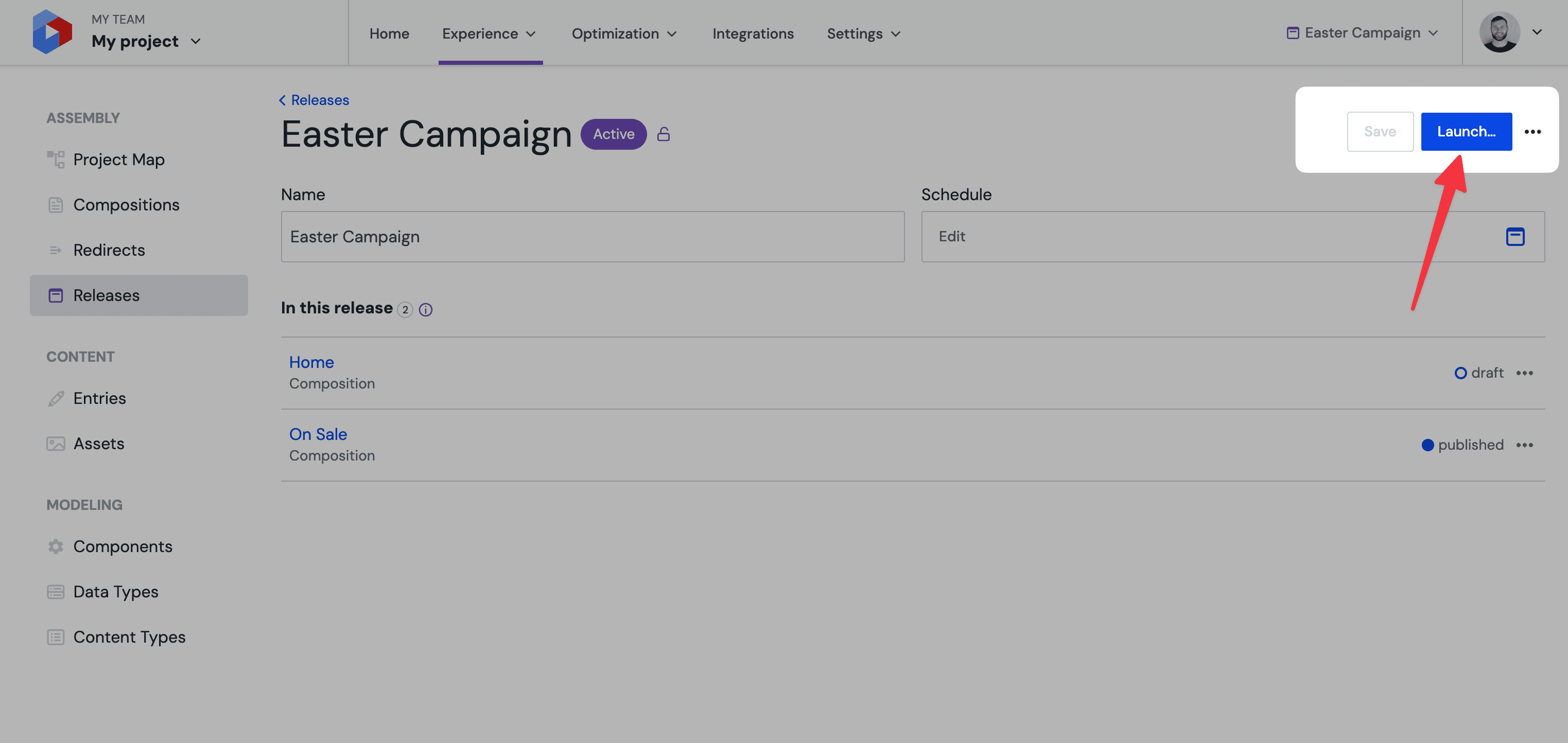
After reviewing the validation results, click the "Launch now" button at the bottom of the modal to send the content live.
Unpublished content needs to be published
Some parts of the release may refer to unpublished content from external data sources. Ensure that all necessary content is published prior to the manual launch of the release.
Uniform Content entries can be added to the release to be published automatically.
Validation#
Both manual and scheduled launches surface the same validation modal so that you can preview anything that may impact the outcome of the release before it goes live. The preflight checks include:
- Changed on base – if a piece of content has been updated on base after that entity was copied into the release this may mean that there are changes in base that could be overwritten by the copy in the release. We recommend reviewing the copy in base against the version in the release to ensure no important content will be overwritten.
- Launch schedule overlap – if one or more other releases are scheduled to launch at the same time, Uniform will flag the overlap. Only one release can launch automatically at a given moment, so overlapping releases will launch with a slight delay.
- Unpublished content – content in a release will not alter the published state of the content in base on launch unless it has been published to the release. If Uniform detects that a composition or entry has been left in a draft or modified state then it will flag these cases to be reviewed before launch.
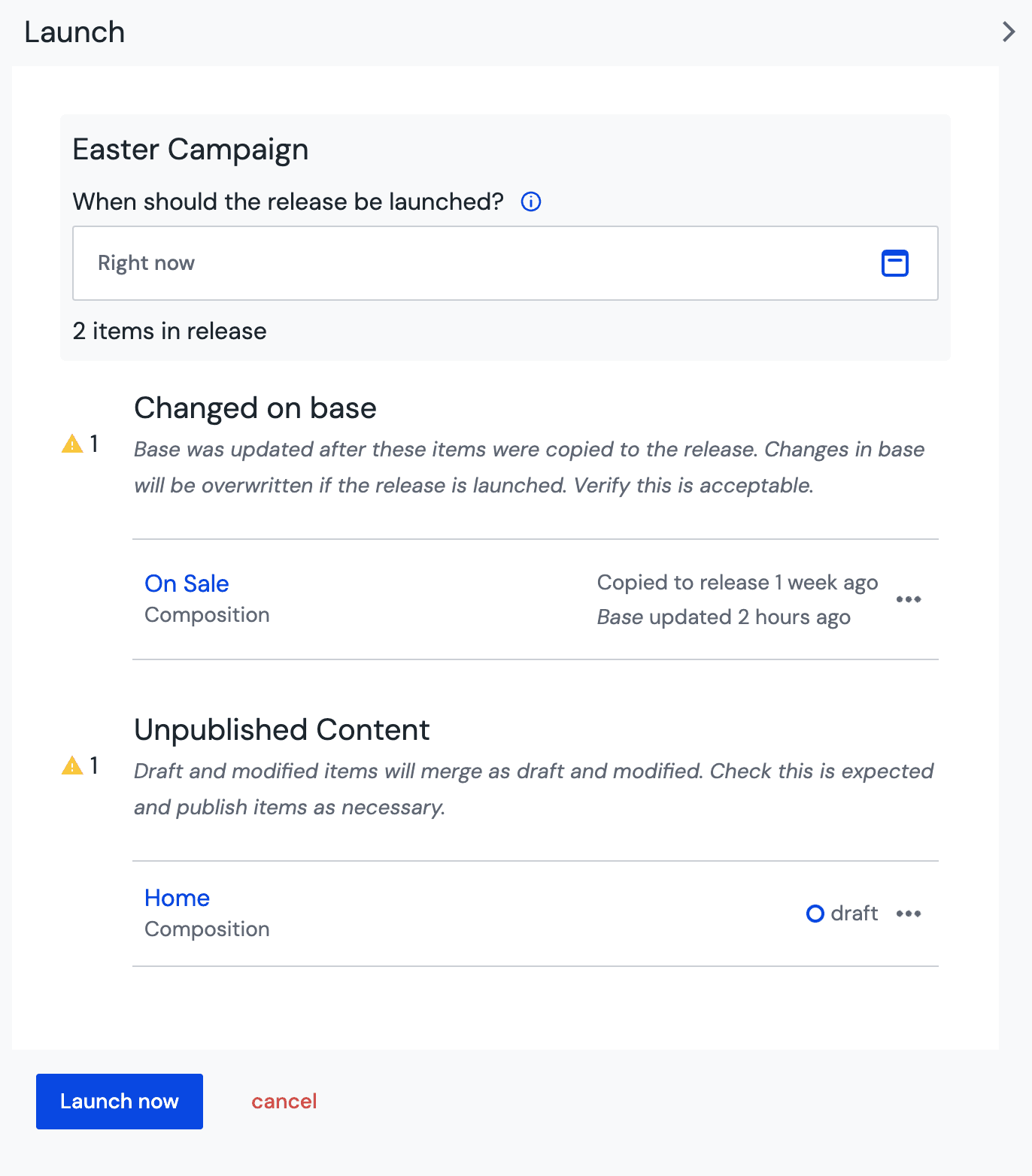
The actions available at the bottom of the modal depend on whether a schedule has been set on the release:
- If the Schedule field is empty, the primary action is the "Launch now" button, which launches the release immediately.
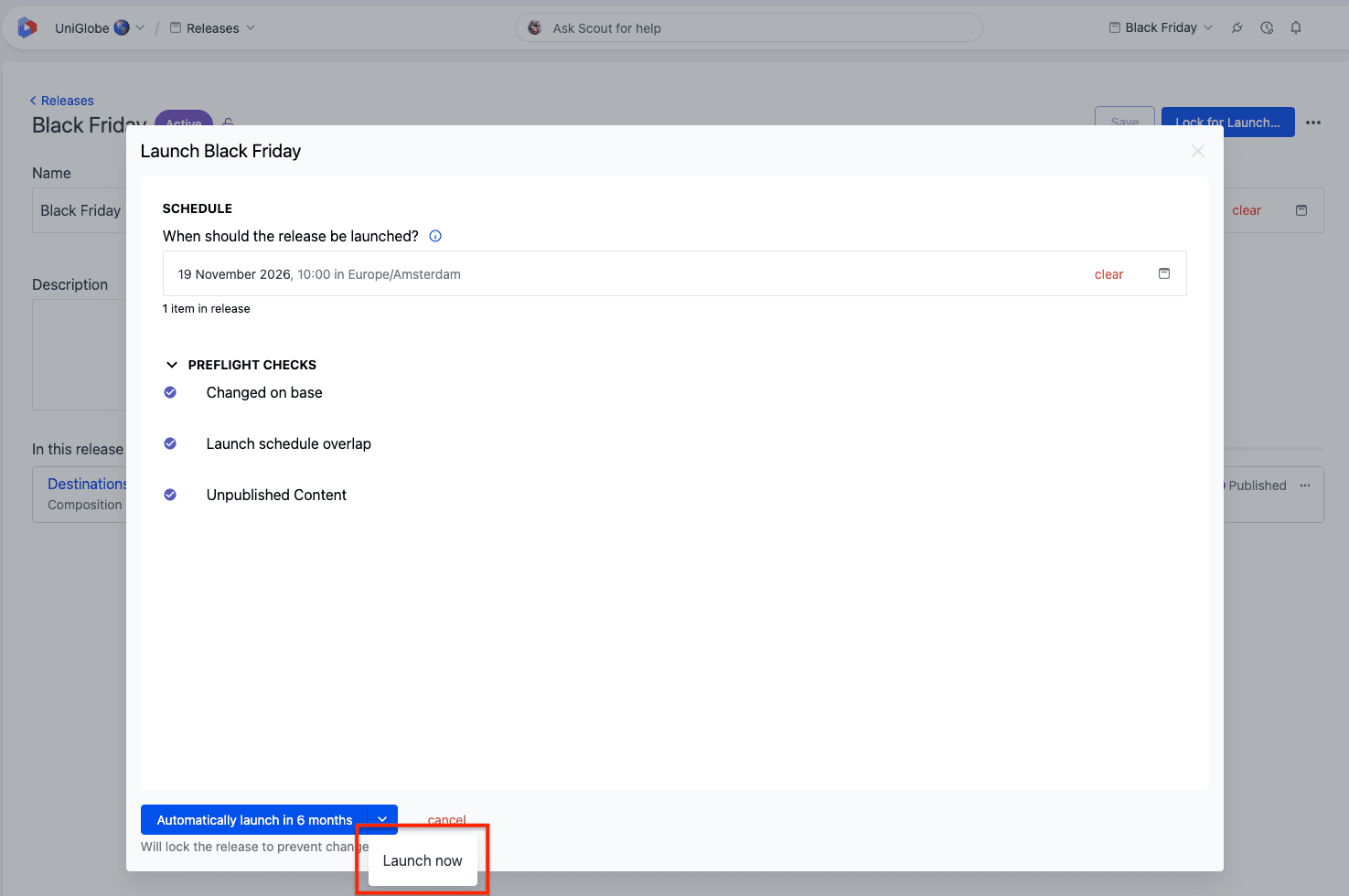
- If the Schedule field is set, the primary action is an "Automatically launch [time]" button that locks the release so it launches on the scheduled date. The same button exposes a dropdown with a "Launch now" option to bypass the schedule and launch right away.
Schedule a release launch#
To make a release launch automatically at a future date and time, follow these three steps.
1. Add a launch date to the release#
A scheduled launch needs a date and time on the release's Schedule field. There are three places where you can set or change this date:
- In the Add release modal when you first create the release. The schedule is optional during creation – fill it in here if you already know when the release should go live.
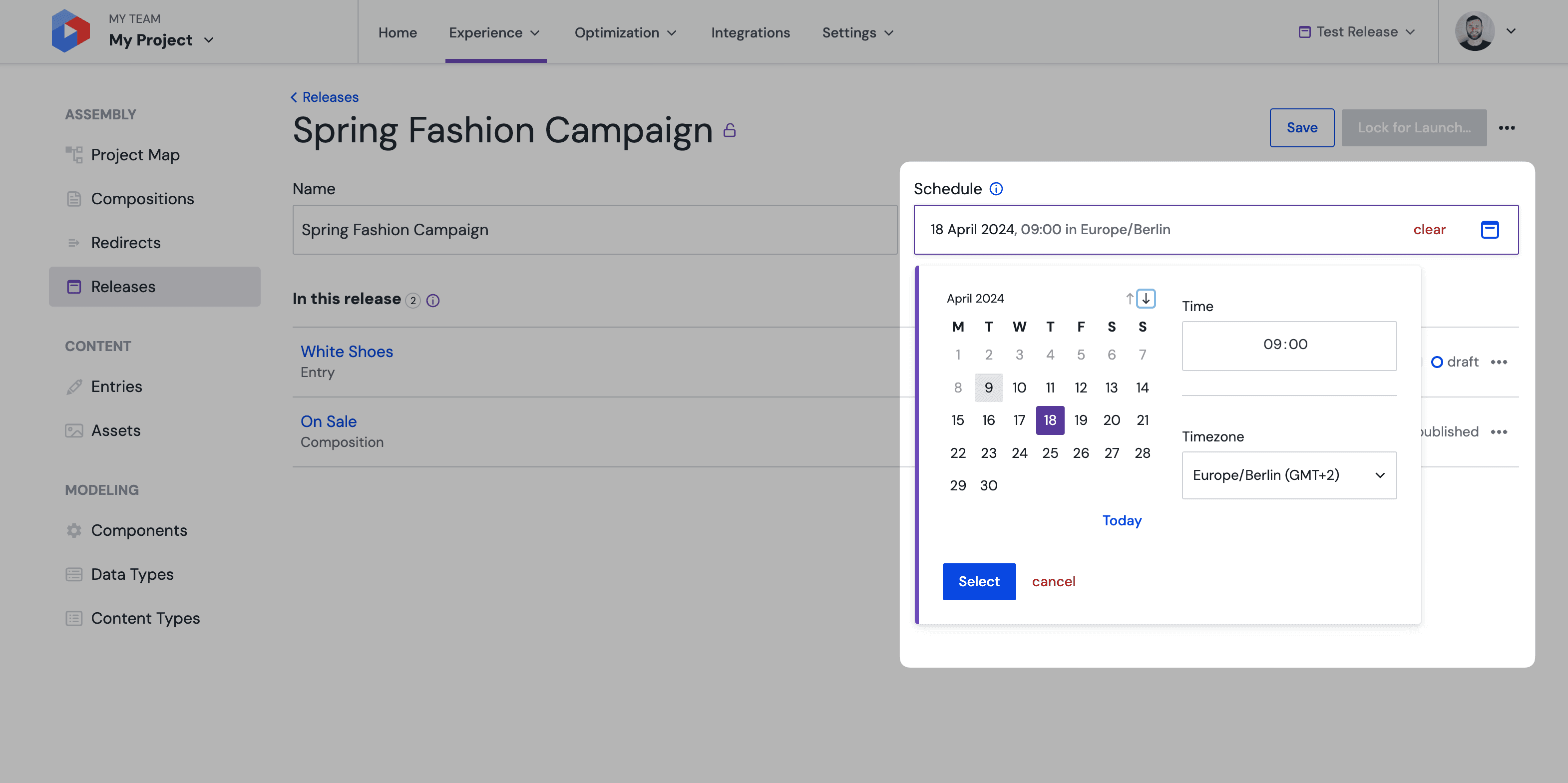
- On the release details page, by editing the Schedule field directly:
- In the Edit Launch modal, after the release has been locked for launch. This is the only way to change the date once a release is locked – see Edit a scheduled launch.
When picking a date and time, you can also select a timezone alongside the schedule value. This lets you schedule the launch at a specific local time – for example, 9:00 AM in your audience's region – without having to convert to UTC yourself. Uniform stores the resulting absolute moment and launches the release at that exact point in time, regardless of the timezone used by the person viewing the release later. The timezone defaults to your detected local timezone. See the timezone picker on the manage releases page for how scheduled times are displayed elsewhere in Uniform.
Unpublished content from external data sources
Some parts of the release may refer to unpublished content from external data sources. It is advised to schedule the publishing of those data entities using the scheduling functionality of the system they belong to, or using third-party automation tools. This ensures that all necessary content is live prior to the scheduled launch of the release.
2. Lock the release for launch#
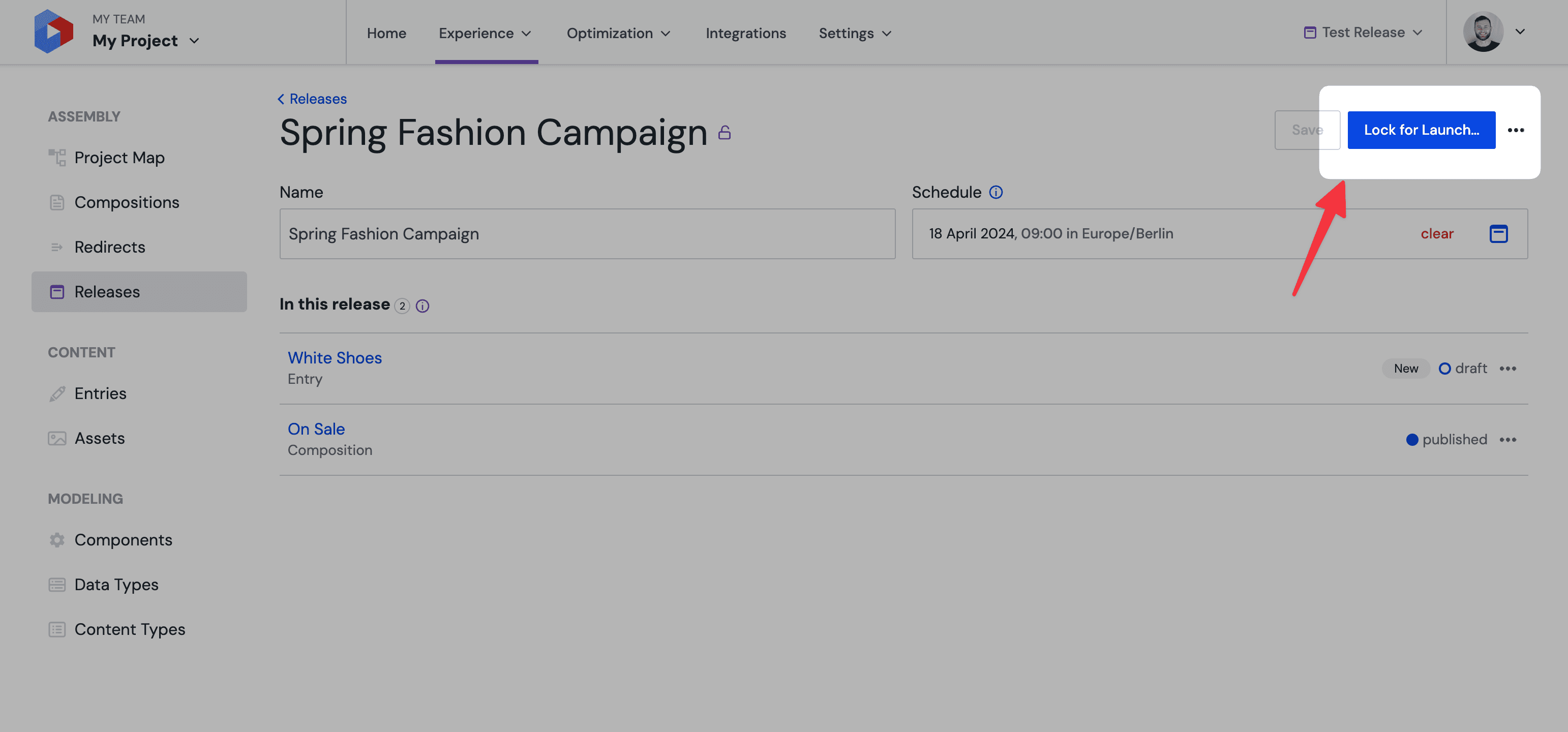
Once all of the content for your release has been prepared, you will need to "lock" the release in order to validate the content within the release and also to prevent further updates to release content from affecting the launch of the release. To do this, click the "Lock for Launch…" button in the top-right corner. The same validation modal used for manual launches will open.
Scheduled releases must be locked
A release must be locked in order for it to be launched automatically on the scheduled date.
3. Confirm the scheduled launch#
In the validation modal, review any preflight warnings and click the "Automatically launch [time]" button at the bottom to confirm. The release is now locked and scheduled, and Uniform will launch it automatically when the scheduled time is reached.
If you want to launch immediately instead of waiting for the scheduled time, expand the dropdown on the same button and select "Launch now" – this bypasses the schedule and launches the release right away.
Edit a scheduled launch#
Once the release is locked, the "Lock for Launch…" button is replaced by an "Edit Launch…" button in the top-right corner. Selecting it re-opens the validation modal, where you can:
- Adjust the scheduled launch date by changing the value in the Schedule field and confirming with the new "Automatically launch [time]" button.
- Trigger an immediate launch by selecting the "Launch now" option in the button's dropdown – this overrides the schedule and launches the release right away.
- Close the modal to leave the release locked and scheduled as-is.
Cancel or unlock a scheduled launch#
After you lock a release to enable automatic scheduling, the release will enter a read-only mode to ensure the validity of the release is not affected by further edits before the schedule is reached. If you would like to make further edits to the content in a release, to add new content into a release, or to change or cancel the scheduled launch, then the release must first be unlocked.
This can be done by clicking the three dot "•••" menu in the top-right hand corner, and selecting the "Unlock release" option.
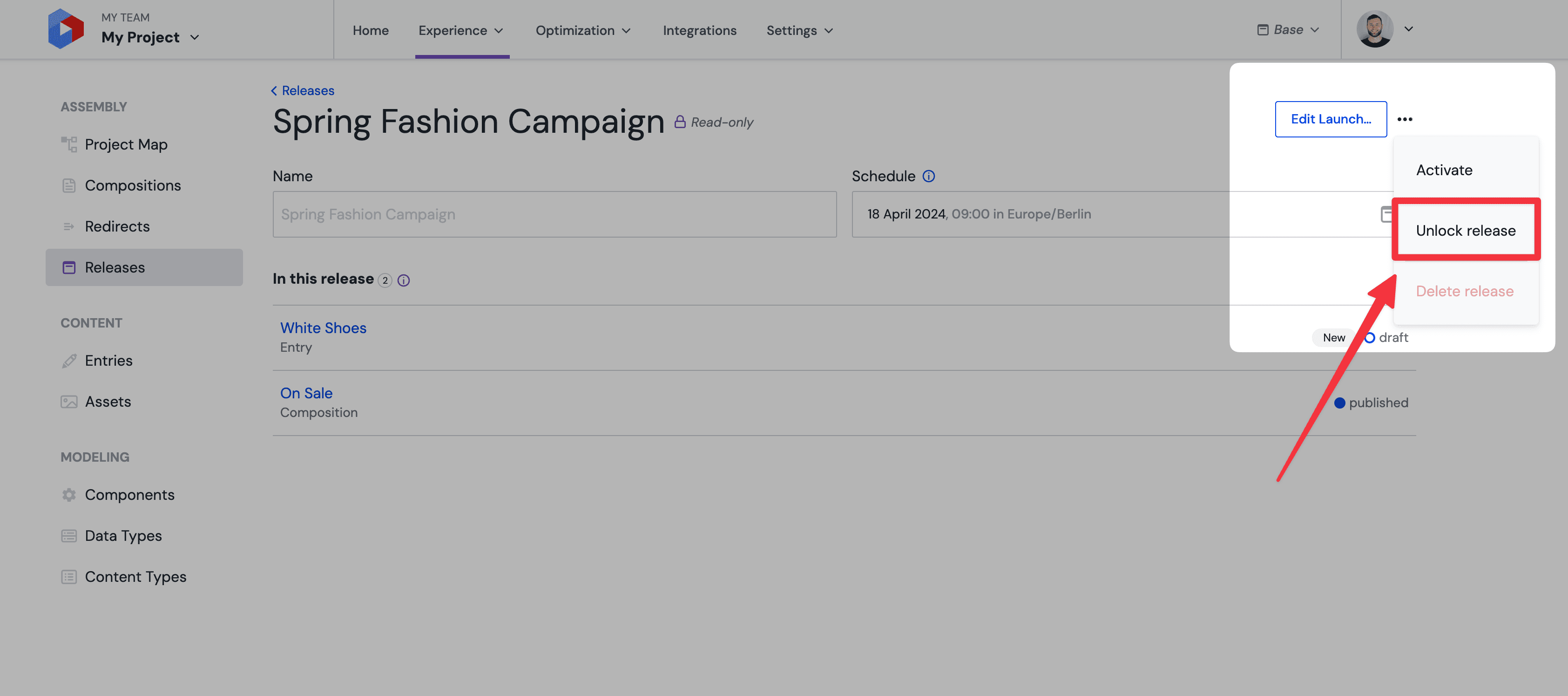
Be aware that an unlocked release will not be automatically launched unless the release is locked again after any edits or modifications have been made. If your goal is to fully cancel the scheduled launch, leave the release unlocked – Uniform will not launch it on the scheduled date until the release is locked again.
Edge cases#
- Schedule date in the past – Either pick a future date, or use the manual "Launch now" flow.
- Schedule overlap with another release – Uniform flags overlapping schedules in the validation modal. Only one release can launch automatically at a given moment, so overlapping releases will launch with a slight delay. Stagger schedules by at least a minute when this matters.
- Locked release that needs content edits – unlock the release, make your edits, then lock it again. The schedule date is preserved across the unlock/lock cycle, but the release will not auto-launch while it is unlocked.