Create a release and add content
Once you understand how a release works, the next step is to create a release and start populating it with content. This page covers creating a release, copying existing content into it, creating brand-new content inside it, and managing the publishing state of that content.
Creating a release#
You can create a release in one of two ways.
From the releases dashboard#
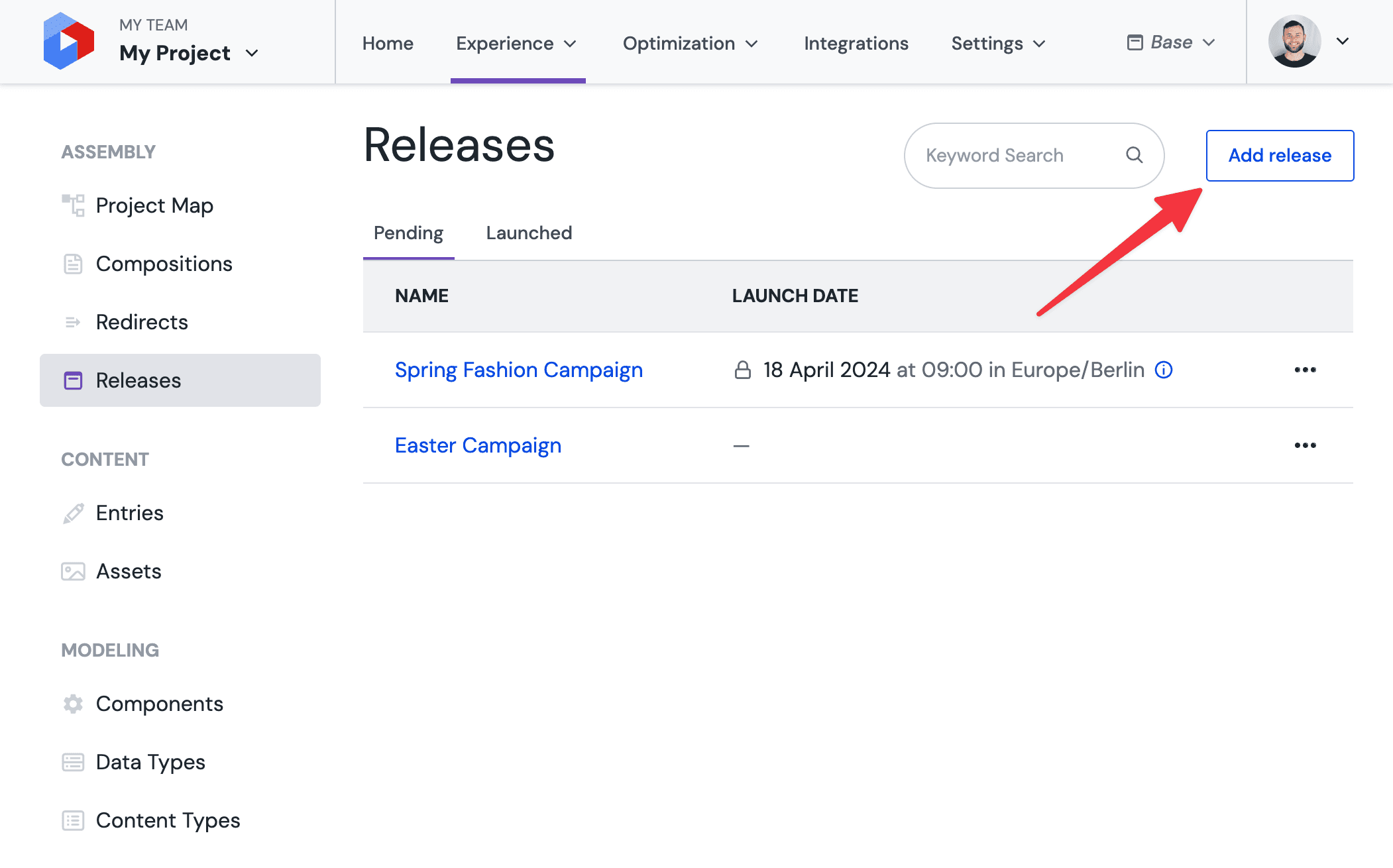
- Navigate to the releases dashboard and click "Add release".
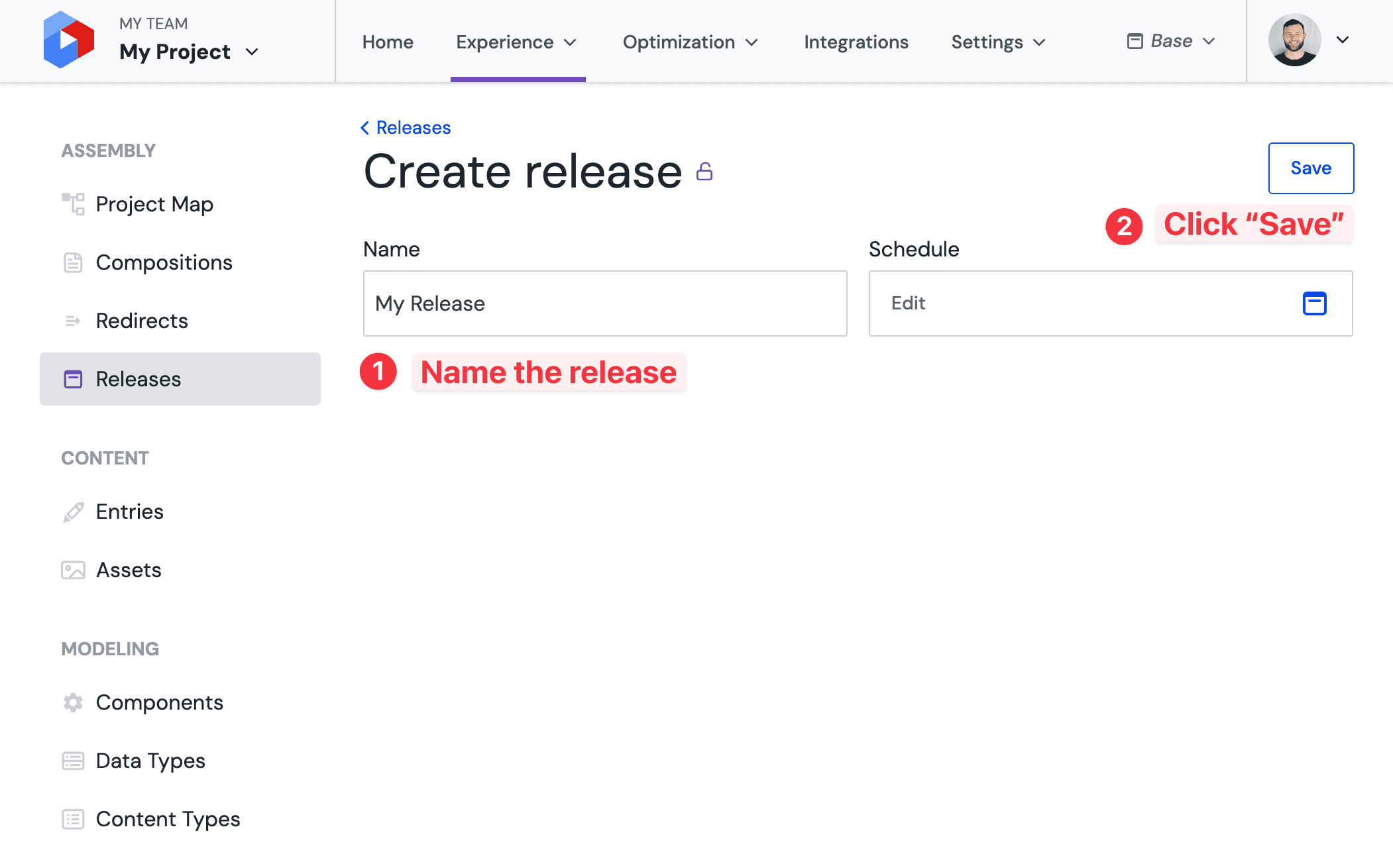
- Provide a name for the release and optionally provide a tentative date and time for the schedule. The schedule field can be left empty if you plan to launch the release manually, or filled in now if you already know when the release should go live.
- Click "Save" to create your release.
From the release switcher#
You can also start creating a new release from anywhere within Uniform by selecting the "Add new release" option in the release switcher and following the same steps as above.
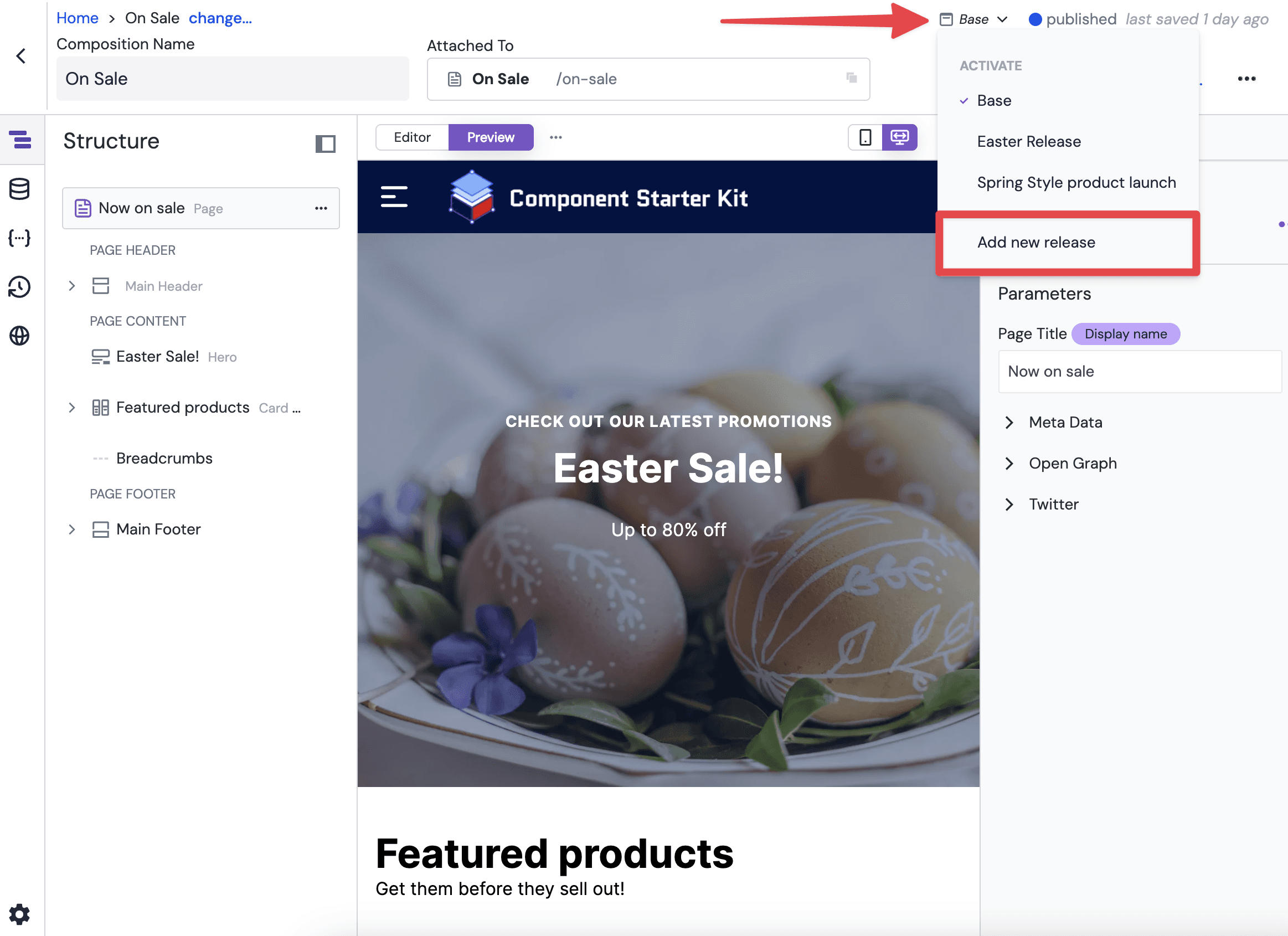
Once a release is created, activate it so that any content you edit or create is captured by the release.
Copy content into a release#
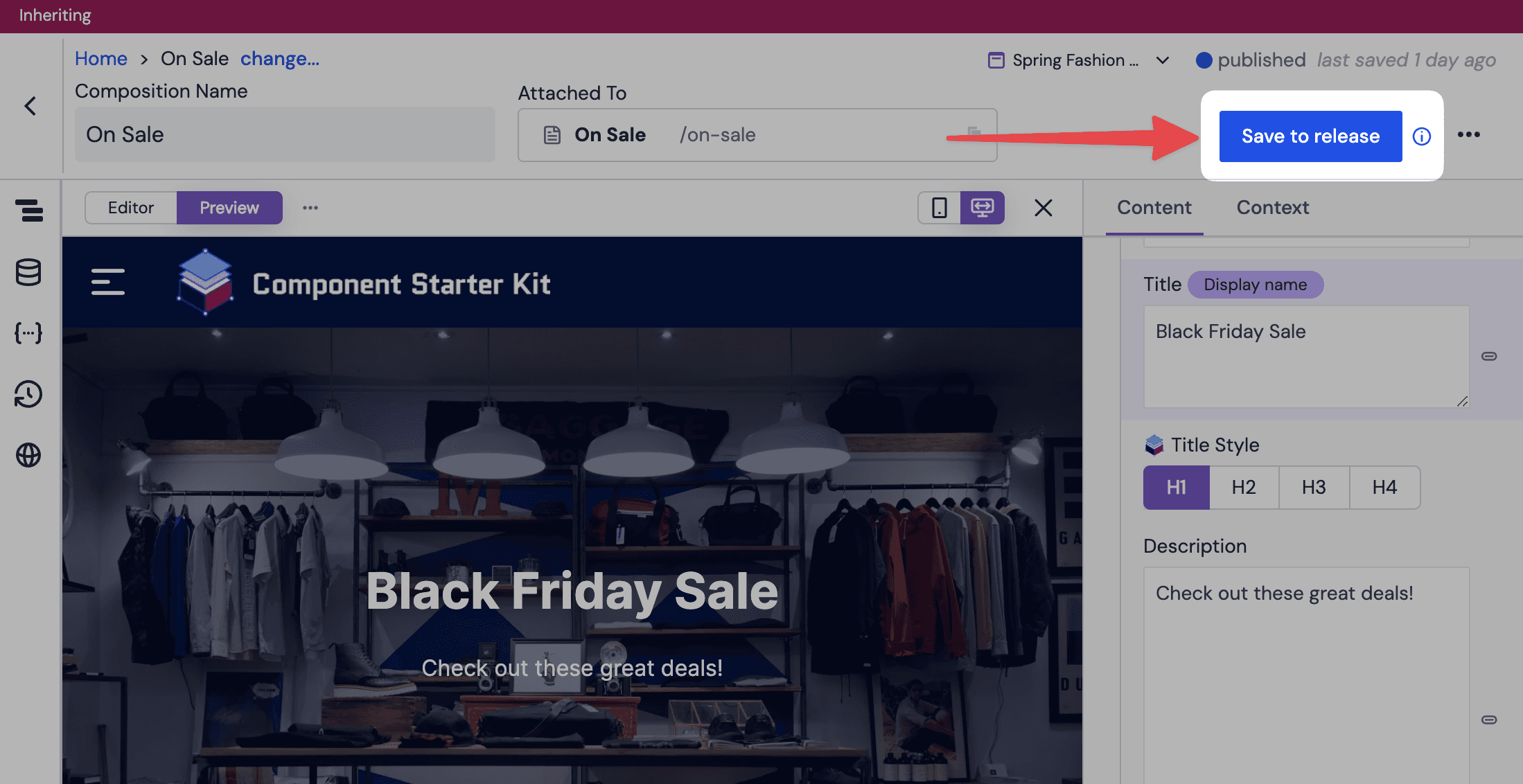
With a release active, you will notice that there is a gray coloured bar present when opening a composition, entry or pattern. Initially, this bar will display "Inheriting from Base" to inform you that the content has not yet been copied and is being inherited from the base state.
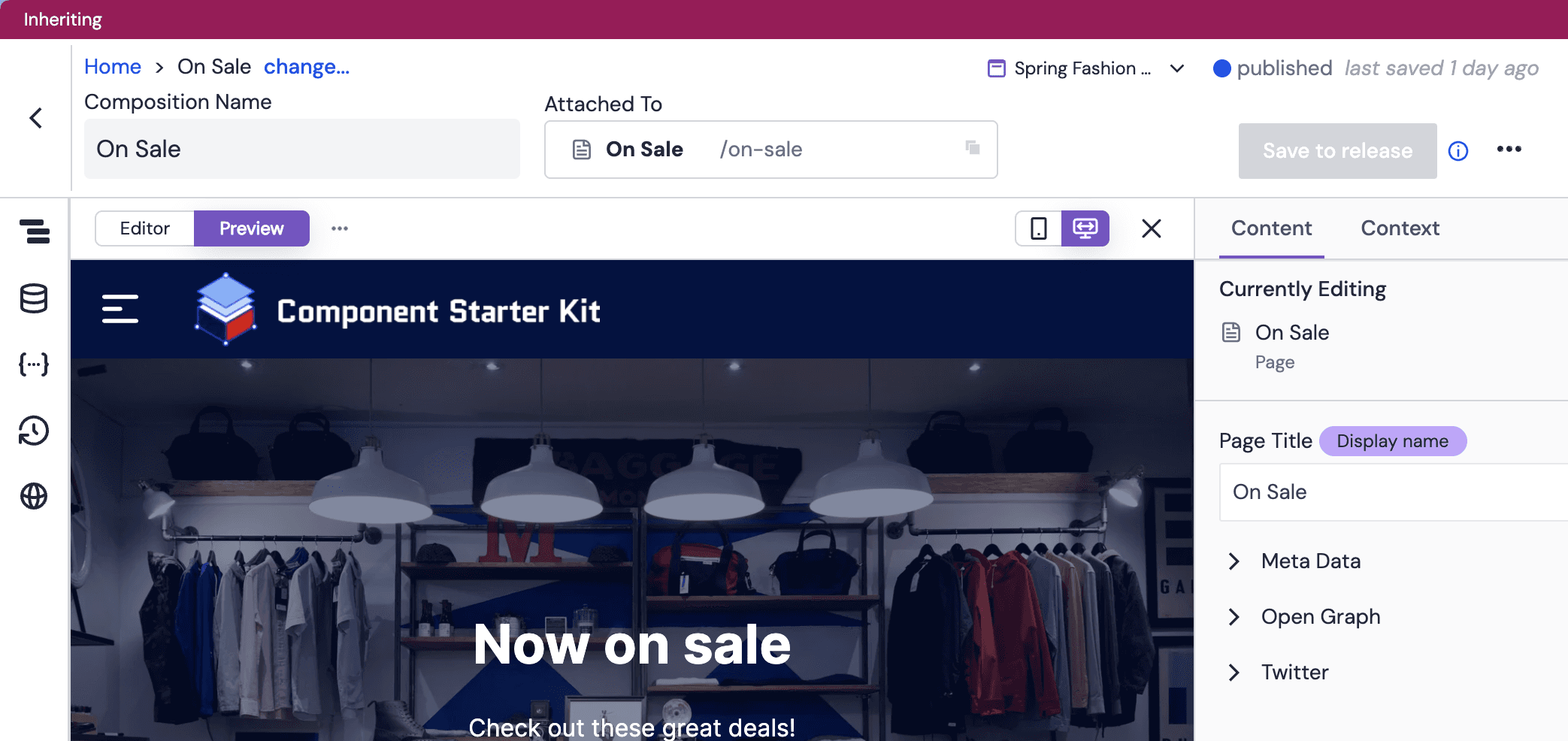
As you make edits to the content, you will see there is an option to "save to release" by clicking the button in the top-right corner. Clicking this button will create a copy of the composition with the changes you have made up to that point, and place that copy into the release.
After copying your content into the release, you will now see "In this release" in the raspberry release bar to inform you that the content is no longer being inherited from base, and is now a copy inside of the release.
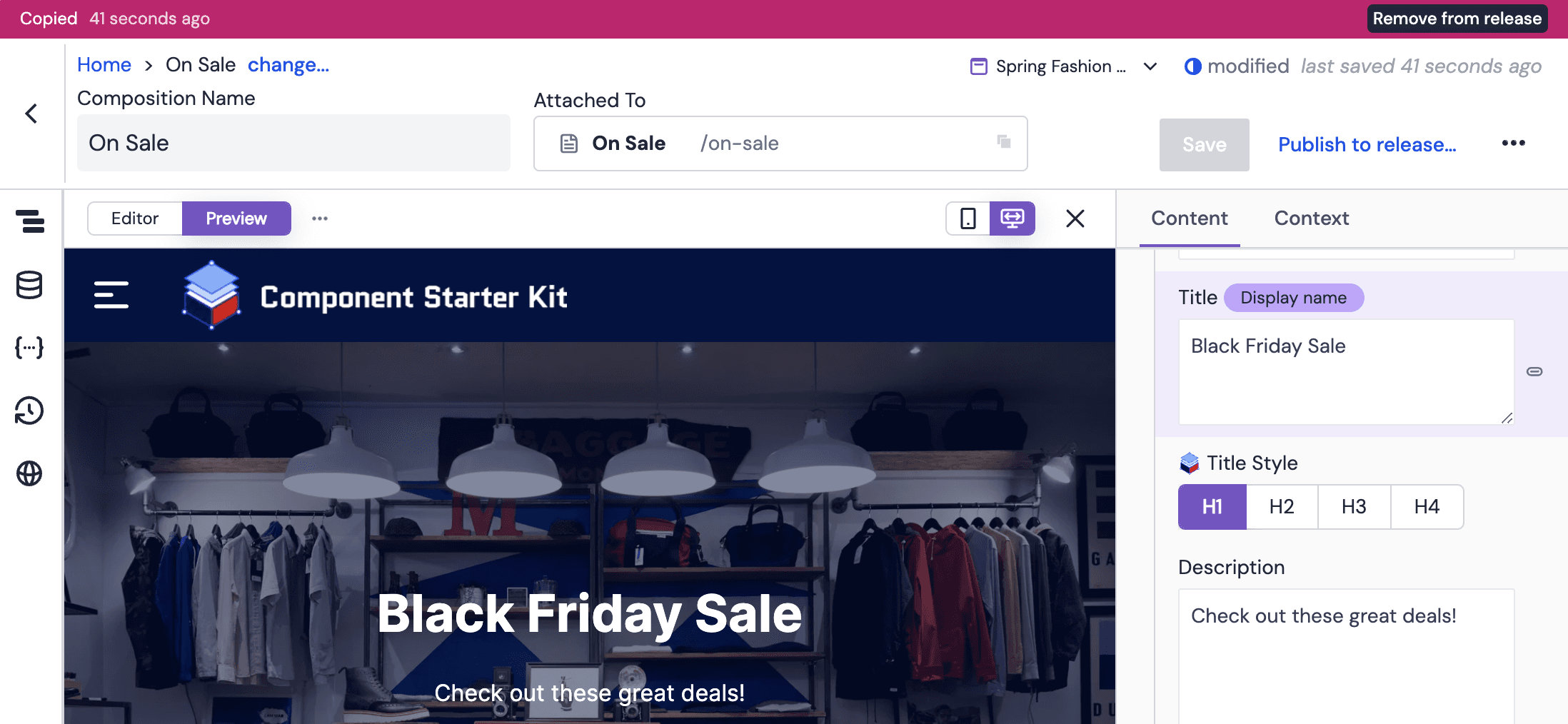
If you decide you no longer want the release-specific version of the content, use the "Remove from release" button on the release bar. This discards the release-specific changes and makes the content inherit from Base again. A confirmation dialog is shown before the copy is deleted.
Editing content that belongs to a release while Base is active
If you open a composition or entry that has copies in one or more open releases while Base is active (or while a different release is active), the release bar will display a warning labeled "In a release" with the note "Changes will not save to release versions". This indicates that any edits you make will be applied to the currently active target only and will not propagate to the other release copies. To edit the content inside a specific release, activate that release first via the release switcher or the Releases panel in the side rail.
Copy to another release from the editor
You can also copy the current composition or entry into a different release directly from the Releases panel in the side rail, without switching the active release. Open the ••• menu next to the target release and select "Copy into this release" – the copy will use the version of the content from the currently active release. The same menu also exposes an "Edit release" shortcut that opens the release details page in a new context. See Releases panel in the visual editor and Releases panel in the entry editor.
Creating new content in a release#
Releases also allow editors to create new content from within a release. With a release currently active, any new composition, entry or pattern will be created exclusively within the release – instead of in the base state. When the release is later launched, this content will be made available for the first time to base.
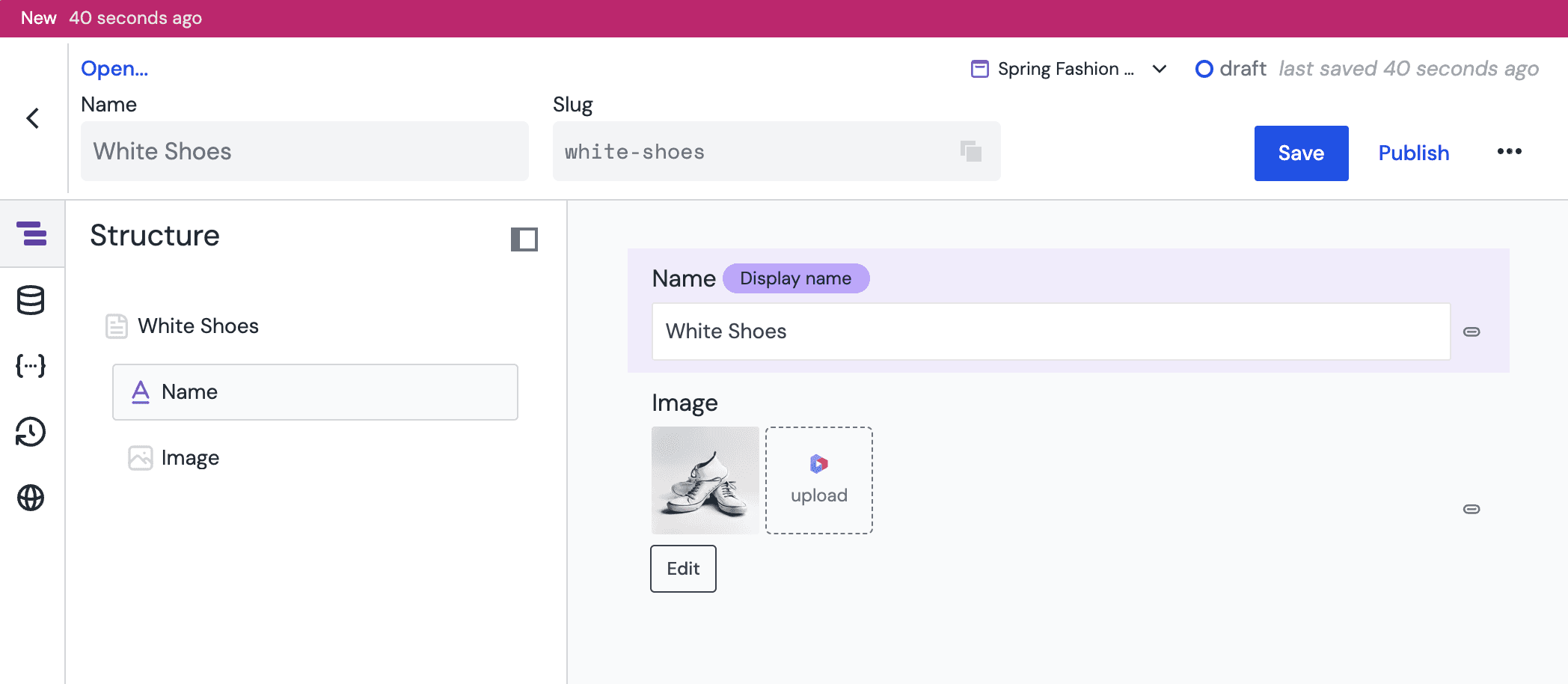
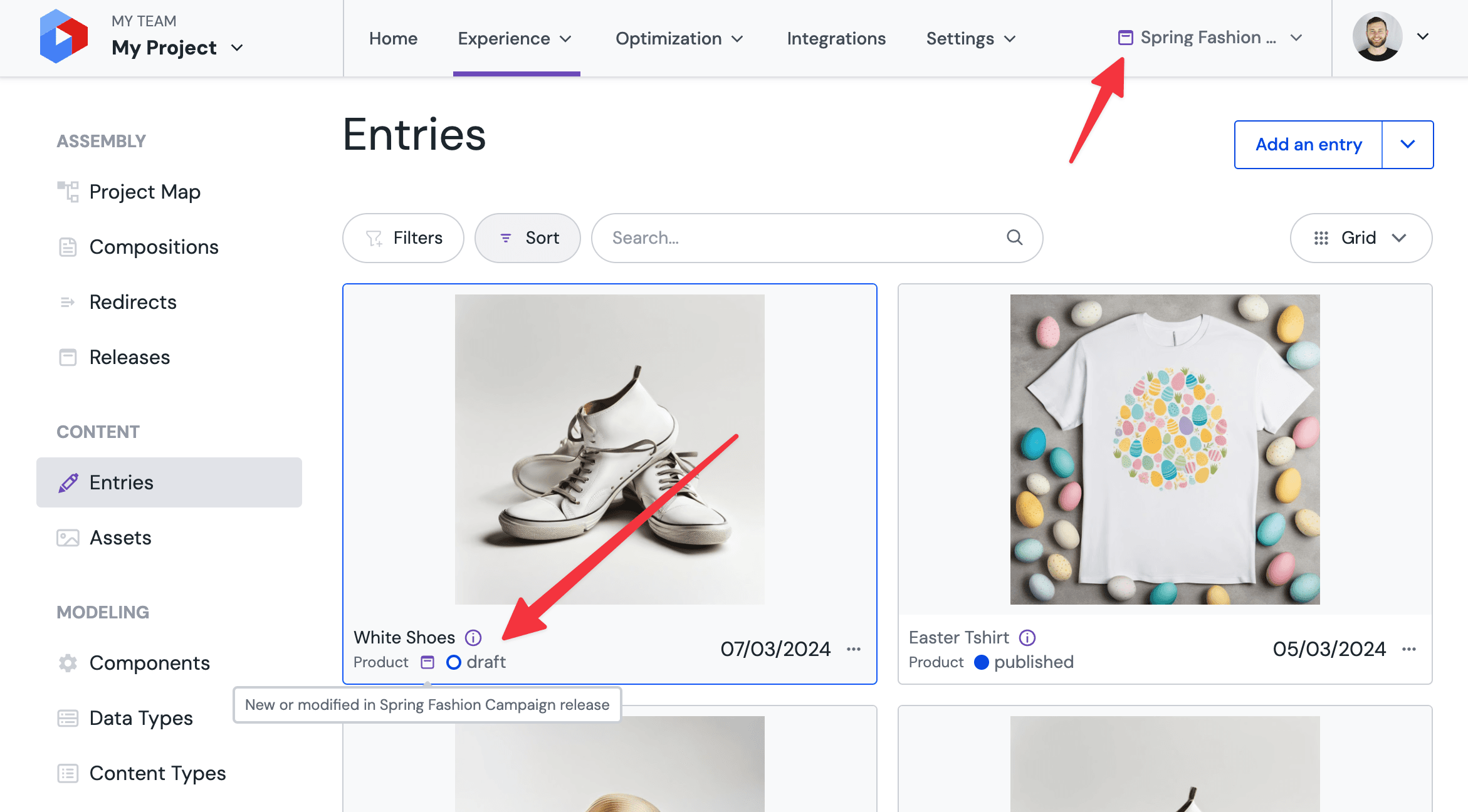
When content is created within a release, it will not be visible when navigating a project in base. You must ensure that the release which includes the content is active for that content to appear on lists and in search.
Publishing content in a release#
Content within releases preserve their publishing lifecycle in order to ensure all content is correctly validated before launch and to allow for publishing states to be controlled through releases (for example, when un-publishing content).
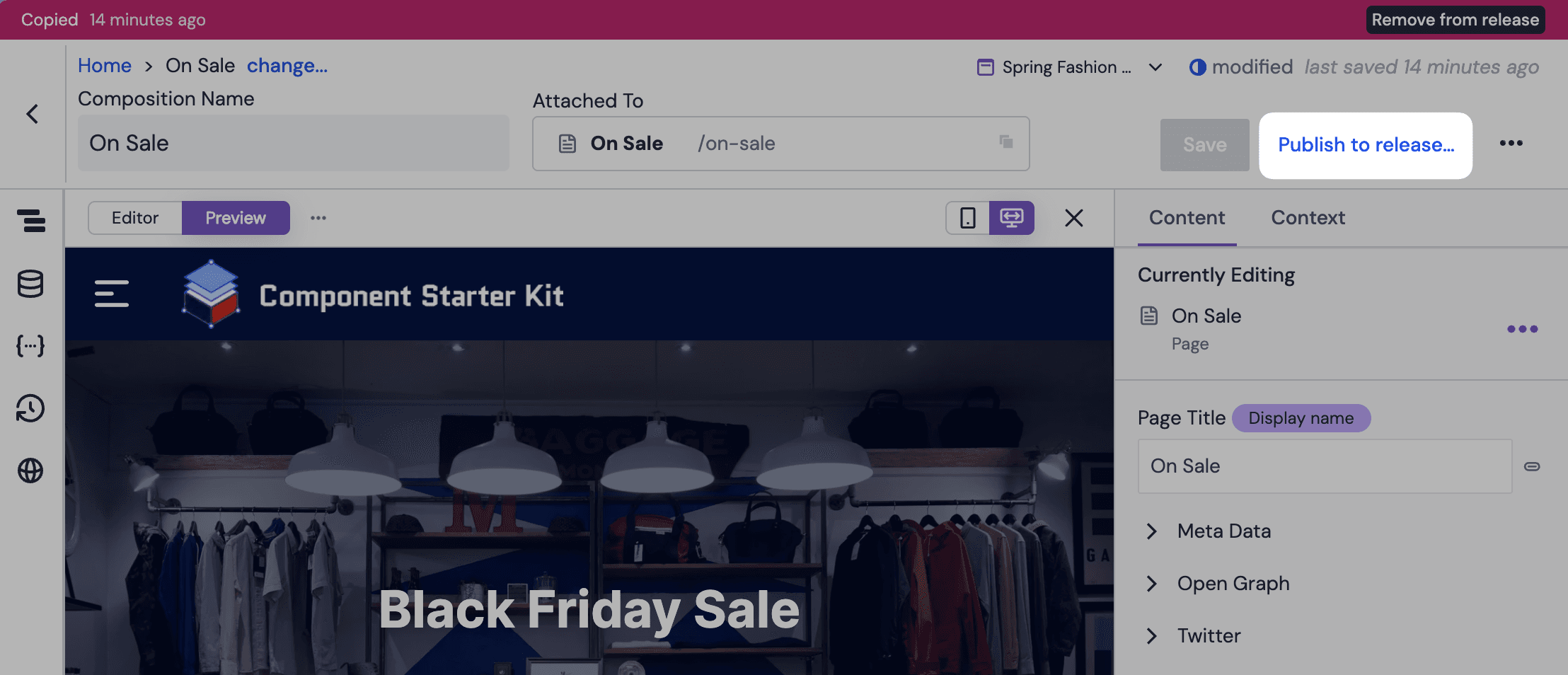
As such, in order for the release to launch content directly in an already published state, it is always important to "publish to release". This option is provided in the top-right corner of compositions, patterns and entries when a release is active:
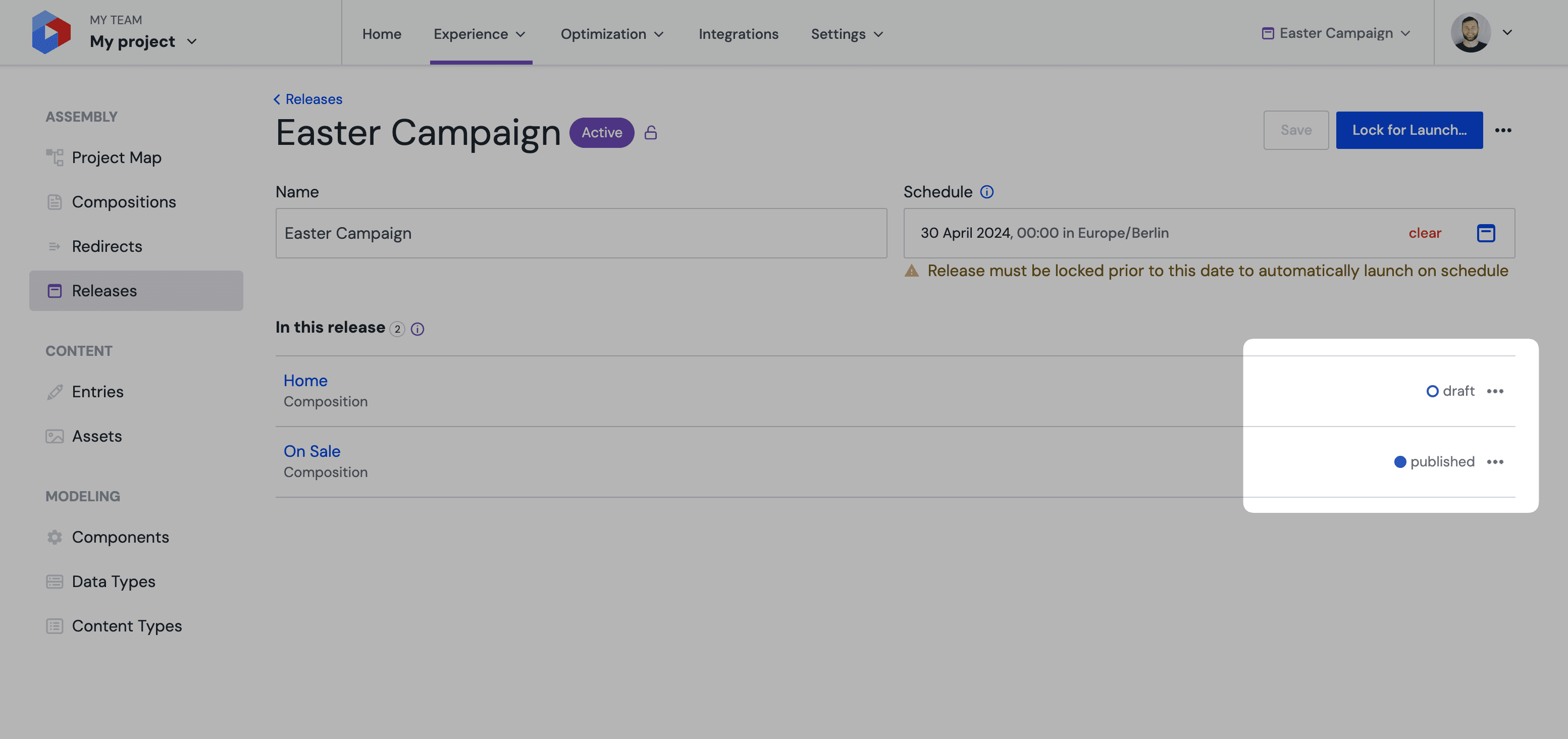
The publish state of content within a release can be checked at any time by opening the release details page and looking for the status indicator next to each piece of content:
Publishing to releases does not affect "base"
Publishing to a release will not immediately affect the published state of a composition in the base state. When the release is later launched, the published state within the release will become the new published state in base, if one exists.
Once your release content is ready, head to Launch a release to launch it manually or schedule it to launch automatically.