Custom views
A custom view is a named, reusable search on a content listing. Save the keyword search, filter conditions, and sort you're using, then reopen that working set from the listing sidebar instead of rebuilding it each time.
Custom views are for recurring query setups: audit lists, translation queues, "drafts of this type", and other sets you return to. They aren't bookmarks for individual items — that's favorites — and they aren't an automatic history of what you opened — that's My recents.
Views are scoped to one listing. An Entries view doesn't appear on Compositions, Assets, or any other listing.
Where custom views are available#
Custom views are available on:
- Entries
- Compositions
- Entry patterns
- Component patterns
- Composition patterns
- Assets (Uniform Asset Library)
They aren't available on content types, component definitions, or redirects, and they aren't offered in reference or asset parameter pickers.
Find custom views#
In the listing sidebar, views sit below All, My recents, Favorites, and Trash, wherever those exist.
- Before you save anything, a Views group offers a Create a view button. This group is hidden while your views are still loading.
- Once you have at least one personal view, that group becomes My Views.
- Once at least one shared view exists, a Shared Views group appears.

Empty groups are hidden, so you only ever see the groups that have something in them. Within each group, views are listed by name, A–Z. Long names truncate; hover a row for a tooltip that reads Personal: name or Shared: name.
Each row shows the view's icon. Views without a saved icon fall back to a stack icon when personal and a users-group icon when shared.
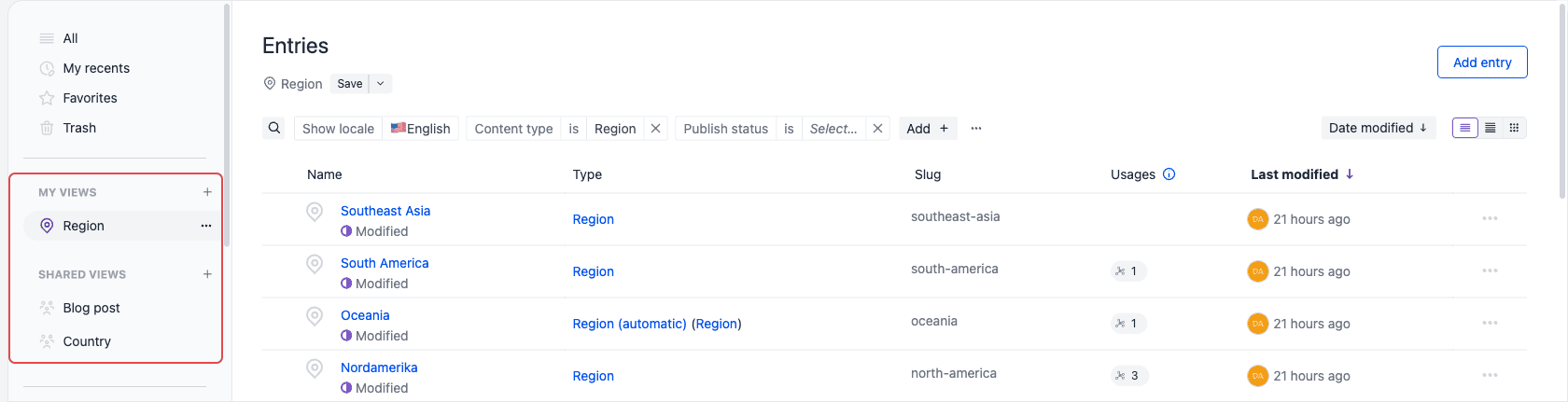
Selecting a view opens the listing with the saved search, filters, and sort applied. The view name appears under the page title, and the listing URL gains a viewId parameter, so you can bookmark or share the link.
To leave a view, select All — or My recents, Favorites, Trash, or a sidebar type filter. That returns you to the listing with no saved view applied.
What a view saves#
A view stores:
- The keyword search term
- The filter conditions on the bar
- The sort field and direction
- Its name and icon, and whether it's personal or shared
A view doesn't store the settings below. Where one is listed as cleared, opening the view resets it; where it's listed as kept, opening the view leaves it alone.
| Setting | What happens when you open a view |
|---|---|
| Locale | Kept as it is. The locale selector is independent of views. |
| List, large list, or grid layout | Kept as it is. Layout is remembered per project and listing in the browser you're using, separately from views. |
| Page of results | Cleared. Opening a view always starts at page one. |
| The sidebar type quick-filter | Cleared. |
| The sidebar publish status filter | Cleared. |
| View all editions | Cleared. See search and filter editions. |
| Semantic (AI) search | Cleared. Only keyword search is stored on a view. |
Create a view#
Anyone who's a member of the project can create a view. If you can open the listing, you can save a personal or a shared view from it.
From the filter bar#
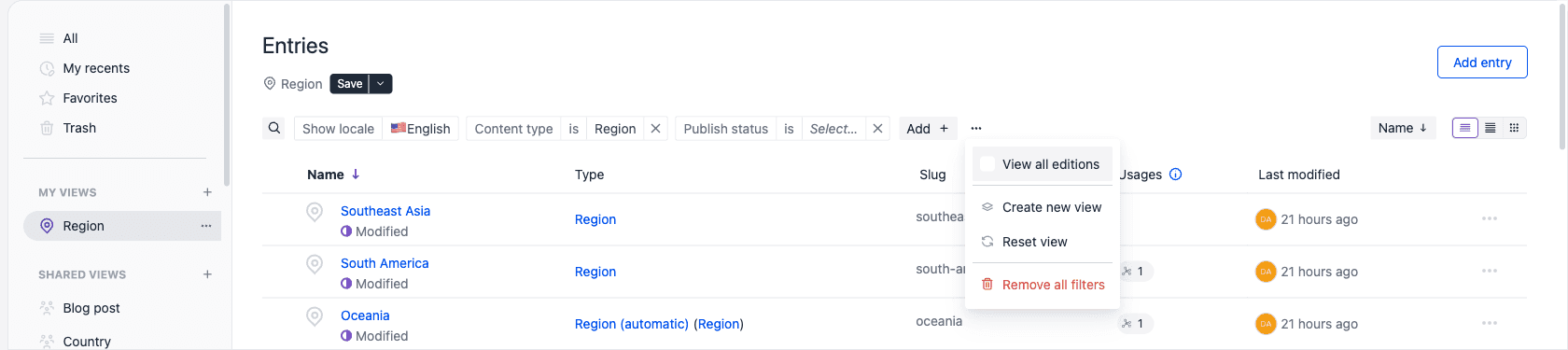
Open the More menu () on the search and filter bar and choose Create new view. The dialog opens with the conditions currently on the bar, your keyword search, and the listing's current sort.
The More menu is present whenever at least one condition is on the bar, and that includes the empty defaults a listing starts with — so you don't have to build a filter before you can save a view this way. The menu disappears only if you remove every condition.
From the sidebar#
With no views yet, use Create a view. Once views exist, use the add control () on the My Views or Shared Views heading — its tooltip reads Add new view.
Creating from the sidebar saves whatever the listing currently shows, including an empty query with no filters and the default sort. The sidebar controls stay available even when you've cleared every condition off the bar and the More menu is gone.
Name the view#
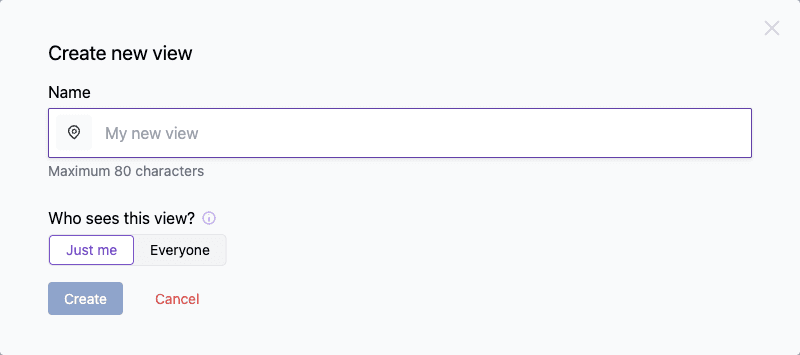
Name is required and limited to 80 characters. The placeholder is My new view. Duplicate names are allowed, so pick something you'll recognize in a sidebar list.
Choose an icon#
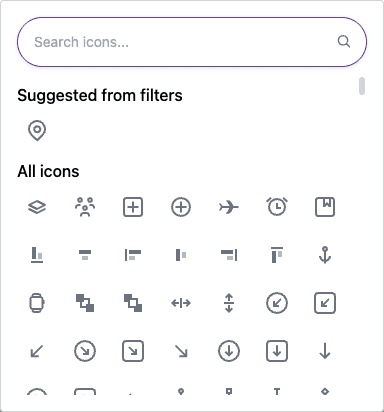
Select the icon to the left of the name field to pick the glyph that represents the view in the sidebar.
Uniform preselects a sensible default: shared views start on the users-group icon, and a personal view whose filters narrow to exactly one content, composition, or component type starts on that type's icon. Everything else starts on the stack icon. When the query filters on one or more types, those type icons are offered at the top of the picker under Suggested from filters.
Decide who can see it#
Who sees this view? has two options:
- Just me creates a personal view under My Views.
- Everyone creates a shared view under Shared Views, visible to everyone who can open that listing.
Which one is preselected depends on where you started. Creating from the Shared Views heading defaults to Everyone; the filter bar, the empty-state button, the My Views heading, and Save as new view all default to Just me.
note
You can promote a personal view to a shared one later by editing it, but you can't go the other way. To turn a shared view back into a personal one, use Save as new view to make a personal copy, then delete the shared original if you no longer need it.
View limit#
You can save up to 100 views per listing type, per project, per user. Personal and shared views you created both count toward that total.
If you reach the limit, the create dialog reports:
You've reached the limit of 100 saved views for this project + resource type + user. Delete a view to create another.
Delete a view to make room for a new one.
Open and update a view#
Select the view in the sidebar. The listing restores the saved search, filters, and sort, and the page subhead shows the view's icon, its name, and a Save control.
If you change the search, filters, or sort while the view is open, Save becomes emphasized to signal unsaved changes. Selecting Save writes the current query onto the view. Reordering filters doesn't count as a change — only the effective query matters.

attention
Leaving the view, switching to another view, or navigating away discards unsaved query changes. Uniform doesn't warn you before this happens, so save before you move on if you want to keep the changes.
Reset view#
Reset view re-applies the view's saved query, discarding whatever you've changed since you opened it. It's available in the Save menu on the page, in the more menu on the active view's sidebar row, and in the filter bar's More menu while a view is open.

Don't confuse this with Remove all filters in the filter bar's More menu. That clears the conditions and restores the listing's empty defaults; it doesn't return you to the saved view.
Save as a new view#
Save as new view copies a query into a new view under a new name, leaving the original untouched. It's in the Save menu on the page and in the more menu on any sidebar row. Which query it copies depends on where you start it:
- From the Save menu, it copies the query the listing currently shows, including any changes you haven't saved yet.
- From a sidebar row, it copies that view's saved query. Unsaved changes to the open view aren't carried over, and you can copy a view you don't currently have open.
The create dialog opens with that query and the new view starts on the original's icon. The scope always defaults to Just me — including when you start from a shared view, so teammates don't accidentally create extra shared copies.
Edit a view#
Edit is in the Save menu on the page and in the more menu on a sidebar row, for views you have permission to change. It opens the Edit view dialog, where you can:
- Rename the view.
- Change its icon.
- Promote a personal view to Everyone.
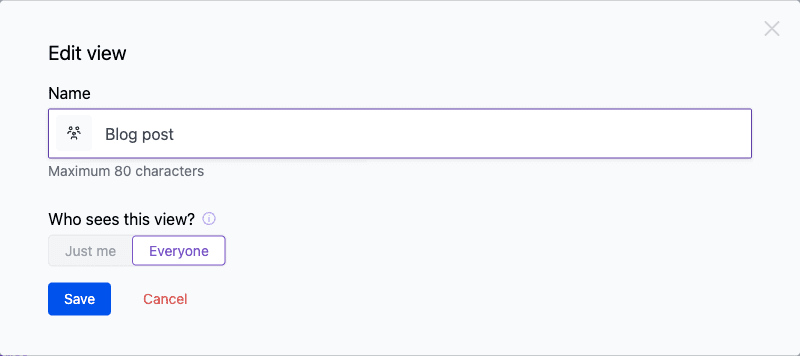
Editing changes only these properties. The saved search, filters, and sort are left as they are — use Save to update the query.
When you edit a shared view, Just me is unavailable. Shared views can't be made personal.
Delete a view#
Delete is in the Save menu on the page and in the more menu on a sidebar row, for views you have permission to change. Uniform asks you to confirm with Delete this view? and the message Delete saved view name? This cannot be undone.
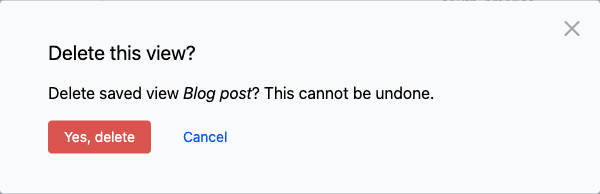
Choose Yes, delete to remove the view, or Cancel to keep it. Views are deleted one at a time; there's no bulk delete. Deleting the view you currently have open returns you to the listing with no view applied.
Personal and shared views#
| Scope | Who sees it | Who can change it |
|---|---|---|
| Just me (personal) | Only you, under My Views. | Only you. |
| Everyone (shared) | Everyone who can open that listing, under Shared Views. | The creator, or a Team Admin. |
Members who can't change a shared view can still open it and use Save as new view to keep their own copy. They can't update or delete the shared original.
If the person who created a view leaves the team, a personal view can no longer be updated or deleted by anyone. A shared view stays manageable by any Team Admin.
When you don't have permission to update the active view, Save is unavailable and its tooltip reads You don't have permission to update this view. Save as new view and Reset view stay available.
Permissions#
Custom views don't add a separate permission. Access follows the listing they belong to:
- See and open a view — read access to that listing. Personal views are visible only to the person who created them.
- Create a personal or shared view — project membership.
- Update or delete a personal view — the creator.
- Update or delete a shared view — the creator, or a Team Admin.
What custom views do not do#
- Bookmark a specific entry, composition, or asset. Use favorites.
- Remember items you recently opened. Use My recents.
- Save locale, list or grid layout, pagination, the sidebar type and status filters, View all editions, or AI search.
- Convert a shared view back to a personal one without creating a new view.
- Apply one view across more than one listing type.
- Change which columns appear in the list.
- Warn you before discarding unsaved query changes.
Related#
Favorites
Bookmark individual items instead of a query.
My recents
Return to the items you've most recently opened or edited.
Search, filter, and sort
Build the query that a view saves.
Trash
Restore deleted entries, compositions, patterns, and assets.