Favorites
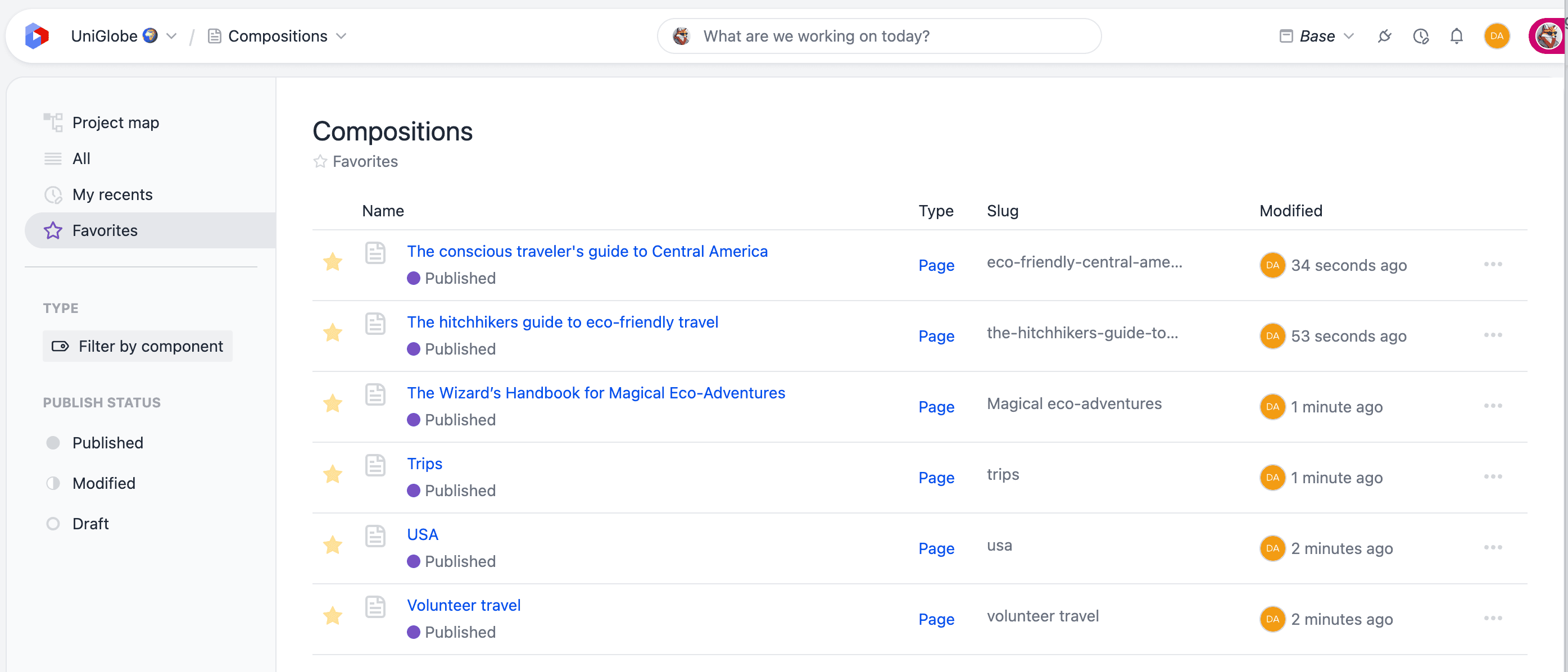
Favorites are personal bookmarks for the items you work with most. Select the star on an item to add it to your favorites, and it becomes available in a dedicated Favorites view wherever that item is listed or selected.
Favorites are per user and per project: the items you favorite are yours alone and don't change what your teammates see.
What you can favorite#
You can favorite nine entity types, grouped below as they appear in the Experience menu of the main navigation:
| Menu group | Entity types |
|---|---|
| Assembly | Compositions, composition patterns, and component patterns |
| Content | Entries, entry patterns, and assets |
| Modeling | Components, content types, and block types |
Add or remove a favorite#
Every place an item appears with a star, you can toggle its favorite state:
- Add to favorites: select the star so it becomes filled.
- Remove from favorites: select a filled star to clear it.
An item is either a favorite or it isn't — favoriting the same item from different places doesn't create duplicates.
note
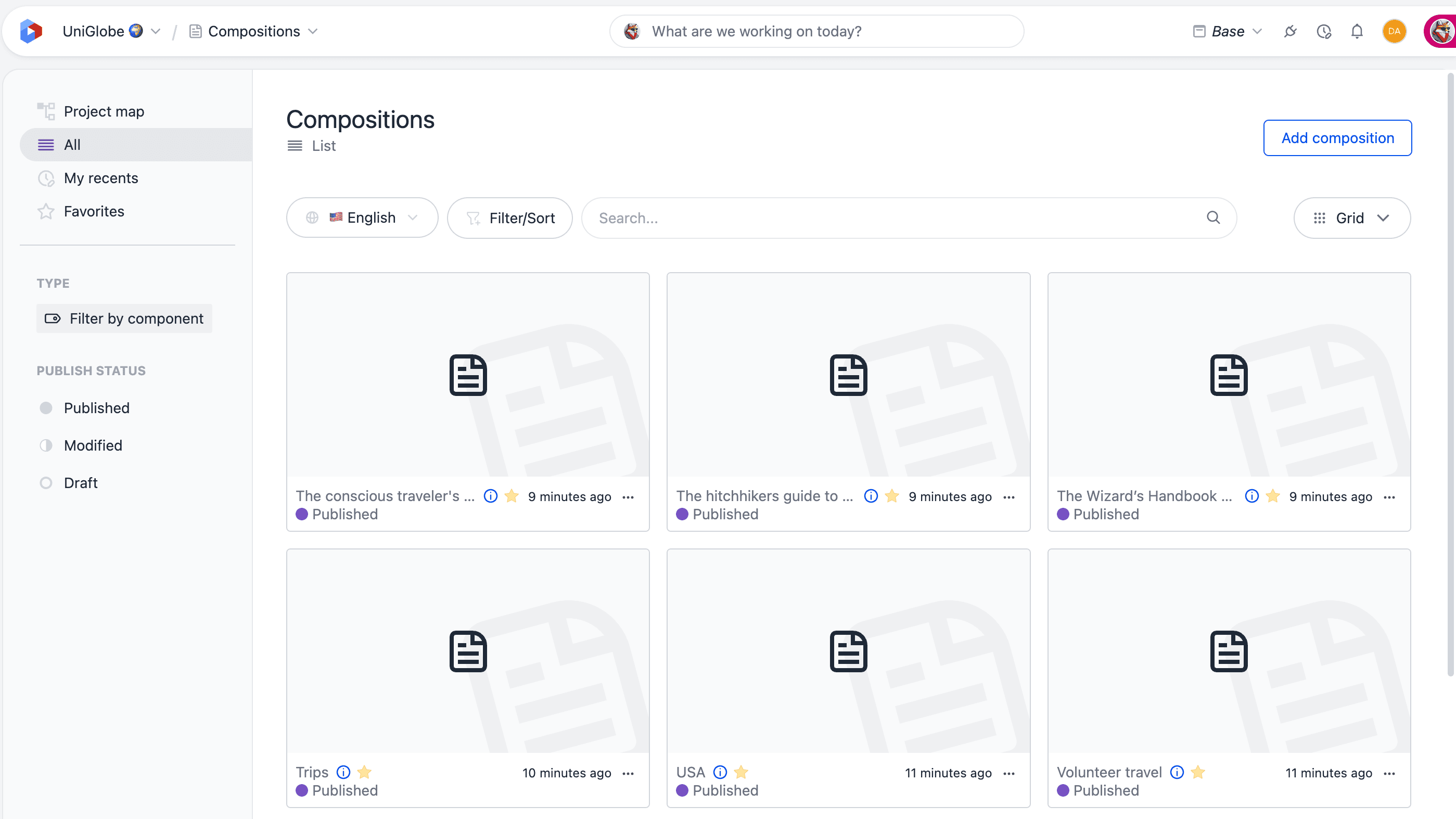
In listings, the star for an item that isn't favorited appears when you hover over its row or card. Once an item is favorited, its star stays visible so you can spot your favorites at a glance.
From a listing#
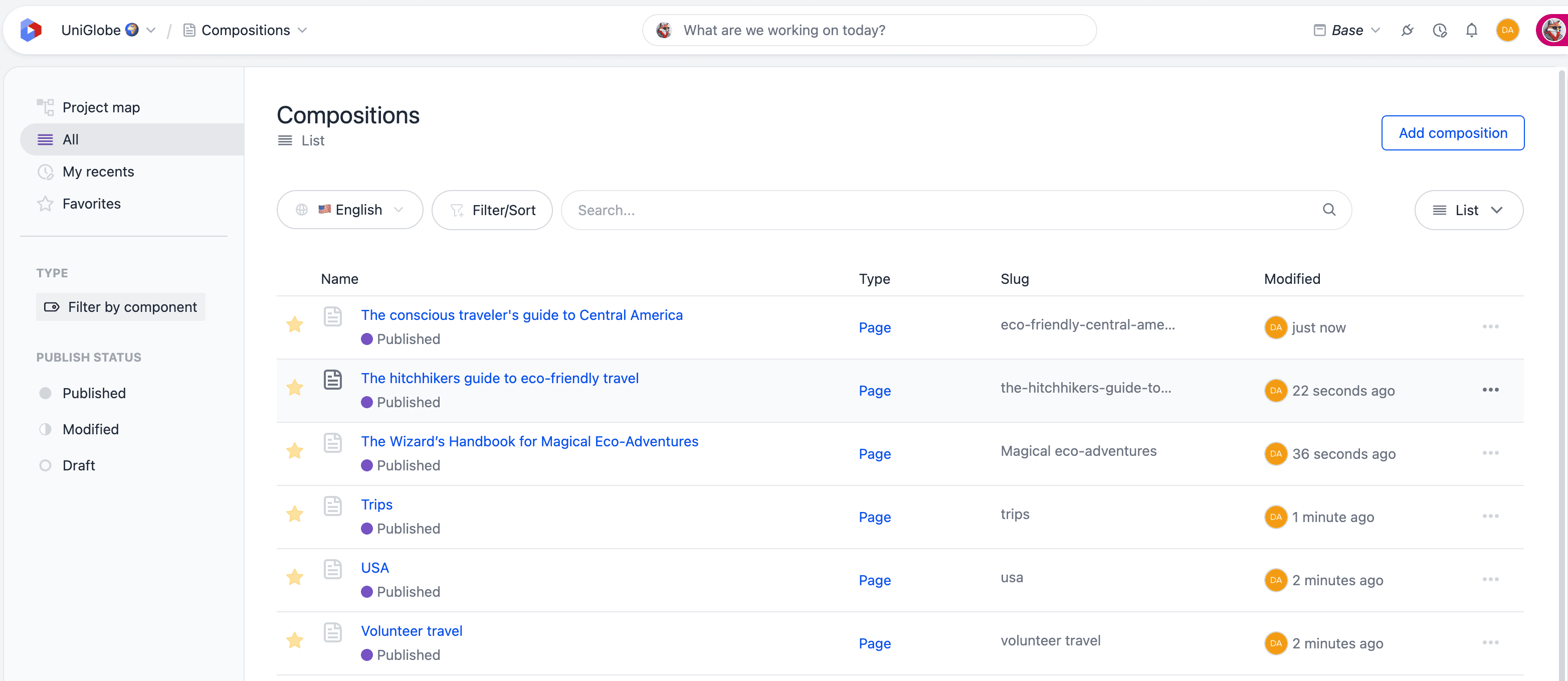
Each content listing (Compositions, Entries, Assets, Components, Content types, Entry patterns, Component patterns, and Composition patterns) shows a star on every row or card. Use it to favorite or unfavorite an item without opening it.
From an editor#
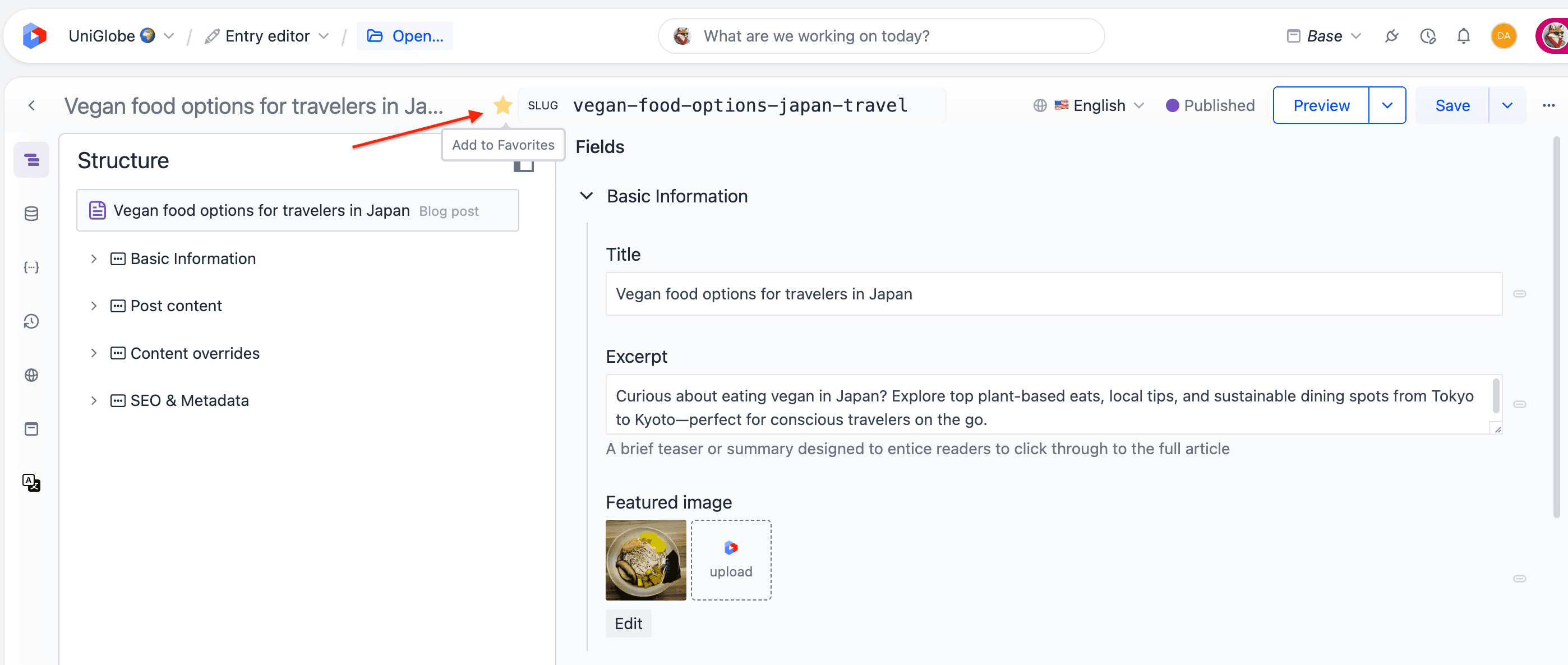
When you open a composition, entry, asset, component, content type, block type, or pattern, its editor header shows a star next to the item name. This lets you favorite the item you're currently working on.
Where your favorites appear#
The Favorites view in a listing#
Every content listing has a Favorites item in its sidebar. Selecting it filters the listing to only the items of that type you've favorited.
Because block types are managed alongside content types, your favorite content types and block types both appear in the Favorites view of the Content types listing.
Favorites in the asset library
The Favorites view is available for the Uniform Asset Library. Assets exposed through DAM integrations aren't tracked as Uniform favorites.
When selecting content#
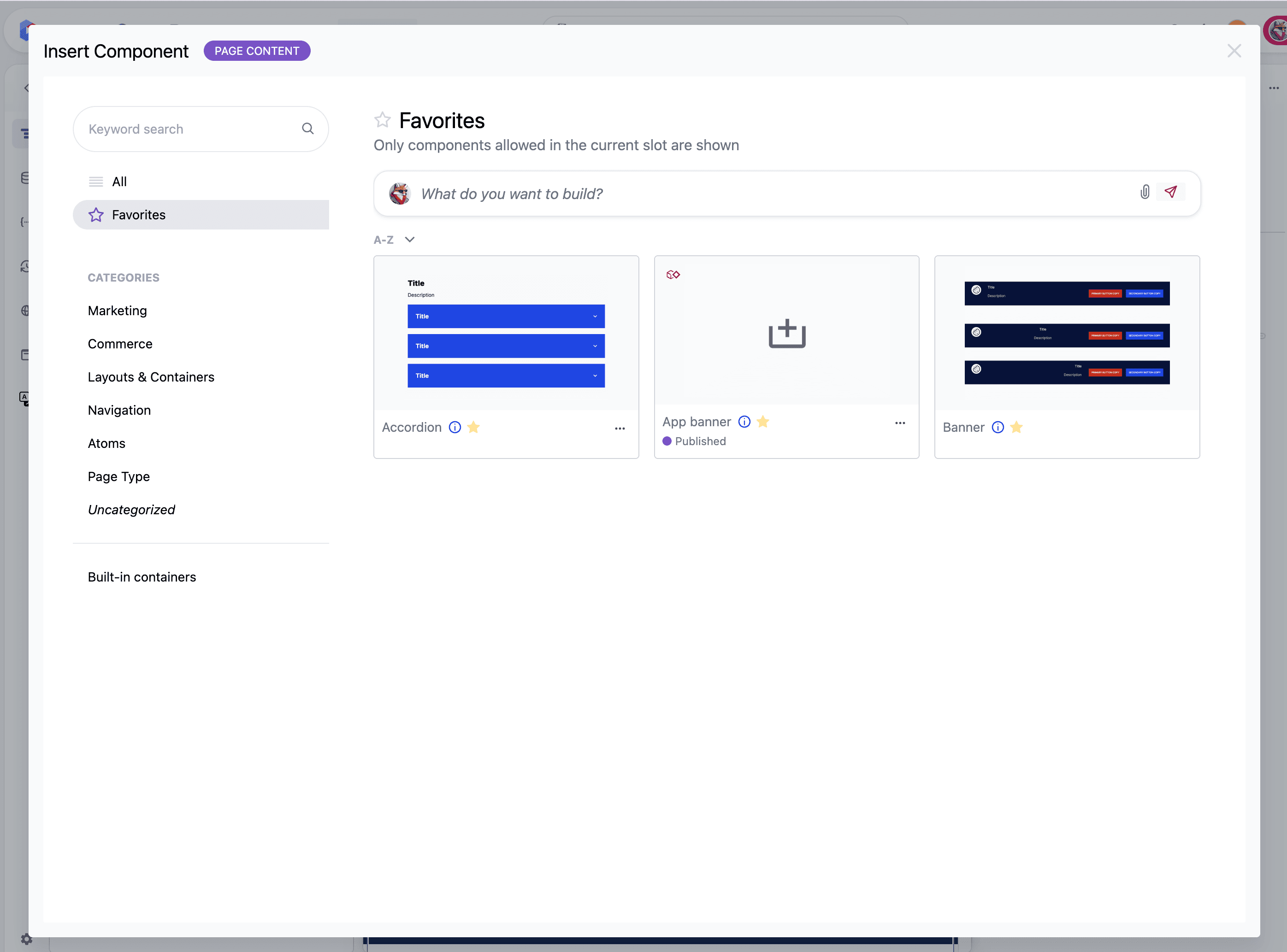
Favorites also help you move faster when you're choosing an item, not just browsing one. A Favorites view is available in the selection experiences where these entity types are picked, including:
- The asset parameter picker, when selecting an asset.
- The type selector when creating an entry (content types and entry patterns) or creating a composition (composition types and composition patterns).
- The component inserter when adding a component or component pattern to a slot in the visual editor.
- The picker for reference fields and the switchers used to open another entry or composition.
Favoriting the types and patterns you reach for most keeps them one click away in these flows.
On the project dashboard#
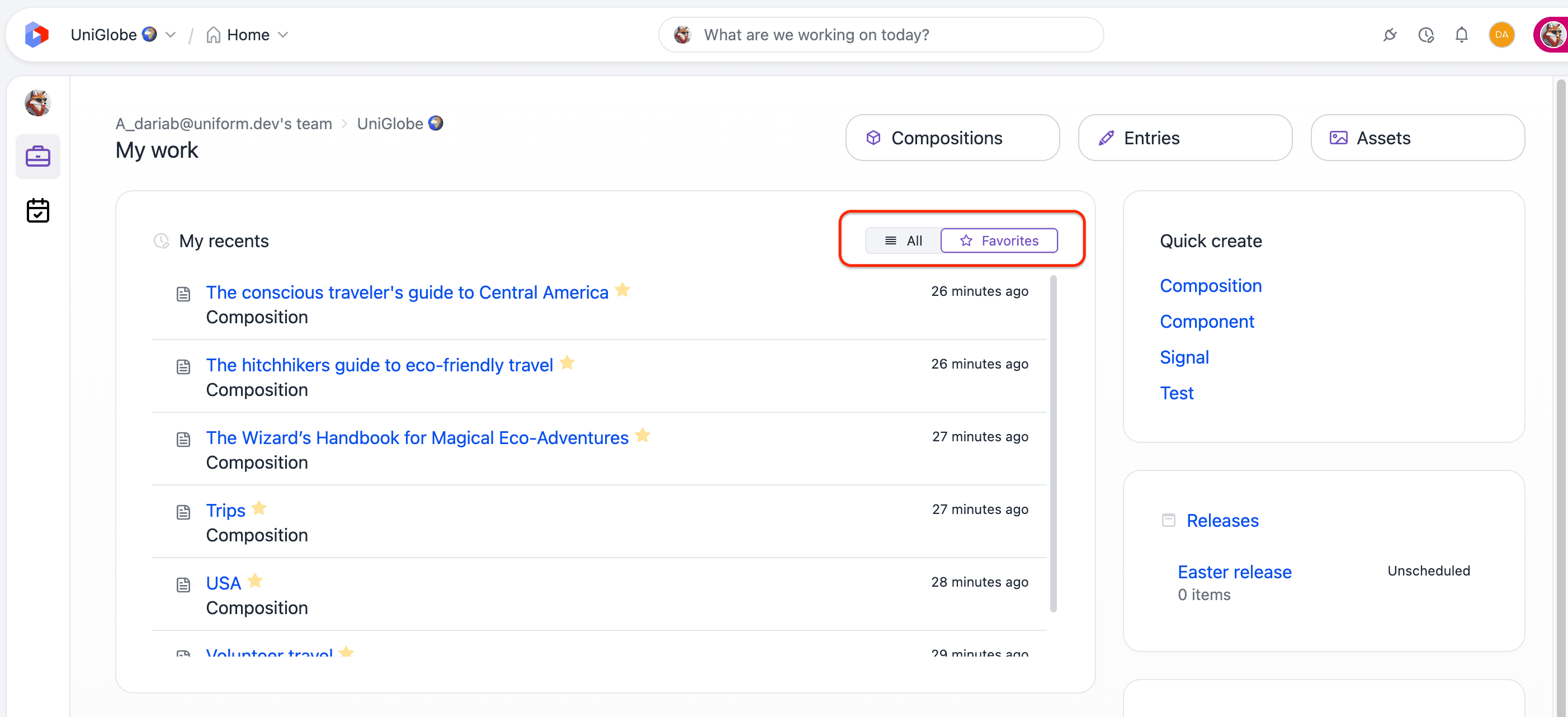
The My recents card on the project dashboard includes an All / Favorites toggle. Switch it to Favorites to filter the card to the items you've favorited, connecting your favorites with your most recent work.
Favorites limit#
You can have up to 100 favorites per project. This limit is shared across all entity types — compositions, entries, assets, and everything else count toward the same total.
If you reach the limit, remove an existing favorite before adding a new one.
Deleted items#
Favorites point to specific items. If an item you favorited is later deleted, it's no longer shown in your Favorites views and is removed from selection experiences automatically. Restoring the item from Trash doesn't add it back to your favorites.
Related#
- My recents — return to the items you've most recently opened or edited.
- Search, filter, and sort — narrow a listing when you need to find something specific.
- Custom views — save a query rather than a set of items. Favorites bookmark the items you pick; a view saves the search that finds them, so its results change as your content does.
- Trash — restore deleted entries, compositions, patterns, and assets.